Customize your Desks and Zones
Last updated: June 9, 2026
How to define areas, tag, name and disable desks.
This article will guide you through the customization process for your office. If you haven't set up your basic Floor Plan yet, please go to this article and follow the steps.
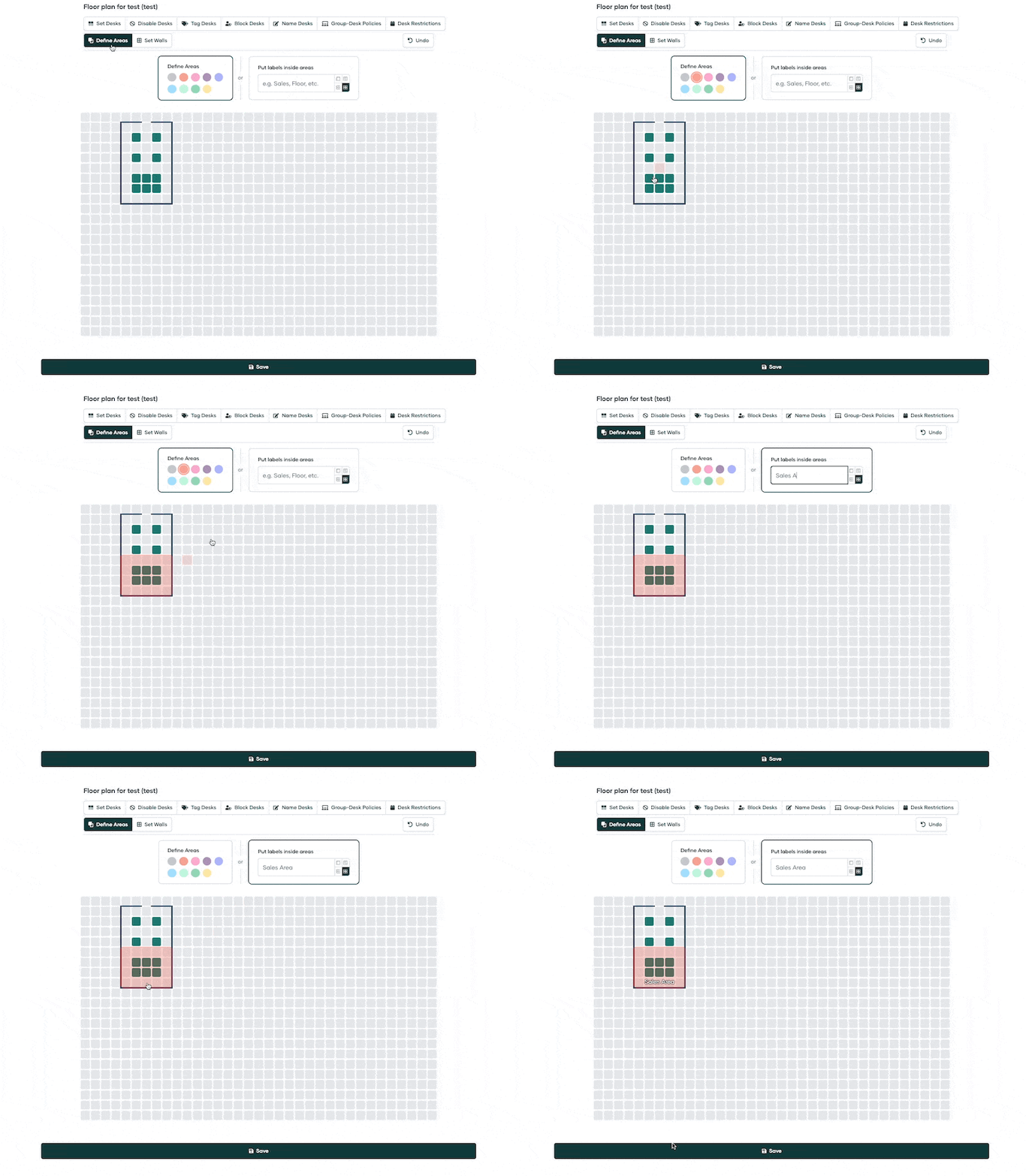
Define Areas
This feature lets you create specific areas within your floor plan. Areas can be defined for different teams, different functions, or based on any other categorization that suits your organizational needs.
For example, you could define areas for the 'Marketing Team,' 'Quiet Zone,' 'Collaboration Area,' etc. Text or emojis from the internet can also be added to the floor plan, for example to mark fire extinguishers or improve office navigation.
Tag Desks
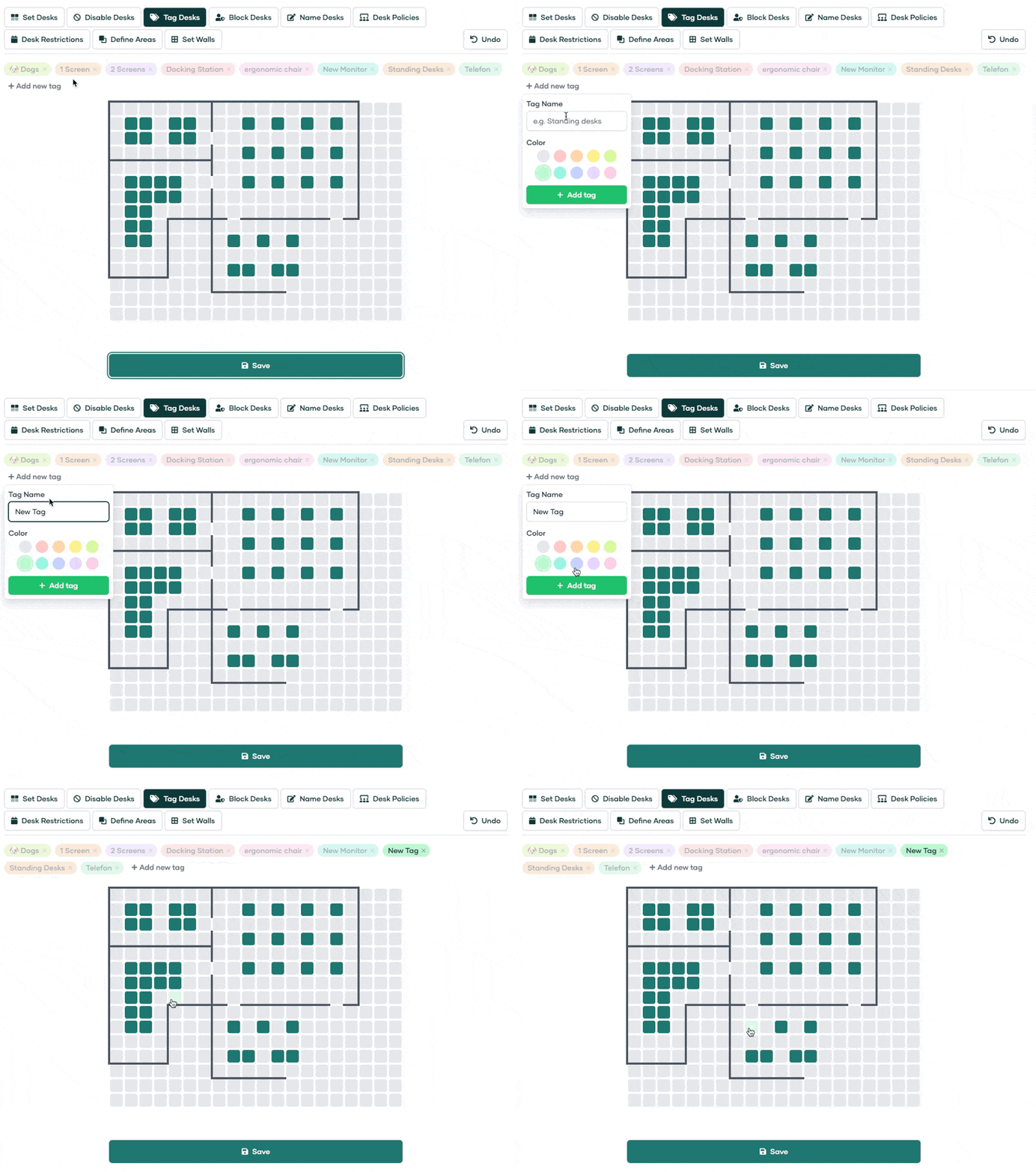
The 'Tag Desks' feature helps you to categorize and identify desks more easily.
You might tag desks based on their location, size, equipment, or any other characteristic relevant to your organization.
To tag a desk, select it and create the desired tags in the 'Add New Tag' field. After creating a tag, just click on it and select any desk that needs this tag.
Name Desks
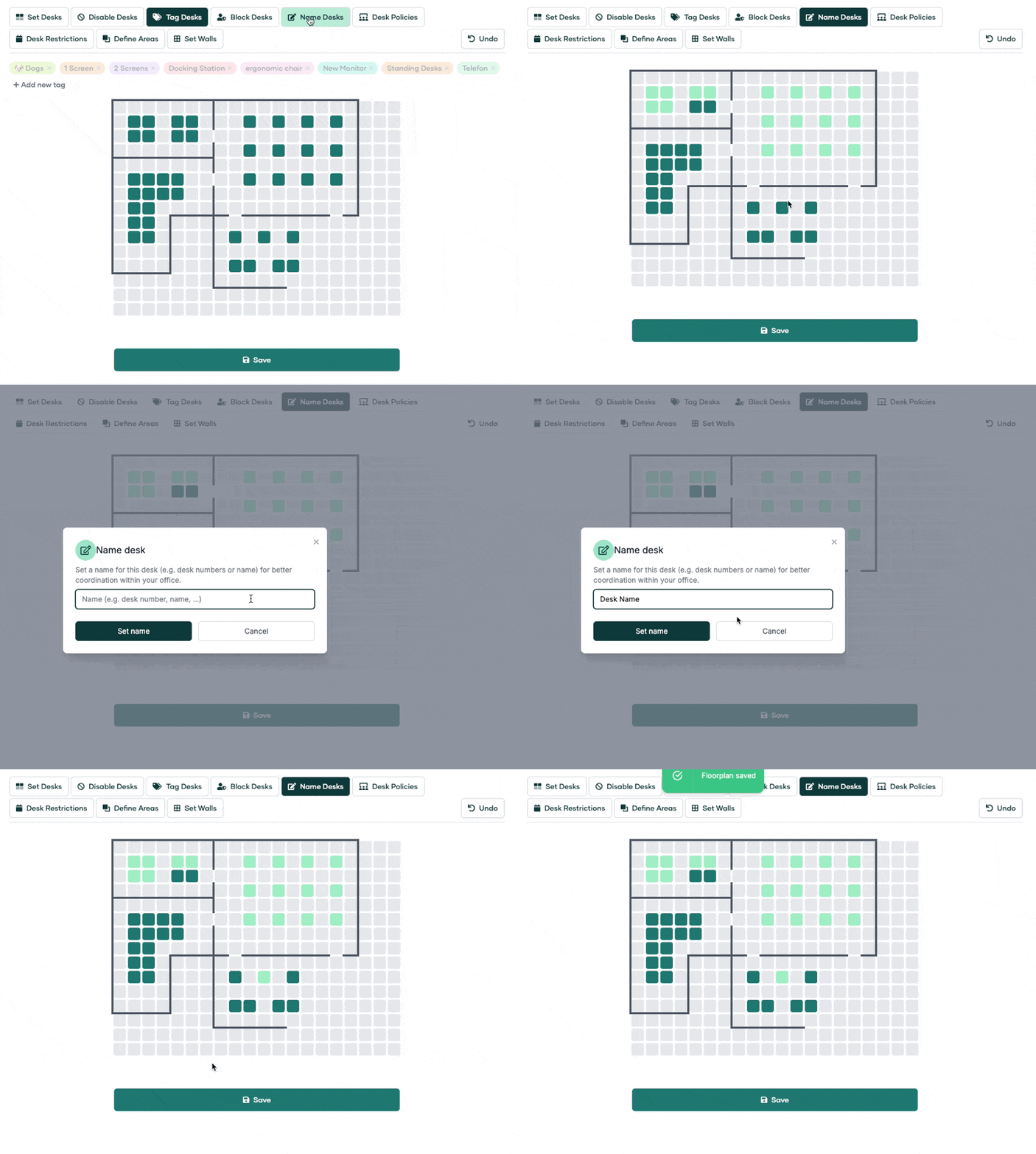
Naming your desks can be a fun and efficient way to identify them.
You could name them by their:
location,
their purpose,
a number
or even with something creative.
Disable Desks
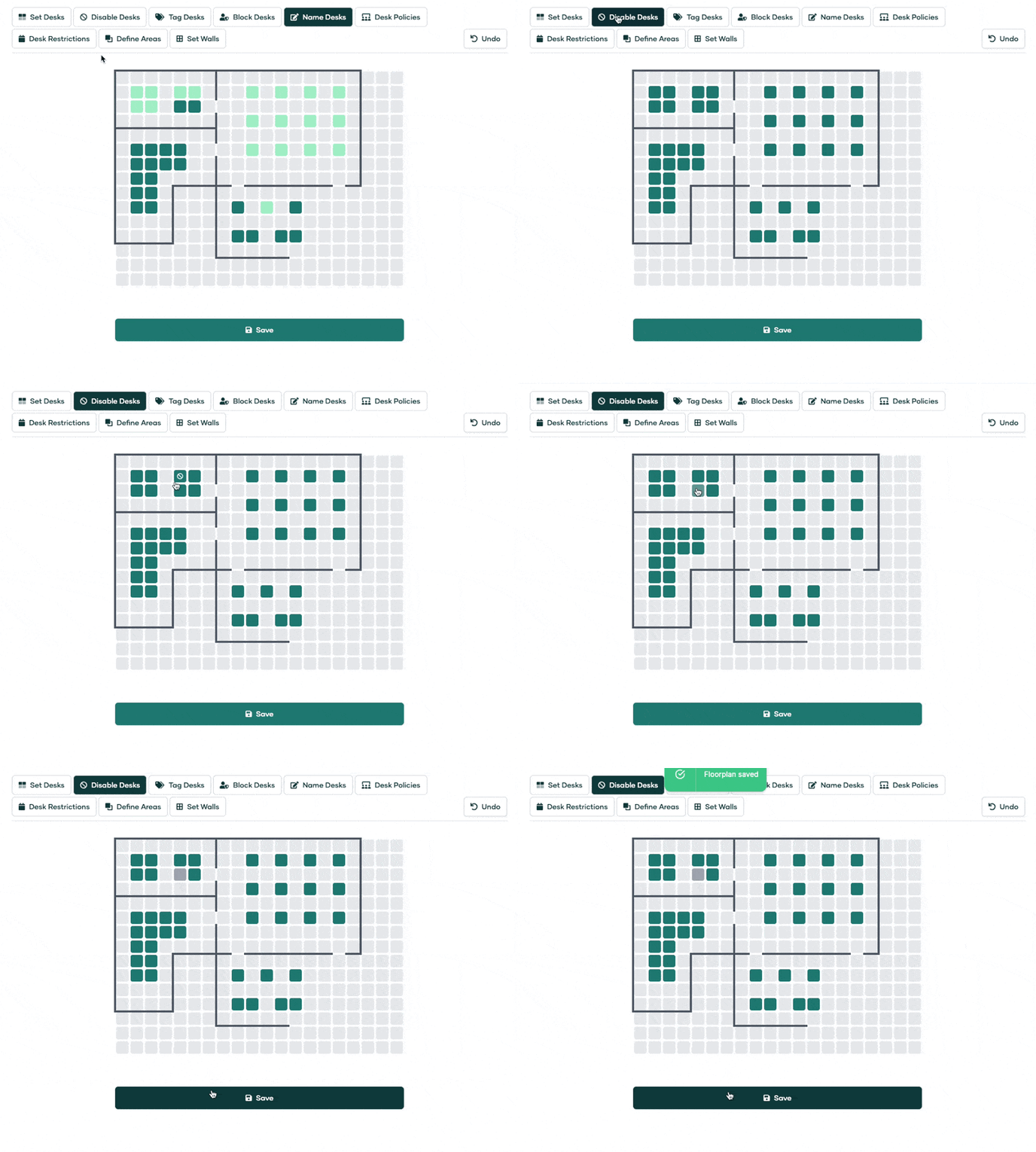
If you have a desk that is temporarily not in use or under maintenance, you can disable it. To do this, click on the 'Disable Desks' button and select the desks you want to disable. A disabled desk will not be available for booking or use until you enable it again.
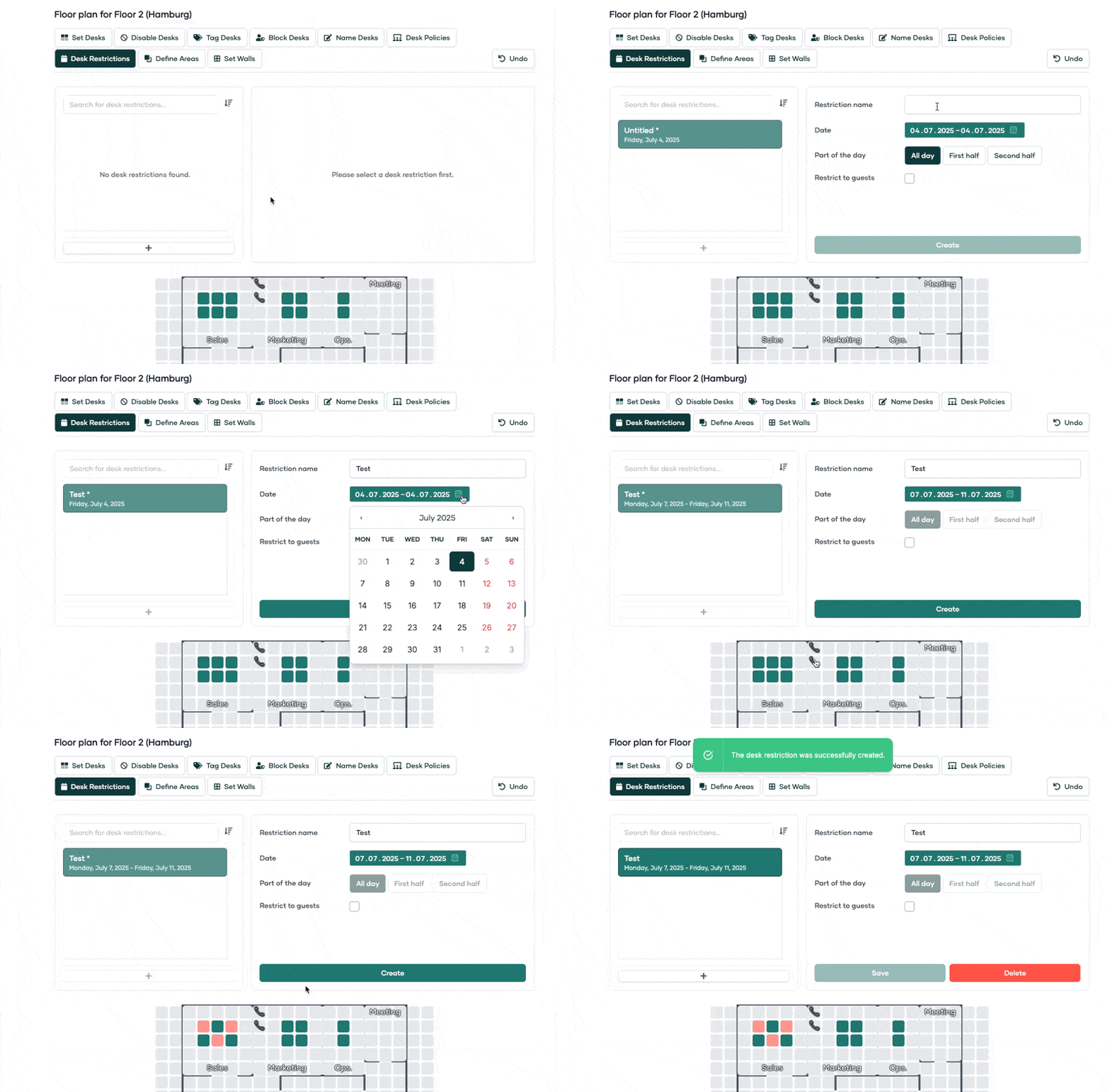
Restrict Desks
If you have desks that won't be available for a certain period of time, you can restrict those to make them temporarily unbookable. Use the "Desk Restriction" function to select specific desks and set the dates during which they should be blocked. This is useful when you need to reserve desks for team visits or events without manually booking each desk as a guest/visitor.
You can also use desk restrictions to control when desks become bookable – for example, to make certain desks available for booking later than others by restricting them until a specific future date.
Note: Restricting a desk does not automatically cancel existing bookings made before the restriction was applied. You will need to manually delete any pre-existing bookings for the restriction to take effect on those dates.
Limitation: Desk restrictions only support continuous date ranges. If you need to block desks for non‑continuous days (e.g., only Mondays and Wednesdays over several months), you must create separate restriction blocks for each continuous period.
Please continue to this Article, to assign desks to users, groups and create policies.