How to setup HiBob x PULT
Last updated: February 25, 2026
This article will guide you through setting up the HiBob integration with your PULT account
Note: We use the services of Kombo to facilitate the integration. https://dash.pult.com/organization/integrations/kombo
1.Create a Service User in HiBob
Log in to HiBob
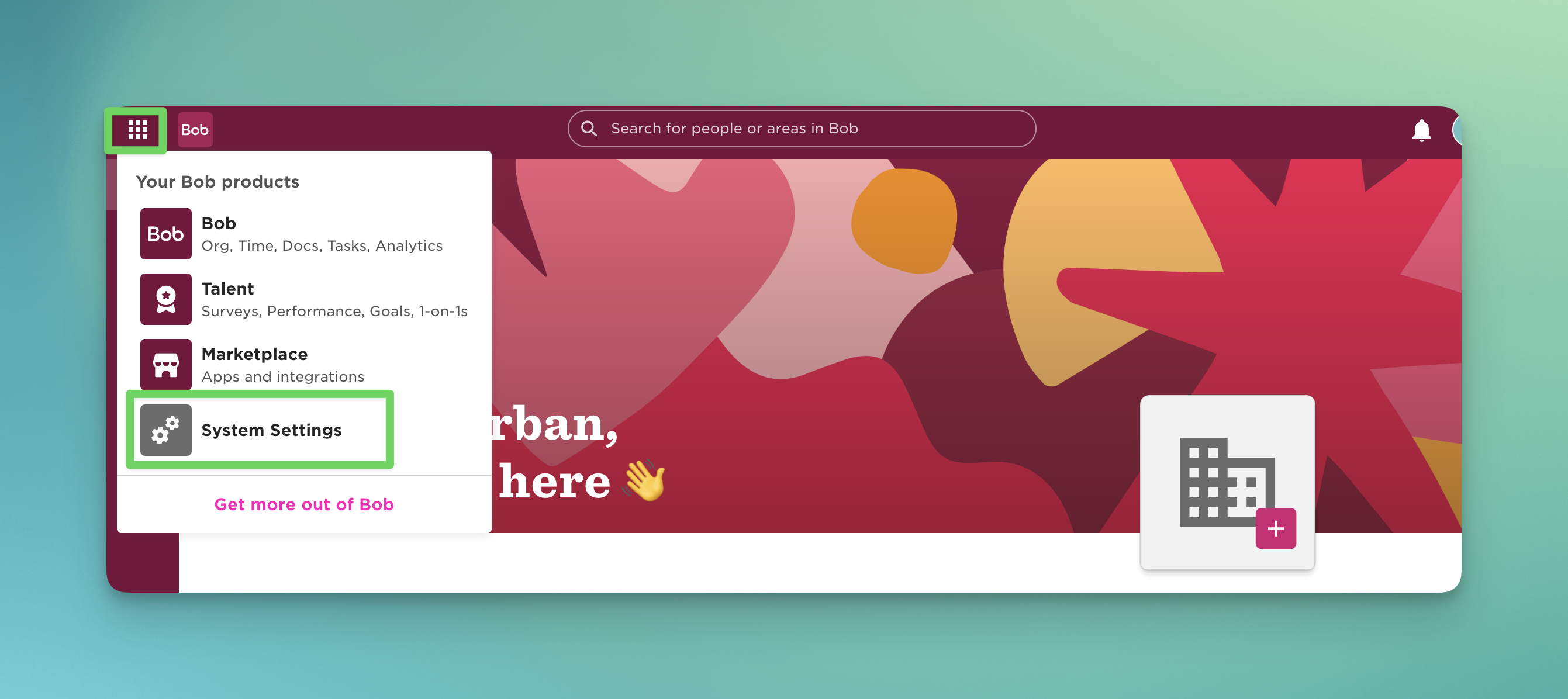
In the top-left corner, click Bob Products - System Settings
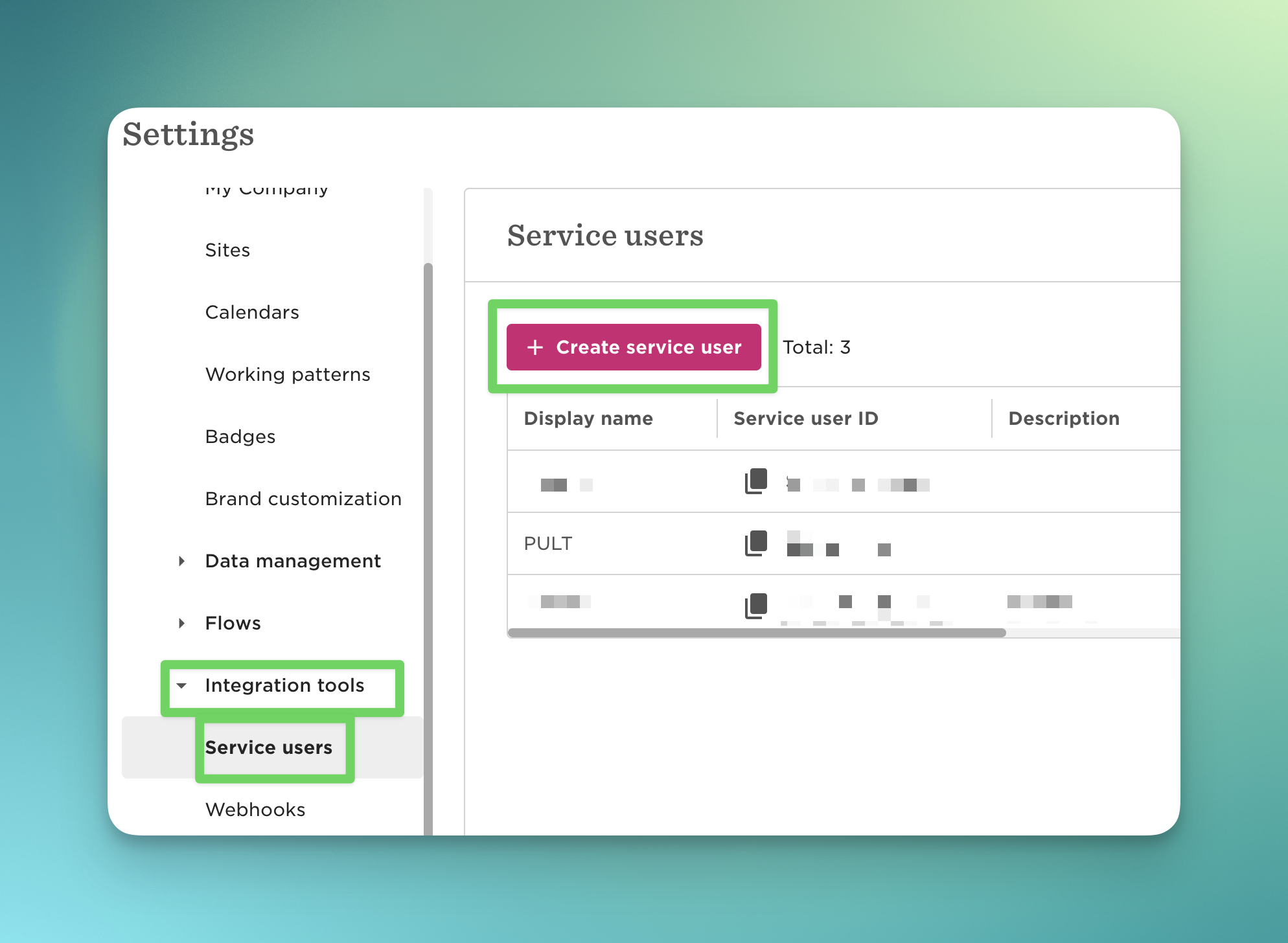
Navigate to Integration Tools - Service Users
Click Create Service User
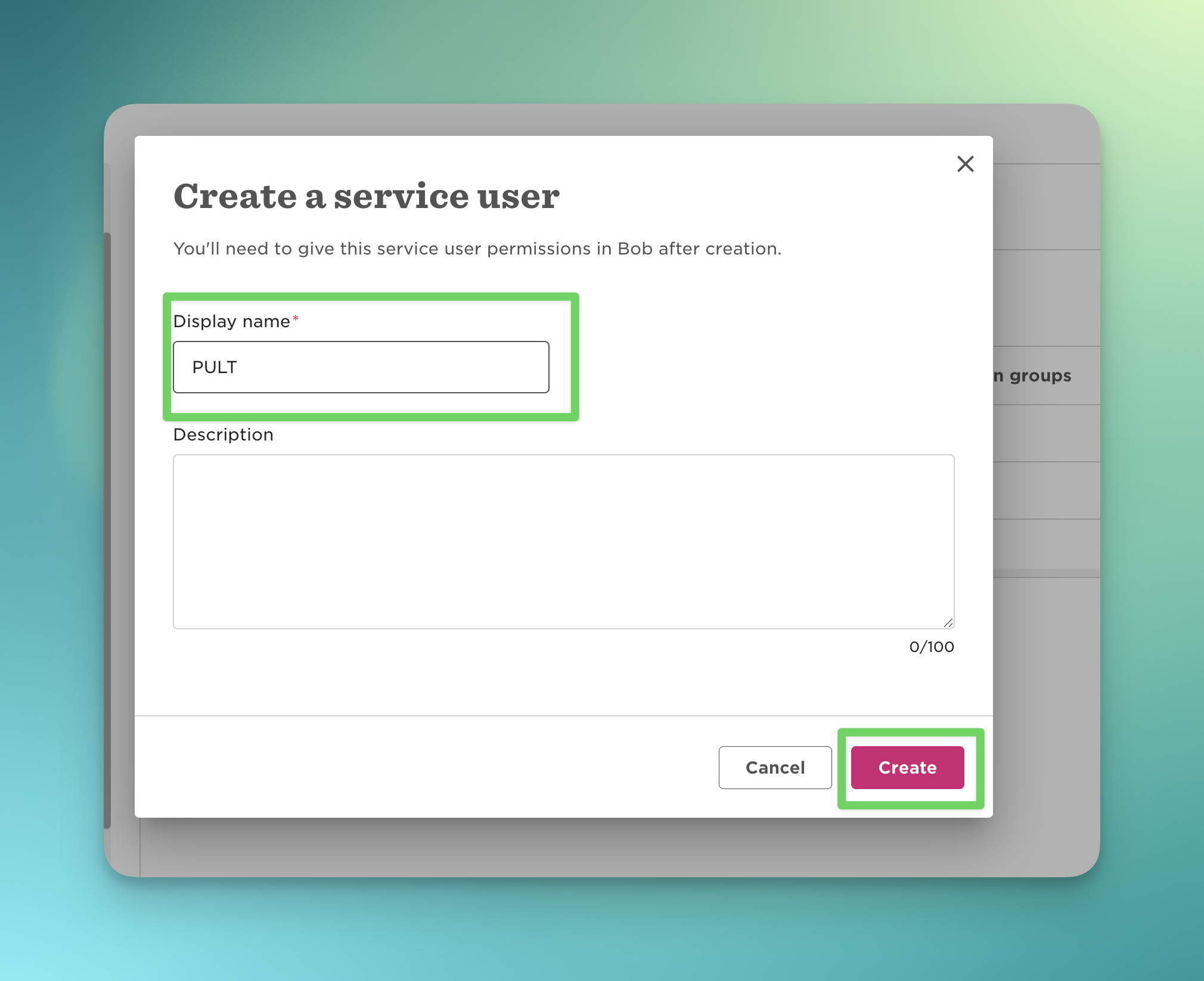
Enter a name (for example: PULT) and click Create.
Copy and securely save the Client ID and Secret Token.
Click Go to Permission Groups.
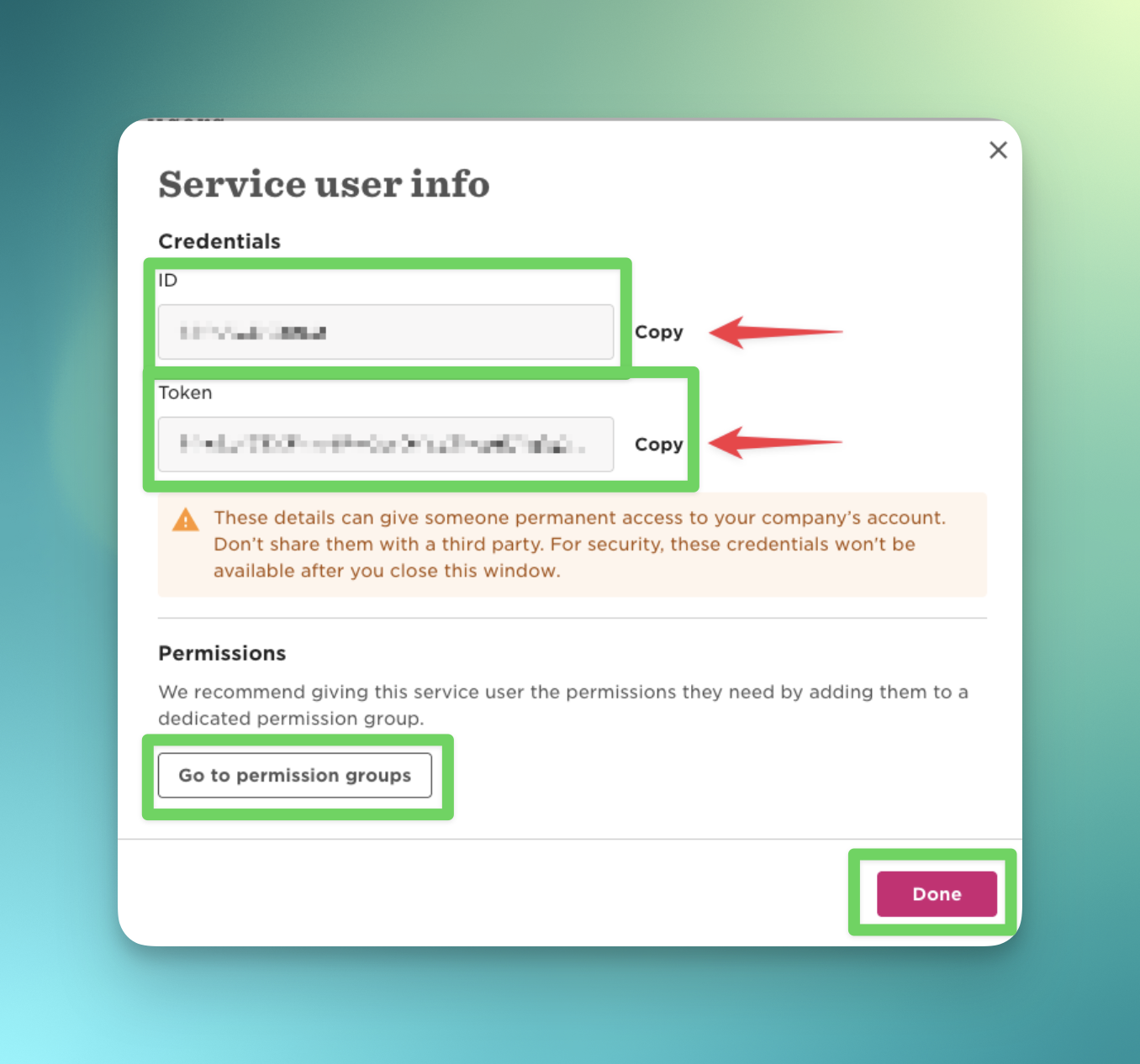
⚠ Make sure to store the credentials (ID + TOKEN) securely. You will need them later.
2.Create a Permission Group for the Service User
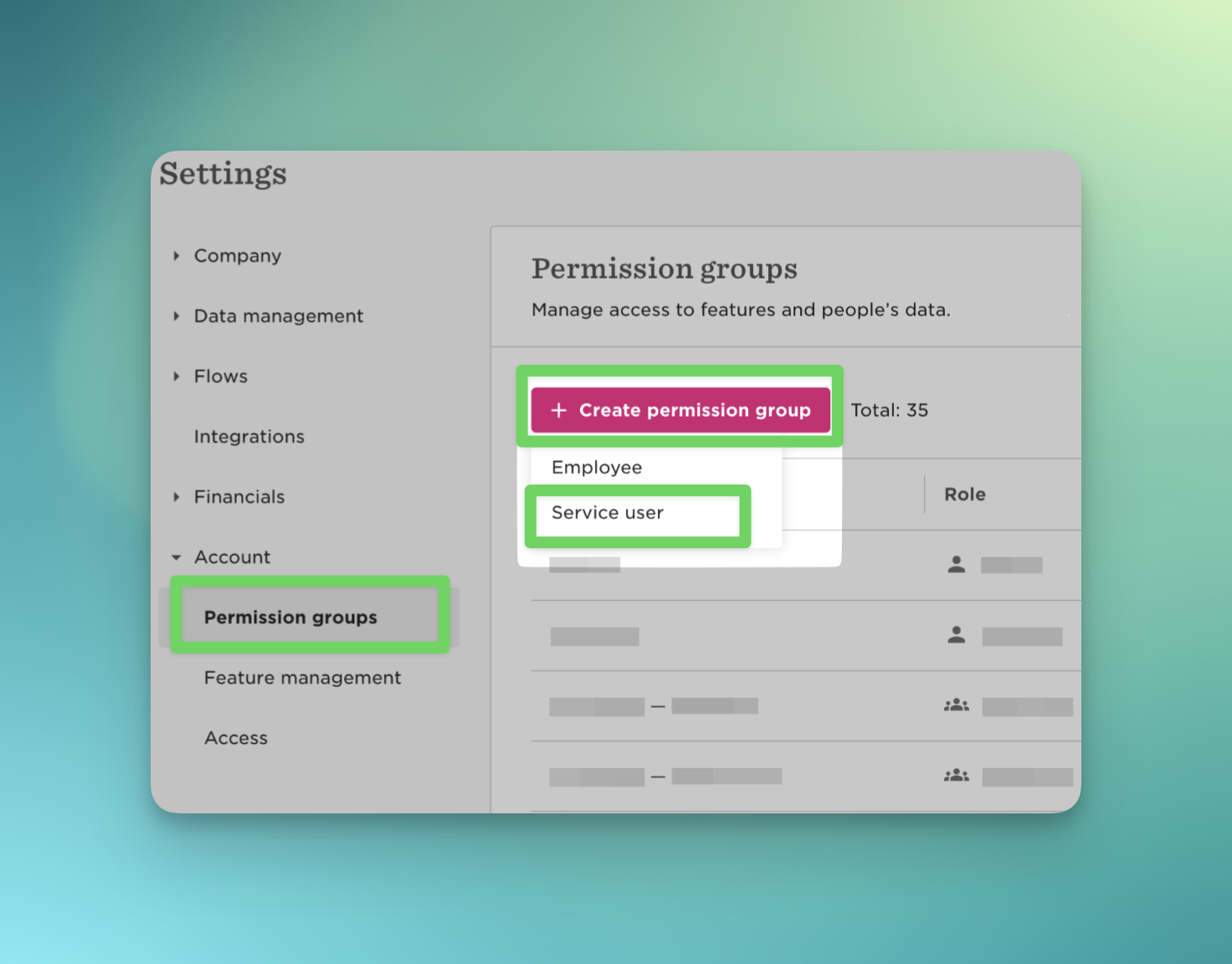
From the left-hand menu, go to Account - Permission Groups.
Click Create Permission Group.
Select Service User as the group type.
Name the group PULT.
Under Members, add the Service User account (PULT).
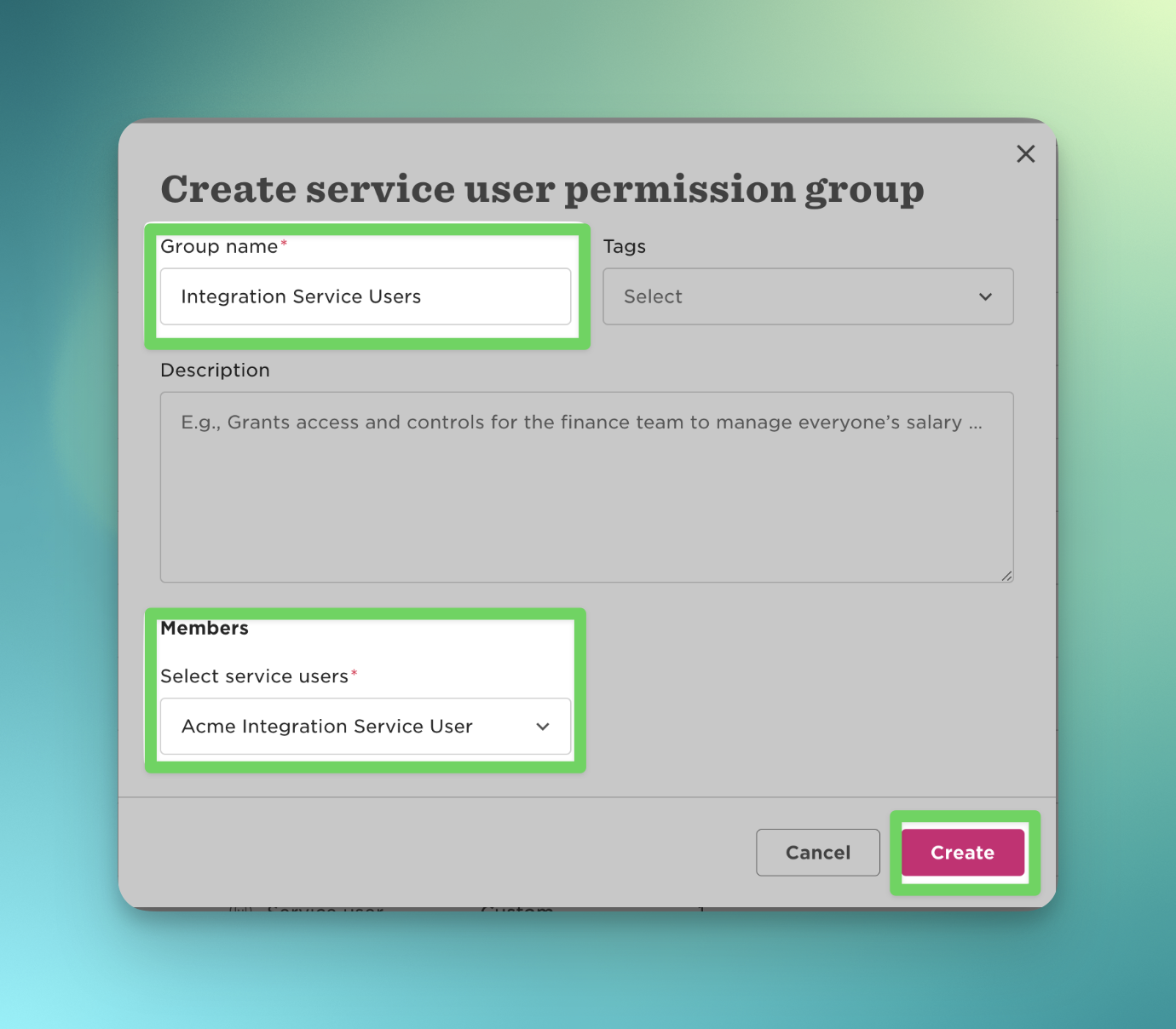
Click Create and Confirm.
3.Assign Required Permissions
Identify Requiered Permissions
To see which permissions are required for the integration on Pult:
Open the PULT Dashboard.
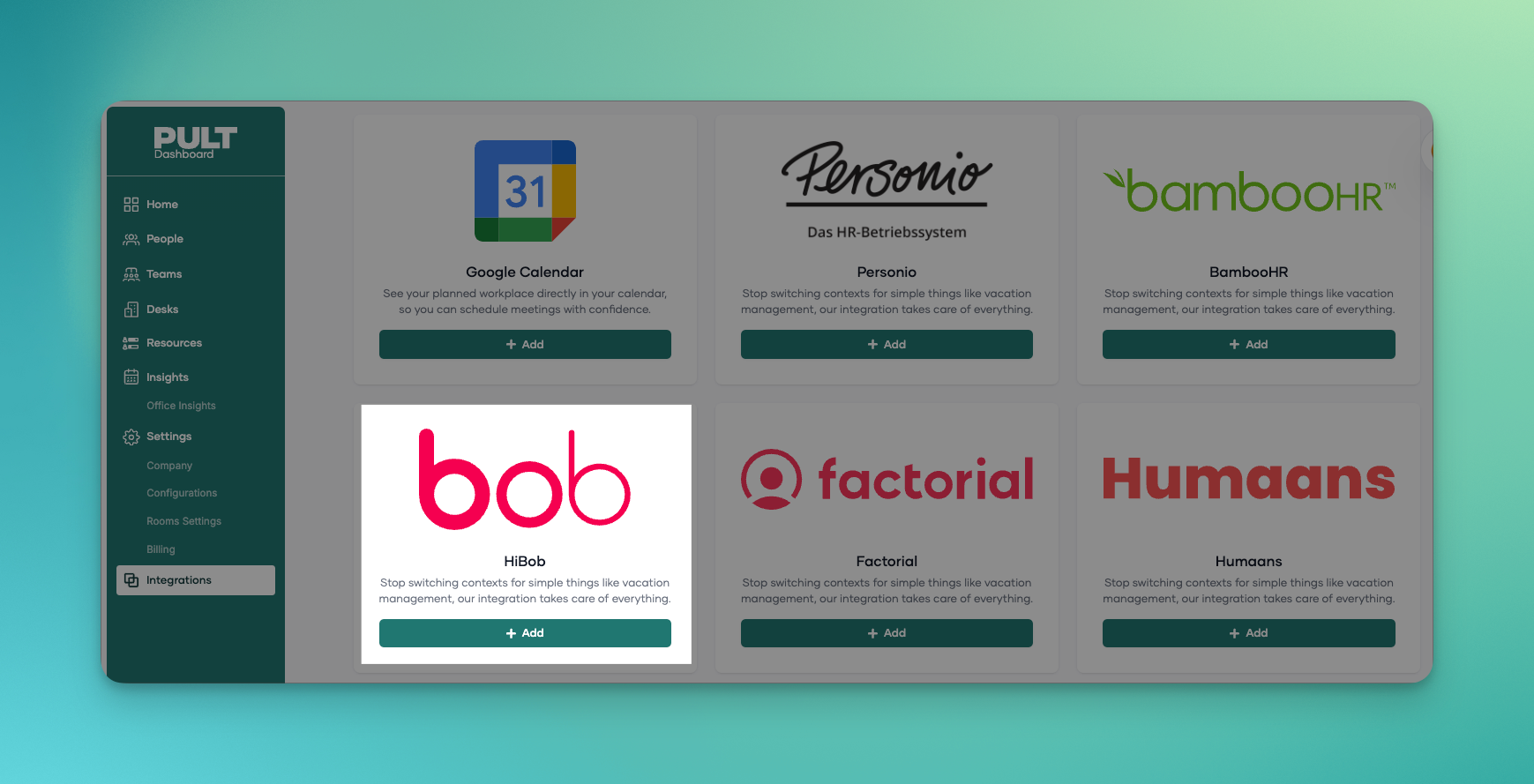
Go to Integrations - HiBob.
Click Add your HiBob account to PULT.
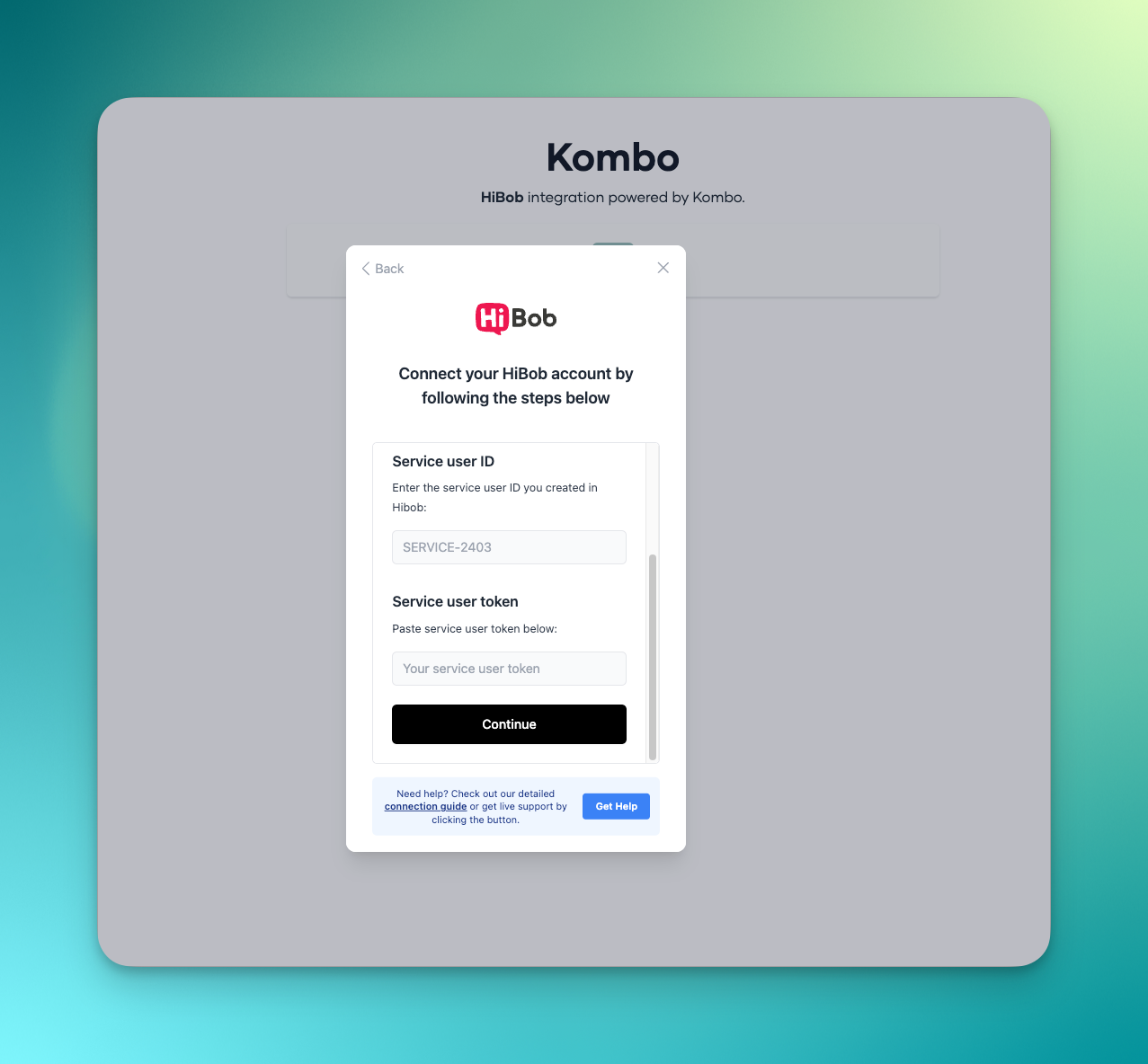
Click Continue and enter the Service User name and secret key.
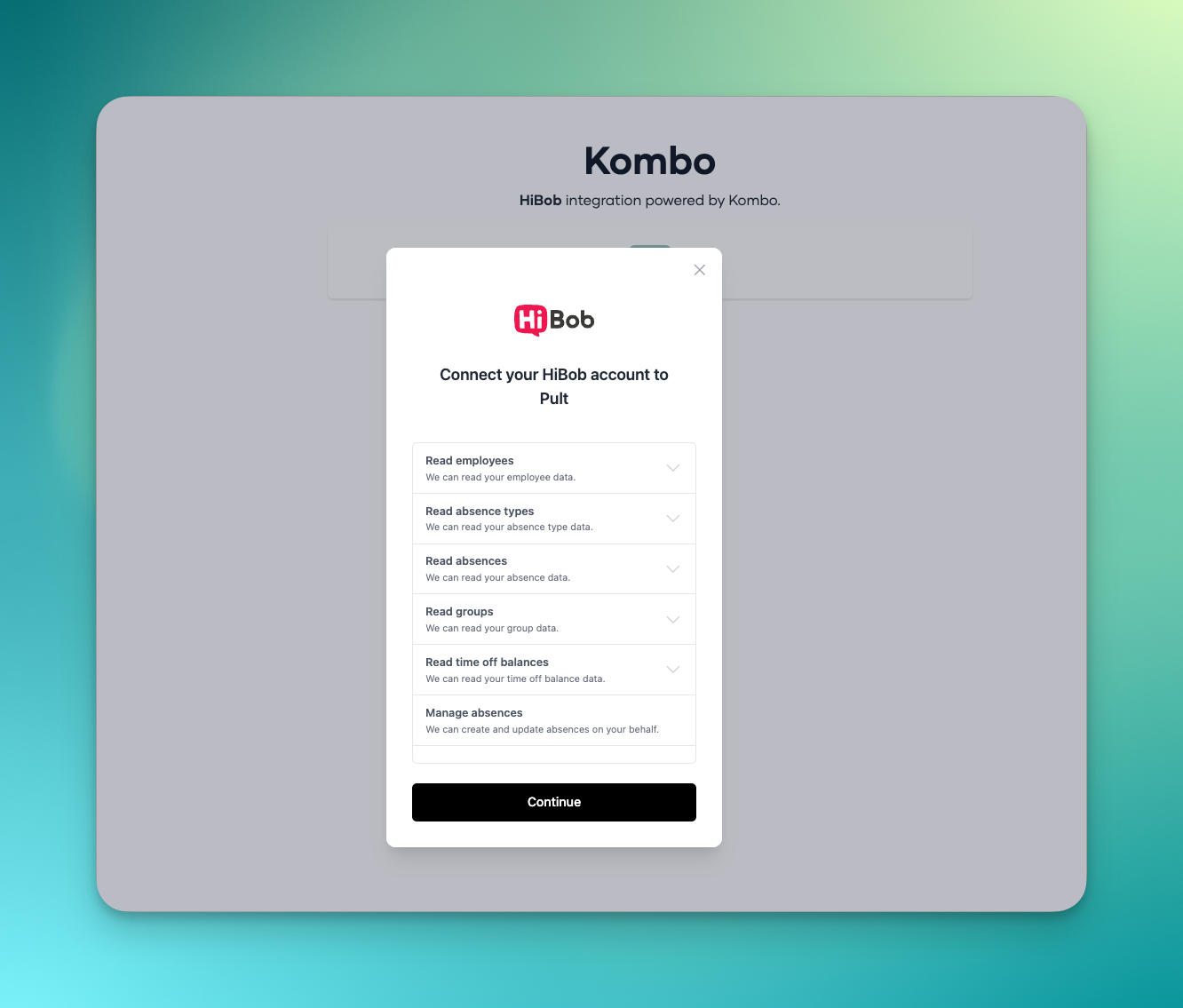
A list of required permissions will be displayed.
4.Enable Permissions in HiBob
In HiBob, go to Permission Groups - Features tab and enable the following:
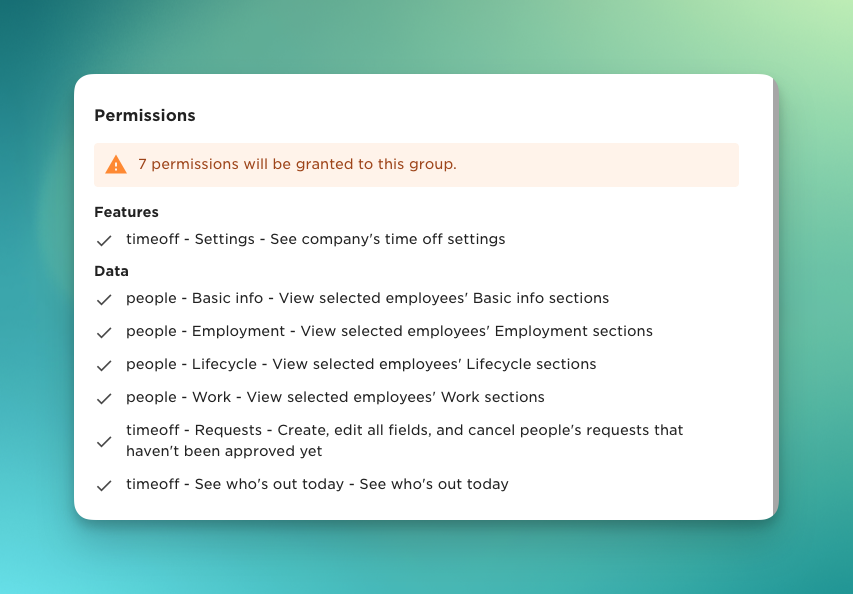
Time Off
Settings: See company’s time off settings
Requests: Create, edit, and cancel people’s requests that haven’t been approved yet
See who’s out today: View who is out today
People
Basic Info: View selected employees’ basic information
Employment: View selected employees’ work information
Lifecycle: View selected employees’ lifecycle information
Click Apply.
Wait for the integration to finish syncing.
5. Map absence types
You can map your individual absence types to the following three categories in PULT:
Vacation Days
Sick Days
Home Office
Simply click on +Map time-off type in the desired category and add them:
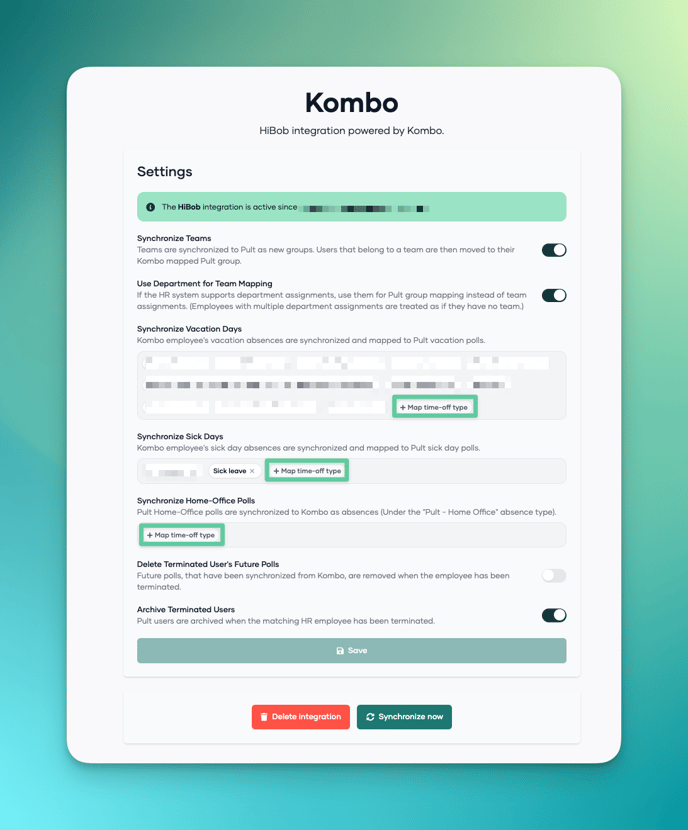
That's it! You're done and the integration is good to go!
For a more detailed guide on how to set up API credentials in HiBob, please follow the steps in 👉 this article 👈.
If you use something else:
HRWorks: https://help.hrworks.de/api-programmiererschnittstelle-administrator#newsletter
BambooHR: https://help.timezest.com/en/articles/9134504-step-1-creating-an-api-user-to-access-bamboohr
Factorial: https://help.factorialhr.com/en_US/managing-my-company-account/how-to-create-api-keys
Humaans: https://docs.humaans.io/api/
CharlieHR: https://www.getknit.dev/blog/charliehr-api-directory-ebCukz
Kallidus: https://kallidus.zendesk.com/hc/en-us/articles/26628291793681-Give-a-User-permission-to-Manage-Users