Using Pult with Google Chat
Last updated: December 15, 2025
Learn how to connect and use the Pult app in Google Chat.
Once set up, you’ll receive instant notifications about bookings, check-ins, and emergency messages — directly where your team communicates every day.
🔧 Requirements
Before you start, make sure that the Google integration is active in your workspace.
Each user can then add the Pult app individually in Google Chat.
The connection is made via the user’s email address.
The email in Pult must match your Google Workspace email address.
🚀 How to install
Open Google Chat.
Go to Find apps and search for Pult
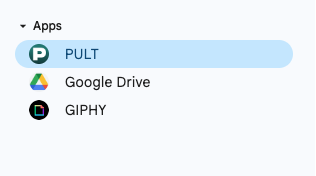
Click Install.
Sign in with your Google account.
Accept all permissions.
Each employee installs the app individually.
Note:
The app language automatically adapts to the language set in your Pult profile settings.
💬 What you get
Once installed, you’ll receive notifications directly in Google Chat:
Booking notifications
Emergency messages
Check-in reminders
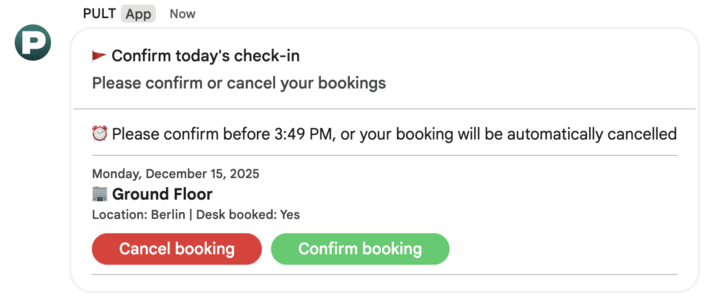
Booking confirmations (you can approve or decline)
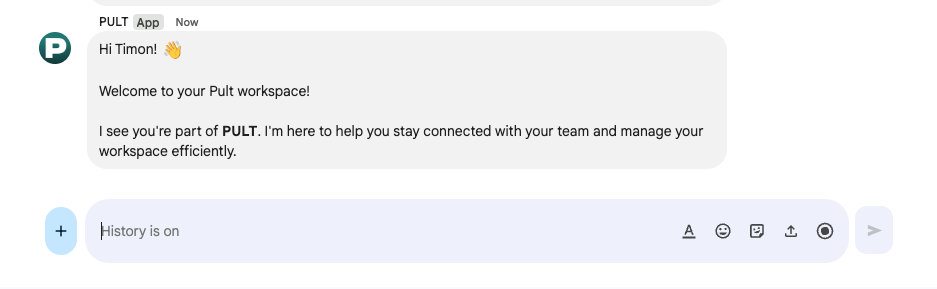
Confirm your booking:
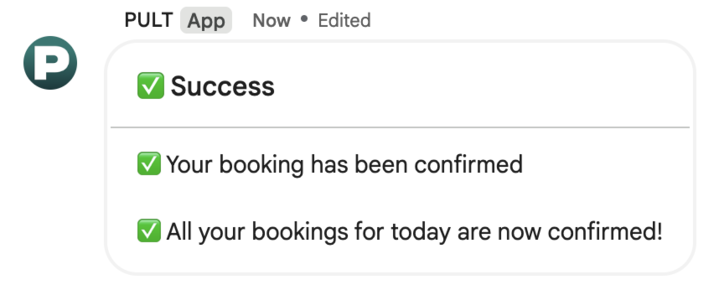
After confirming the booking it will look like this:
Cancel your booking:
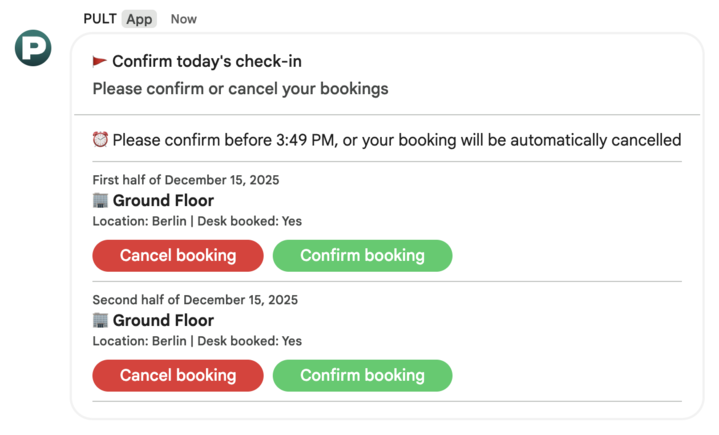
After cancelling the booking it will look like this:
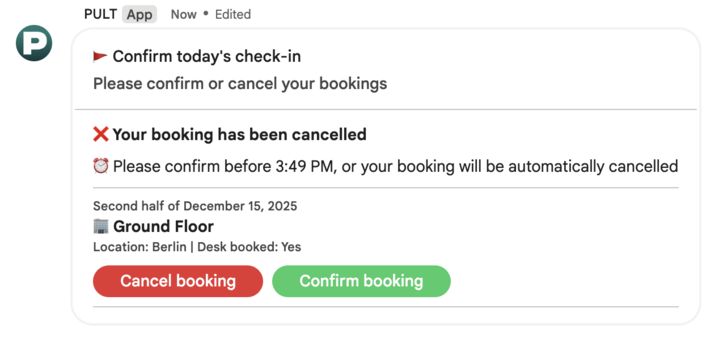
The Google Chat app is for notifications only, and the only interaction available is to confirm or decline a booking.
🔒 Data & Privacy
The Pult app does not access your Google Chat messages or user data.
It only knows your email address and can send notifications to you within the app.
It has no visibility into your chat activity, contacts, or online status.