How to set up Google Workspace Directory Sync in PULT
Last updated: March 12, 2026
With the Google Workspace Directory Sync integration, you can automatically synchronize users from your Google Directory into PULT. This eliminates the need to manually create or maintain users.
⚠ Important:
This integration only synchronizes users and groups.
Meeting rooms and calendar events are still managed via the Google Calendar integration.
✅ Summary
Add the integration via Directory Sync → Add Integration → Google Workspace
Authorize with a Google Admin account
Activate the Sync and optionally select groups
Trigger the sync and check results in the Sync History
Step-by-Step Guide
1. Prerequisites
Before you start, make sure that:
You are a Google Workspace Admin (or have equivalent permissions)
You have access to the PULT dashboard
During setup, Google will request the following permissions:
See info about users on your domain
View groups on your domain
These must be confirmed by the Google Admin.
2. Add Google Workspace Integration
Log in to PULT with an Admin account.
Go to Directory Sync (or Integrations → Directory Sync).
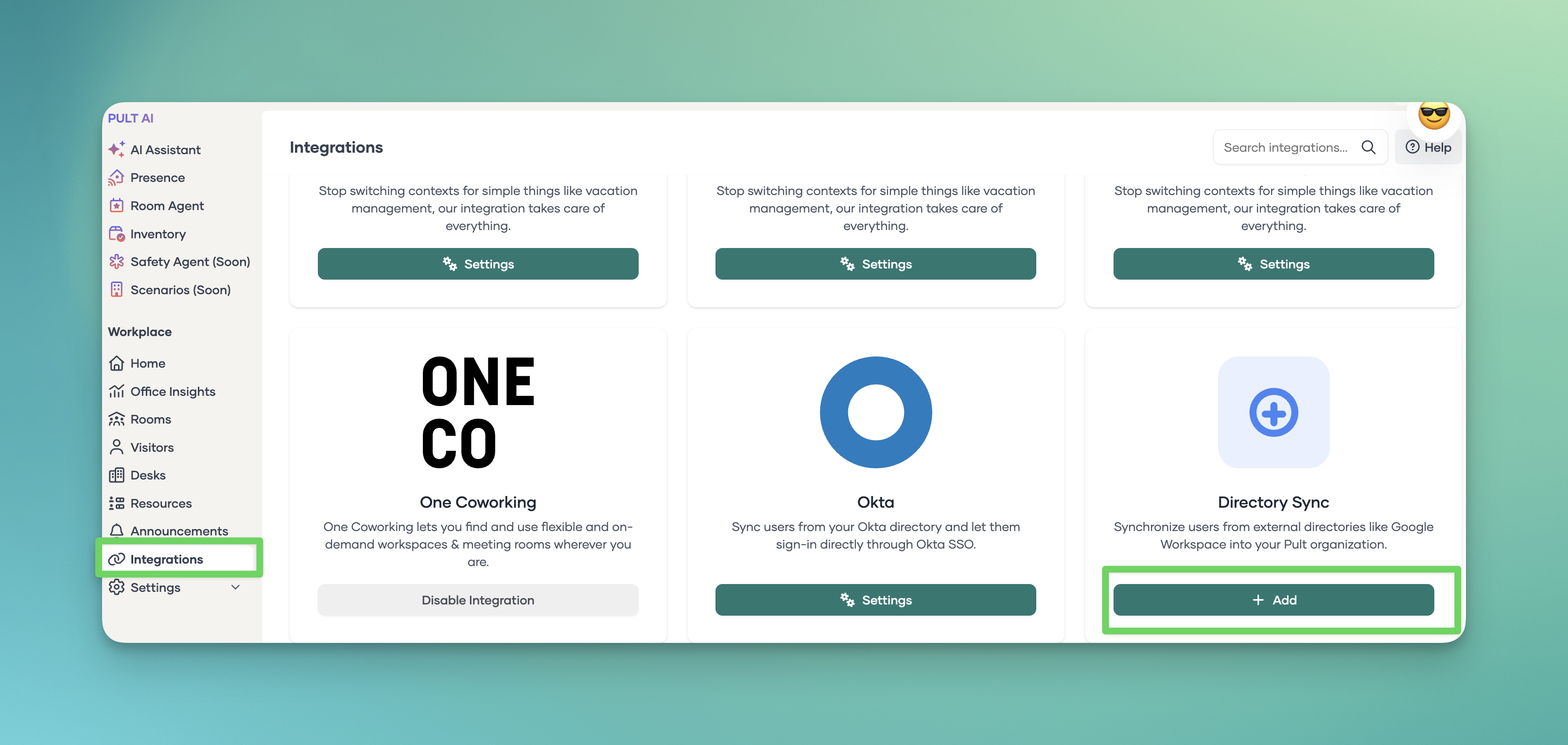
Click Add integration.
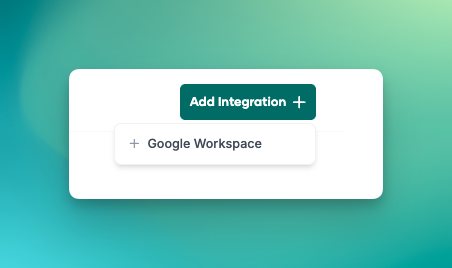
Select Google Workspace.
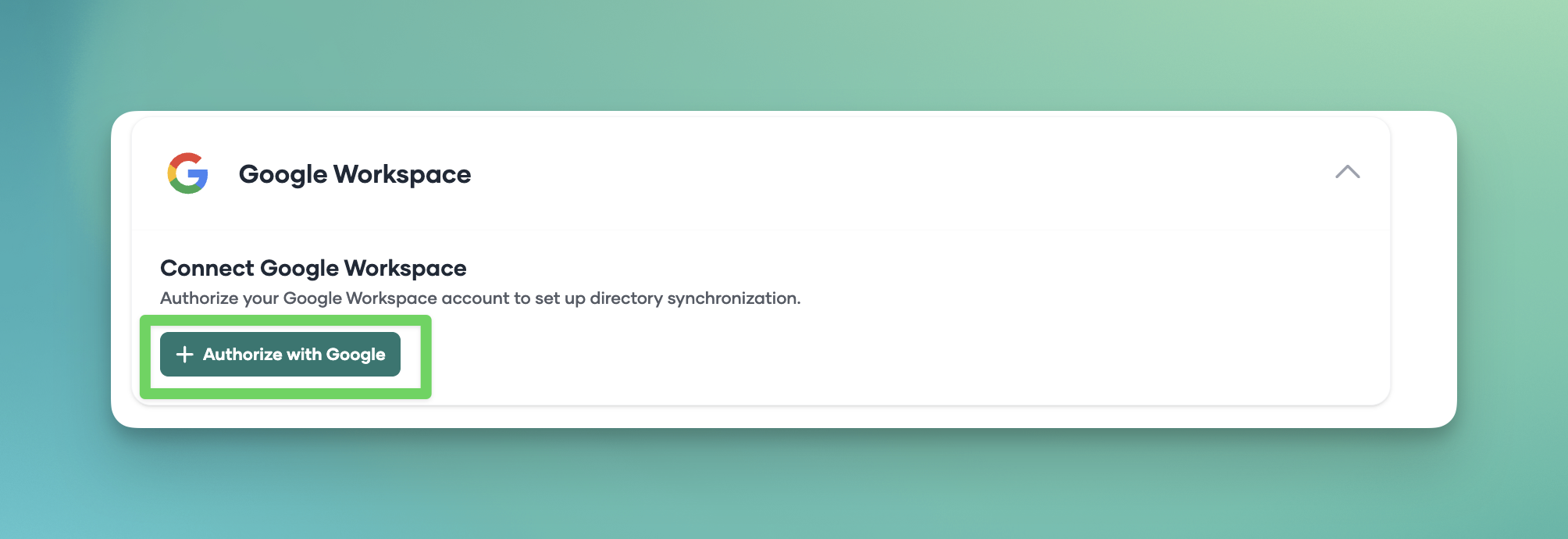
Click Authorize with Google and confirm the permissions.
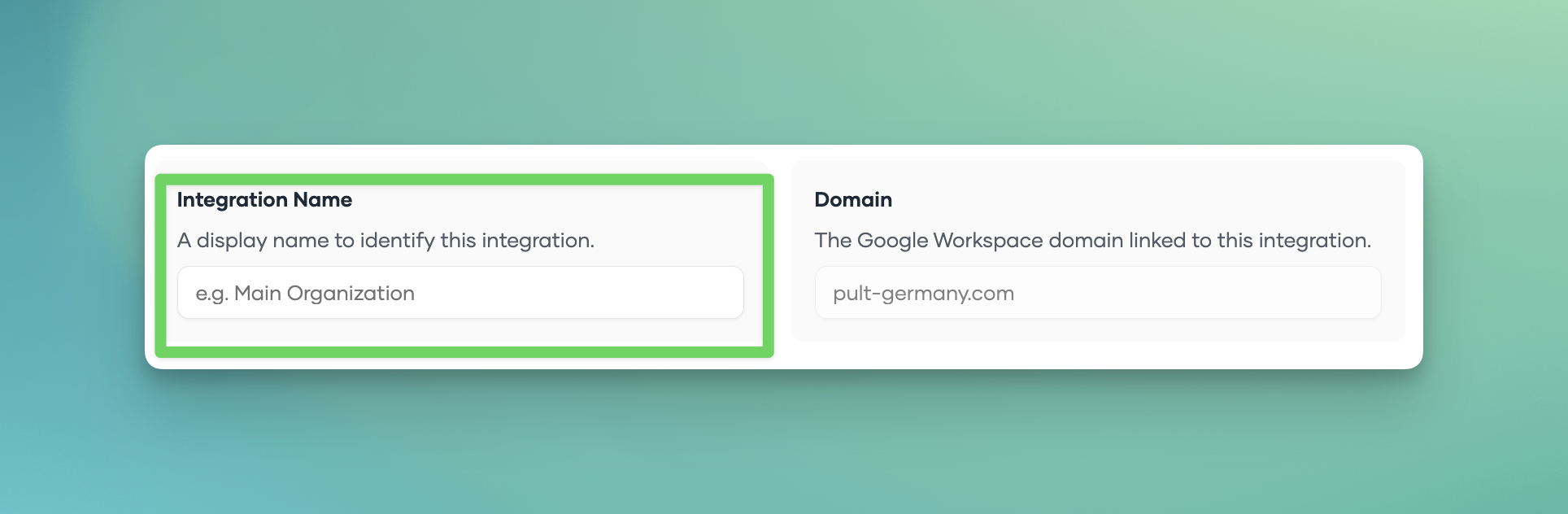
Enter a name for the integration (e.g., Google Workspace – Germany).
After successful authorization, the integration will appear in the list.
⚠ Important: If Google displays an “Access denied” message, check the Google Workspace Admin Console to ensure that access to Pult has been approved. The application must be approved by an administrator; otherwise, the synchronization will not be successful.
3. Activate Sync
Open the newly created Google Workspace integration.
Activate Sync Enabled.
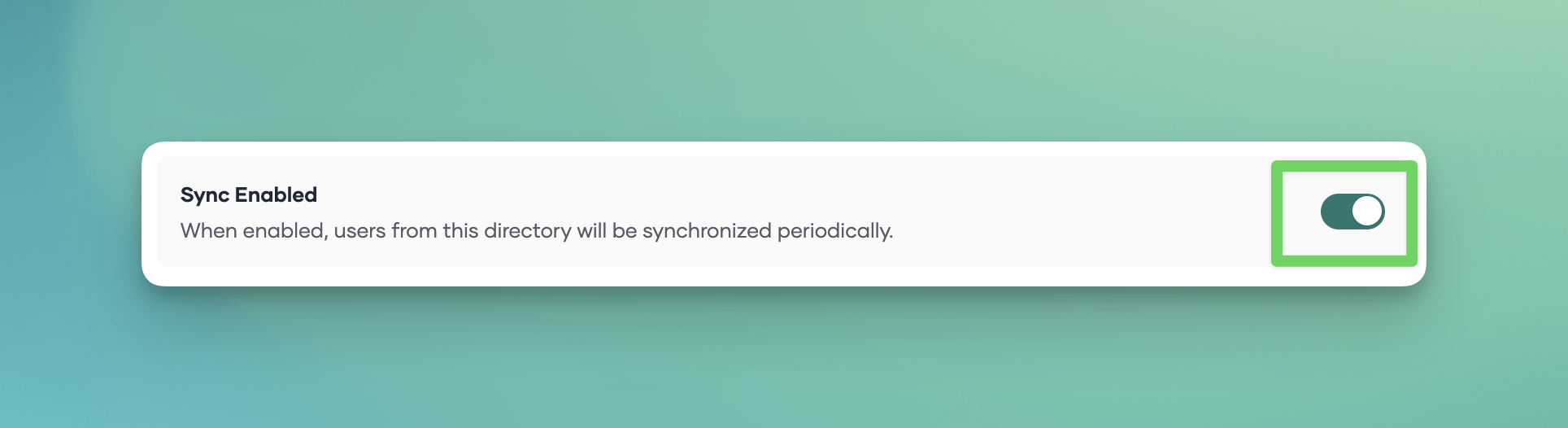
Optional: select specific Google Groups if you want to sync only certain users.
Click Update / Save.
Note: If groups are not displayed, you can initially run the sync without group selection.
4. Run First Sync
You can trigger the first sync manually:
Open the integration.
Click Trigger Sync.
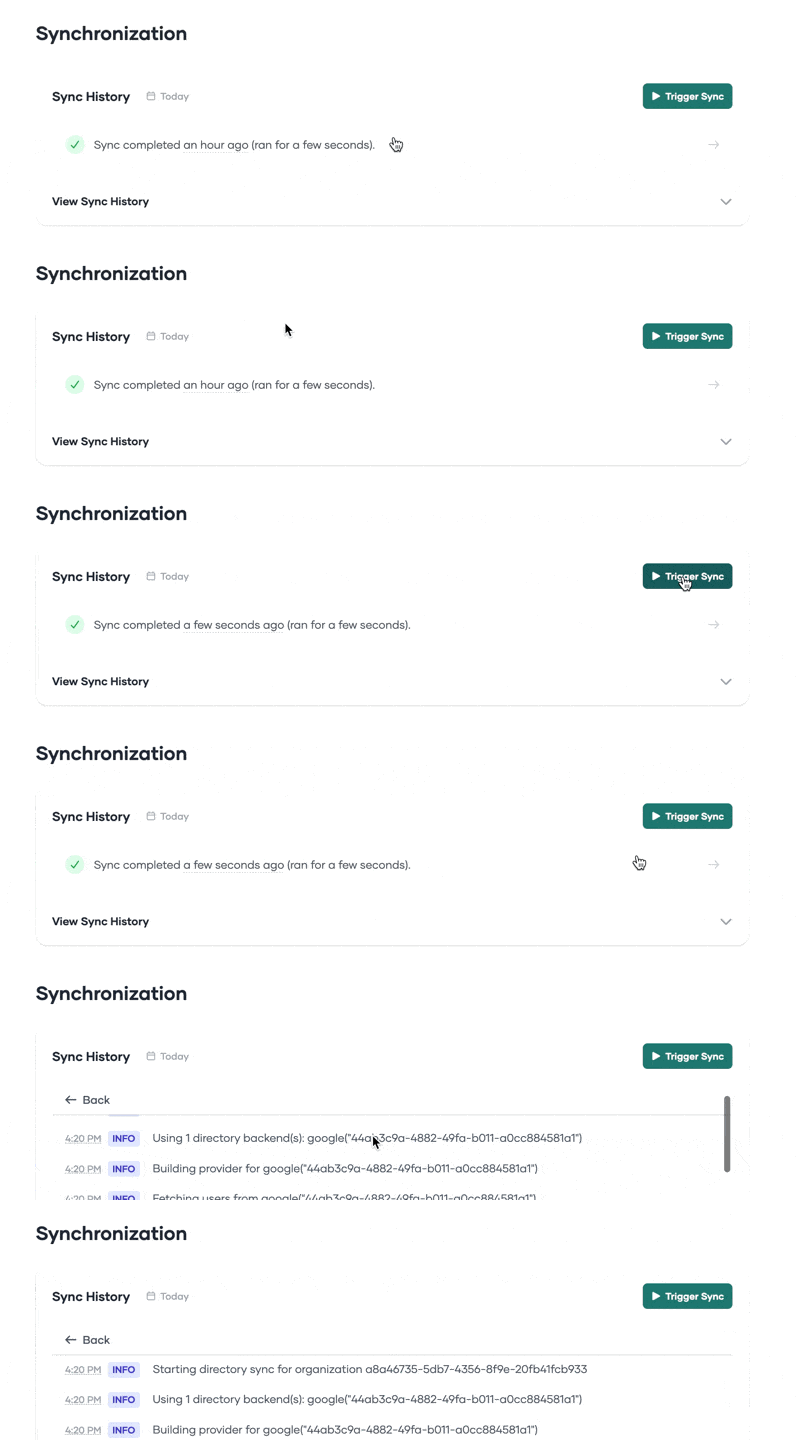
5. Check Sync History
Under Historical Synchronizations, you can see:
How many users were read from Google
How many users were created or updated in PULT
Any errors that occurred
6. Automatic Sync
Directory Sync runs automatically every 4 hours:
00:00 • 04:00 • 08:00 • 12:00 • 16:00 • 20:00
You can also trigger a manual sync anytime.
7. Important Notes
User Archiving
A user is automatically archived in PULT if they are deleted or deactivated in Google.
The integration must remain active for archiving to occur.
Email Limitation
Currently, an email address can only exist once globally in PULT.
If the same user already exists in another team, the following error may appear:
Failed to create user – already exist