Setup in Google Admin
Last updated: October 21, 2026
This article shows how to set up domain-wide delegation in Google Admin. It is required for the PULT rooms and calendar integration with Google.
Requirements
Security admin: an admin account that can manage domain-wide delegation in Google Admin.
User: a Google Workspace user who can create calendar resources such as buildings and features.
Set up domain-wide delegation
1. Open Google Admin
Sign in to the Google Admin console with your security admin account.
2. Domain-wide delegation
Go to Security → API Controls → Manage Domain Wide Delegation.
3. Add new
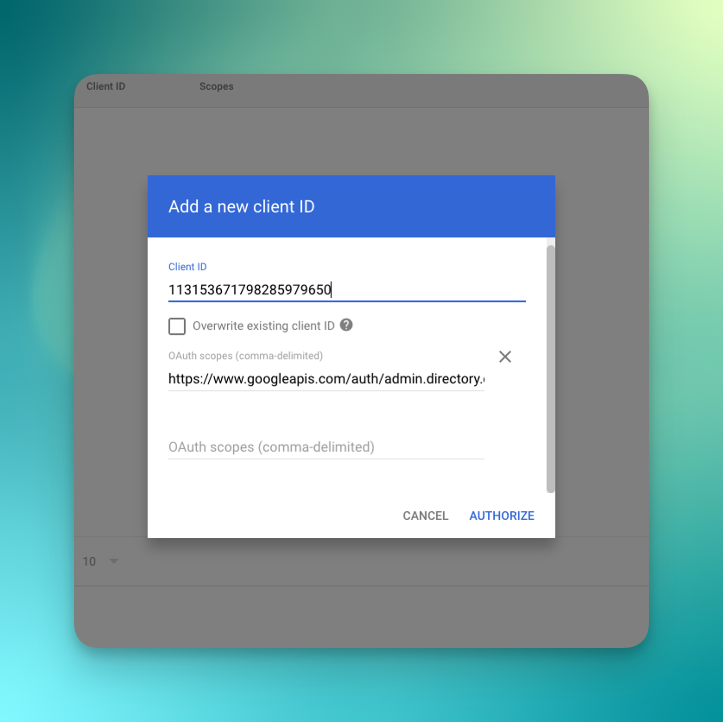
Click Add new.
4. Client ID
Enter the client ID 115965704766450504562 (gcal-prod).
5. OAuth scopes
Copy and paste the following scopes:
https://www.googleapis.com/auth/admin.directory.domain.readonly,https://www.googleapis.com/auth/admin.directory.user.readonly,https://www.googleapis.com/auth/admin.directory.resource.calendar,https://www.googleapis.com/auth/calendar,https://www.googleapis.com/auth/calendar.events
What the scopes allow
admin.directory.domain.readonly: read your Google Workspace domain informationadmin.directory.user.readonly: read the users in your domainadmin.directory.resource.calendar: manage calendar resources such as buildings and roomscalendar: view and manage calendarscalendar.events: create and manage calendar events
Frequently asked questions
How long does it take until it works?
Usually a few minutes. In some cases it can take up to 24 hours until access is available for all users.
What do I do next?
Select Google as resource provider in the PULT room settings (see Room Booking Settings in PULT App).
Related articles
If you have any questions, feel free to contact our support team at support@pult.com.