Uninstalling the PULT Meeting Room Integration
Last updated: October 21, 2026
This article shows how to remove the PULT meeting room integration with Microsoft and switch off meeting rooms in PULT.
📌 Steps 1–4 must be done by an IT admin with access to Microsoft Entra ID (formerly Azure AD).
Remove the role in Microsoft Entra ID
1. Open Microsoft Entra ID
Open Microsoft Entra ID in the Azure portal.
2. Exchange administrator
Under Manage, go to Roles and administrators and click the Exchange administrator role.
3. Remove PULT
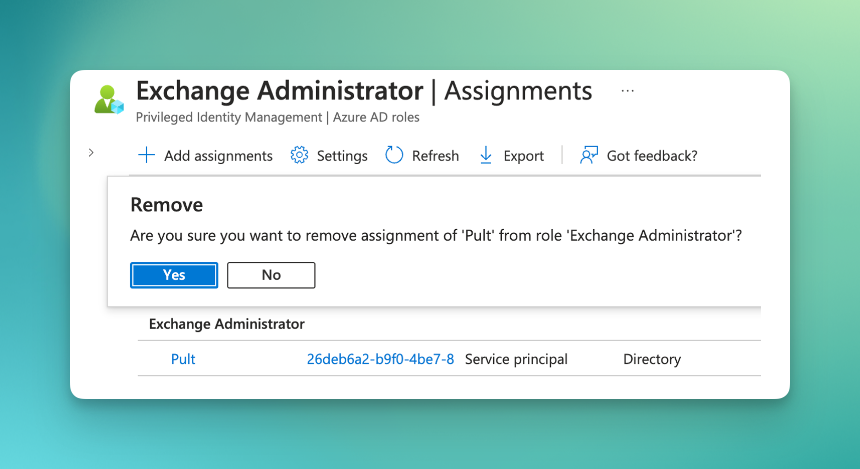
Open Active assignments, find PULT in the list (principal name starting with 26deb6a2) and click Remove.
4. Confirm
Confirm the removal. As soon as PULT no longer appears in the list, meeting rooms are no longer synchronized.
Switch off meeting rooms in PULT
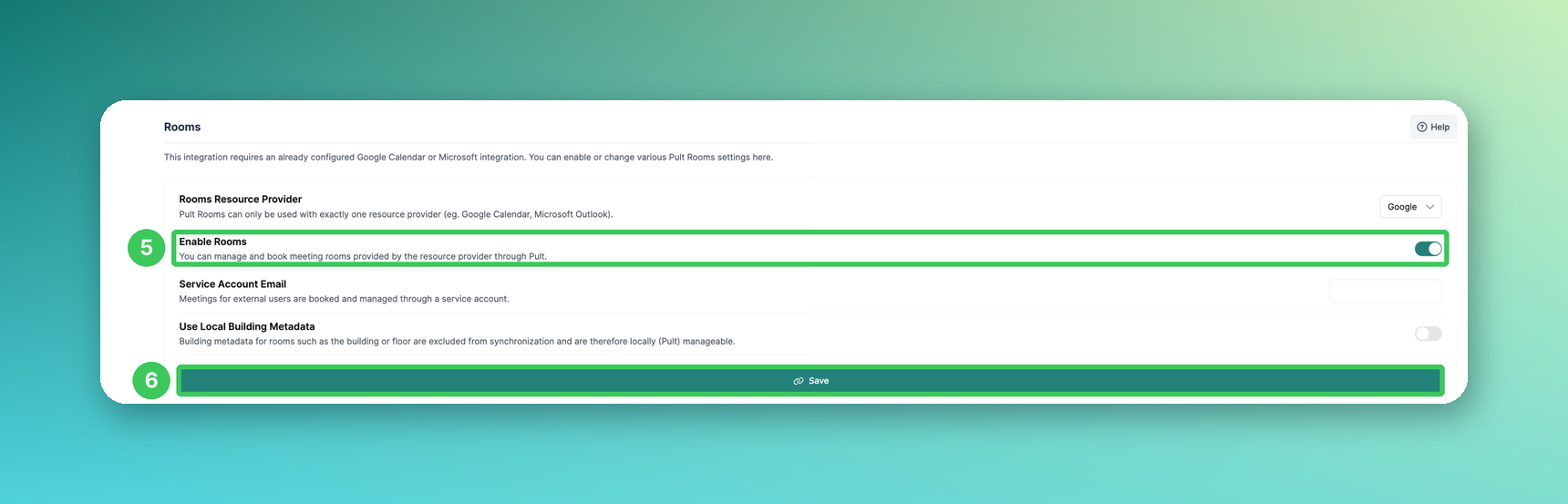
5. Enable Rooms
In the PULT dashboard, go to Settings → Workplace → Rooms and switch off Enable Rooms. Your users then no longer see meeting rooms in the app.
6. Save
Click Save.
Frequently asked questions
Can I connect the integration again later?
Yes (see How to connect PULT Rooms with Microsoft).
We use Google. How do I remove the integration there?
Remove PULT's client ID from the domain-wide delegation in Google Admin (see Setup in Google Admin).
Related articles
If you have any questions, feel free to contact our support team at support@pult.com.