How to connect PULT Rooms with Microsoft
Last updated: October 20, 2026
With PULT Rooms, employees can book Microsoft Outlook meeting rooms directly in PULT. This article shows admins how to connect PULT Rooms with Microsoft.
Prerequisites
A working and active Microsoft integration
See PULT Microsoft Azure Integration.
⚠ Important: If your organisation already has an active Microsoft integration, please repeat the linking process once more. New permissions are required that may not have been requested last time.
There are two ways to integrate the meeting rooms:
The meeting rooms should be editable in PULT. This requires the full Microsoft integration with full Exchange admin permissions.
The meeting rooms are read-only – you can't edit name, capacity or address in PULT, but booking still works. This uses the read-only Microsoft “Rooms Resource Provider”.
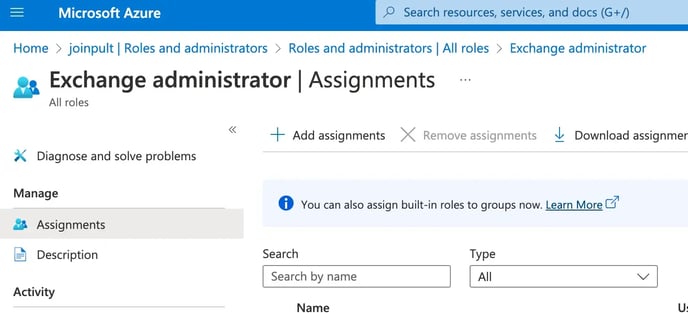
Assign the “Exchange Administrator” role to the PULT app in Azure Entra ID
Note: These steps require an IT administrator with access to Azure Entra ID.
Open Azure Entra ID in the Azure Portal.
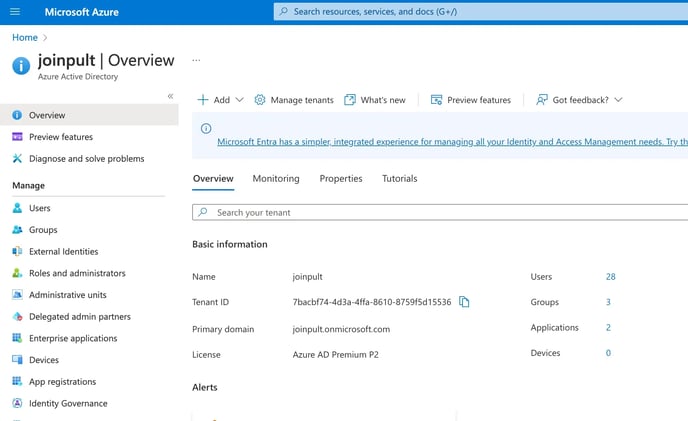
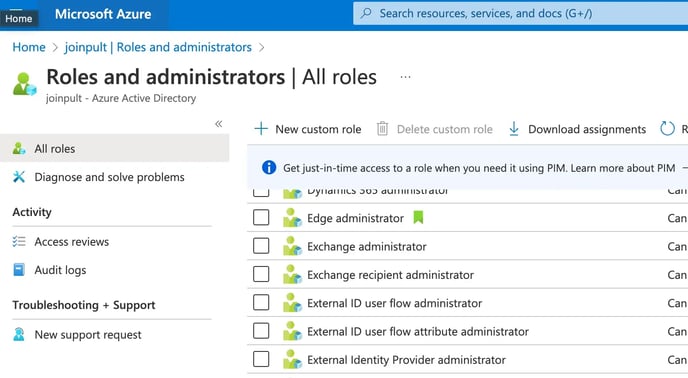
Go to Roles and administrators (under Manage) and click the Exchange administrator role.
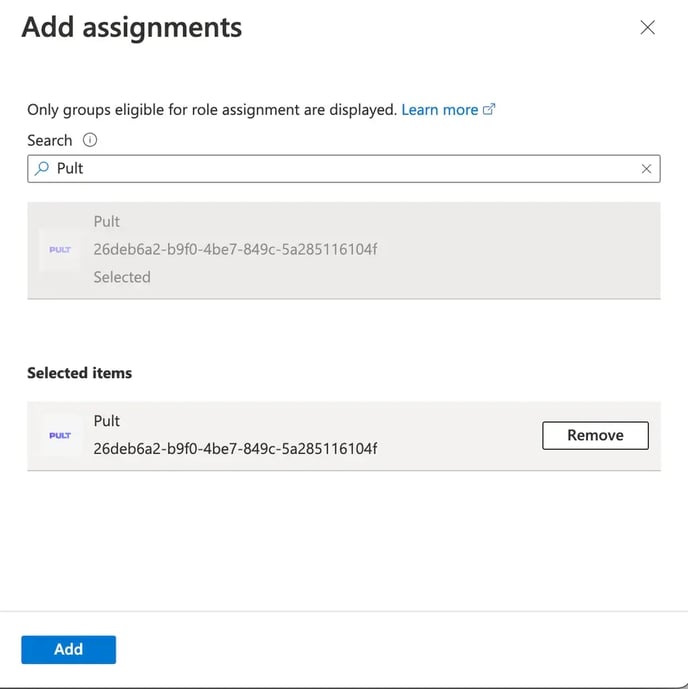
Click Add assignments, search for PULT, select the PULT app and click Add.
Check that the assignment was successful.
Enable PULT Rooms for Microsoft
In the PULT dashboard, go to Settings → Workplace → Rooms.
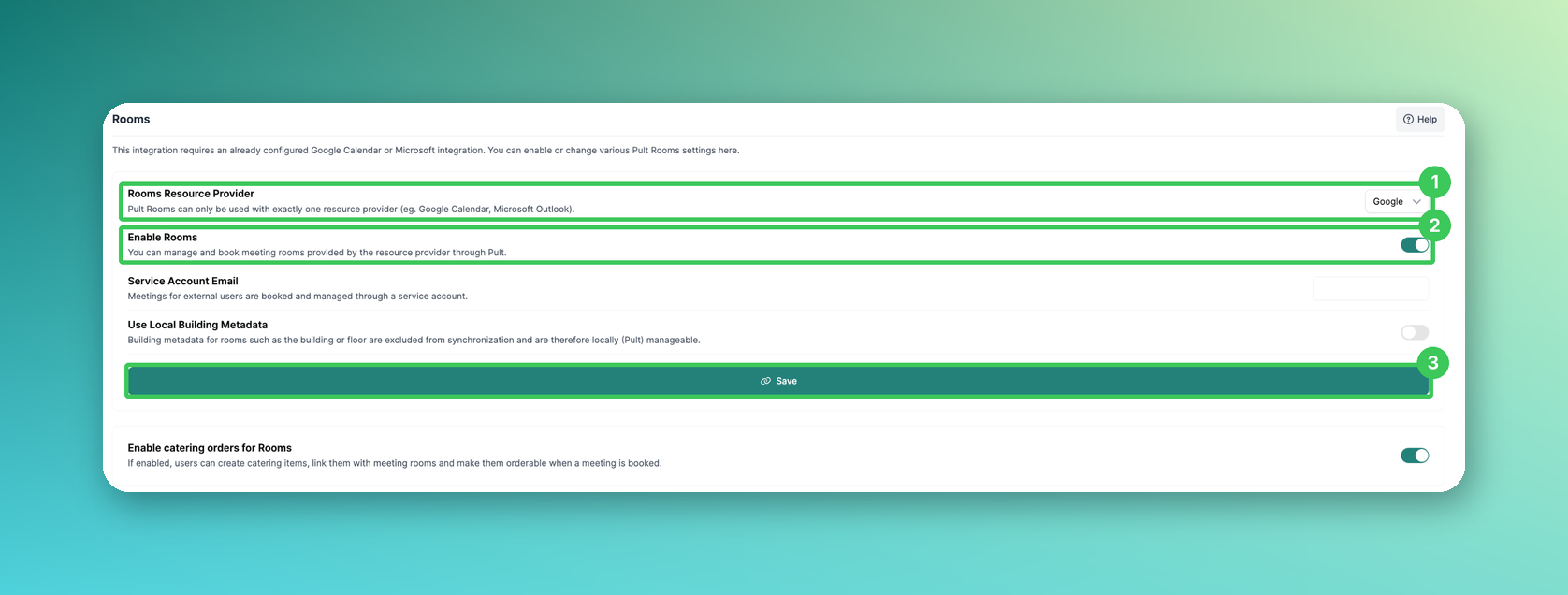
1. Rooms Resource Provider
Select Microsoft as the resource provider. PULT Rooms can only be used with exactly one resource provider.
2. Enable Rooms
Turn on this toggle.
3. Save
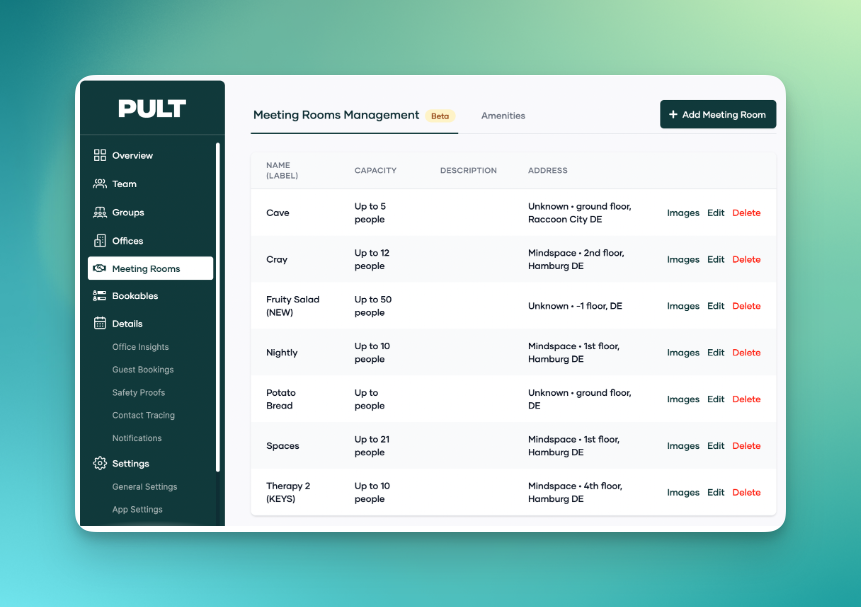
Click Save. The synchronisation starts immediately. It takes a few minutes until the meeting rooms and amenities appear in the dashboard.
Frequently asked questions
Can I use Google and Microsoft for rooms at the same time?
No, PULT Rooms can only be used with exactly one resource provider.
Where can I find more room settings?
See Room Booking Settings in PULT App.
Related articles
If you have any questions, feel free to contact our support team at support@pult.com.