How to book a Meeting Room
Last updated: October 21, 2026
This article shows how to find and book a meeting room in the PULT app – including filters, attendees and catering.
📌 Meeting rooms are only available if your admin has connected PULT with Google Calendar or Microsoft Outlook (see Room Booking Settings in PULT App).
Find a room
Open Meeting Rooms in the top navigation of the PULT app.
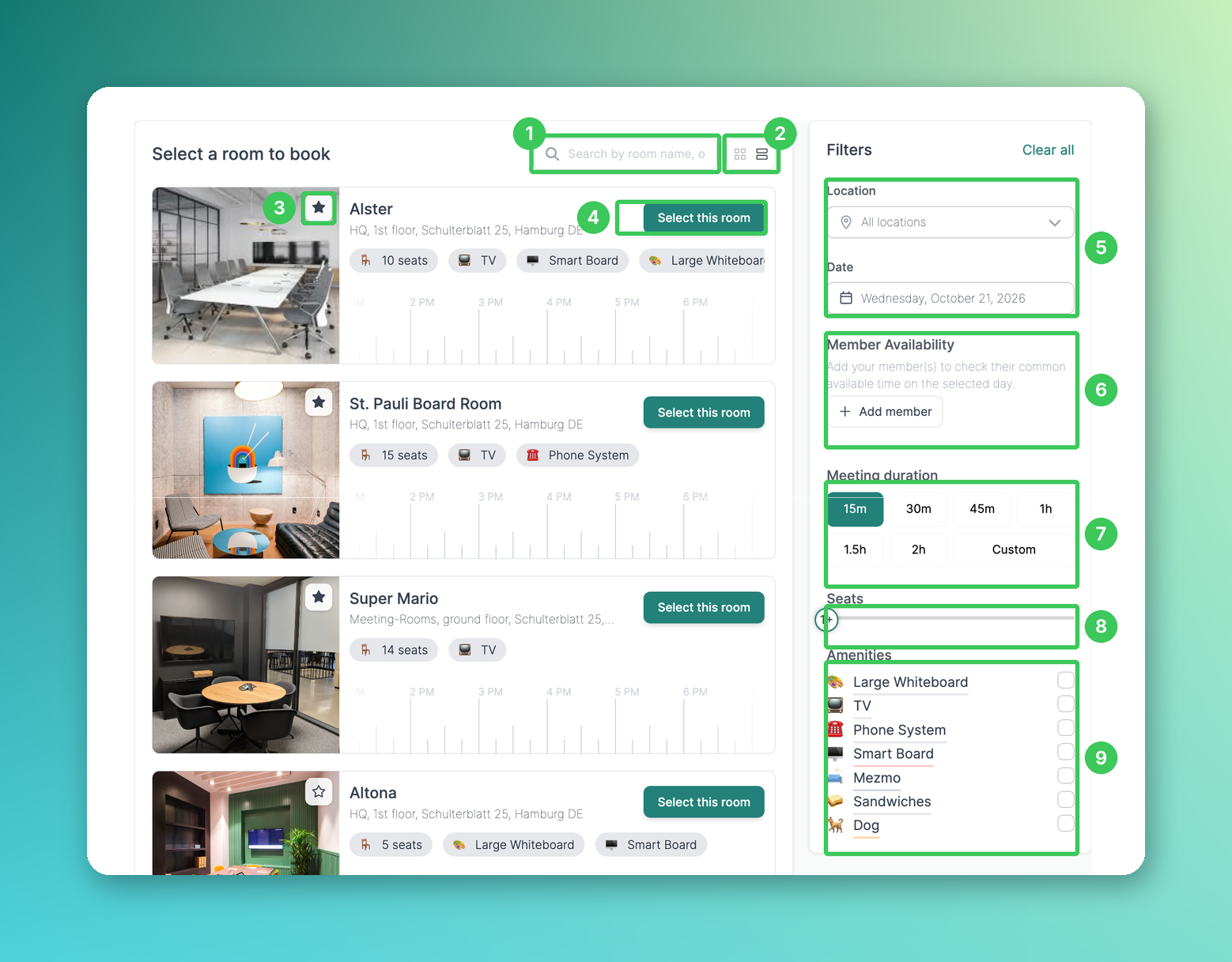
1. Search
Search for a room by its name or location.
2. View
Switch between the grid and the list view.
3. Favorites
Click the star to mark a room as a favorite. Favorite rooms always stay at the top of the list.
4. Select this room
Opens the booking form for this room. The timeline below each room shows when it is free.
5. Location and date
Filter by location and choose the day. Your location filter stays selected the next time you open the page. You can book up to 180 days in advance.
6. Member Availability
Add colleagues to see when you are all free on the selected day.
7. Meeting duration
Choose how long your meeting will be – from 15 minutes to Custom.
8. Seats
Only show rooms with at least this number of seats.
9. Amenities
Only show rooms with the selected amenities, e.g. a TV or a whiteboard.
Book the room
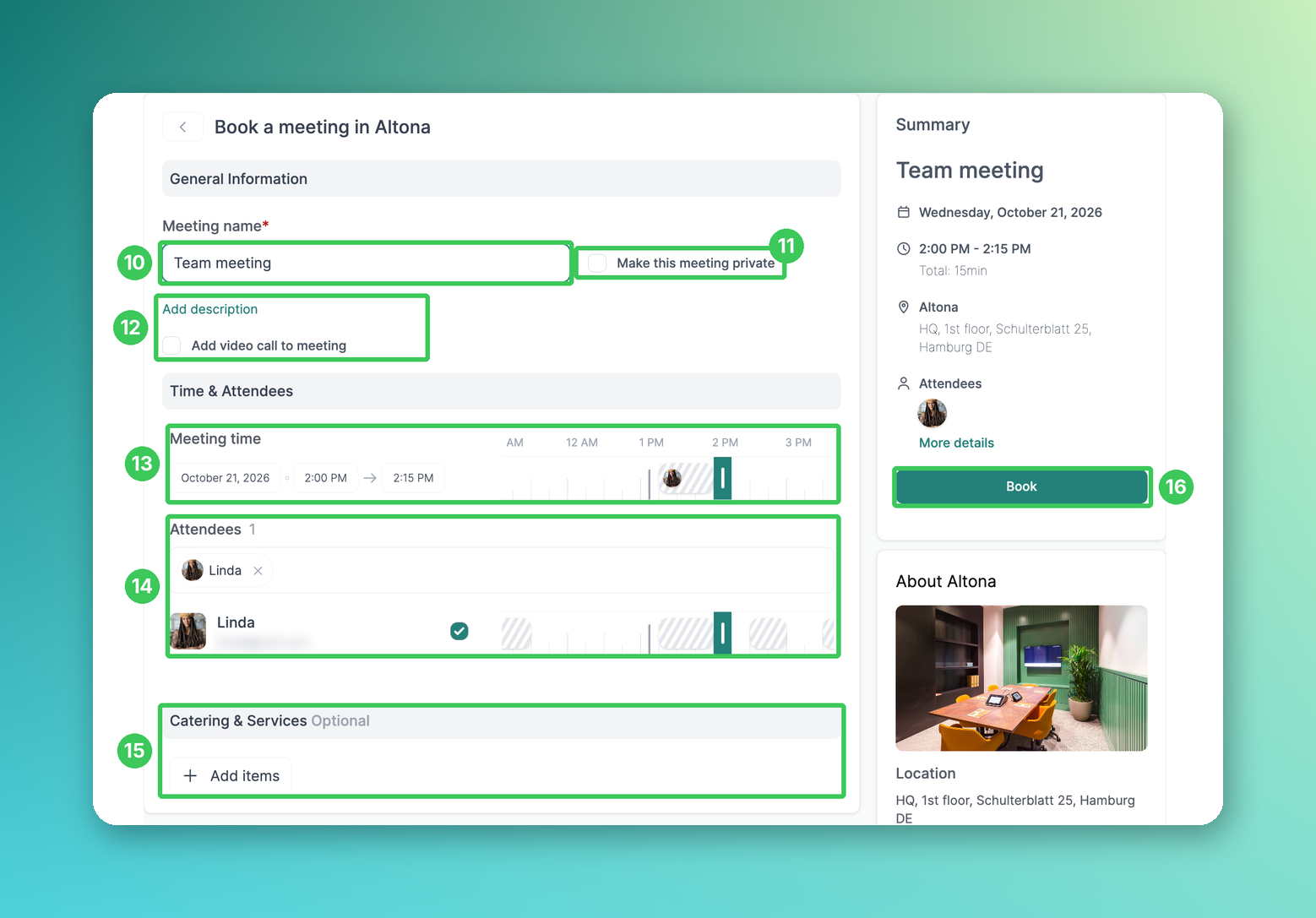
10. Meeting name
Enter a name for your meeting. This field is required.
11. Make this meeting private
Marks the meeting as private in the calendar.
12. Description and video call
Optionally add a description and a video call to the meeting.
13. Meeting time
Adjust the date, start and end time. The timeline shows when the room is already booked.
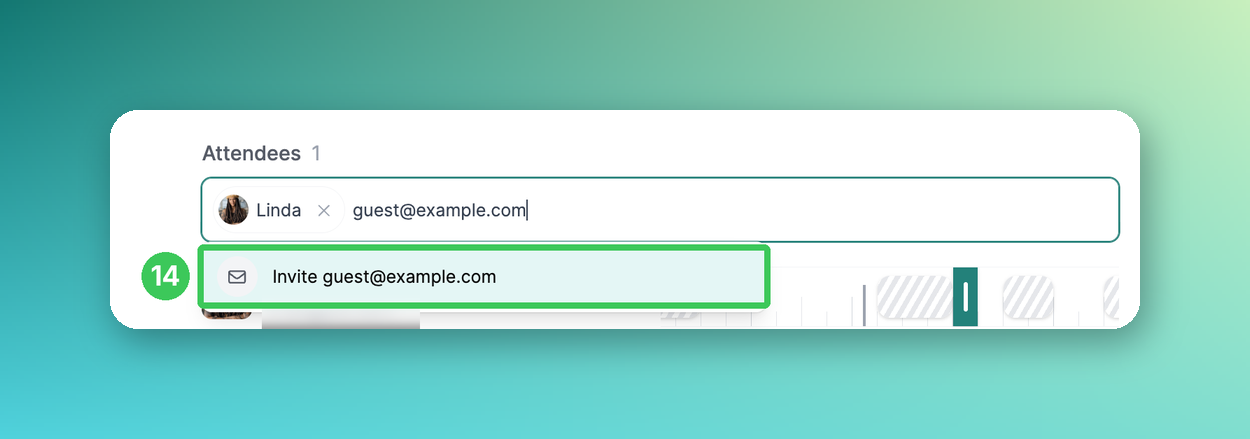
14. Attendees
Add colleagues and see their availability next to their name. You can also invite people outside PULT: type their email address and select Invite ….
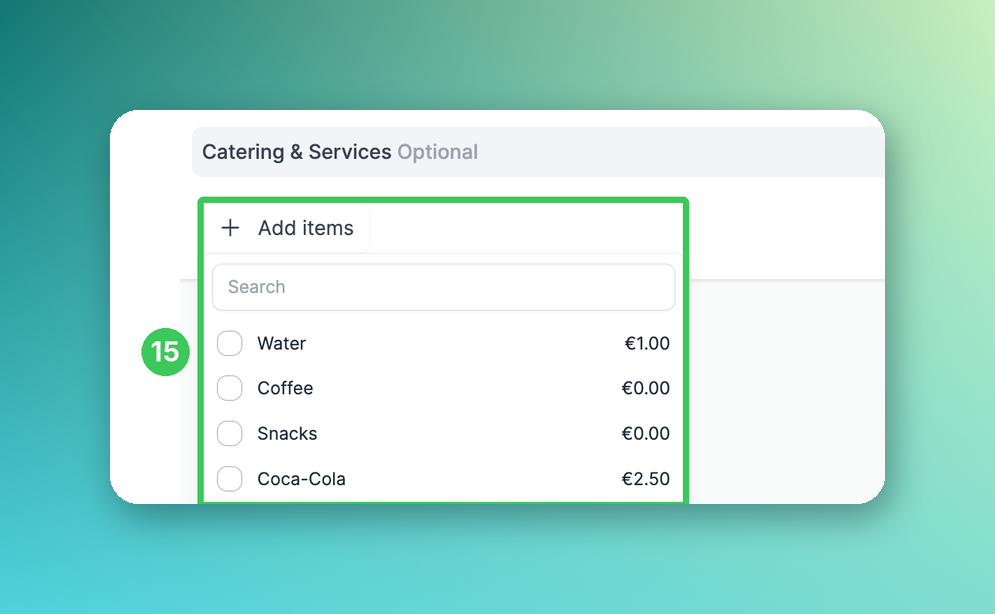
15. Catering & Service
If catering is enabled for the room, add items with Add items (optional).
16. Book
Check the summary on the right and click Book.
After booking
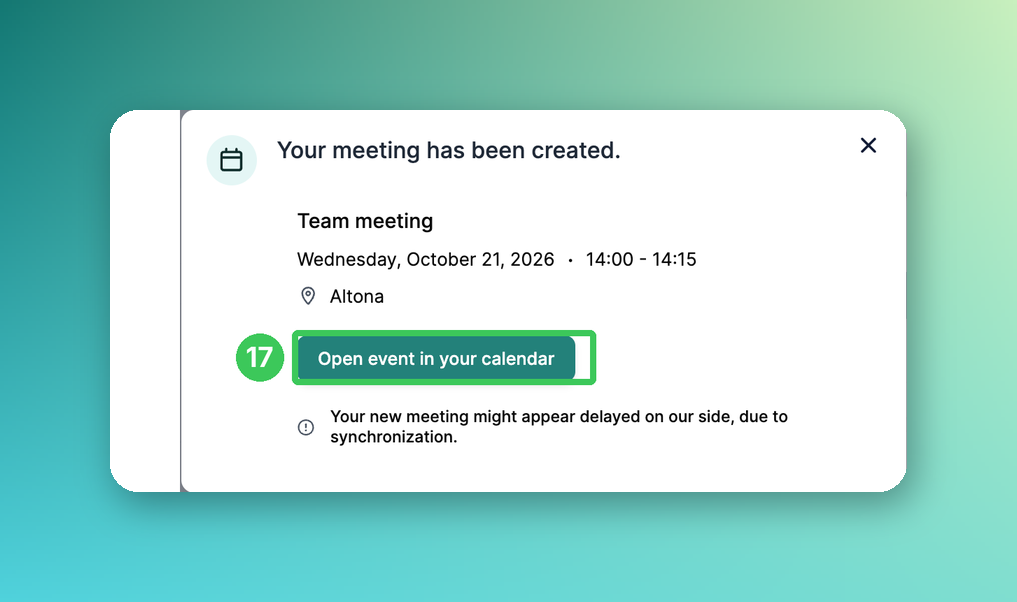
17. Open event in your calendar
The meeting is created in your Google or Outlook calendar. It can take a moment until it appears in PULT. To change or cancel the meeting, edit it in your calendar.
Frequently asked questions
How far in advance can I book a room?
Up to 180 days.
Why was my room booking released?
If your organization uses auto check-in and no-show optimization, a room is released when the booking isn't confirmed in time. Your meeting itself stays in the calendar (see Auto Check-In & No-Show Optimization for Meeting Rooms).
Why don't I see any catering items?
Catering must be enabled by an admin and the items must be assigned to the room (see Adding resources to meeting rooms).
Related articles
If you have any questions, feel free to contact our support team at support@pult.com.