How to use resources in the PULT app
Last updated: October 20, 2026
This article gives admins an overview of the Resources section in the PULT dashboard and how to manage resources there.
💡 Resources are a flexible way to offer things in your organization, e.g. lunch options, office dogs, training sign-ups or office supplies.
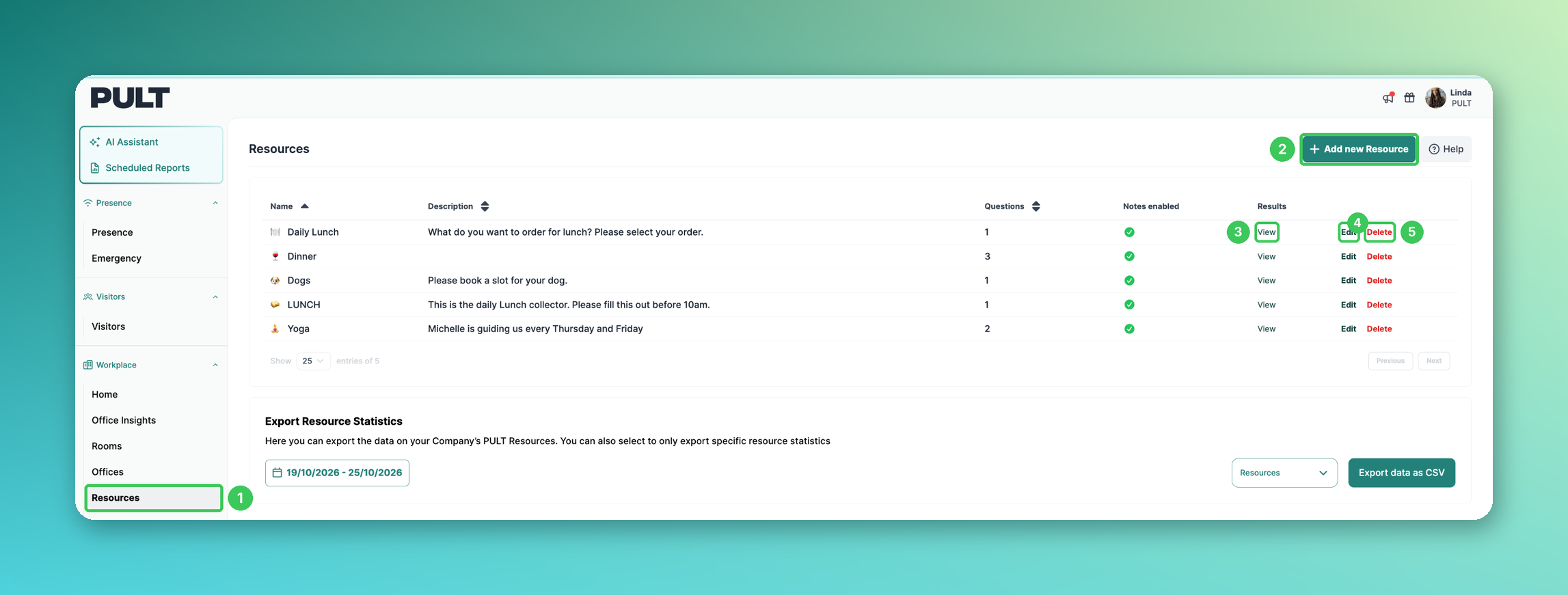
1. Resources
In the PULT dashboard, go to Workplace → Resources. The list shows all resources with their description, number of questions and whether notes are enabled.
2. Add new Resource
Creates a new resource. See Creating a New Resource.
3. Results – View
Shows the bookings and answers for a resource for a selected date range.
4. Edit
Change the name, description, visibility, questions and choices of the resource.
5. Delete
Removes the resource. Deleting is permanent and can't be undone.
Frequently asked questions
Can I export resource bookings?
Yes – see How do I export my resource data?.
What is the difference to meeting room resources?
Resources in this section are booked on their own (e.g. daily lunch). Catering for meeting rooms is managed under Workplace → Rooms → Resources (see Create resources for meeting rooms).
Related articles
If you have any questions, feel free to contact our support team at support@pult.com.