Creating a New Resource
Last updated: October 20, 2026
This article shows admins how to create a new resource in the PULT dashboard, including questions, choices and notes.
💡 Resources can be used in many ways – office dogs, lunch menus with prices, training sign-ups or office supplies. Don't worry, you can change all settings later.
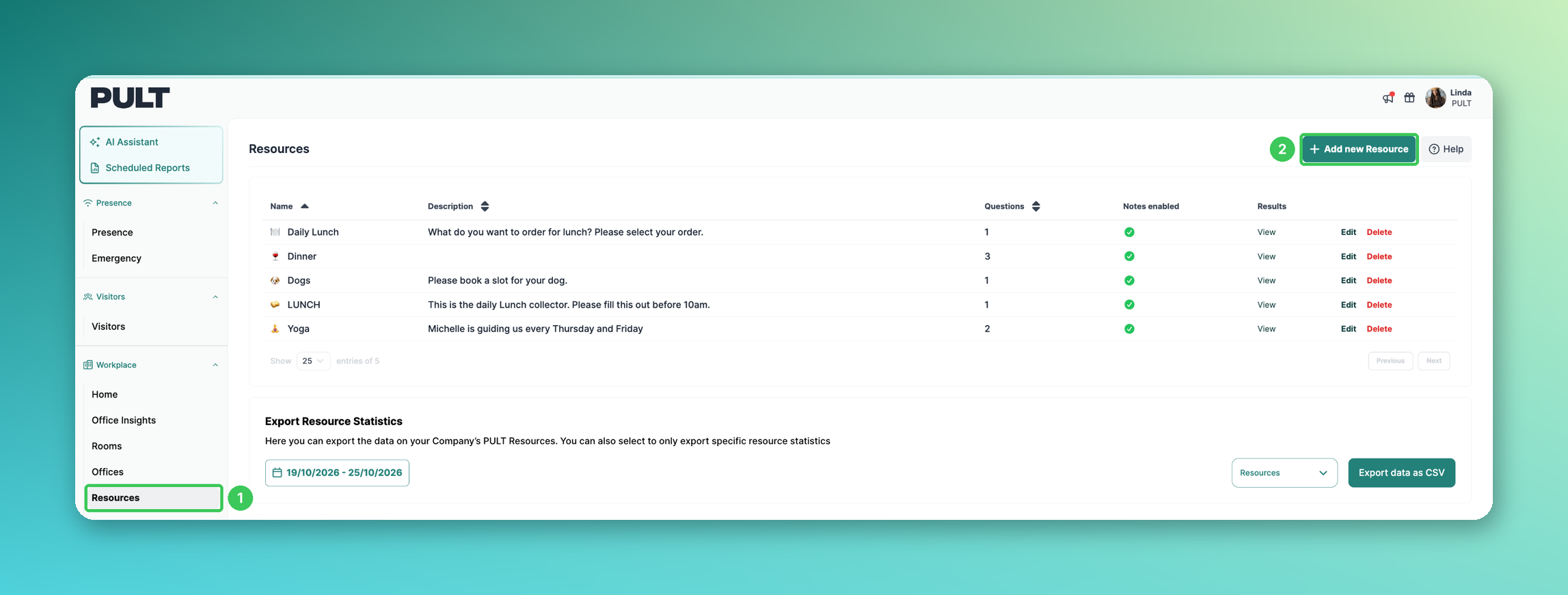
1. Resources
In the PULT dashboard, go to Workplace → Resources.
2. Add new Resource
Click Add new Resource. A form opens on the right.
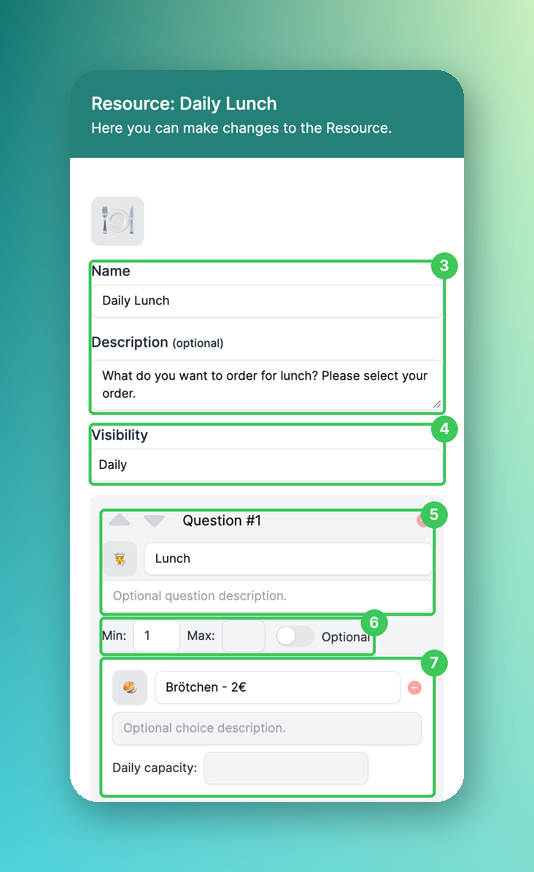
3. Name and Description
Choose an emoji and enter a name, e.g. "Daily Lunch". The description is optional.
4. Visibility
Defines when the resource is shown to users, e.g. Daily.
5. Question
Enter the question users answer when booking the resource, plus an optional description. Use the arrows to change the order of questions.
6. Min / Max / Optional
Set how many choices users must or can select. With Optional, the question doesn't have to be answered.
7. Choices
Enter each choice (e.g. "Salad – 5€"), an optional description and a Daily capacity, e.g. the number of meals available per day.
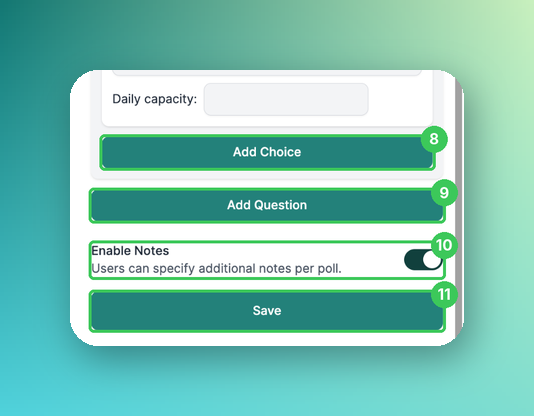
8. Add Choice
Adds another choice to the question.
9. Add Question
Adds another question to the resource.
10. Enable Notes
Lets users add notes to their booking.
11. Save
Click Save. The resource now appears in the list.
Frequently asked questions
Can I limit how often a choice can be booked?
Yes, with the Daily capacity of each choice.
Where do I see who booked what?
Click View in the Results column (see How to use resources in the PULT app) or export the data (see How do I export my resource data?).
Related articles
If you have any questions, feel free to contact our support team at support@pult.com.