Create resources for meeting rooms
Last updated: October 20, 2026
This article shows admins how to create resources for meeting rooms, e.g. catering items that can be ordered with a room booking.
💡 Managing meeting rooms and resources in one platform saves time. Resources must be enabled via Enable catering orders for Rooms (see Room Booking Settings in PULT App).
In the PULT dashboard, go to Workplace → Rooms.
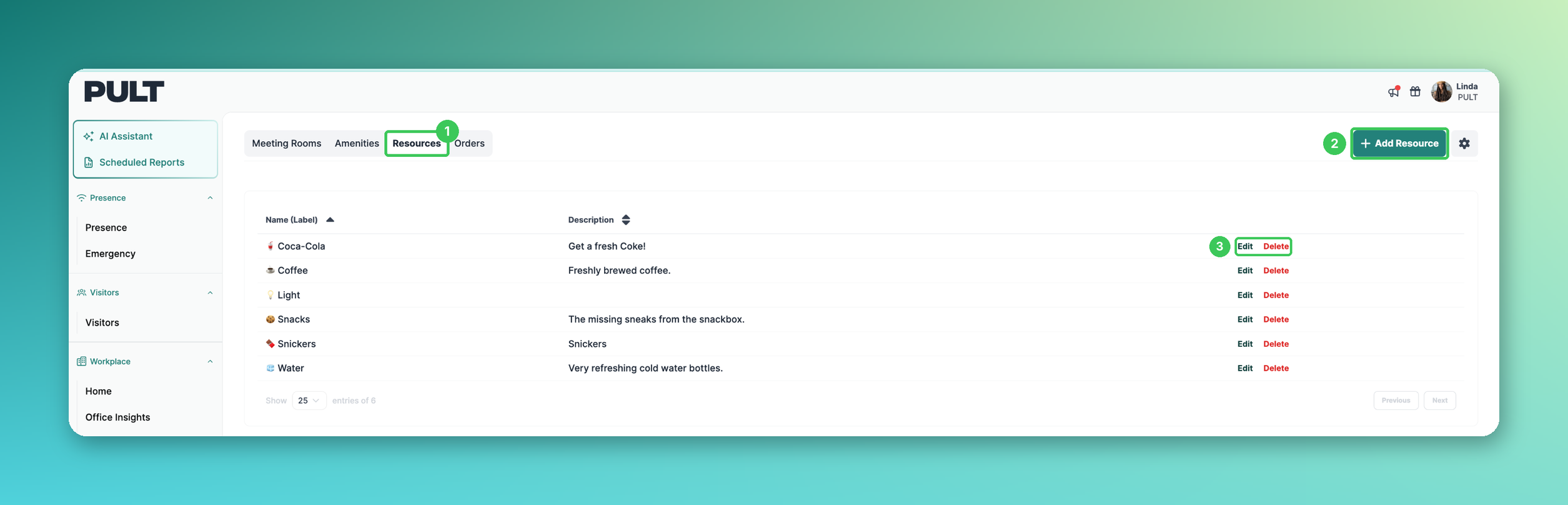
1. Resources
Open the Resources tab.
2. Add Resource
Click Add Resource to create a new resource.
3. Edit / Delete
Existing resources can be edited or deleted in the overview.
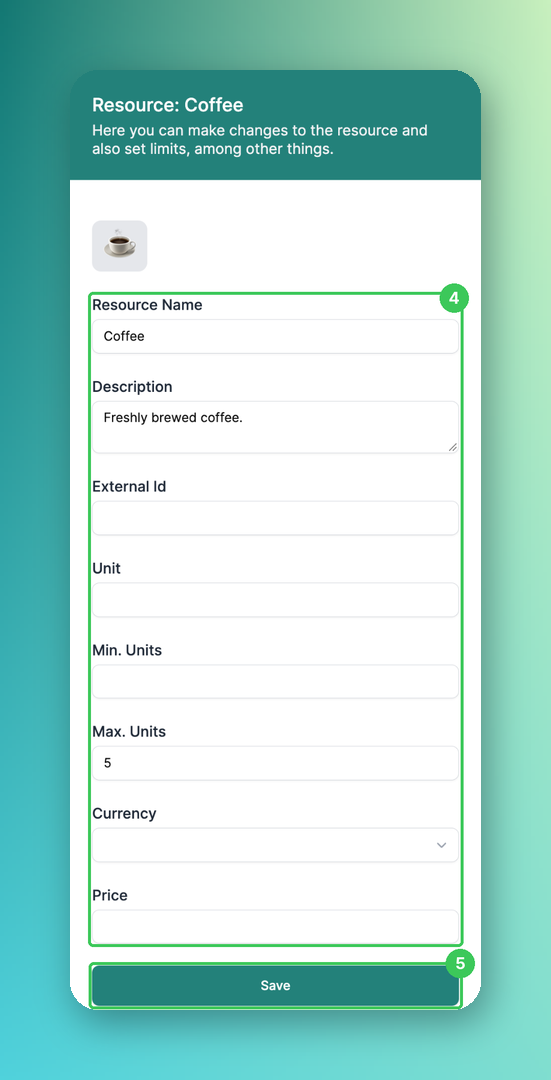
4. Resource details
Resource Name and Description
External Id – optional reference, e.g. a caterer's product code
Unit – e.g. one cup of coffee
Min. Units / Max. Units – minimum and maximum quantity per booking
Currency and Price per unit
5. Save
Click Save. The resource appears in the overview.
Next step: Adding resources to meeting rooms.
Frequently asked questions
Can I export resource orders?
Yes. See the export article in the Resources collection.
Why can't users order a resource?
Check that the resource is linked to the meeting room (see Adding resources to meeting rooms) and that catering orders are enabled.
Related articles
If you have any questions, feel free to contact our support team at support@pult.com.