Adding resources to meeting rooms
Last updated: October 20, 2026
This article shows admins how to link resources (e.g. coffee or snacks) to a meeting room so they can be booked for a meeting.
💡 Create your resources first – see Create resources for meeting rooms.
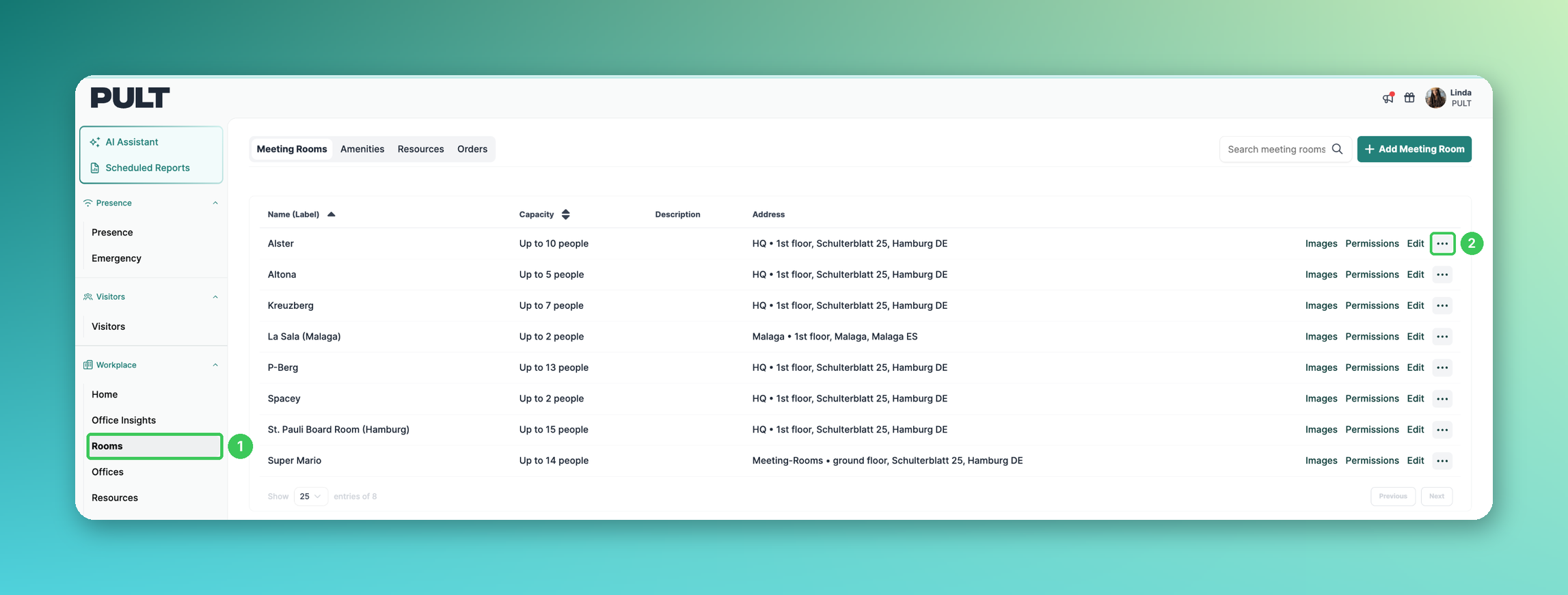
1. Rooms
In the PULT dashboard, go to Workplace → Rooms.
2. More options
Click the three dots next to the meeting room.
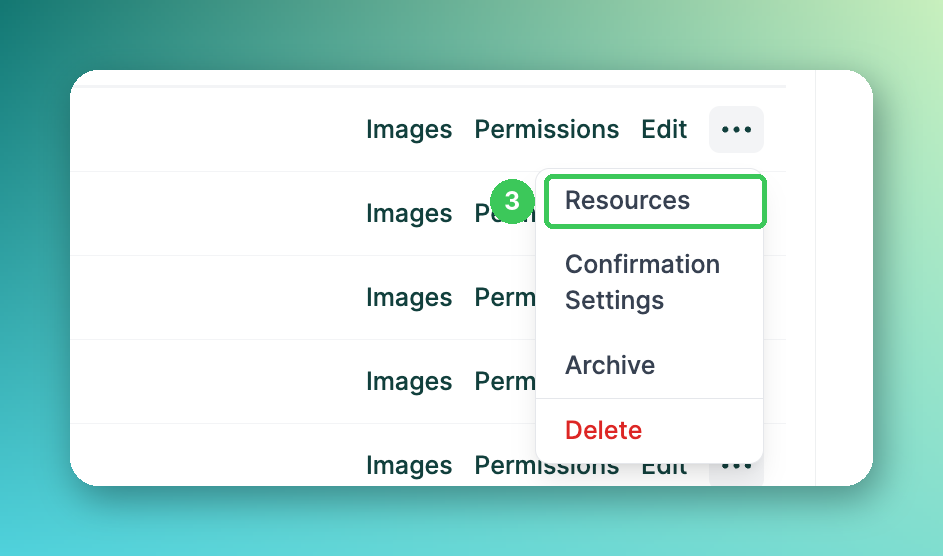
3. Resources
Select Resources.
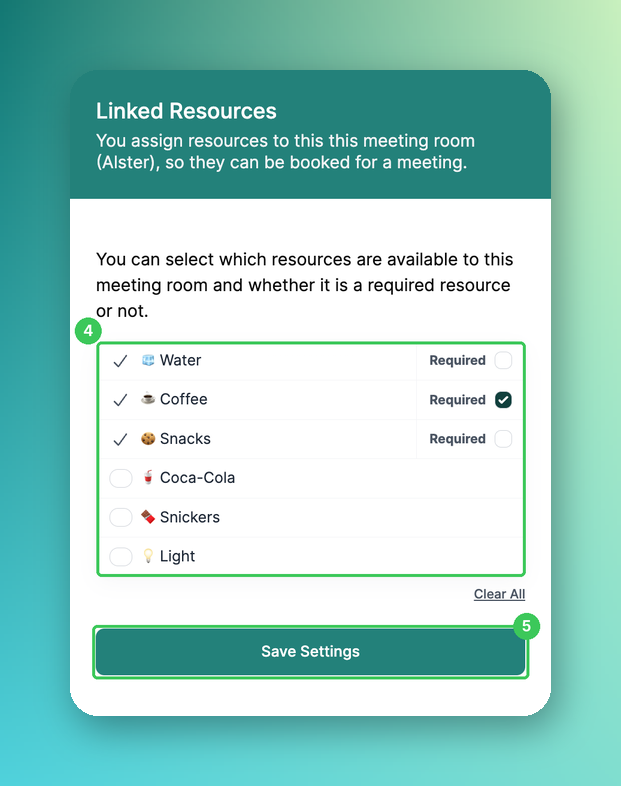
4. Select resources
Tick the resources that should be available for this room. Tick Required if the resource must be booked with every meeting in this room.
5. Save Settings
Click Save Settings.
Frequently asked questions
What does "Required" mean?
A required resource is always added when the room is booked, e.g. if water should be provided in every meeting.
Where can I see ordered resources?
In the Orders tab under Workplace → Rooms.
Related articles
If you have any questions, feel free to contact our support team at support@pult.com.