Catering settings for meeting rooms
Last updated: October 27, 2026
In the catering settings, you decide who gets emails about room bookings with catering and when. You can also send a daily plan of all catering orders, e.g. to your caterer or office team.
💡 Catering orders must be enabled first via Enable catering orders for Rooms (see Room Booking Settings in PULT App).
1. Open the catering settings
In the PULT dashboard, go to Workplace → Rooms.
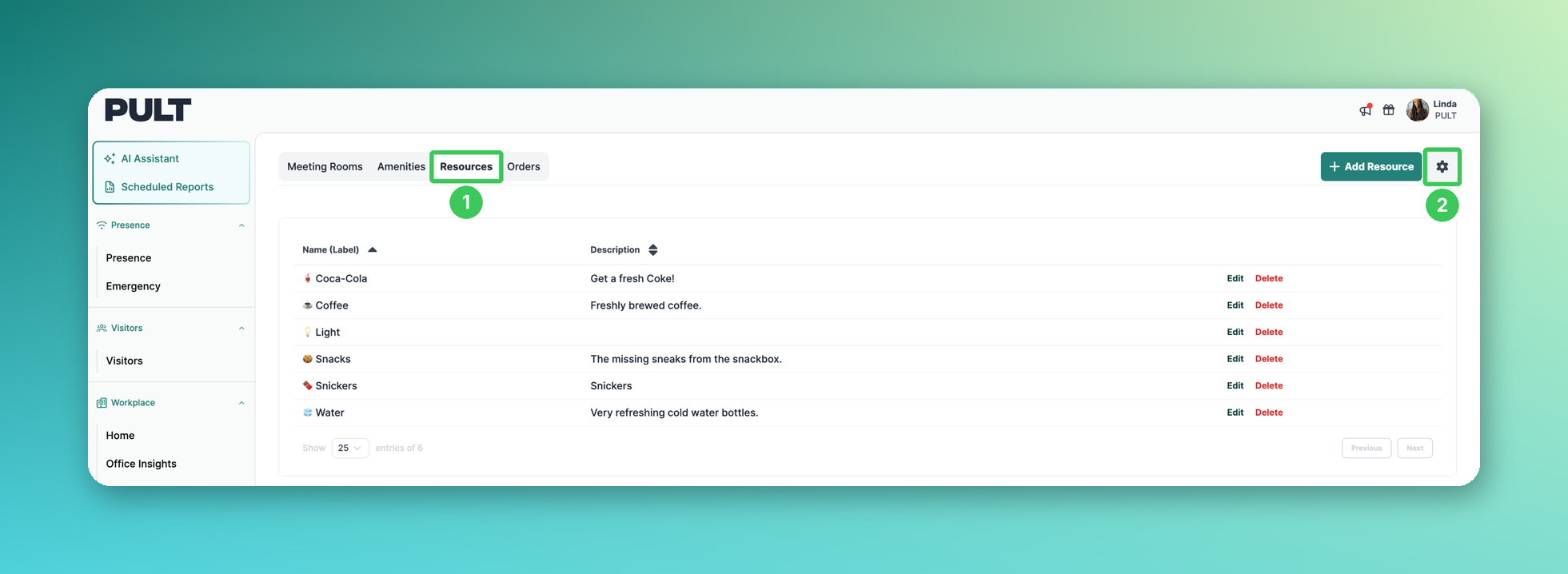
Open the Resources tab.
Click the gear icon next to Add Resource.
2. Choose your settings
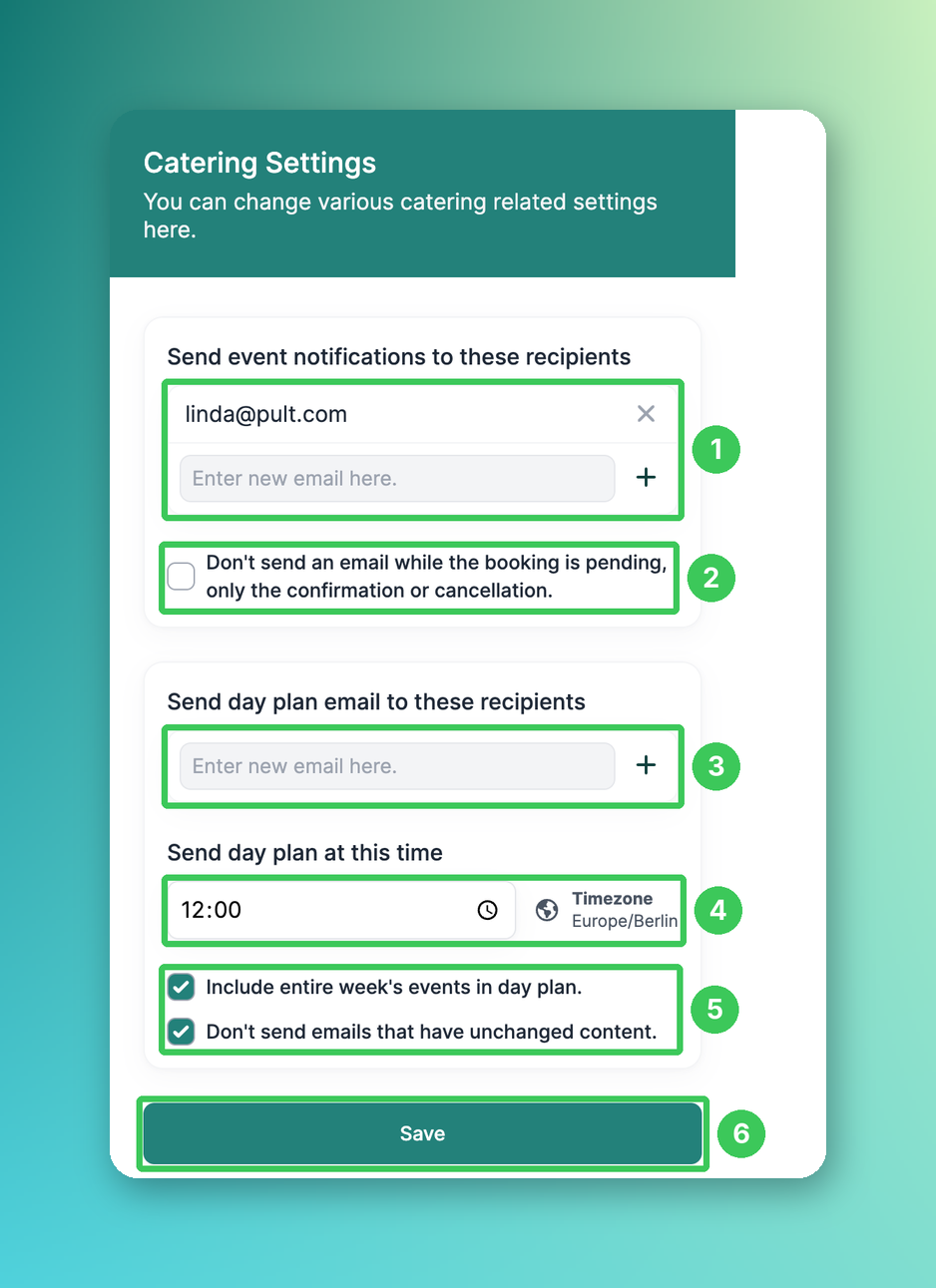
Send event notifications to these recipients: Add the email addresses that should get emails about room bookings with catering.
Don’t send an email while the booking is pending: Recipients only get one email – the confirmation or the cancellation. Without this option, they also get an email while the booking is still pending.
Send day plan email to these recipients: Add the email addresses that should get the daily plan of catering orders.
Send day plan at this time: Choose when the day plan is sent. The time zone is shown next to it.
Include entire week’s events in day plan adds the orders of the whole week. Don’t send emails that have unchanged content skips the day plan if nothing has changed.
Click Save.
Frequently asked questions
Why do recipients get two emails for one booking?
By default, they get an email while the booking is pending and another one when it is confirmed or cancelled. Turn on Don’t send an email while the booking is pending to send only one email.
Who gets the day plan?
Only the email addresses you add under Send day plan email to these recipients.
I don’t see the catering settings.
Check that catering orders for rooms are enabled and that you are an admin.
Related articles
If you have any questions, feel free to contact our support team at support@pult.com.