Adding amenities to meeting rooms
Last updated: October 21, 2026
This article shows admins how to assign amenities to a meeting room.
💡 Create your amenities first – see Create amenities for meeting rooms.
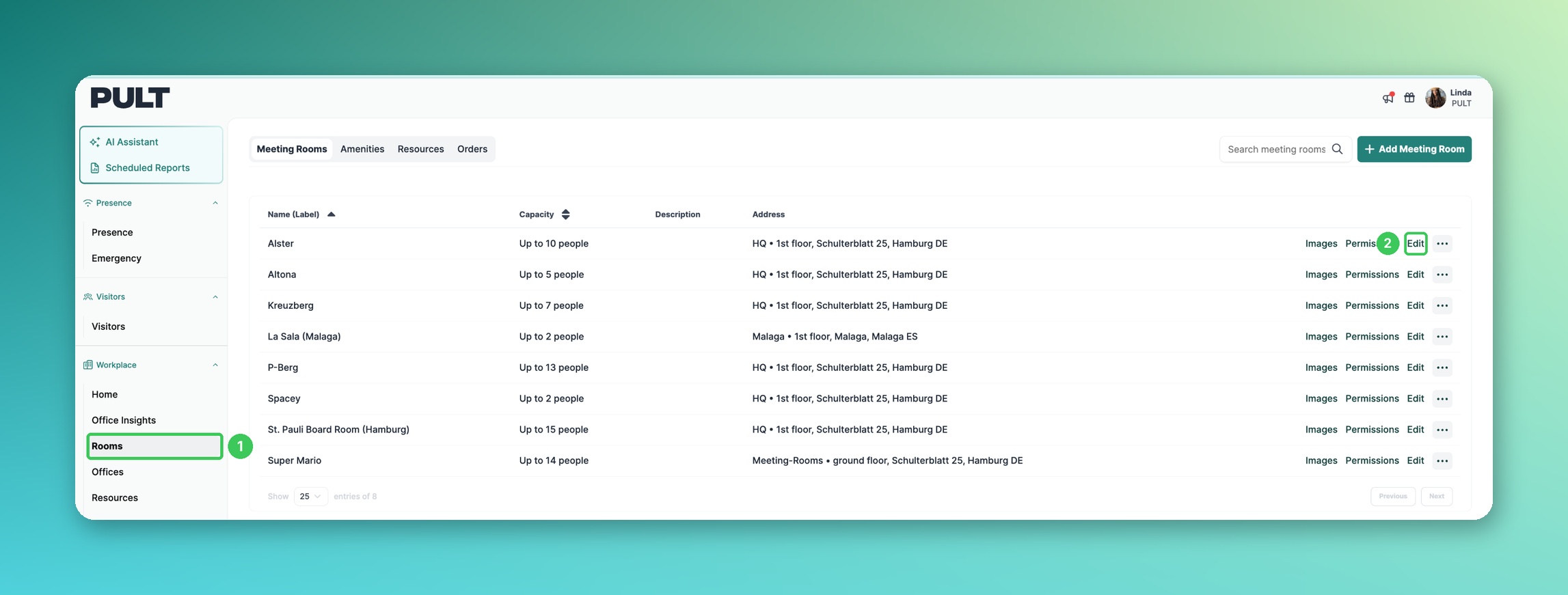
1. Rooms
In the PULT dashboard, go to Workplace → Rooms.
2. Edit
Click Edit next to the meeting room.
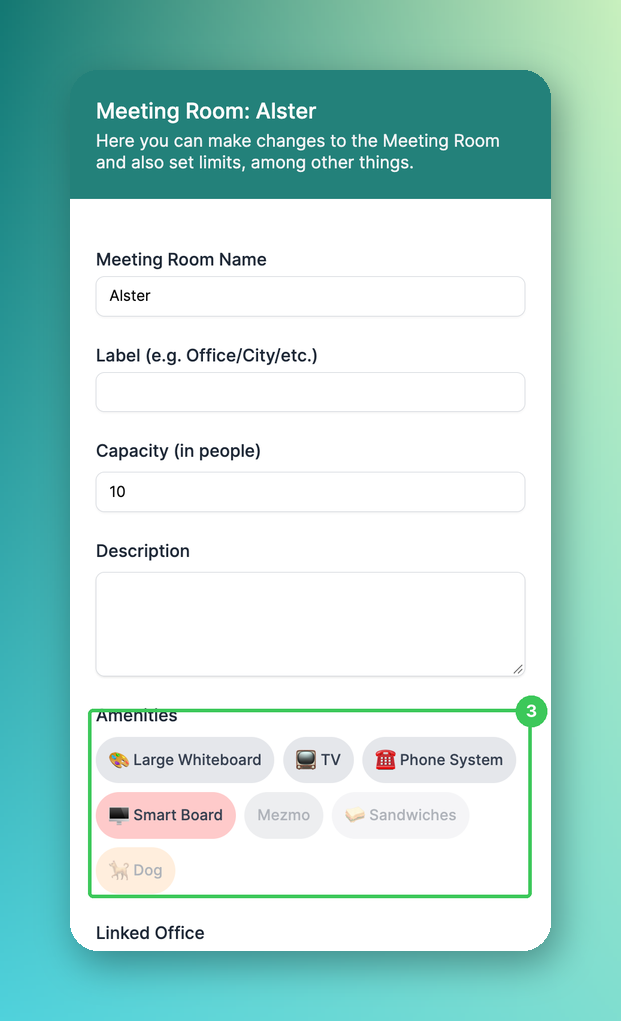
3. Amenities
Click the amenities that apply to this room (selected amenities are highlighted) and click Save at the bottom of the panel.
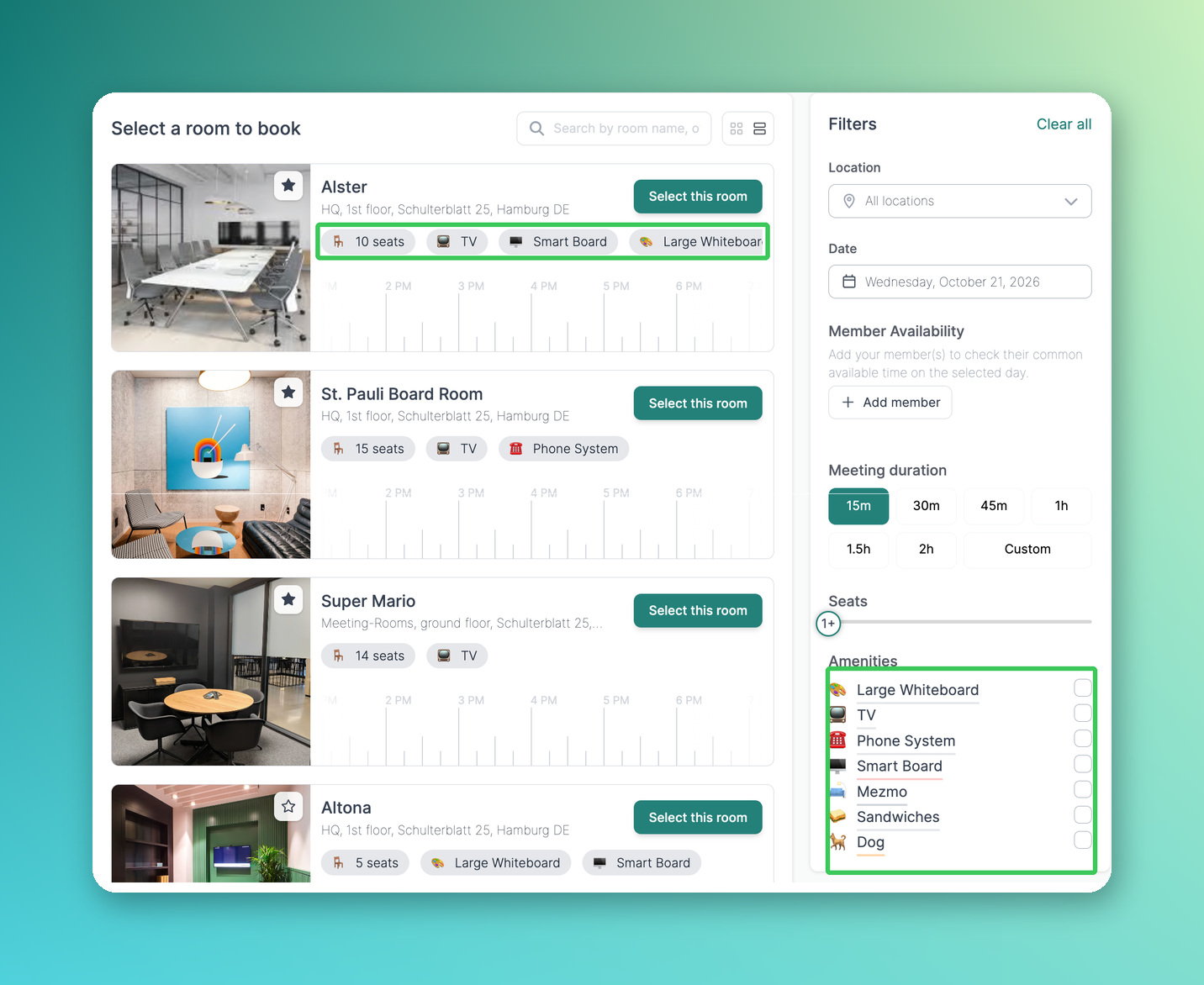
How it looks in the web app
Frequently asked questions
Can a room have several amenities?
Yes, select as many as apply.
Related articles
If you have any questions, feel free to contact our support team at support@pult.com.