Create amenities for meeting rooms
Last updated: October 20, 2026
This article shows admins how to create amenities (e.g. TV or whiteboard) so users can find the right meeting room.
In the PULT dashboard, go to Workplace → Rooms.
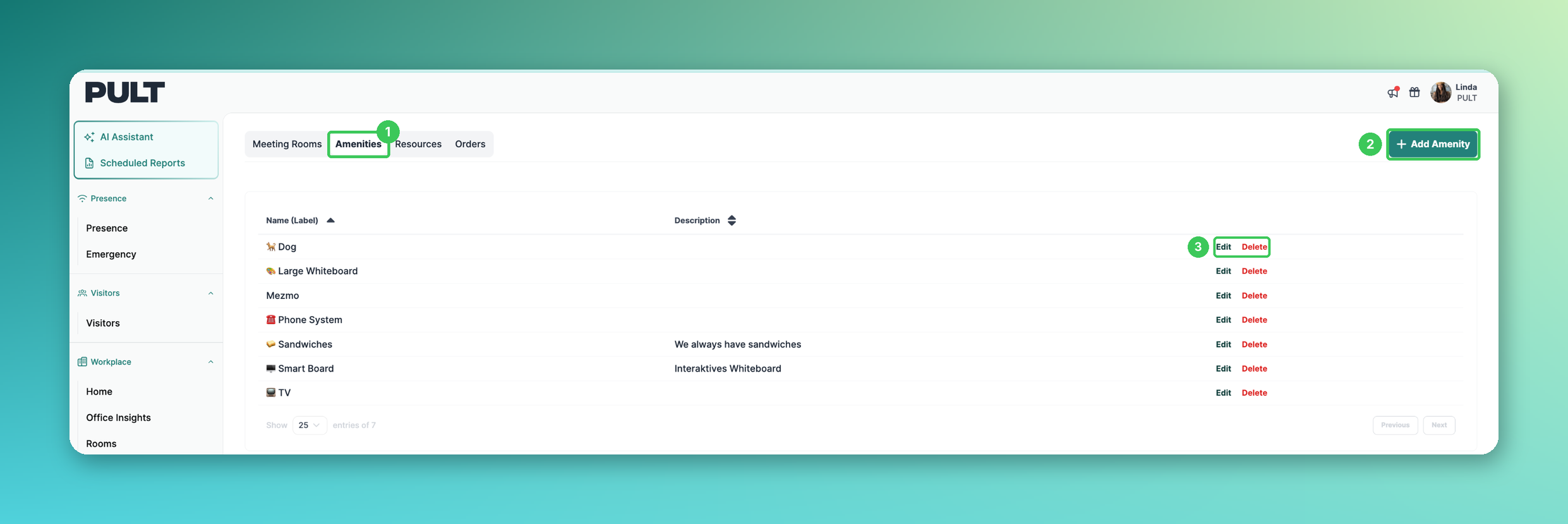
1. Amenities
Open the Amenities tab.
2. Add Amenity
Click Add Amenity.
3. Edit / Delete
Existing amenities can be edited or deleted in the overview.
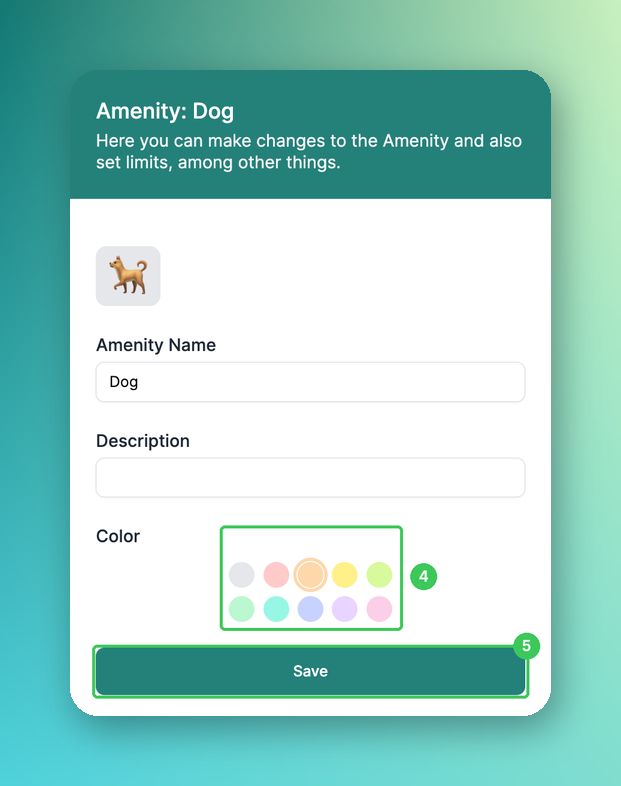
4. Amenity details
Choose an emoji and enter the Amenity Name and Description. Pick a Color to differentiate the amenity tags.
5. Save
Click Save.
Next step: Adding amenities to meeting rooms.
Frequently asked questions
Where do users see amenities?
When booking a meeting room, amenities are shown as coloured tags and help users choose a suitable room.
Related articles
If you have any questions, feel free to contact our support team at support@pult.com.