Auto Check-In & No-Show Optimization for Meeting Rooms
Last updated: October 20, 2026
This article explains how PULT automatically releases unused meeting room bookings and how admins configure the meeting confirmation per room.
💡 PULT detects attendance via PULT Presence data or manual confirmations. If a meeting isn't confirmed in time, the room is removed from the event – the meeting itself is not deleted.
How it works
Booking: A user books a room, e.g. for a 4 PM meeting with three required attendees.
Automatic attendance check: If enough required attendees are detected at a PULT-tracked location, the meeting is confirmed automatically.
Manual confirmation: The organizer receives a reminder via Slack, Microsoft Teams or Google Chat asking whether the room is still needed:
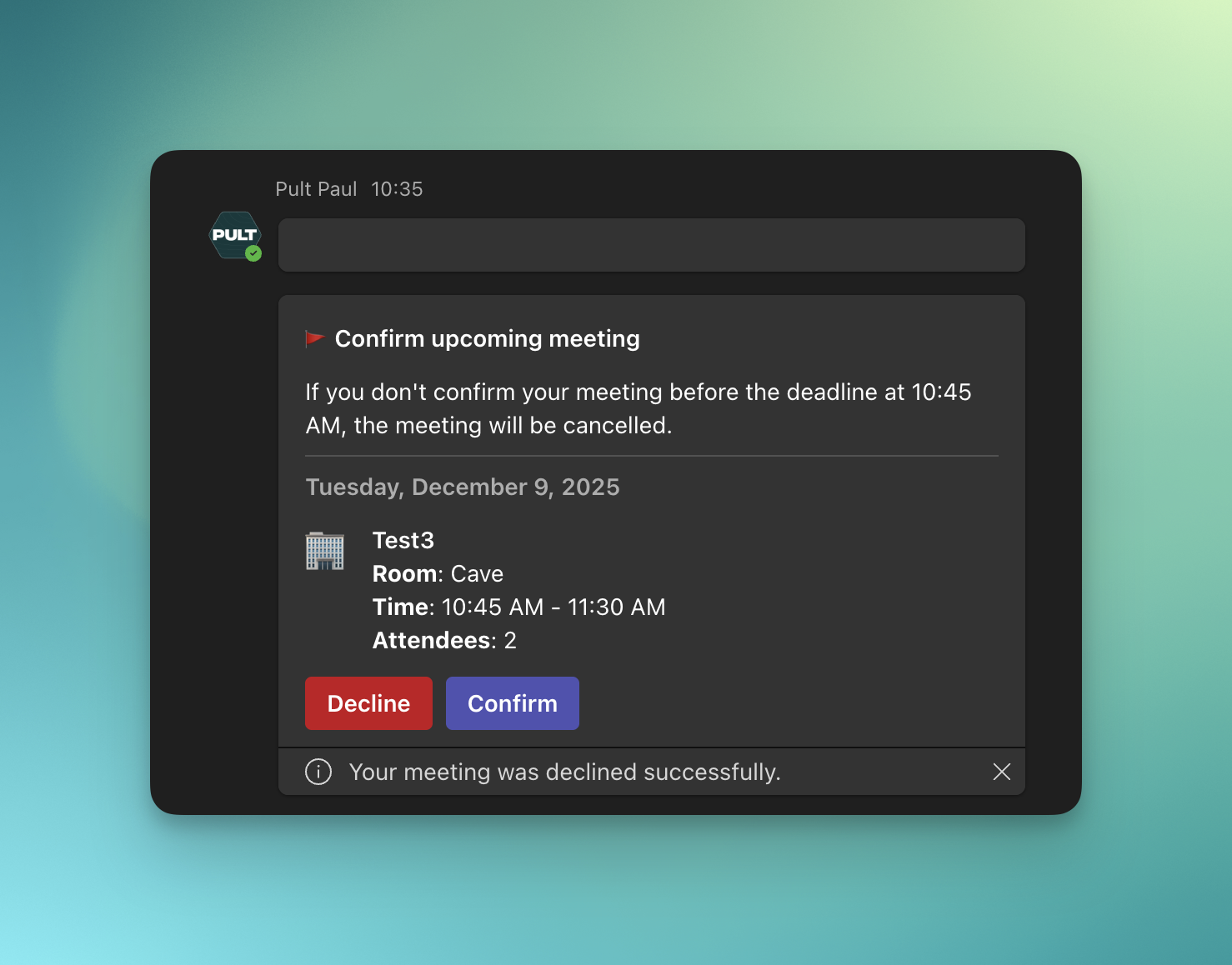
Release: If the meeting isn't confirmed by the auto-cancel deadline, the room is released automatically:
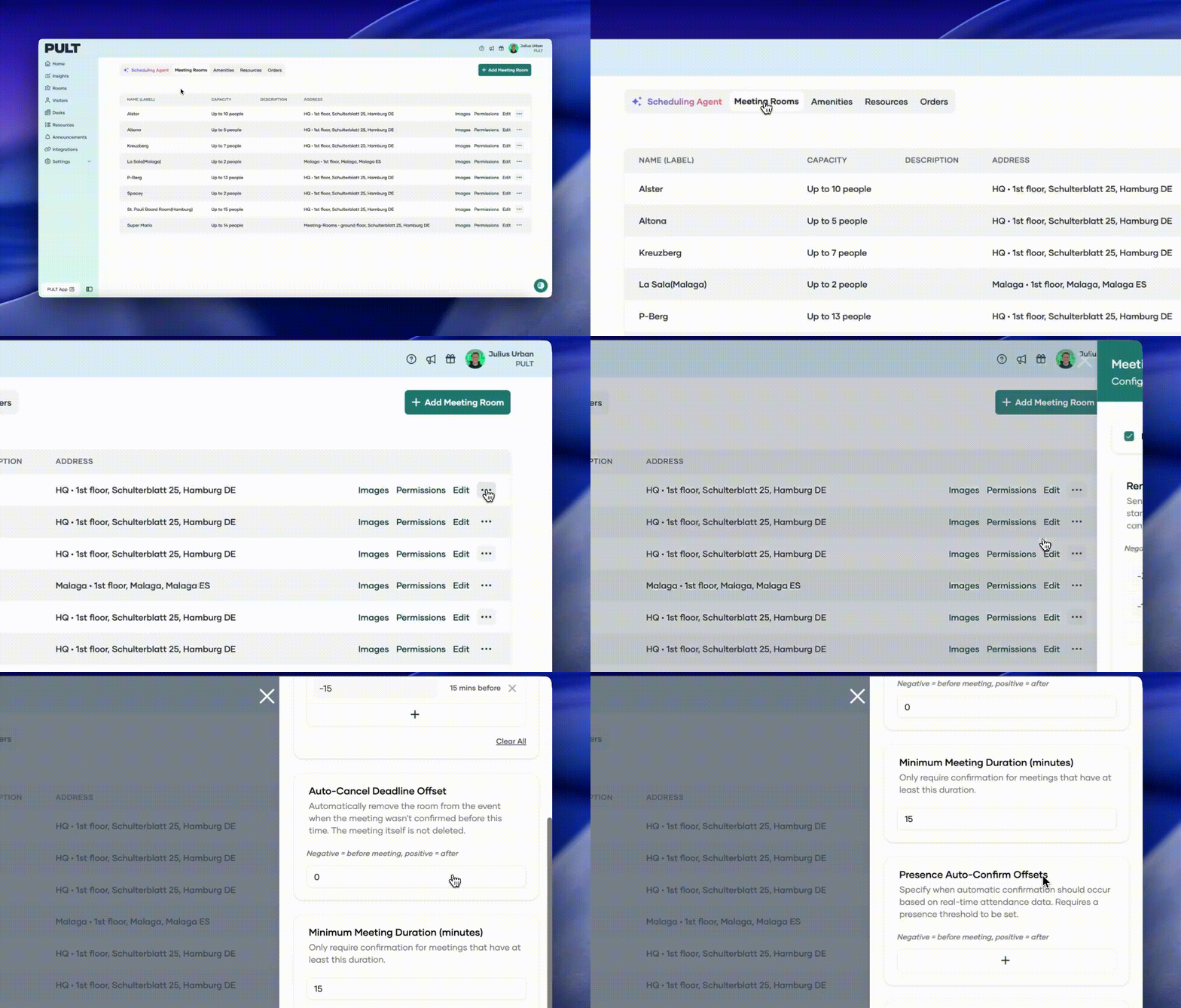
Configure the meeting confirmation
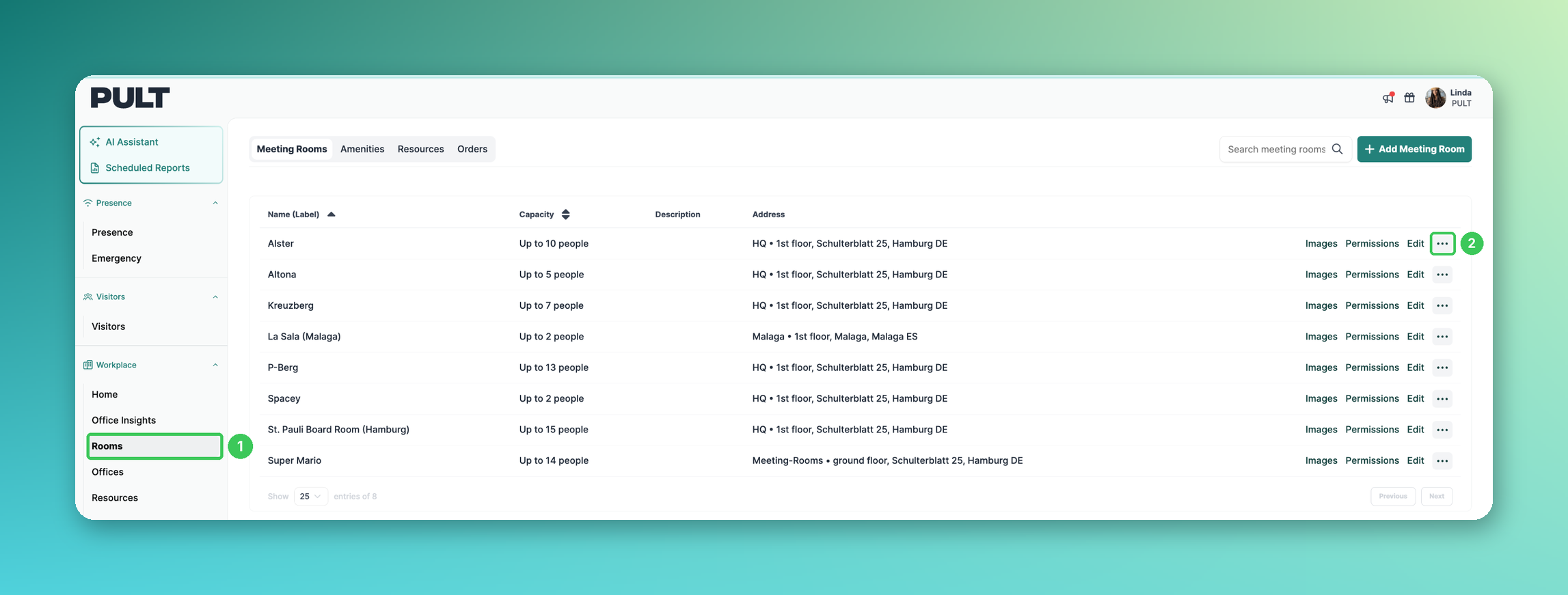
1. Rooms
In the PULT dashboard, go to Workplace → Rooms.
2. More options
Click the three dots next to the meeting room.
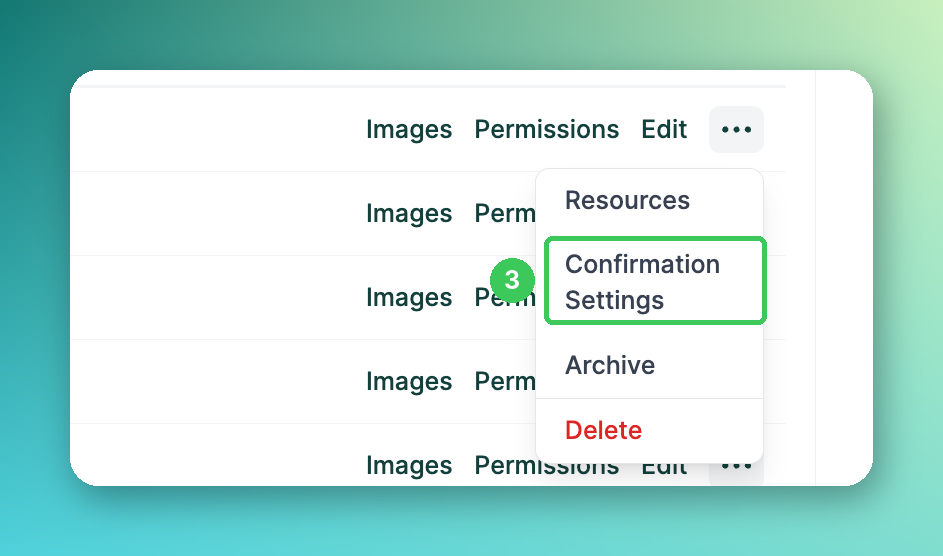
3. Confirmation Settings
Select Confirmation Settings.
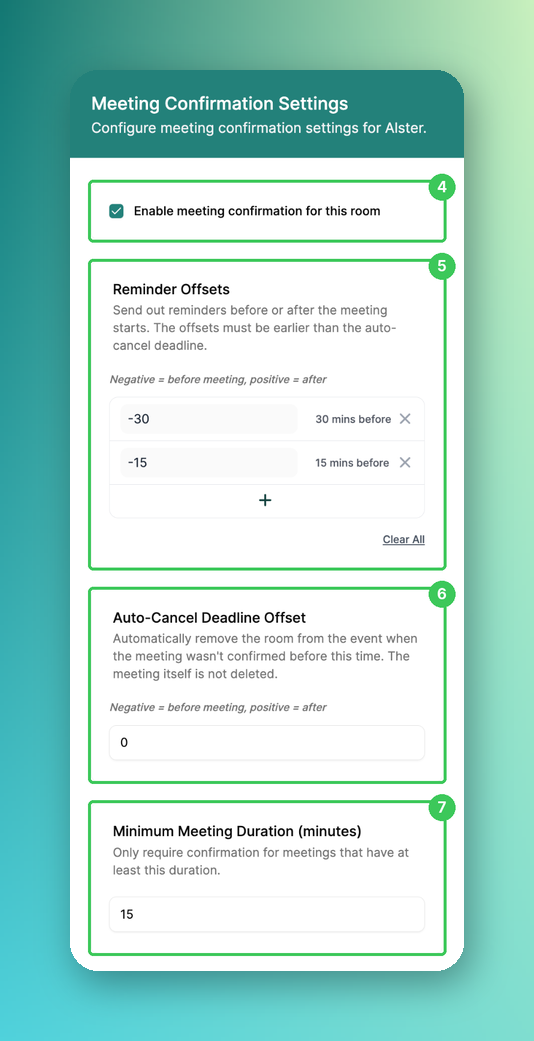
4. Enable meeting confirmation for this room
Activates the confirmation for this room.
5. Reminder Offsets
When reminders are sent, relative to the meeting start (negative = before, e.g. −15 = 15 minutes before). Offsets must be earlier than the auto-cancel deadline.
6. Auto-Cancel Deadline Offset
When PULT checks the confirmation. Unconfirmed meetings lose their room at this time. 0 = at meeting start.
7. Minimum Meeting Duration (minutes)
Confirmation is only required for meetings of at least this length.
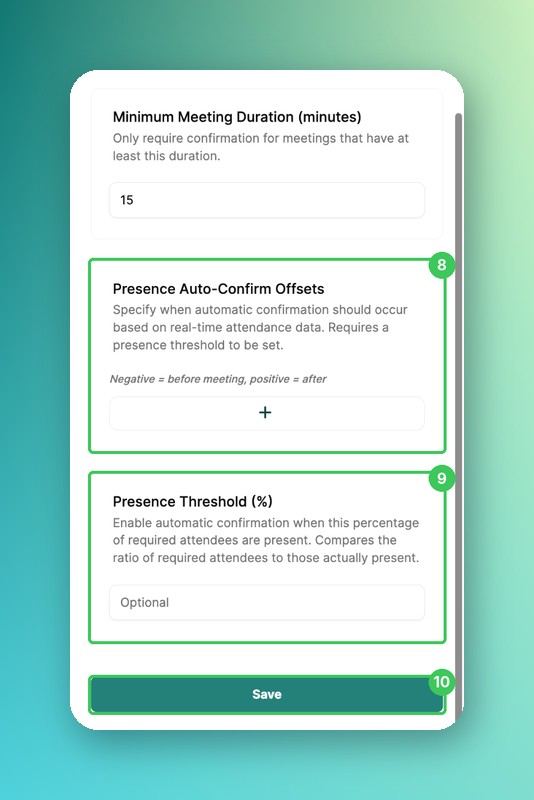
8. Presence Auto-Confirm Offsets
Times at which PULT checks whether required attendees are present. Requires a presence threshold.
9. Presence Threshold (%)
Percentage of required attendees that must be present for automatic confirmation, e.g. 50%.
10. Save
Click Save.
Frequently asked questions
Is the meeting deleted when the room is released?
No. Only the room is removed from the event.
Do I need PULT Presence for this?
No. Without Presence, meetings are confirmed manually via the reminder. Presence data enables automatic confirmation.
Can I use different settings per room?
Yes. The confirmation settings are configured per meeting room.
Related articles
If you have any questions, feel free to contact our support team at support@pult.com.