Adjust Time Zones in PULT
Last updated: October 20, 2026
This article shows how admins set the time zone for the whole organisation and how users can set their own time zone if they work in a different one.
The time zone determines when notifications (e.g. booking confirmations) are sent.
For admins
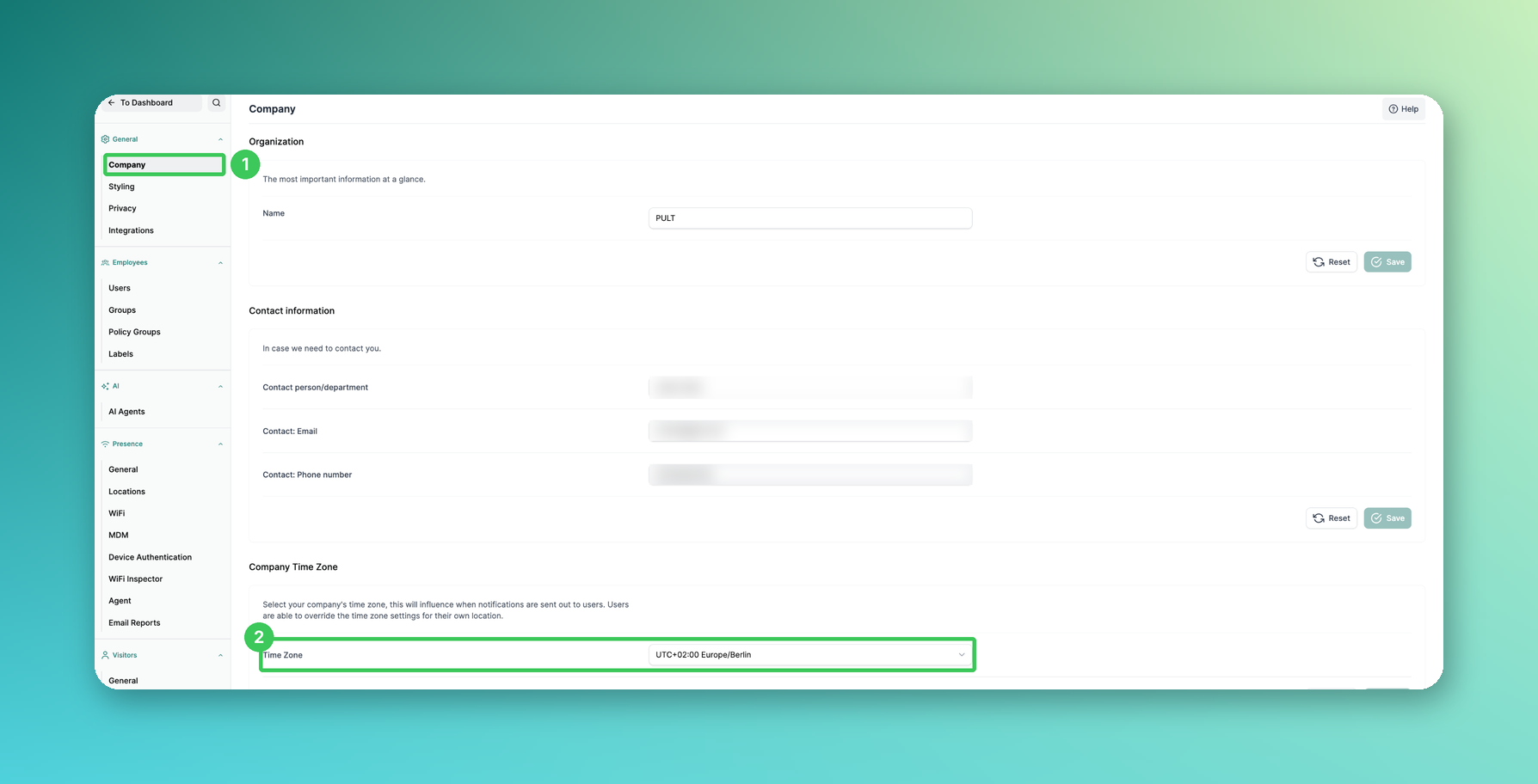
1. Company
In the PULT dashboard, go to Settings → General → Company.
2. Company Time Zone
Select the time zone from the dropdown and click Save. This setting applies to your whole organisation.
For users
Users based in a different time zone can set their own:
Log in to the PULT app.
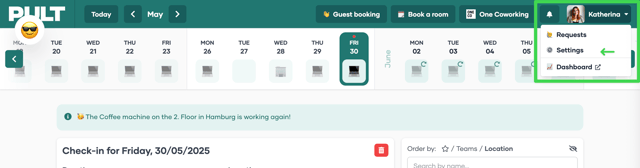
Click your name in the top right and then Settings.
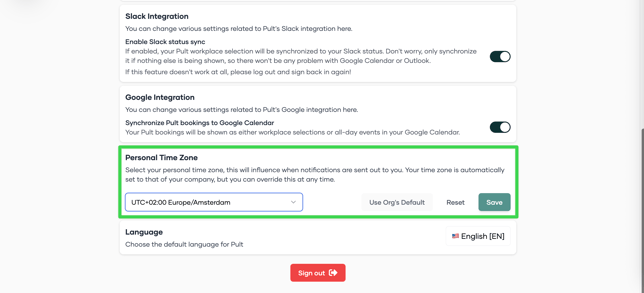
Scroll down to Personal Time Zone, select your time zone and click Save.
Frequently asked questions
Does the personal time zone override the company time zone?
Yes, for the respective user.
Related articles
If you have any questions, feel free to contact our support team at support@pult.com.