Slack Notifications in PULT
Last updated: October 20, 2026
With the Slack integration, PULT can remind your employees to confirm their work location and book a workspace. This article shows admins where to set these check-in reminders.
Prerequisite: Slack must be connected to PULT (see Add the PULT App to Slack).
In the PULT dashboard, go to Settings → Workplace → Notifications and scroll down to Check-in Reminders.
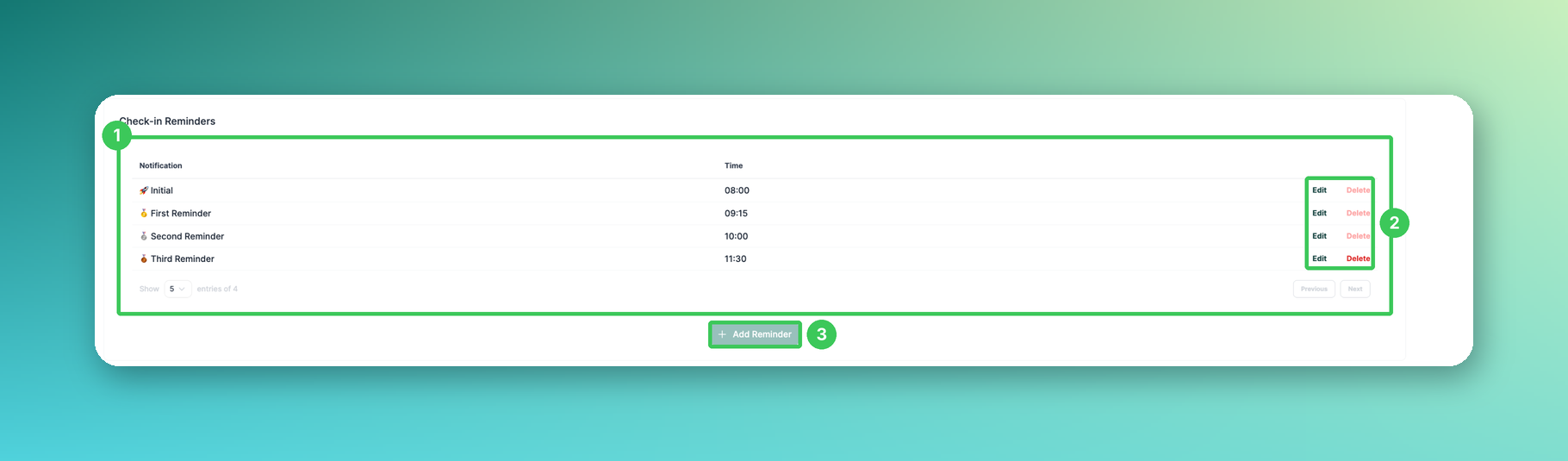
1. Check-in Reminders
The list shows all reminders with their time: the Initial message and the First, Second and Third Reminder.
2. Edit or Delete
Click Edit to change the time of a reminder and confirm with Save. Click Delete to remove it.
3. Add Reminder
Click + Add Reminder to add another reminder. The number of reminders is limited – if the button is greyed out, the maximum has been reached.
Good to know
All times use your company time zone (see Adjust Time Zones in PULT).
Reminders are only sent on weekdays.
Reminders set after 13:00 apply to the next working day.
If users select “Office” as their work location, they are reminded to book a workspace in the office.
Frequently asked questions
Can I choose the Slack channel?
The current settings only show the reminder times. If you need a specific channel, please contact our support team.
Where do I set booking confirmations?
On the same page – see Booking Confirmations.
Related articles
If you have any questions, feel free to contact our support team at support@pult.com.