Add the PULT App to Slack
Last updated: October 20, 2026
This article shows admins how to add the PULT app to your Slack workspace, so your team can use PULT directly in Slack.
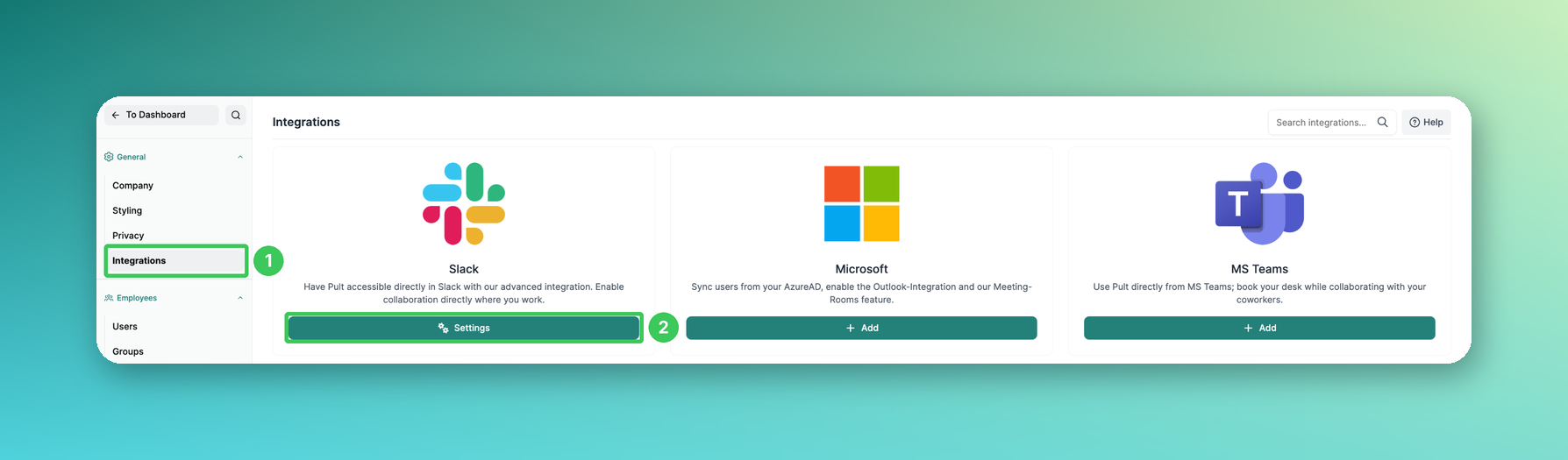
1. Integrations
In the PULT dashboard, go to Settings → General → Integrations.
2. Slack
On the Slack card, click + Add. If Slack is already connected, the button is called Settings.
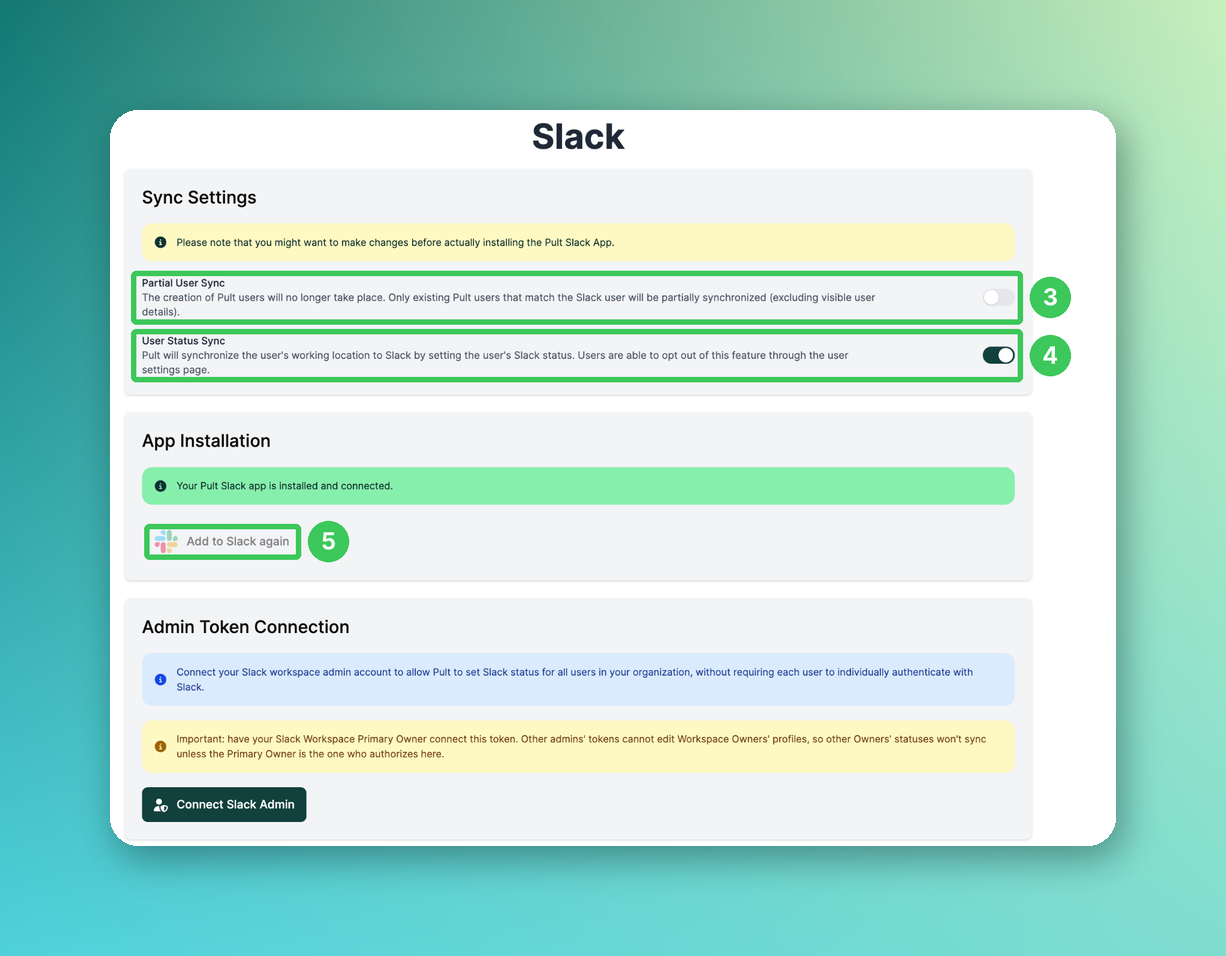
3. Partial User Sync
Optional. If enabled, PULT no longer creates new users from Slack. Only existing PULT users that match a Slack user are partially synchronised (excluding visible user details).
4. User Status Sync
Optional. If enabled, PULT sets each user's Slack status to their working location. Users can opt out in their user settings. Details in Enable User Status Sync in Slack.
5. Add to Slack
Click Add to Slack (shown as Add to Slack again once the app is installed). Enter your Slack workspace and click Continue.
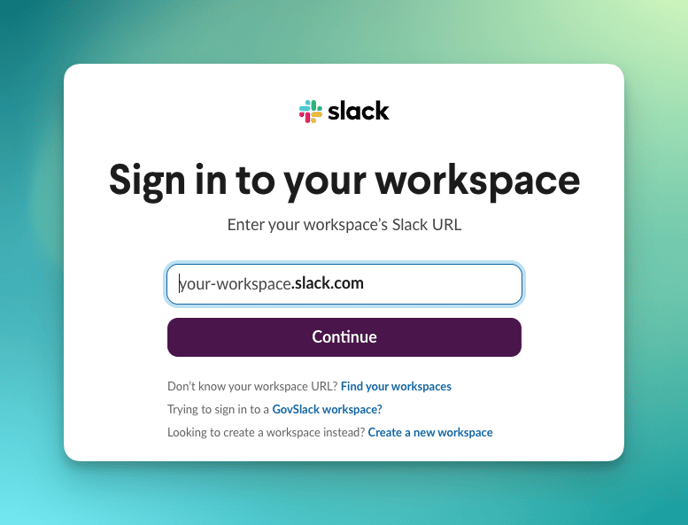
If you are asked to sign in to Slack, use a Slack account that is allowed to add apps to your workspace. Click Add to Workspace – done! 🚀
Frequently asked questions
Who can add the PULT app to Slack?
An admin in PULT who also has permission to add apps to the Slack workspace.
Do employees have to grant permissions themselves?
To avoid this, connect the Slack admin token once – see Slack Sign-In & Status Synchronization in Pult.
Related articles
If you have any questions, feel free to contact our support team at support@pult.com.