Slack Sign-In & Status Synchronization in Pult
Last updated: January 8, 2026
Background
Currently, regular users may be prompted to grant app permissions every time they sign in using “Sign in with Slack.”
This behavior is related to the Slack status synchronization feature.
With the correct one-time setup by an admin, no further installation or permission prompts are required for users.
One-Time Setup by an Admin
To ensure a smooth sign-in experience for users, an admin needs to authorize the Slack integration once.
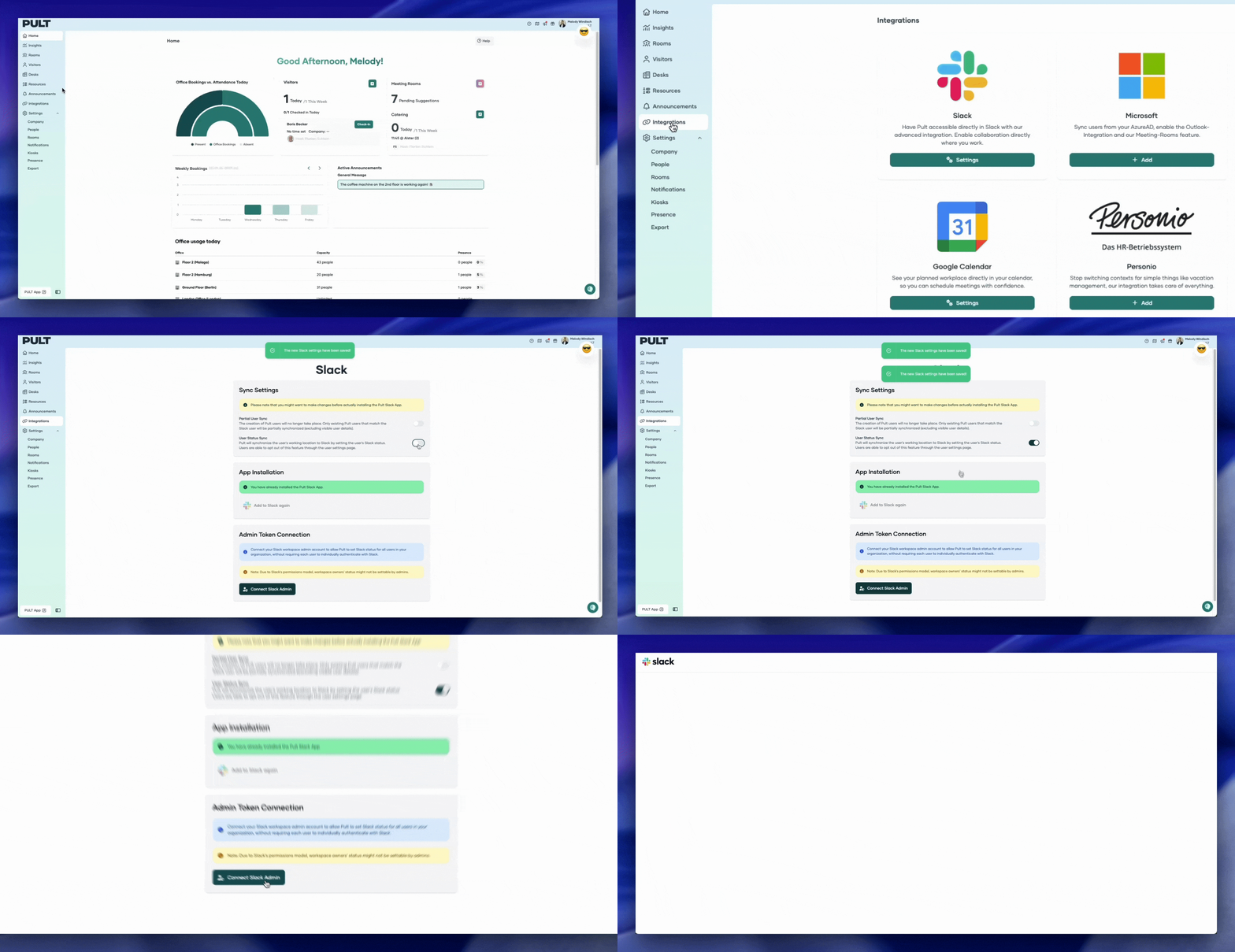
Steps for Admins
Sign in to Pult as an Admin.
Navigate to Integrations in the dashboard.
Go to the Slack integration.
Click the “Connect Slack Admin” button to authorize the Slack app.
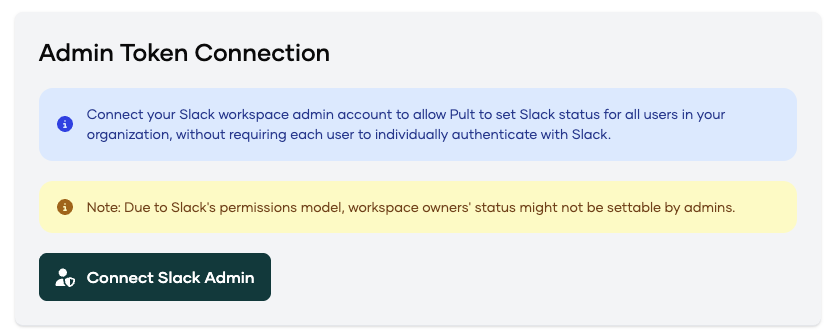
➡ This installs the required Slack permissions once per workspace.
Important Setting: User Status Sync
Enable the “User Status Sync” toggle if you want Slack statuses to be automatically synchronized with Pult presence statuses.
If this option is disabled, no additional permissions are required.
Behavior After Setup
Users can sign in easily using “Sign in with Slack.”
App permissions will not be requested again on every login.
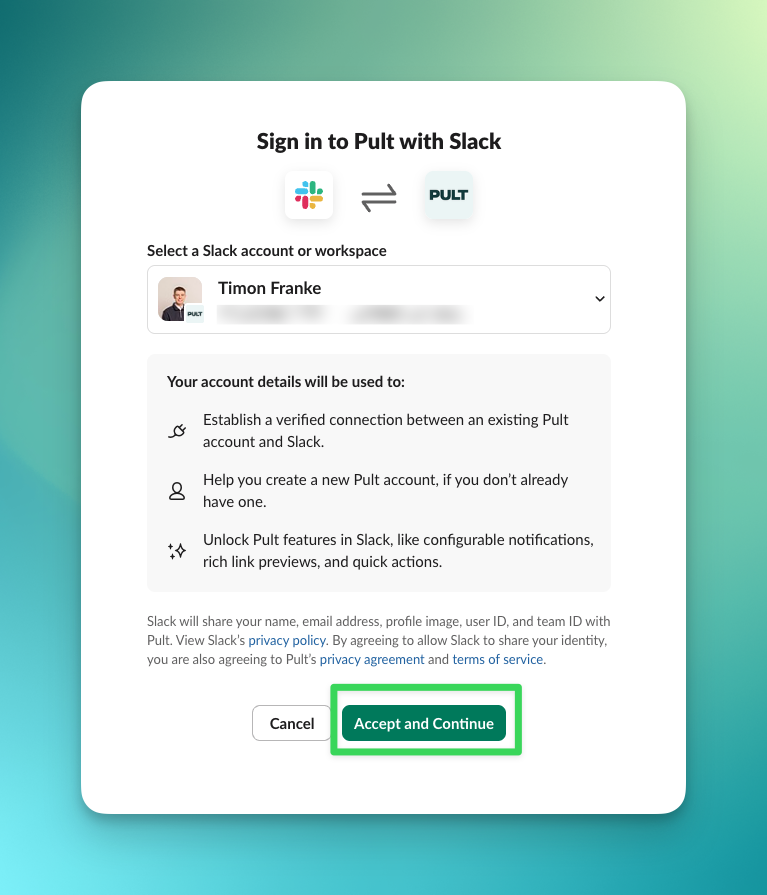
This is the new page that users will see when signing in with “Sign in with Slack.”