Booking Confirmations
Last updated: March 26, 2026
Booking confirmations help ensure desks are used by people who actually plan to be in the office.
Admins can control if, when, and how bookings must be confirmed.
Where to find booking confirmations
In the Admin Dashboard, go to:
Settings → Notifications → Booking Confirmations
1. Enable Booking Confirmations
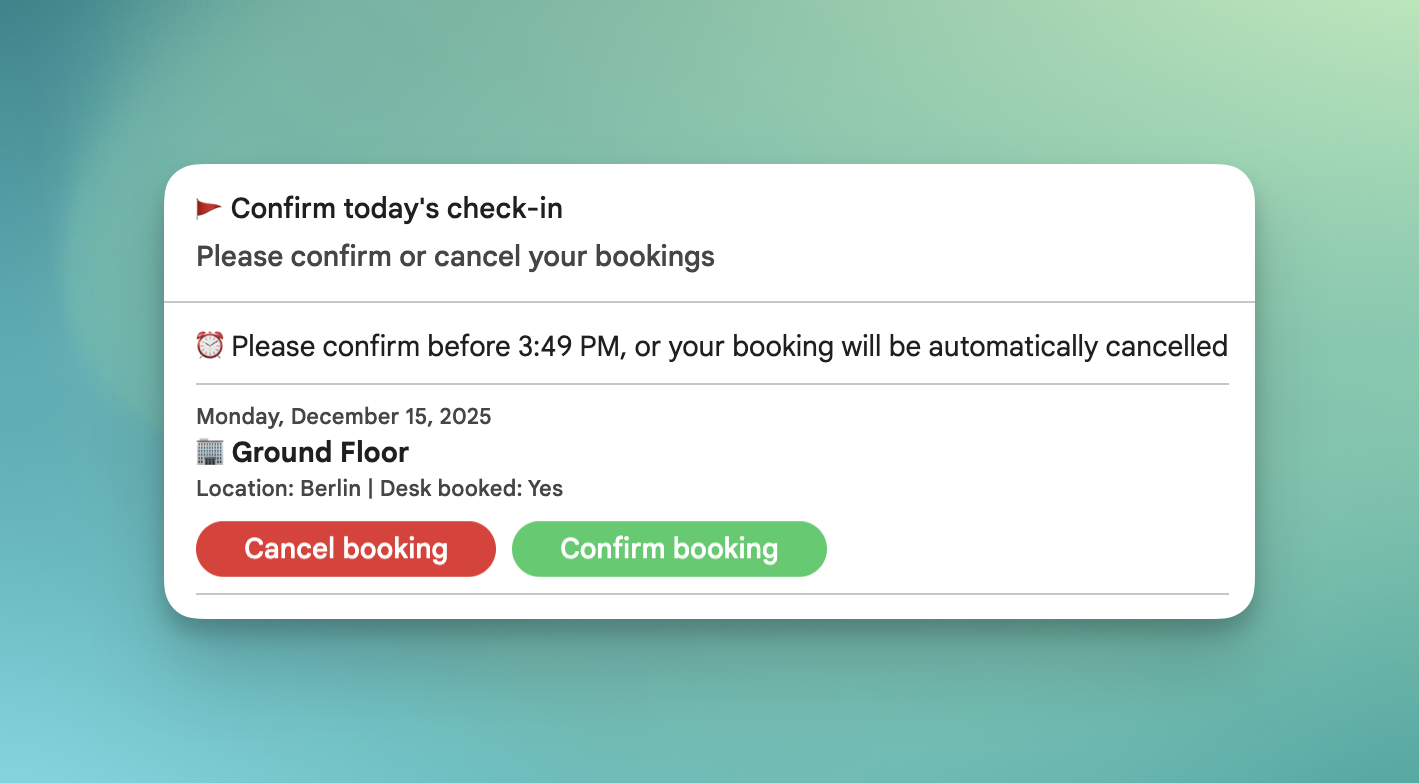
When booking confirmations are enabled, users must confirm their bookings for the current day before the configured deadline.
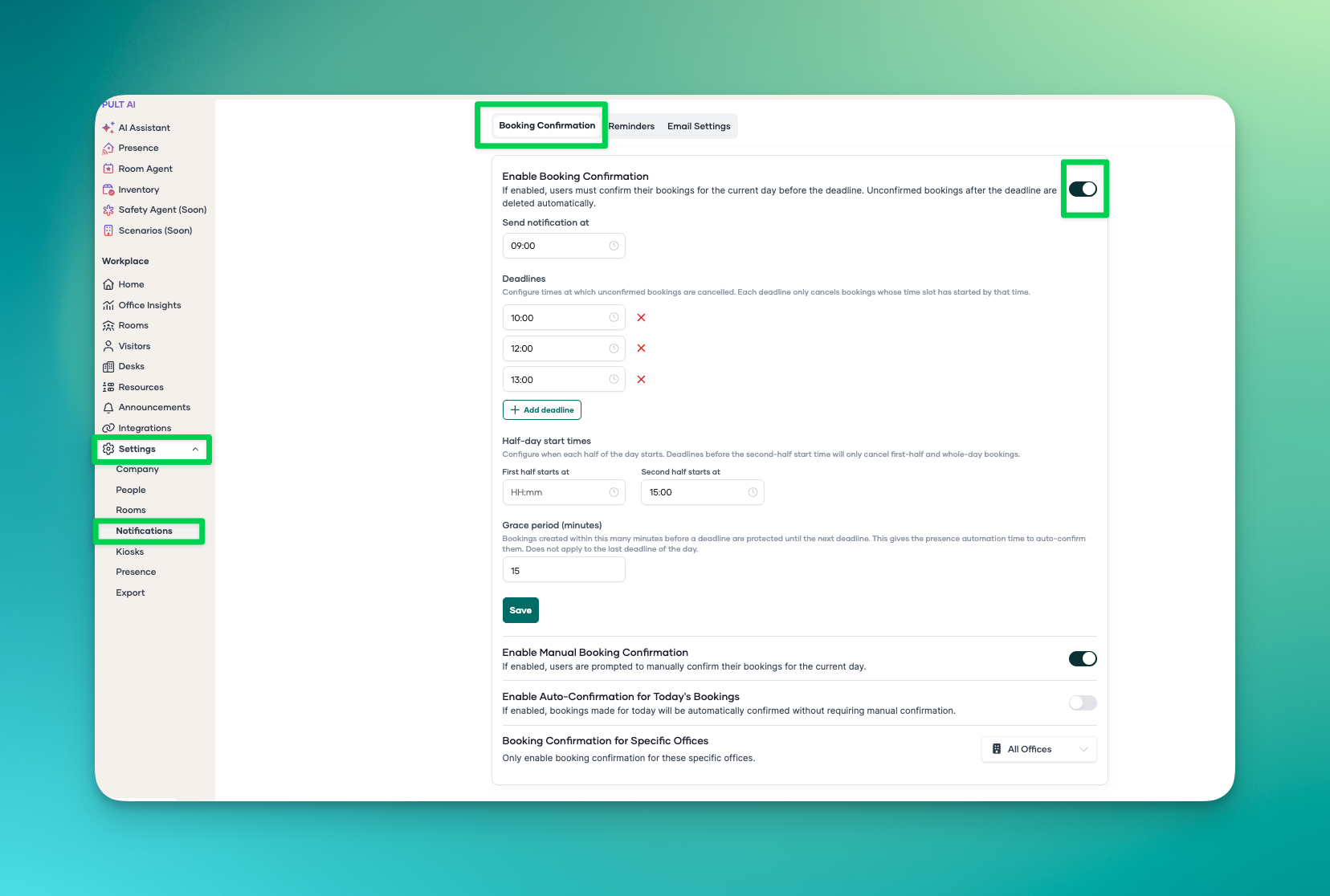
If a booking is not confirmed in time, it is automatically deleted.
This frees up unused desks for other employees.
2.Booking Confirmation Settings & Deadlines
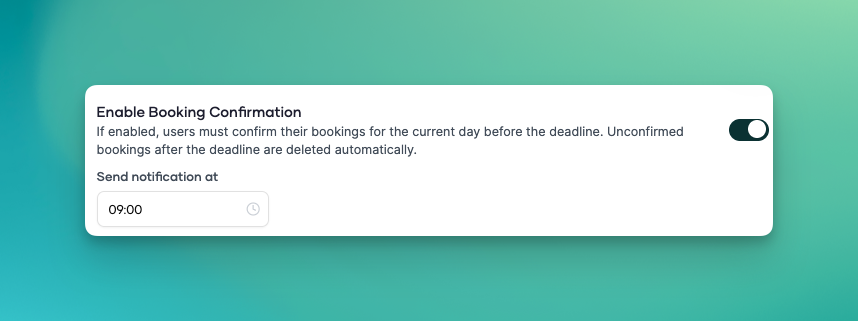
Notification time
Choose when users should receive the booking confirmation reminder.
Note: currently, there is one main reminder time.
How deadlines work
Deadlines define when unconfirmed bookings are checked and deleted.
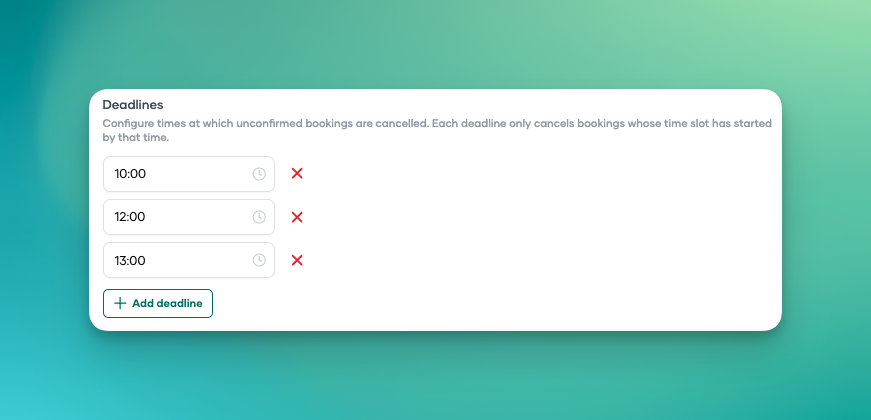
At each deadline:
Confirmed booking → stays
Unconfirmed booking → gets deleted
You can set multiple deadlines per day (for example: 10:00, 12:00, 13:00).
3. Half-day start Times
You can define when the first half and second half of the day start.
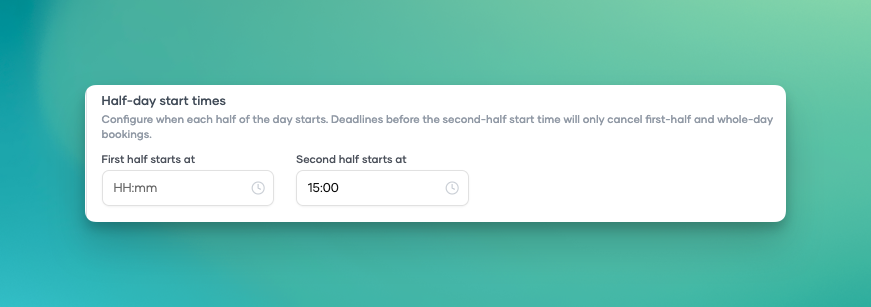
This controls which bookings each deadline should affect.
Example
First deadline: 10:00
Second deadline: 15:15
Second half starts at: 15:00
What happens:
At 10:00, the second half of the day has not started yet.
Only first-half and full-day bookings are checked.At 15:15, the second half has already started.
Second-half bookings are checked as well.
In short: deadlines only check bookings for time periods that have already started.
Full-day bookings are generally always considered by deadline checks.
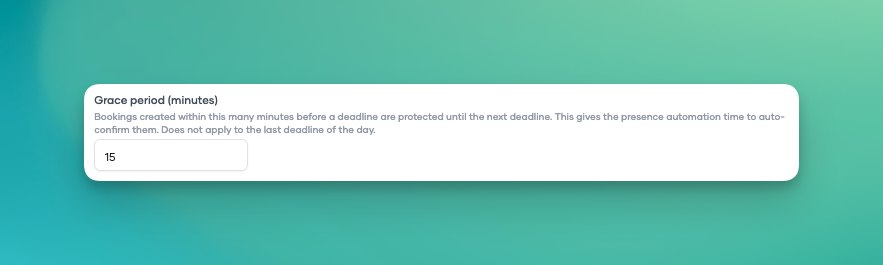
4. Grace Period (recommended)
The Grace Period gives users a short buffer before a deadline.
It helps prevent bookings from being deleted too quickly when someone books shortly before a deadline and confirmation is still pending.
Why this is useful
Presence-based confirmations run in intervals (about every 15 minutes), not continuously in real time.
So a booking made right before a deadline may briefly still appear unconfirmed.
With Grace Period enabled, these recent bookings are skipped once and checked again at the next deadline.
How it works
If a booking is created within the grace window before a deadline and is still unconfirmed:
it is not deleted at that deadline
it is checked again at the next deadline (if one exists)
Example
First deadline: 10:00
Second deadline: 12:00
Grace Period: 15 minutes
If someone books between 09:45 and 10:00, the booking is not deleted at 10:00 just because confirmation is still pending.
It is checked again at 12:00.
Important: For the last deadline of the day, there is no later deadline to defer to.
Good to know
Common Grace Period setting: 15–20 minutes
Grace Period works best with multiple deadlines
Where users can confirm bookings
Users can confirm bookings in:
PULT Web App
Microsoft Teams
Slack
Google Chat
5.Presence-related options (PULT Presence)
These options are relevant when using PULT Presence.
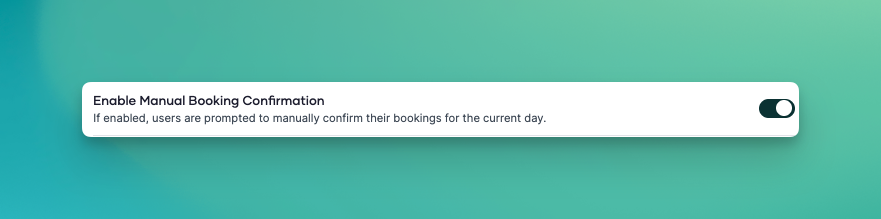
Enable manual booking confirmation
When enabled, users must additionally confirm current-day bookings manually.
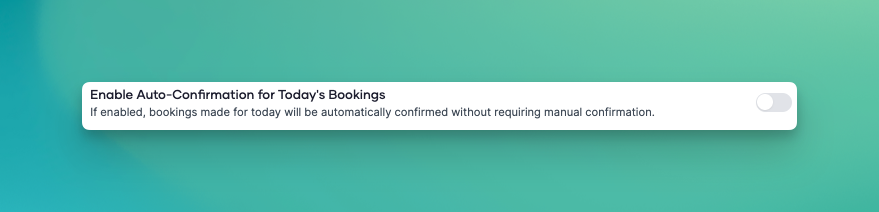
Automatic confirmation for today’s bookings
When enabled, bookings created for the current day are automatically confirmed and do not require manual action.
In mixed setups (some users with Presence, some without), review settings carefully to avoid conflicting behavior..
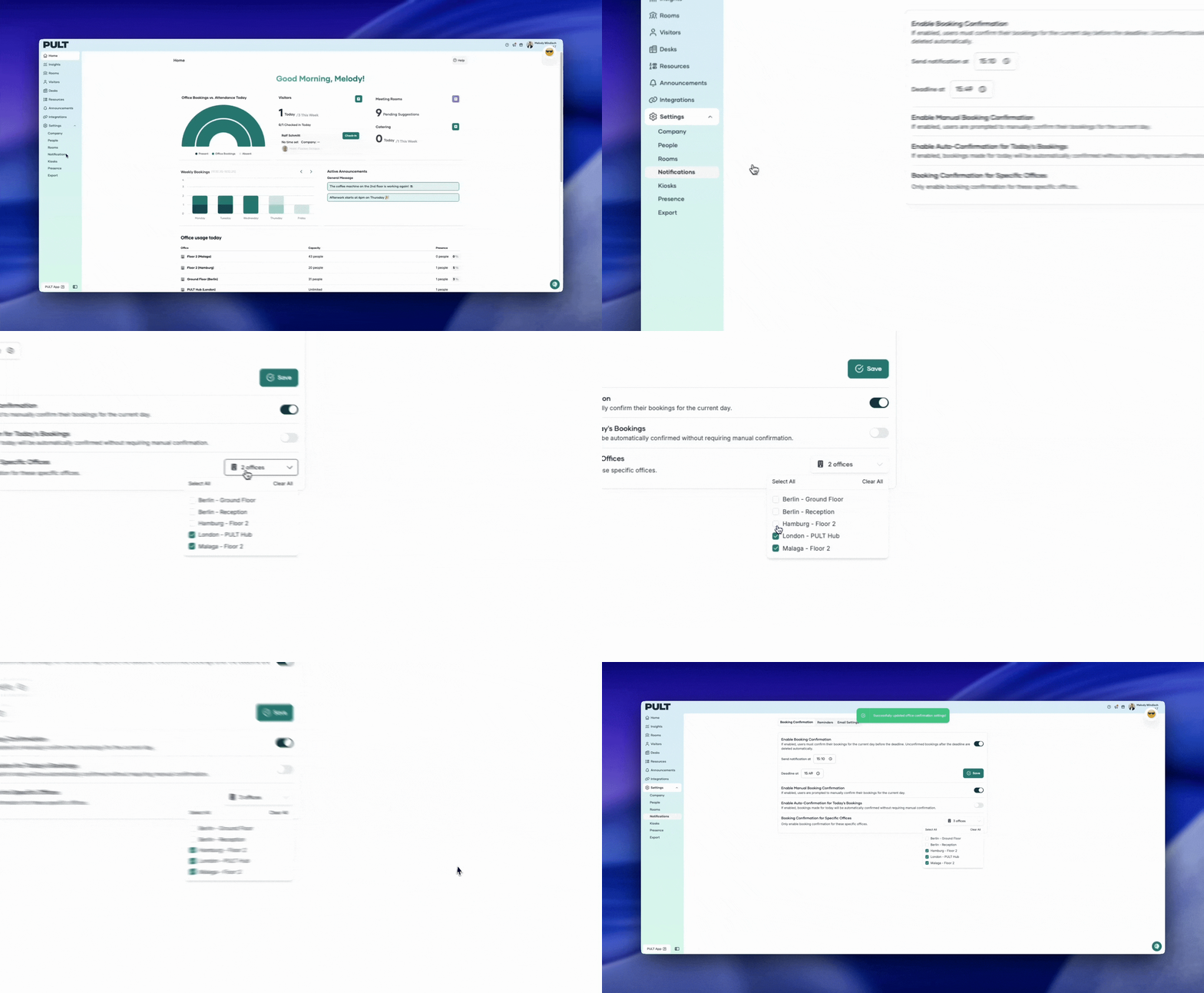
6.Booking confirmation per office
You can apply booking confirmation rules to selected offices only.
Under Booking confirmation for specific offices, choose which offices should require confirmation.
Offices not selected will not require booking confirmation.
.
Important setup note for Presence automation
For Presence-based automatic confirmations to work reliably:
Presence must be configured correctly
Offices should be linked to the correct Presence locations
Related booking confirmation toggles must be configured properly
If these settings are incomplete, confirmations may not behave as expected.