Public holidays and time zones in PULT
Last updated: November 3, 2026
Public holidays and time zones make sure PULT shows the right days off and sends notifications at the right time. This article shows admins how to set the company time zone and upload public holiday calendars, and how employees choose their own time zone and calendar.
1. Set the company time zone
In the PULT dashboard, go to Settings → General → Company and scroll to Company Time Zone.
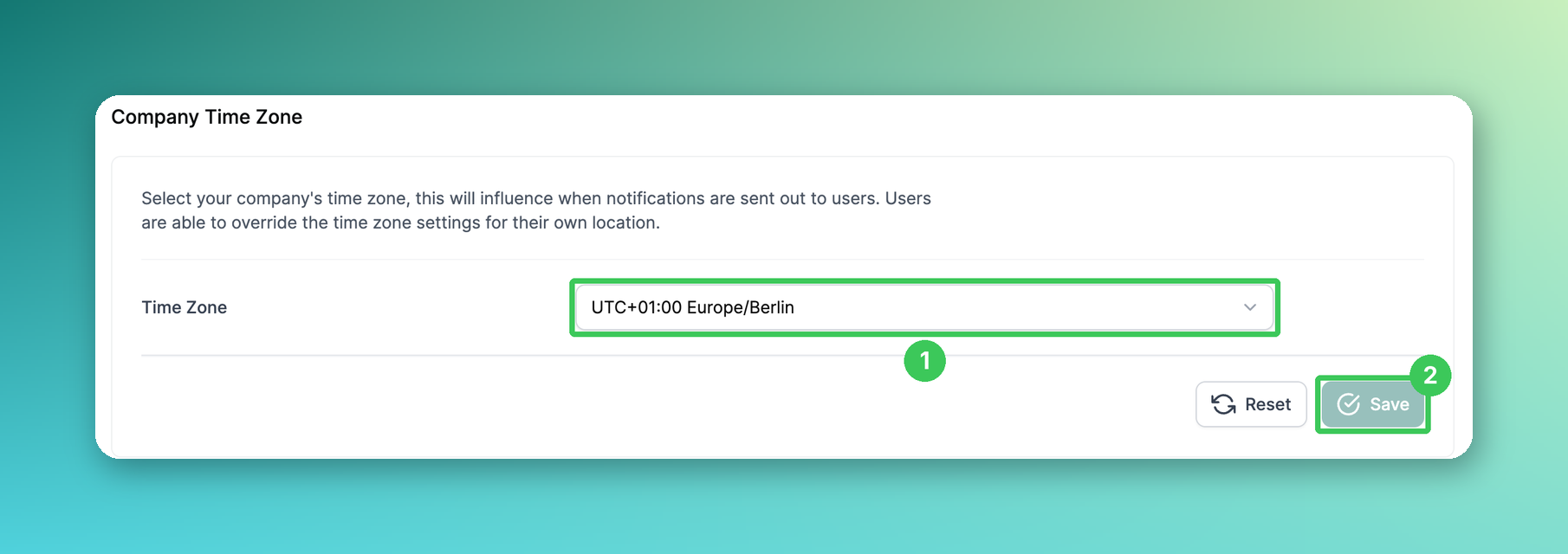
Time Zone: Select your company’s time zone. It decides when notifications are sent out.
Click Save.
2. Upload public holiday calendars
On the same page, scroll down to Public Holiday Calendars. You can upload one calendar per location.
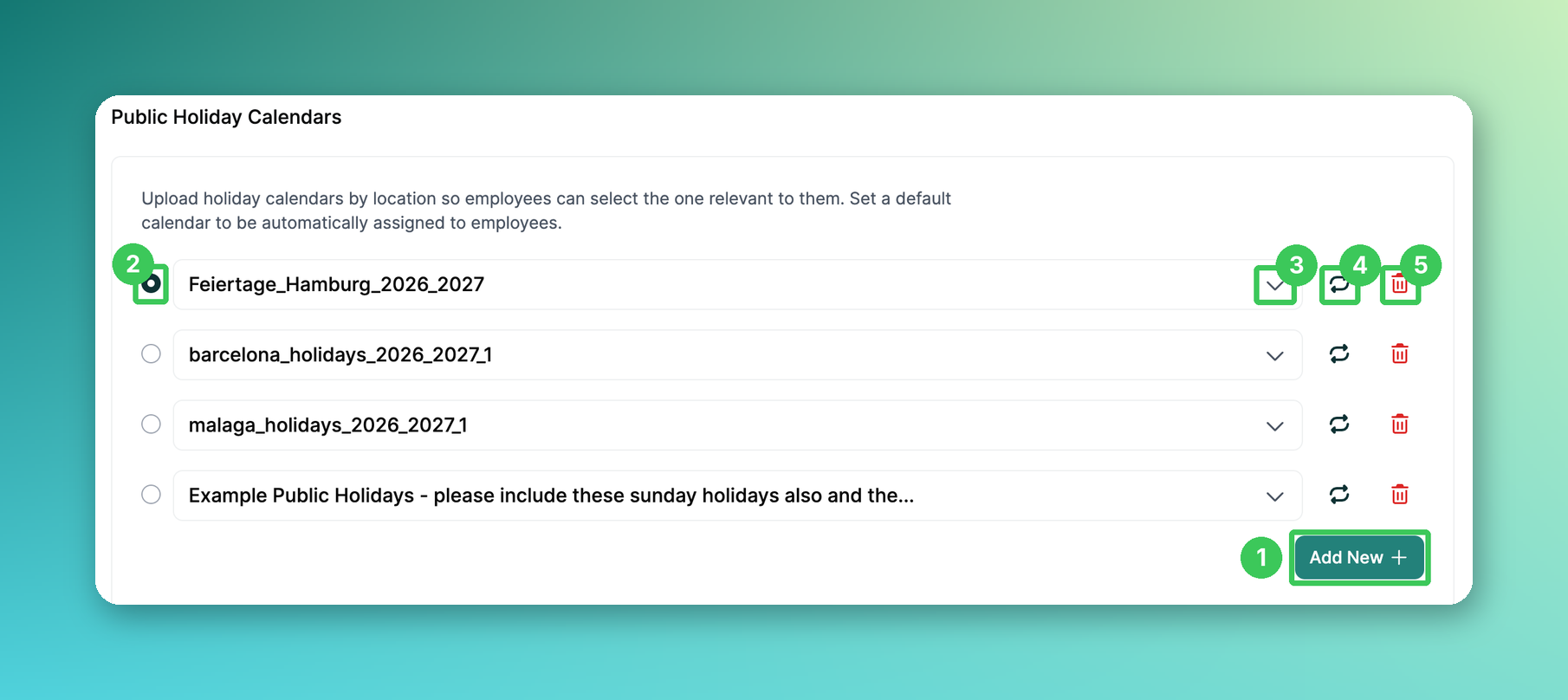
Add New: Upload a new calendar (see below).
Default: The selected calendar is automatically assigned to all employees who haven’t chosen one themselves.
Show holidays: Open the calendar to check all dates.
Update: Upload a new file for this calendar, e.g. for the next year. The holidays are updated for all employees assigned to this calendar.
Delete: Remove the calendar.
Add a new calendar
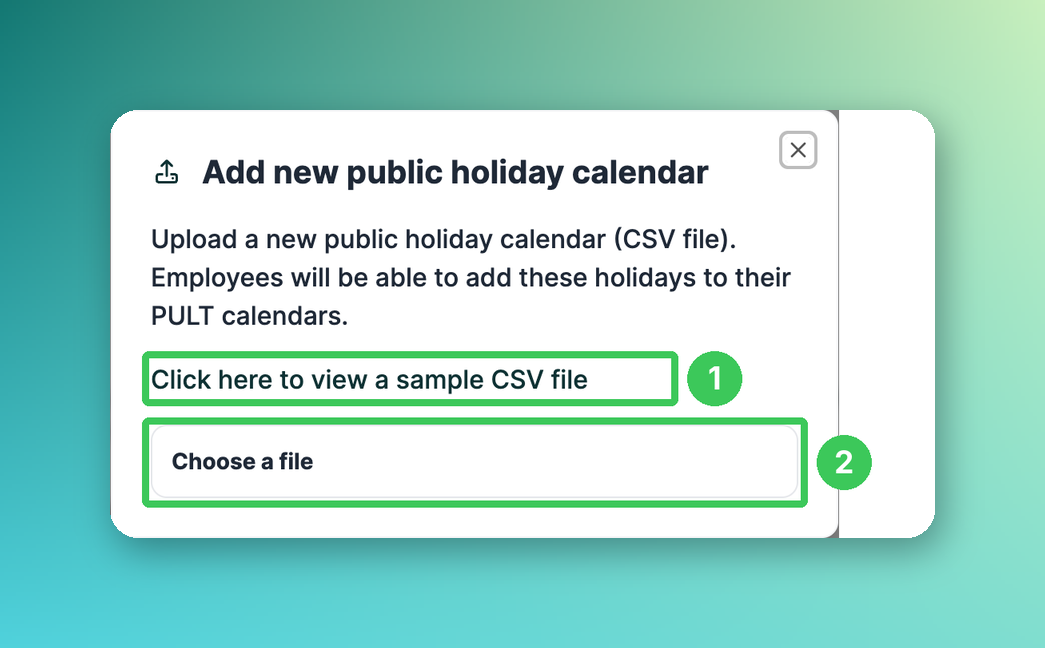
Sample CSV file: Open the example to see the format.
Choose a file: Select your CSV file. The calendar is added straight away.
📌 How your CSV file should look:
Two columns: the date in the format
YYYY-MM-DDand the name of the holiday, e.g.2026-12-25, Christmas Day.No header row – every line must be a holiday.
Maximum 300 holidays per calendar. For long periods, split them into several files or update the calendar later.
Use a clear file name, e.g.
holidays_hamburg_2026_2027.csv– it helps employees pick the right calendar.
3. For employees: choose your time zone and calendar
In the PULT app, click your name in the top right and then Settings.
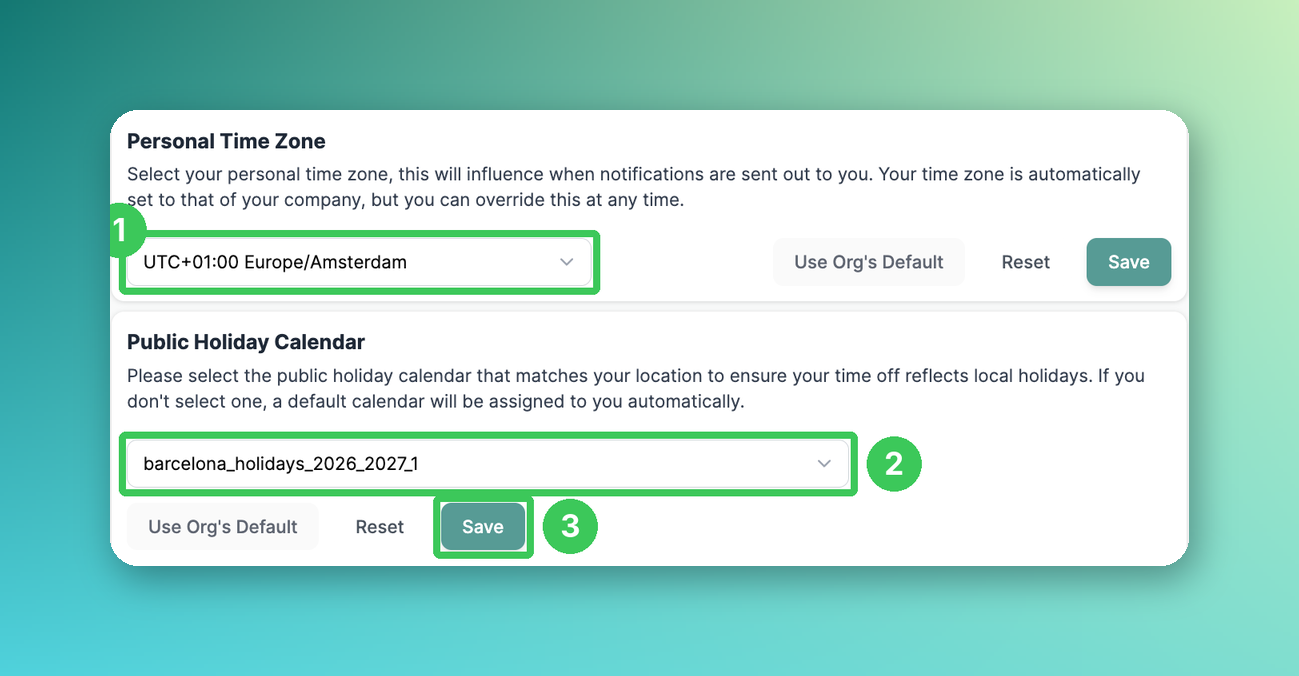
Personal Time Zone: Choose your own time zone if you work in a different one. Use Org’s Default switches back to the company time zone.
Public Holiday Calendar: Select the calendar that matches your location.
Click Save.
Frequently asked questions
What happens if an employee doesn’t choose a calendar?
They automatically get the default calendar.
Why does my upload fail?
Check that the file has no header row, the dates use the format YYYY-MM-DD and the calendar has no more than 300 holidays.
How do I add holidays for next year?
Click Update next to the calendar and upload a new file. The new file replaces the old holidays, so include all dates you still need.
Can admins assign calendars to many users at once?
Not at the moment. Set the calendar most employees need as default; everyone else selects their calendar in their settings.
Related articles
If you have any questions, feel free to contact our support team at support@pult.com.