Policy Settings
Last updated: October 20, 2026
Policy groups let admins apply their own booking rules to selected users or groups – for example a longer booking window for a team. This article shows how to create and manage policy groups.
⚠ Important: Policy settings always override the company-wide settings. For users or groups in a policy group, only the rules of that policy group apply.
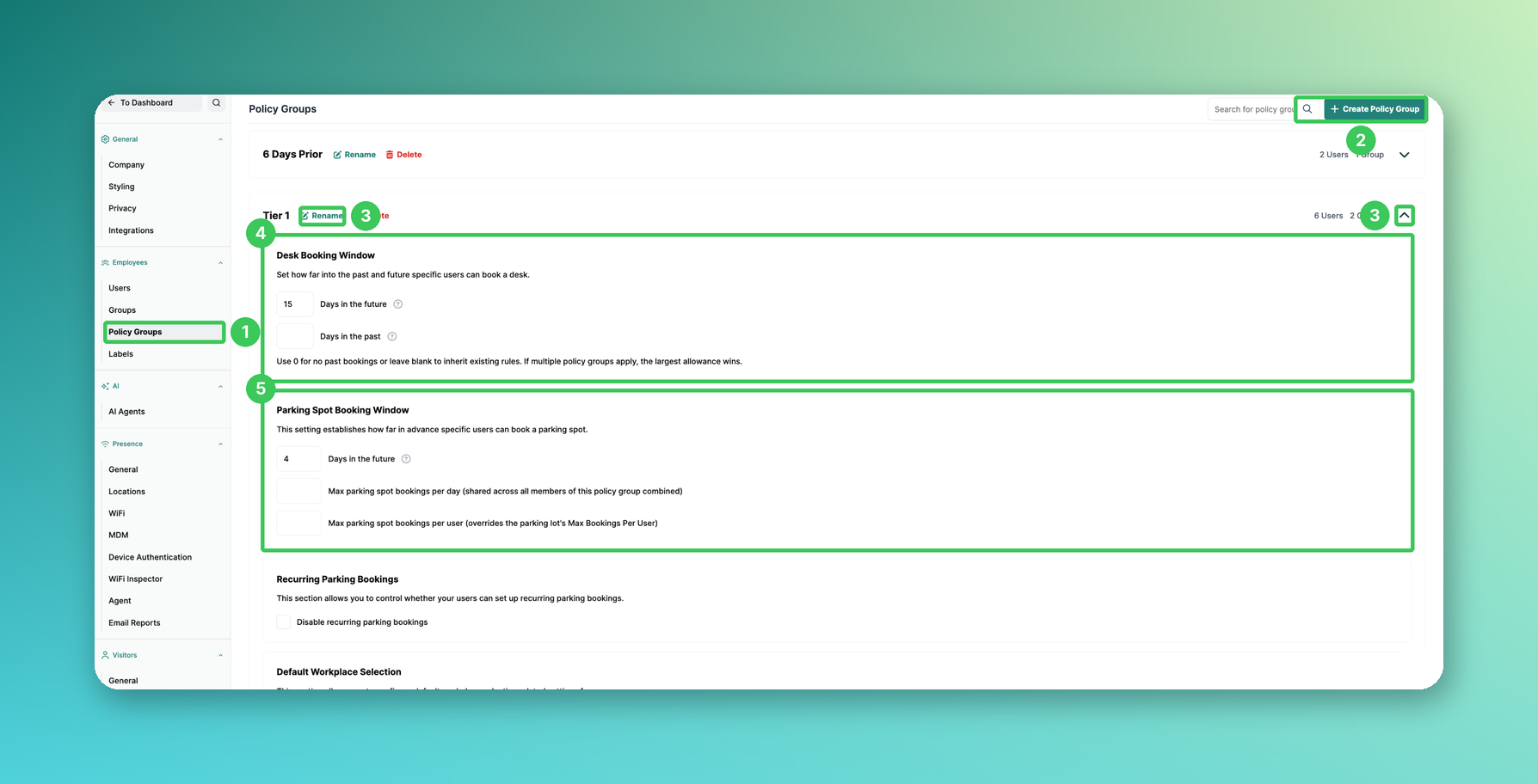
1. Policy Groups
In the PULT dashboard, go to Settings → Employees → Policy Groups.
2. Create Policy Group
Click + Create Policy Group and give the group a clear, unique name.
3. Open or rename a policy group
Click the arrow on the right to open a policy group. Use Rename to change its name or Delete to remove it.
4. Desk Booking Window
Days in the future: how many days in advance the members can book a desk.
Days in the past (new): how far back the members can book. Use 0 for no past bookings, or leave the field empty to inherit the existing rules.
If several policy groups apply to a user, the largest allowance wins.
5. Parking Spot Booking Window
Days in the future: how many days in advance the members can book a parking spot.
Max parking spot bookings per day: shared by all members of the policy group together, across all parking areas. Example: with “6”, all members together can book a maximum of 6 parking spots per day. Empty = no limit.
Max parking spot bookings per user (new): overrides the parking lot's Max Bookings Per User for the members of this group.
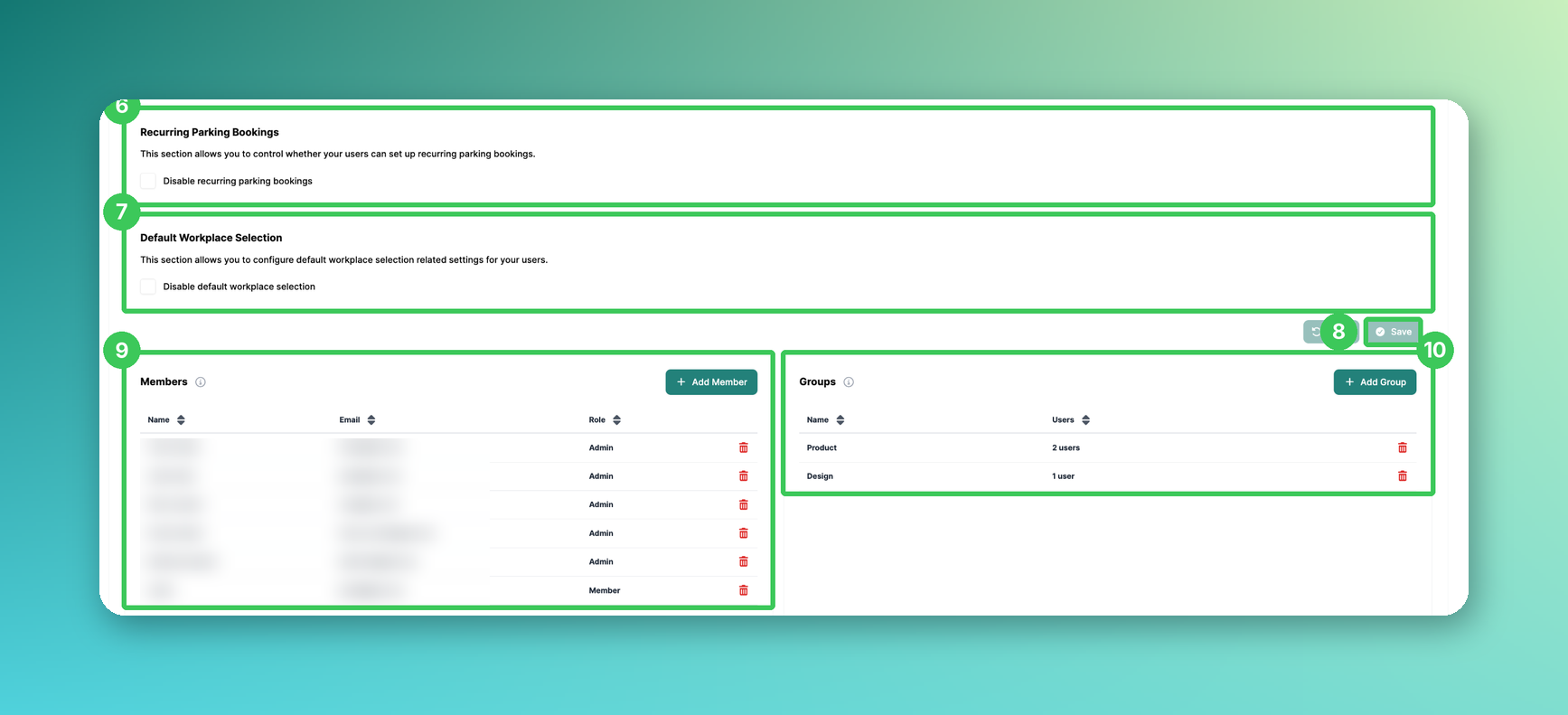
6. Recurring Parking Bookings (new)
Tick Disable recurring parking bookings if the members should not be able to set up recurring parking bookings.
7. Default Workplace Selection
Tick Disable default workplace selection if the members should not be able to use the default workplace selection.
8. Save
Click Save. With Reset you discard unsaved changes.
9. Members
Click + Add Member to add individual users. The rules then apply only to the selected members.
10. Groups
Click + Add Group to add whole groups to the policy group.
Frequently asked questions
What happens if a user is in several policy groups?
For the booking window, the largest allowance wins.
Do policy groups replace the company settings?
Yes, for their members the rules of the policy group apply instead of the company-wide settings.
Related articles
If you have any questions, feel free to contact our support team at support@pult.com.