How do I create teams / groups?
Last updated: October 19, 2026
This article shows admins how to create a group (team) in PULT and explains every group setting, from office and parking limitations to team leads and group isolation.
💡 Why create groups? Groups let you limit office and parking access, assign team leads for self-management, set booking priority and view usage reports per group. Each user can belong to exactly one group.
Create a group
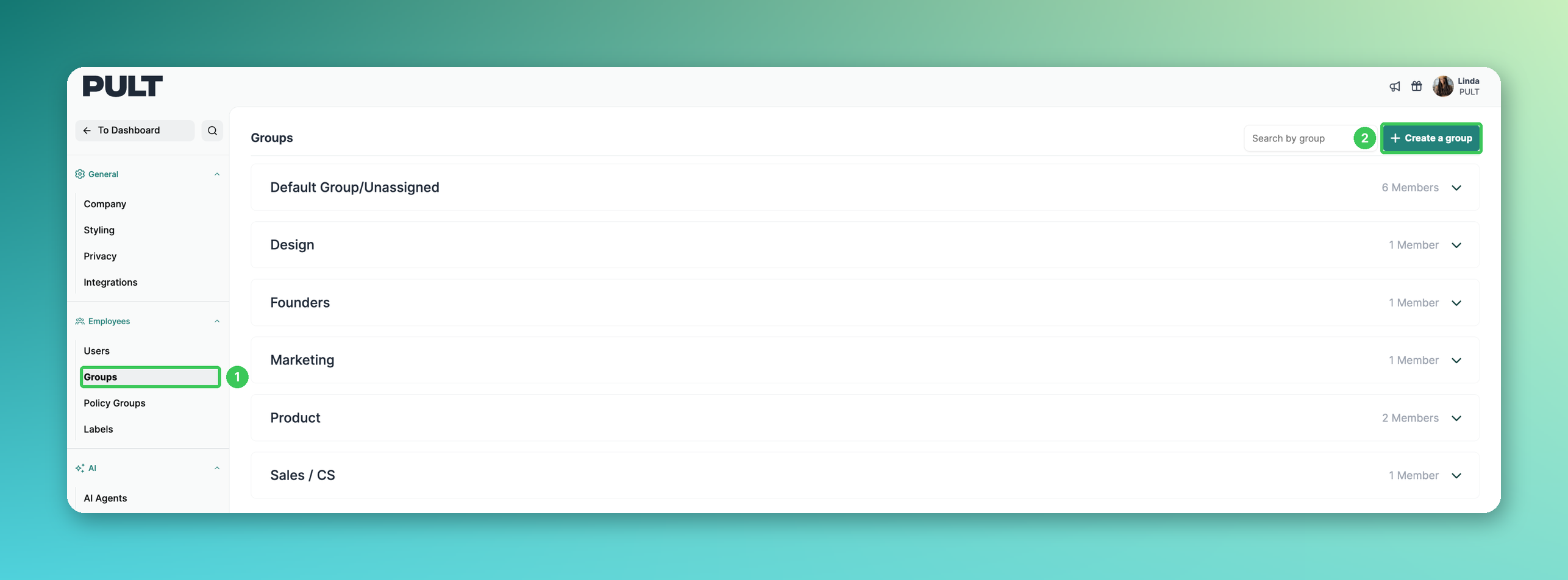
In the PULT dashboard, go to Settings → Employees → Groups.
1. Groups
Here you see all groups of your organization with their number of members. Click a group to expand its settings.
2. Create a group
Click Create a group in the top right corner. A new group called "New group" is created and opened directly.
Note: New members always start in Default Group/Unassigned until you move them to a group.
Group settings
3. Rename
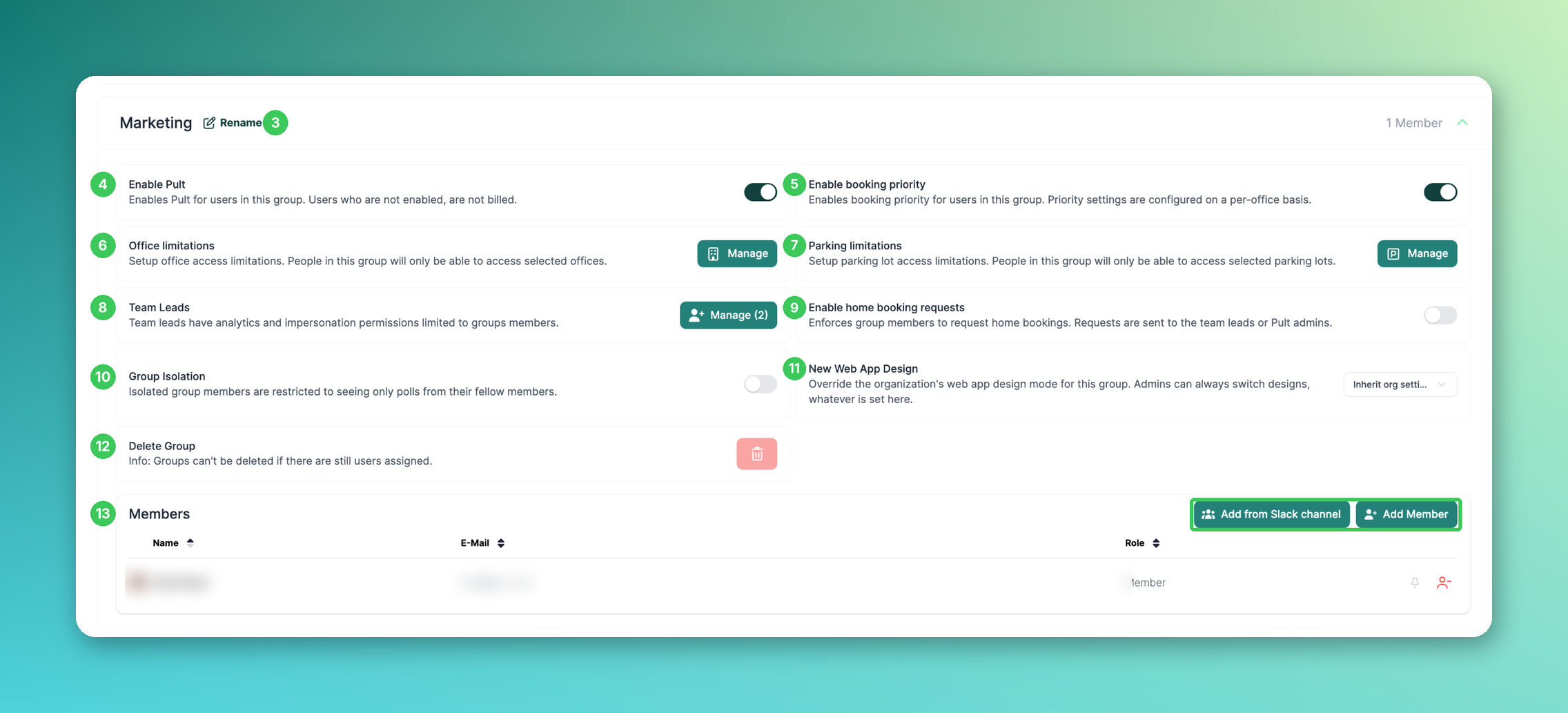
Click Rename next to the group name to give the group a unique name. The name is saved automatically.
4. Enable Pult
Activates PULT for all members of this group. Users who are not enabled are not billed.
5. Enable booking priority
Activates booking priority for the members of this group. The priority settings themselves are configured per office.
💡 Booking priority only applies to offices with Limited or Unlimited capacity without a floor plan. For offices with a floor plan, use desk policies instead (see Assign Desks to Employees or Teams).
6. Office limitations
Click Manage to restrict access to specific offices. People in this group will only be able to access the selected offices.
7. Parking limitations
Click Manage to restrict access to specific parking lots. People in this group will only be able to access the selected parking lots.
8. Team Leads
Click Manage to assign team leads. Team leads have analytics and impersonation permissions limited to the members of their group and can approve home office requests. More in How do I add a Team Lead to a Group? and What can Team Leads do?.
9. Enable home booking requests
If enabled, group members have to request home office days. Requests are sent to the team leads or PULT admins for approval. More in Home Office requests.
10. Group Isolation
Isolated group members only see their fellow group members in PULT and are hidden from other groups. More in How do I enable Group Isolation?.
11. New Web App Design
Overrides your organization's web app design mode for this group. By default, the group inherits the organization setting. Admins can always switch between designs, whatever is set here.
12. Delete Group
Deletes the group. Groups can't be deleted while users are still assigned, so move or remove all members first.
13. Members
Add people with Add Member, or add everyone from a Slack channel with Add from Slack channel. The list shows all current members with their e-mail and role.
Frequently asked questions
Can a user be in more than one group?
No, each user belongs to exactly one group. If someone needs to book in several offices, add them (or their group) to the desk policies of each office instead.
Why did users fall back into the Default group?
This is usually caused by a connected directory sync (e.g. Microsoft Active Directory, Okta or an HR system). The sync can overwrite manual group assignments, and users who are removed from a synced group may be archived and moved to the Default group. See Sync Microsoft Active Directory Groups to PULT.
Can one group get different booking rules (e.g. a longer booking window)?
Yes, via Settings → Employees → Policy Groups. There you can define e.g. how many days in advance the members can book.
Related articles
If you have any questions, feel free to contact our support team at support@pult.com.