Home Office requests
Last updated: October 20, 2026
This article shows admins how to enable home office requests for a group and how employees, team leads and admins work with these requests.
💡 If your company requires approval for home office days, you can set up home booking requests directly in PULT. Requests can be approved by team leads or admins. If you want requests to go to team leads, set them up first: How do I add a Team Lead to a Group?.
Enable home booking requests
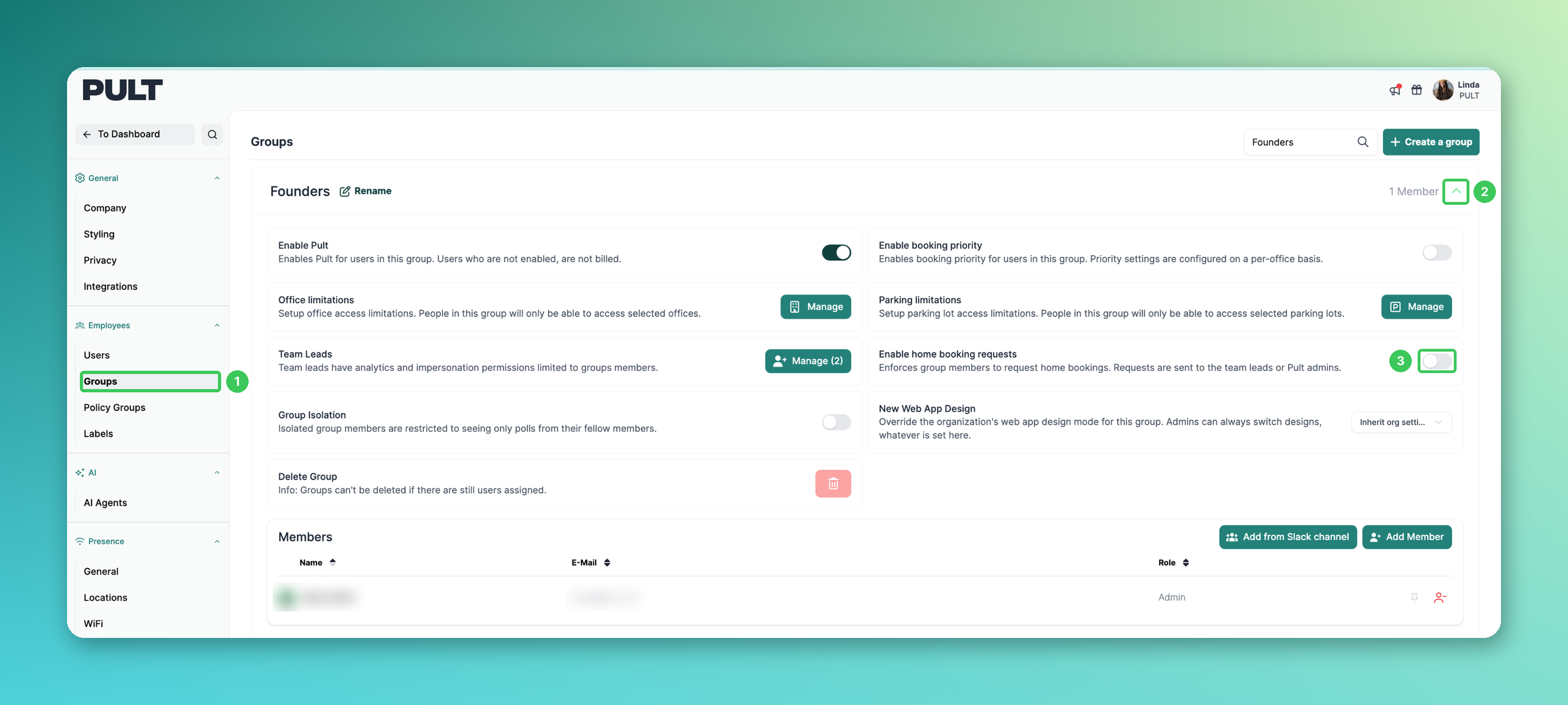
1. Groups
In the PULT dashboard, go to Settings → Employees → Groups.
2. Open the group
Click the group (or the arrow on the right) to expand its settings.
3. Enable home booking requests
Switch on Enable home booking requests. Members of this group now have to request home office days. Repeat these steps for every group that needs approval.
How requests work
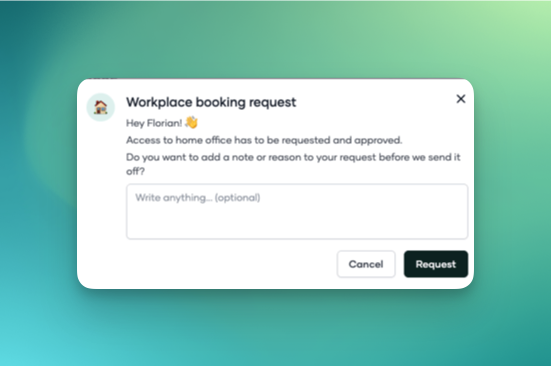
Users who have to send a request can add a note to it:
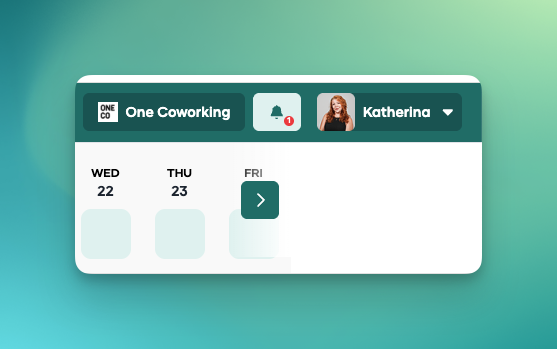
🔔 Notifications for home office requests appear in the web app:
This is what the home office request overview looks like:
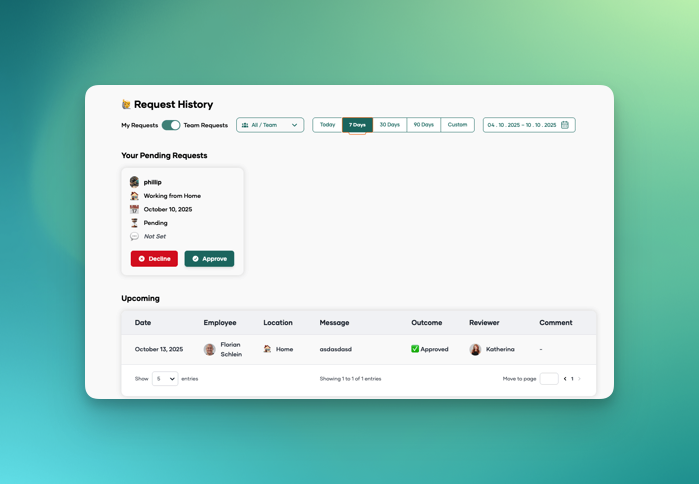
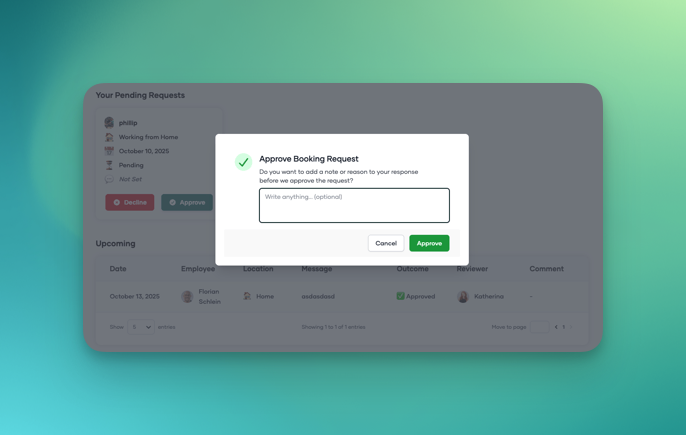
As an admin or team lead, you can also add a note and approve or decline the request:
💡 Admins and team leads don't need to submit a home office request themselves.
Frequently asked questions
Who can approve home office requests?
The team leads of the group and PULT admins.
Can I enable requests for some teams only?
Yes. The setting is configured per group, so only the groups where you switch it on need approval.
A team lead doesn't see any requests. What should I check?
Make sure the person is assigned as team lead in exactly that group (see How do I add a Team Lead to a Group?) and that Enable home booking requests is switched on for it.
Related articles
If you have any questions, feel free to contact our support team at support@pult.com.