How do I add a Team Lead to a Group?
Last updated: October 20, 2026
This article shows admins how to assign team leads to a group in the PULT dashboard and how to let team leads approve home office requests (optional).
💡 What are team leads? Team leads have analytics and impersonation permissions that are limited to the members of their group. For example, they can review their team's attendance and book on behalf of their team members. Details in What can Team Leads do?.
Assign a team lead
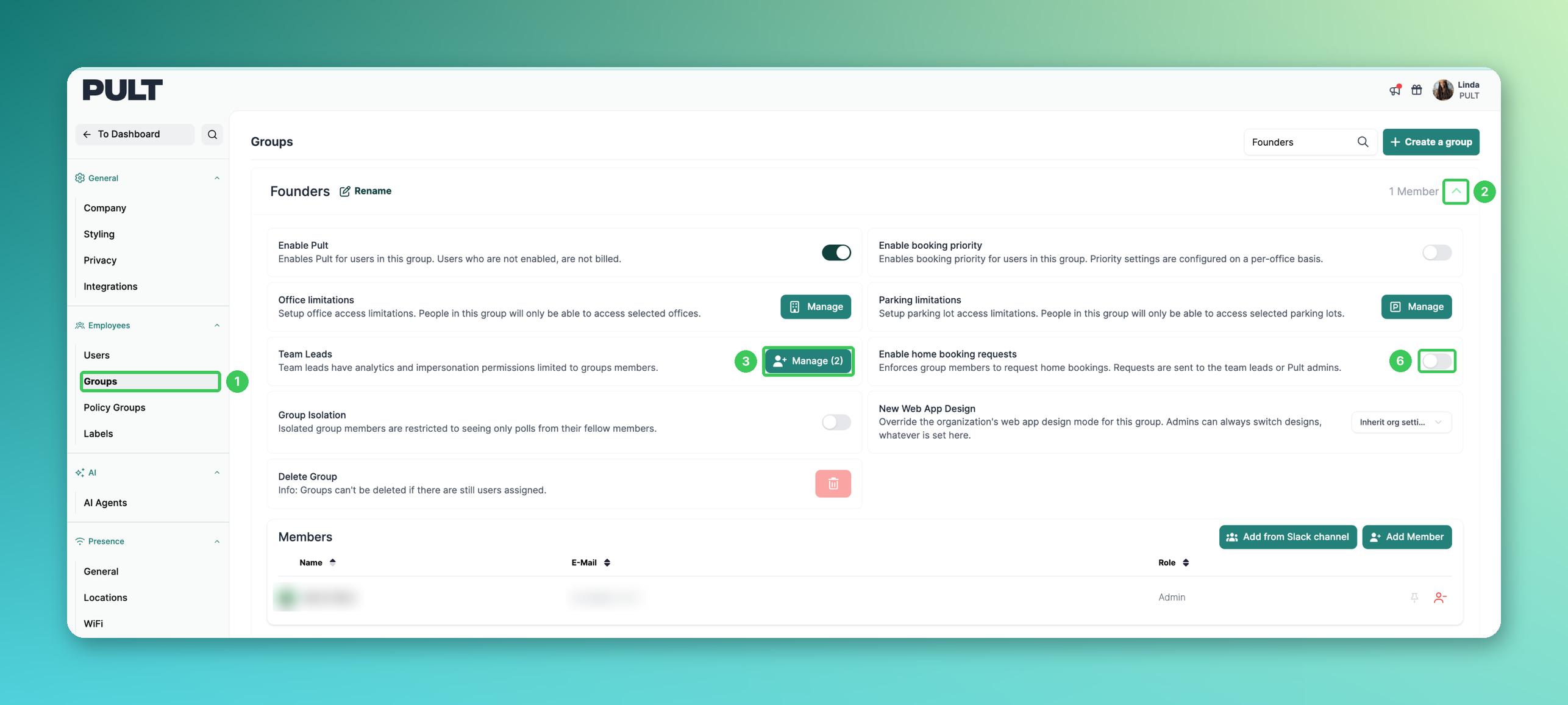
1. Groups
In the PULT dashboard, go to Settings → Employees → Groups.
2. Open the group
Click the group (or the arrow on the right) to expand its settings. Tip: use the search field at the top to find a group quickly.
3. Team Leads → Manage
Click Manage next to Team Leads. The number in brackets shows how many team leads the group currently has.
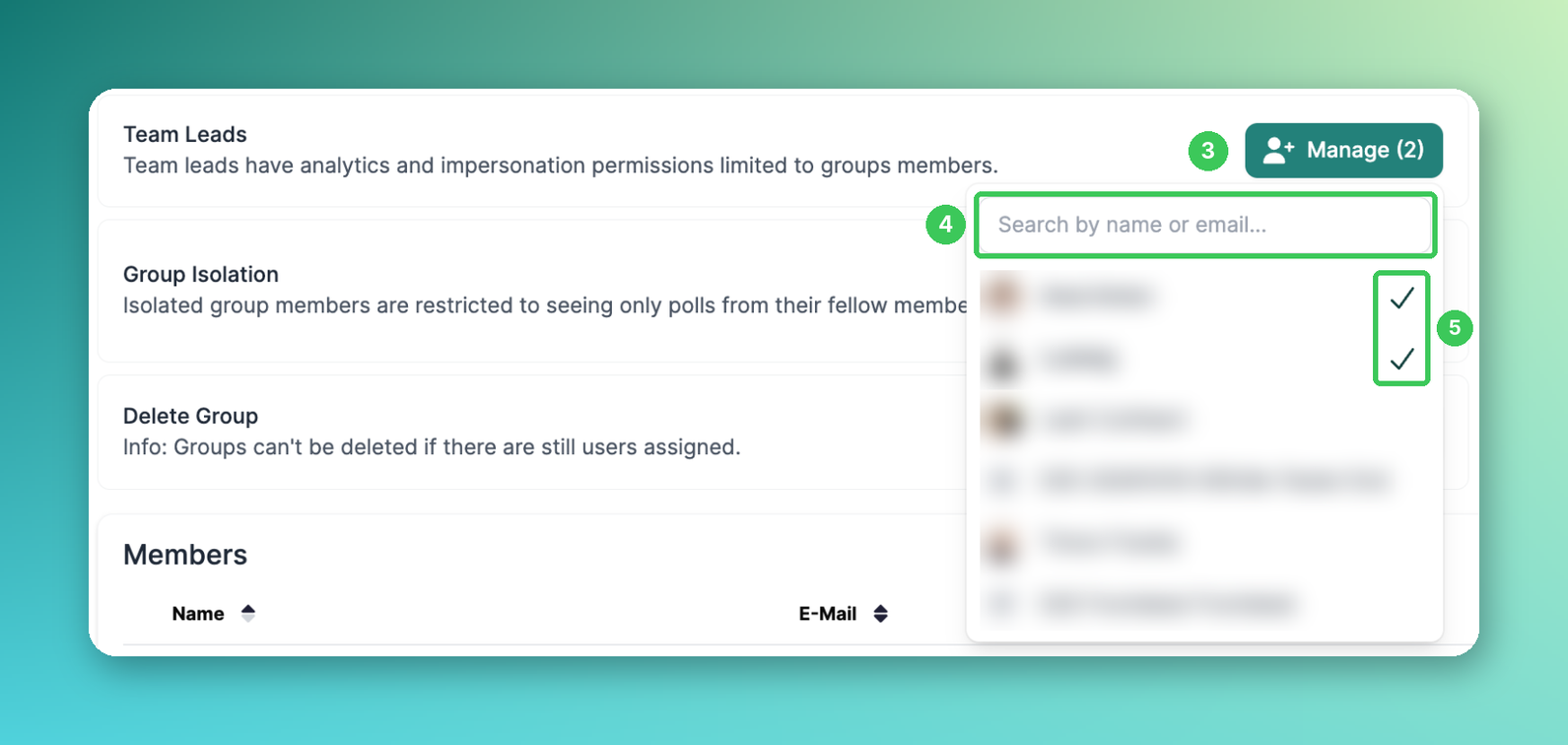
4. Search
Search for the person by name or e-mail.
5. Select team leads
Click a person to add them as team lead. Selected team leads are marked with a checkmark. Click the person again to remove them. A group can have several team leads.
6. Enable home booking requests (optional)
Back in the group settings (see screenshot above), switch on Enable home booking requests. Group members then have to request home office days, and the requests are sent to the team leads or PULT admins for approval. More in Home Office requests.
Frequently asked questions
Can team leads book or cancel desks for their team?
Yes. Team leads can log in as a member of their own group from the dashboard and book or cancel desks on their behalf. See How to Delete Another User's Desk Reservation (for Admins and Team Leads only).
Is "Team Lead" a role in the user list?
No. Team leads are assigned per group as described above, not via the role dropdown in Settings → Employees → Users. The roles there are Default, Admin, External Visitor Manager and Visitor Manager.
Can a team lead see data from other groups?
No. Team lead permissions are limited to the members of the group(s) they lead.
A team lead can't see their team's data. What can I do?
Check that the person is selected as team lead in the correct group. If it still doesn't work, ask them to log out and in again or clear the browser cache. If the problem persists, send us a short screen recording.
Related articles
If you have any questions, feel free to contact our support team at support@pult.com.