How to Delete Another User's Desk Reservation (for Admins and Team Leads only)
Last updated: August 26, 2026
Admin/Team Lead Access: Adjusting Employee Settings in the PULT App
💡Note: Team Leads only have access to employee accounts within their own group.
As a Team Lead or admin in the PULT app, you have the ability to log in as one of your employees to adjust specific settings in that employee's account. However, this feature is limited to 15 minutes and has other restrictions. This help article explains how to use this feature.
Follow the steps below:
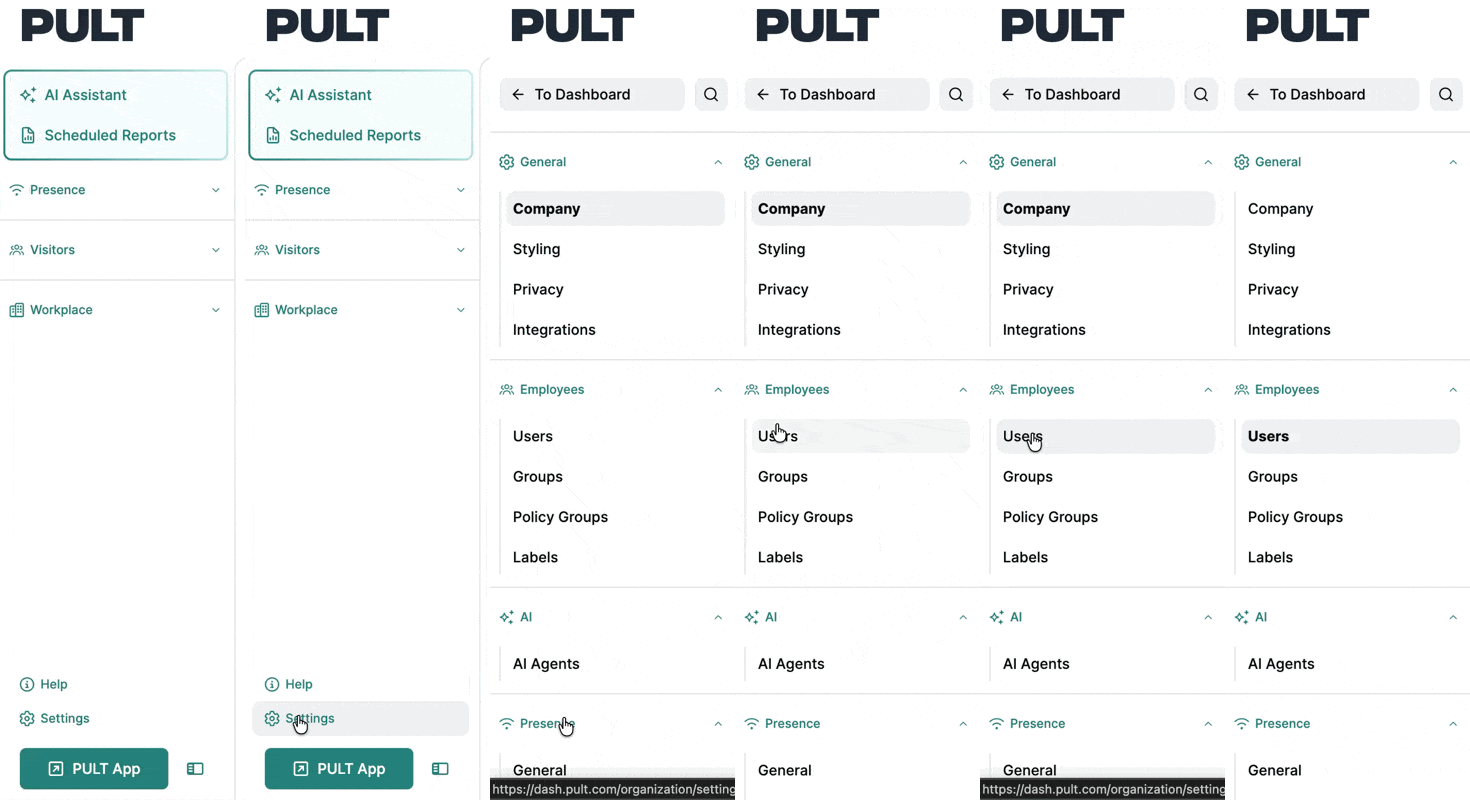
Go to the PULT Dashboard at dash.pult.com and navigate to Settings → Users
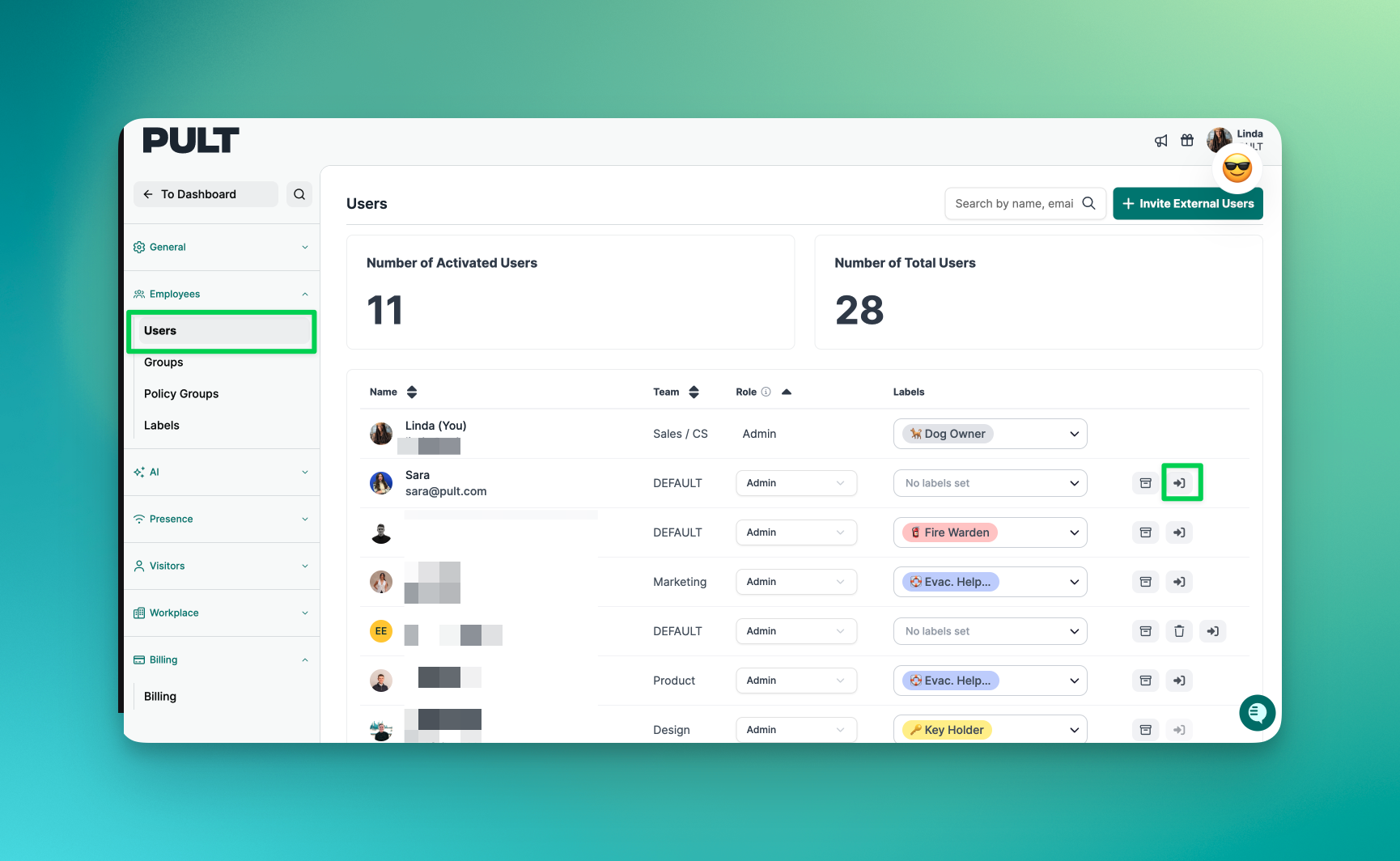
Search for the user whose reservation you want to remove.
Click the "Sign in as User" icon next to their name.
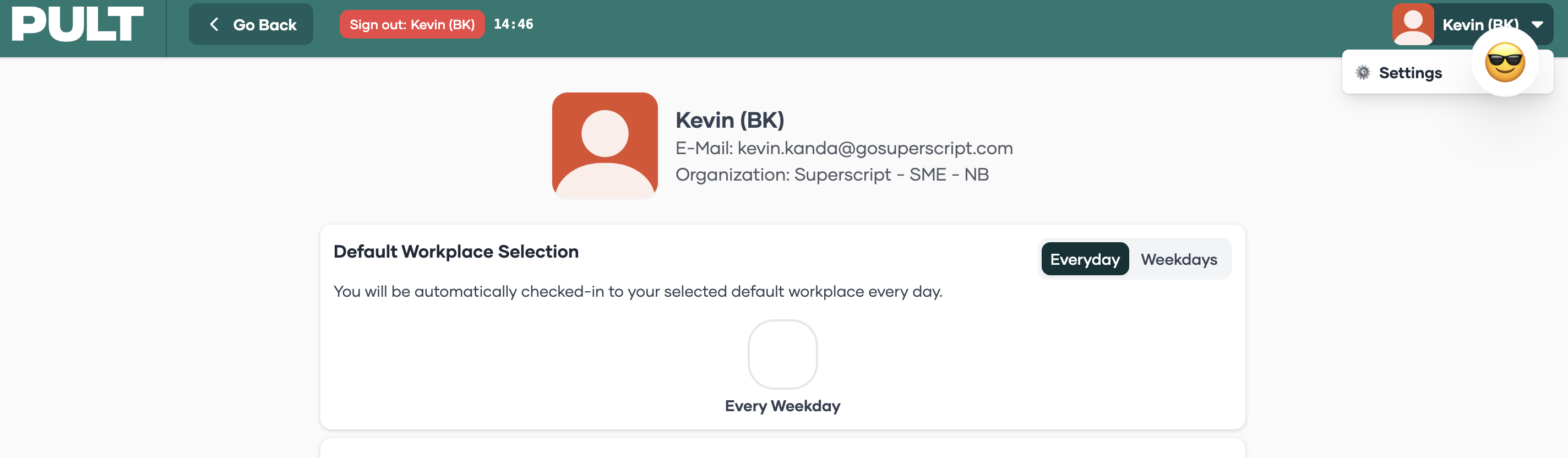
You will be redirected into that user's account, where you can view and delete their desk reservations.
Usage
Once logged in as the user, you can remove individual bookings directly from the app. If the user has a recurring default booking, you can remove it by clicking on the username in the top right corner and going to Settings, where you can manage their Default Workplace Selection.
Booking Meeting Rooms: Through this feature, you cannot book or rebook meeting rooms on behalf of the employee.
General Settings, Export, Integration, and Language: You cannot change general company settings, exports, integrations, or the language of the app while logged in as an employee.
Time Limitation: Logging in as an employee is limited to 15 minutes. After this time, you will be automatically logged out of the employee's account.
Absence and Sick Leave: While logged in as the employee, you can also register absences or sick leave on their behalf, if it is a booking option.
Note: If you need to remove bookings from a desk that has already been disabled, you will need to temporarily re-enable the desk first, remove the bookings, and then disable the desk again. Attempting to modify bookings on a disabled desk will result in an error.
If you have further questions about this feature, please contact our support.