Sync Microsoft Active Directory Groups to PULT
Last updated: October 20, 2026
This article shows admins how to automatically sync groups from Microsoft Active Directory (AD) to PULT.
💡 Before you start, make sure the groups are already set up in Microsoft AD (see Microsoft's step-by-step guide) and that the Microsoft integration is connected in PULT (see PULT Microsoft Azure Integration).
Sync AD groups
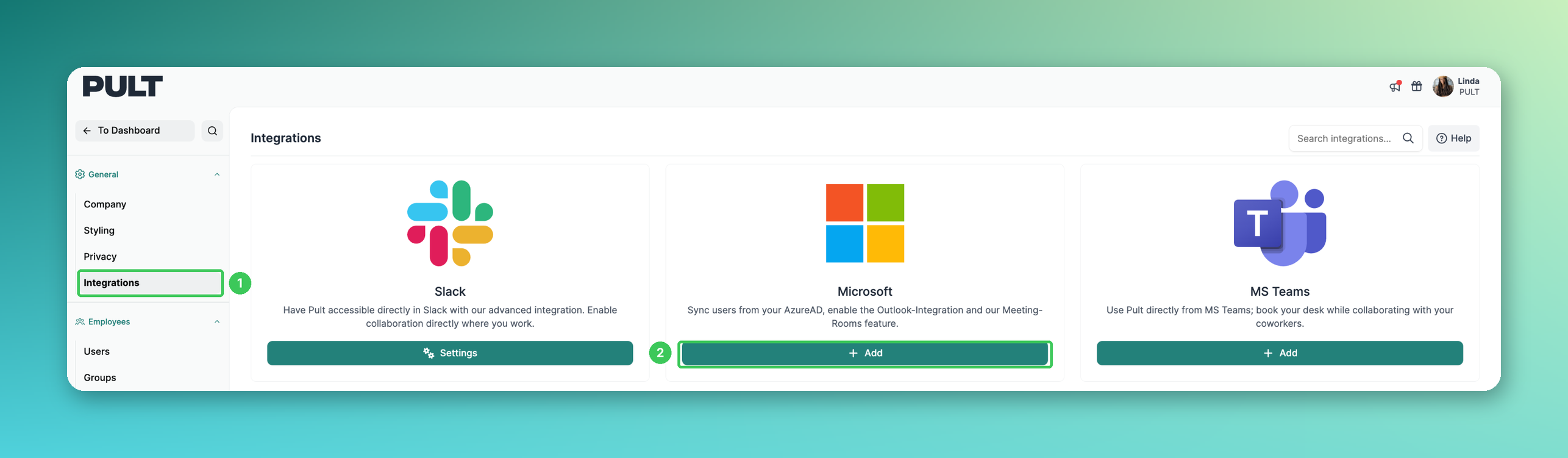
1. Integrations
In the PULT dashboard, go to Settings → General → Integrations.
2. Microsoft
Open the settings of the Microsoft integration. If the button still says Add, the integration isn't connected yet – set it up first (see PULT Microsoft Azure Integration).
3. Add an AD group
Click Add an AD-Group and select all groups you would like to sync.
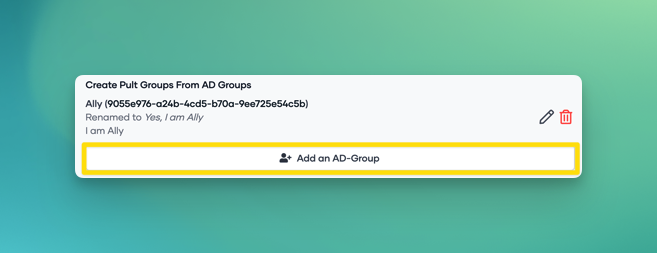
4. Rename groups (optional)
Click the pencil next to the group name to rename a group.
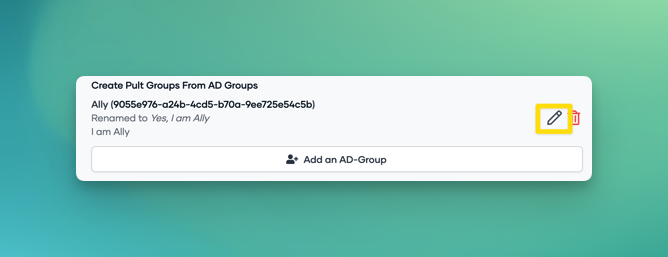
5. Update Settings
Scroll all the way down and click Update Settings.

6. Trigger one-time sync
Scroll back up and click Trigger one-time-sync.
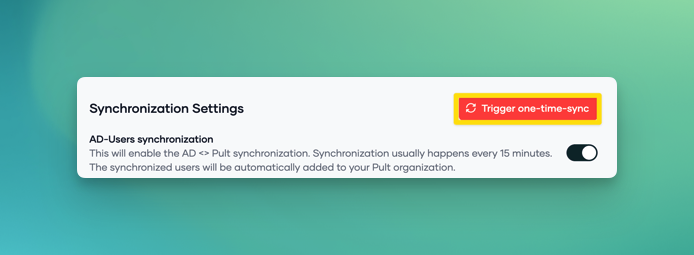
⏱ The sync can take from a couple of minutes to several hours, depending on how long the Microsoft server takes to sync the selected groups and whether the groups were created recently.
Frequently asked questions
How long does the sync take?
Usually a few minutes, but it can take several hours – especially for groups that were created recently.
Where do I configure team leads or office limitations for synced groups?
As usual in Settings → Employees → Groups (see How do I create teams / groups?).
Why was a user archived or unarchived automatically?
With a directory sync, users can be archived or unarchived based on the directory. Check the user in Microsoft first (see How to archive / unarchive Users in the Dashboard).
Related articles
If you have any questions, feel free to contact our support team at support@pult.com.