Okta Sync (Selective Group Sync)
Last updated: November 19, 2026
With Okta Sync, PULT automatically creates and maintains users from your Okta directory – no need to add them manually. With Selective Group Sync you can limit the sync to specific Okta groups, e.g. a pilot team for a test phase. This article shows admins how to set it up.
Note: Okta Sync is also the prerequisite for Okta SSO. Set up the sync first, then follow the Okta SSO article.
In Okta
1. Prerequisites
Make sure that:
you have an admin account in your Okta tenant
you have access to the PULT dashboard as an admin
you know your Okta domain (e.g. yourcompany.okta.com)
2. Create an API token
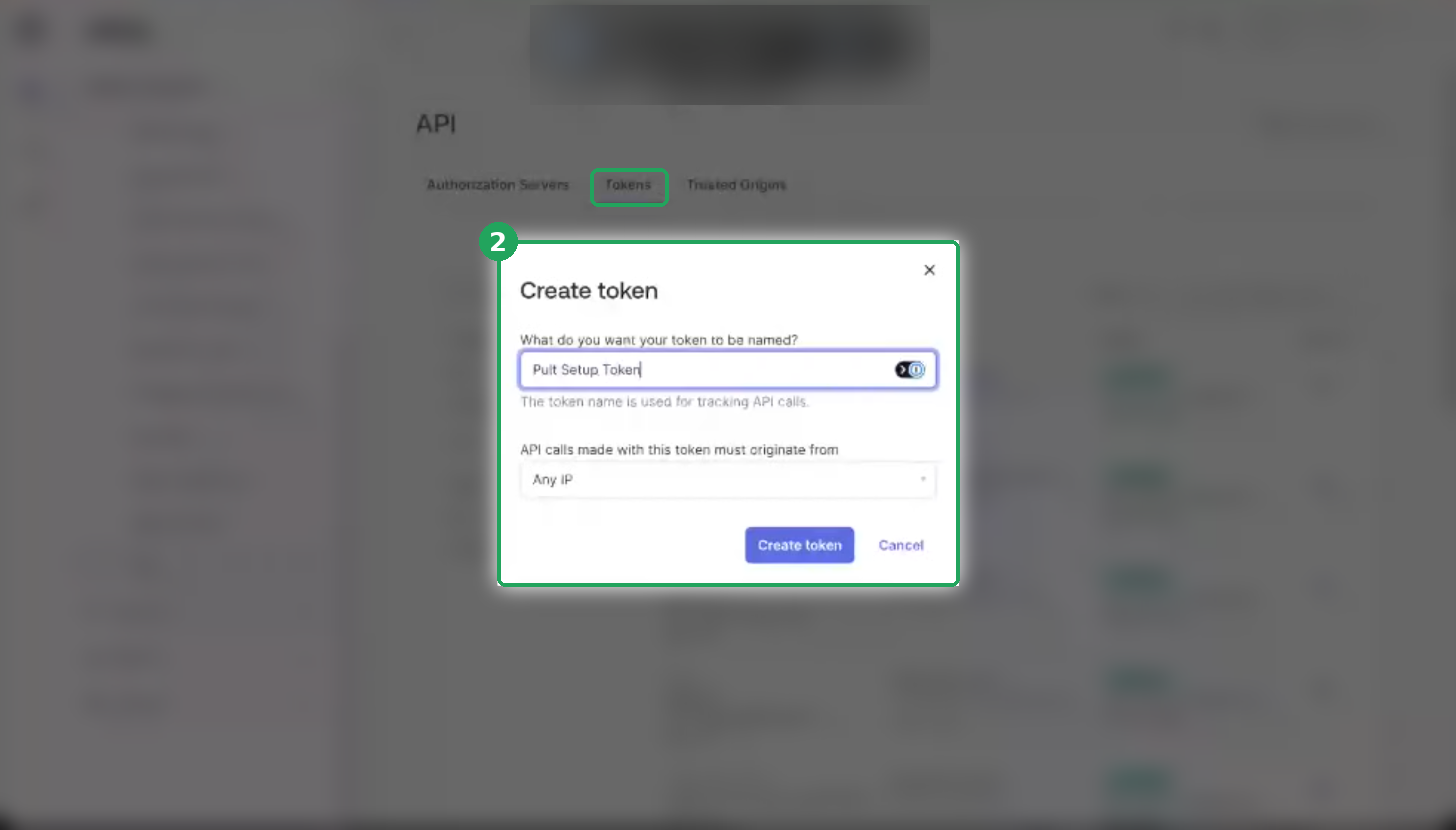
In the Okta Admin Console, go to Security → API → Tokens and click Create token. Give it a clear name (e.g. PULT Sync) and copy the token right away – Okta only shows it once.
⚠ An Okta API token has the same permissions as the account that creates it. We recommend creating the token with a dedicated service account instead of a personal admin account, so the sync keeps working if that person leaves.
⚠ The API token is not the same as the Client ID and Client Secret. Client ID and Client Secret are only needed for Okta SSO.
In PULT
3. Okta settings
In the PULT dashboard, go to Settings → General → Integrations and click Settings on the Okta card.
4. Okta domain and access token
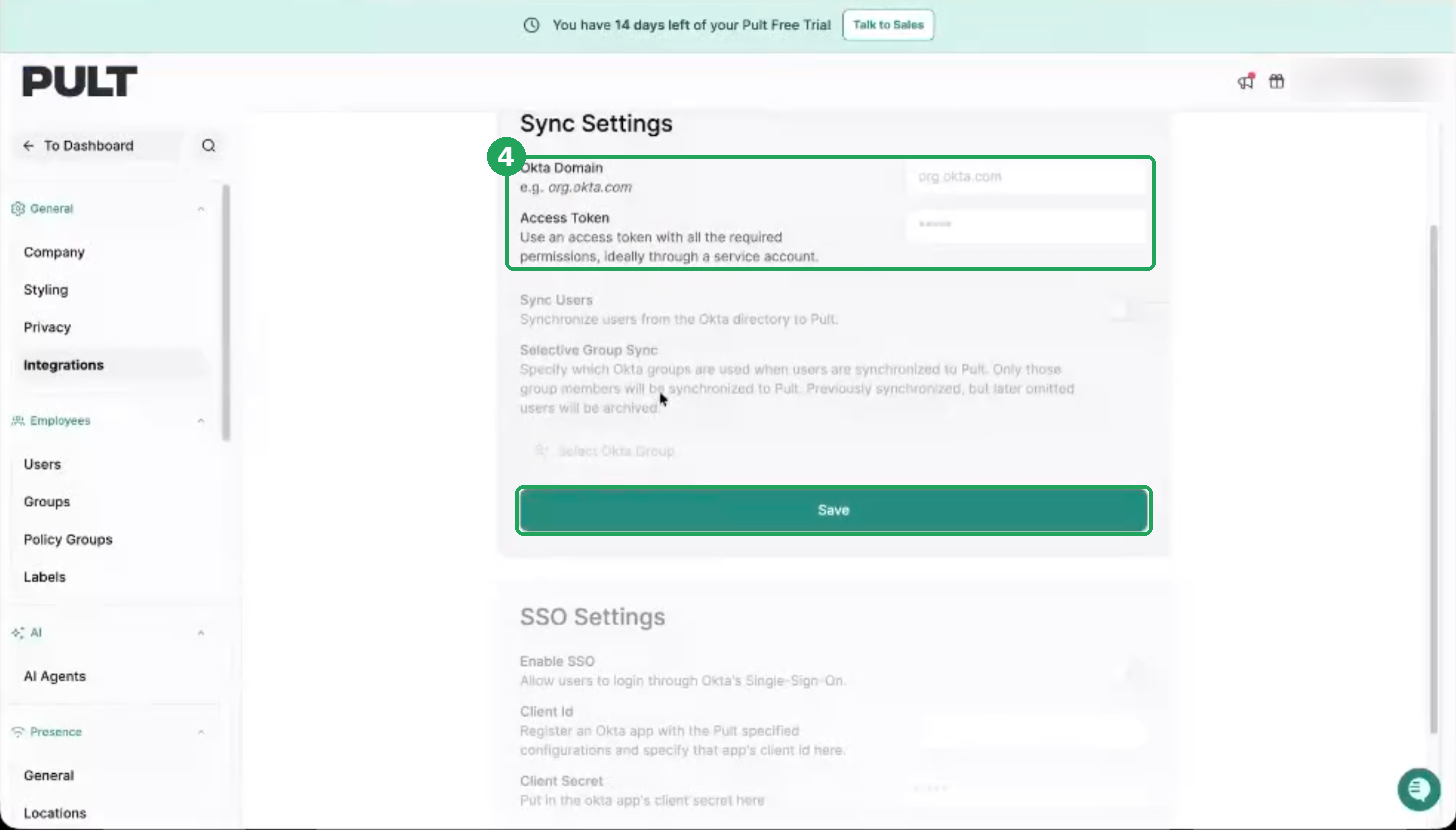
Enter your Okta domain and paste the API token from step 2 as the access token. Click Save.
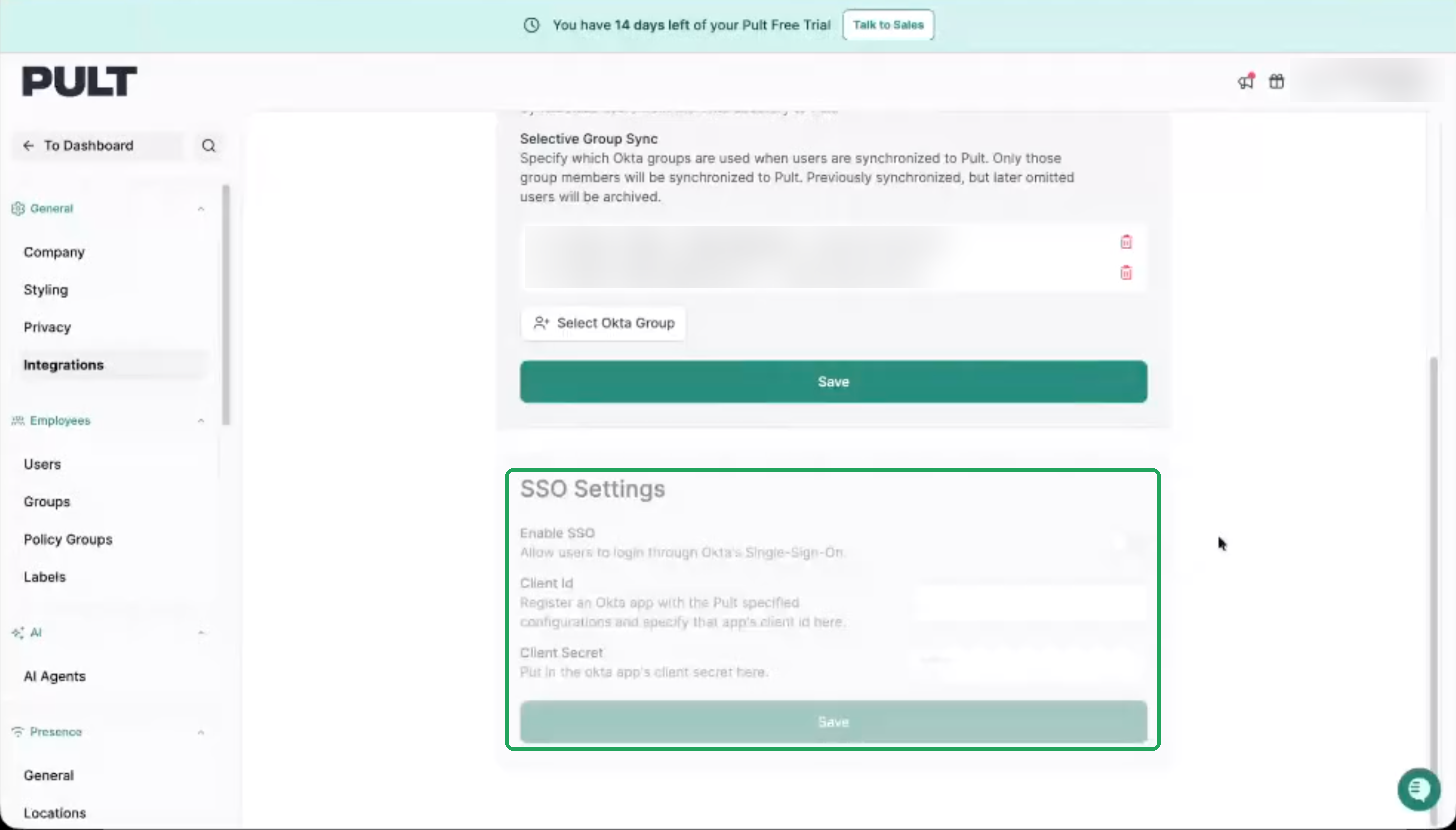
5. Selective Group Sync
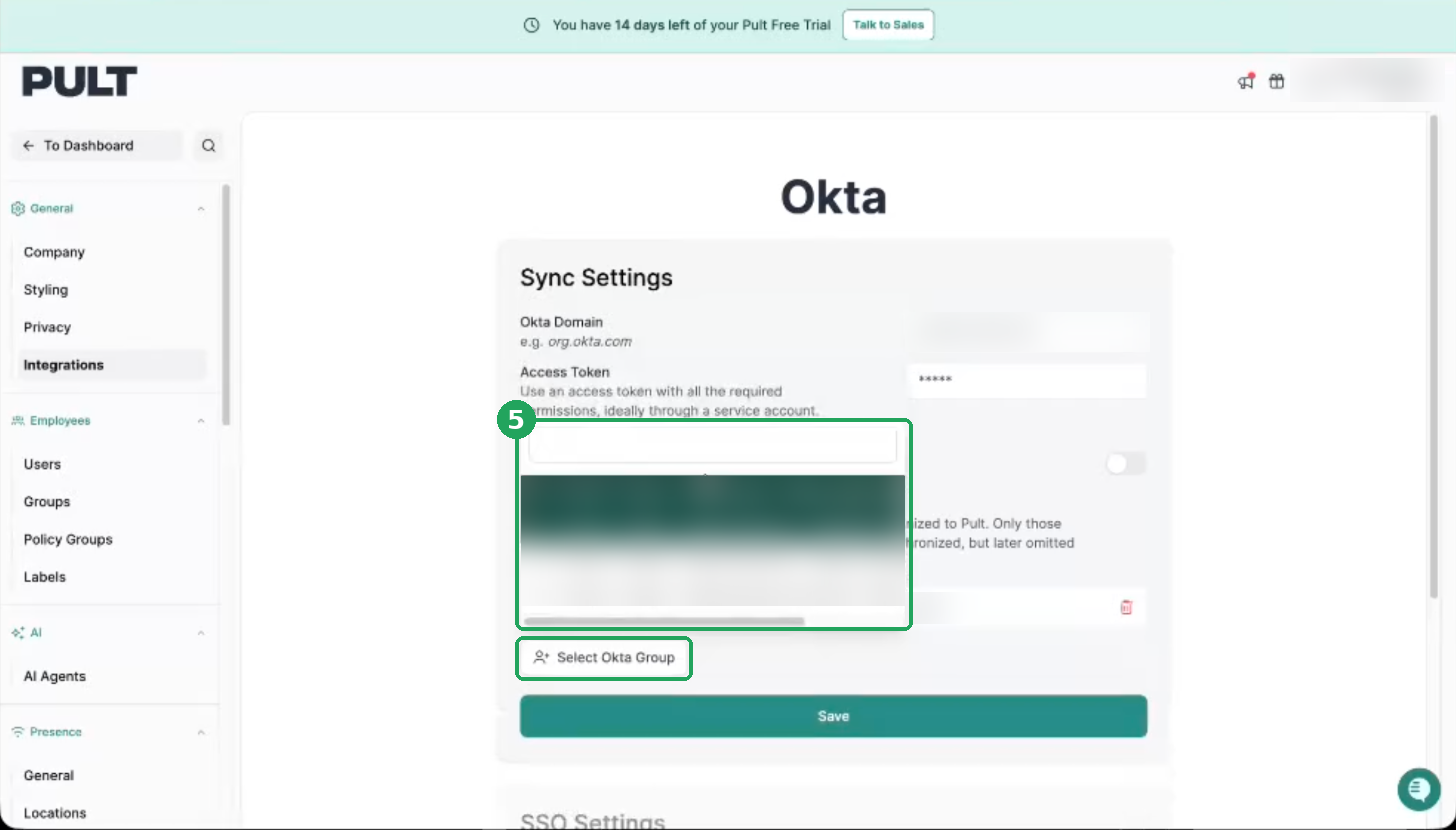
Reload the page so PULT can load your Okta groups. Then select the groups whose members should be synchronised (e.g. only your workplace or IT team for a pilot) and click Save again.
6. Sync Users
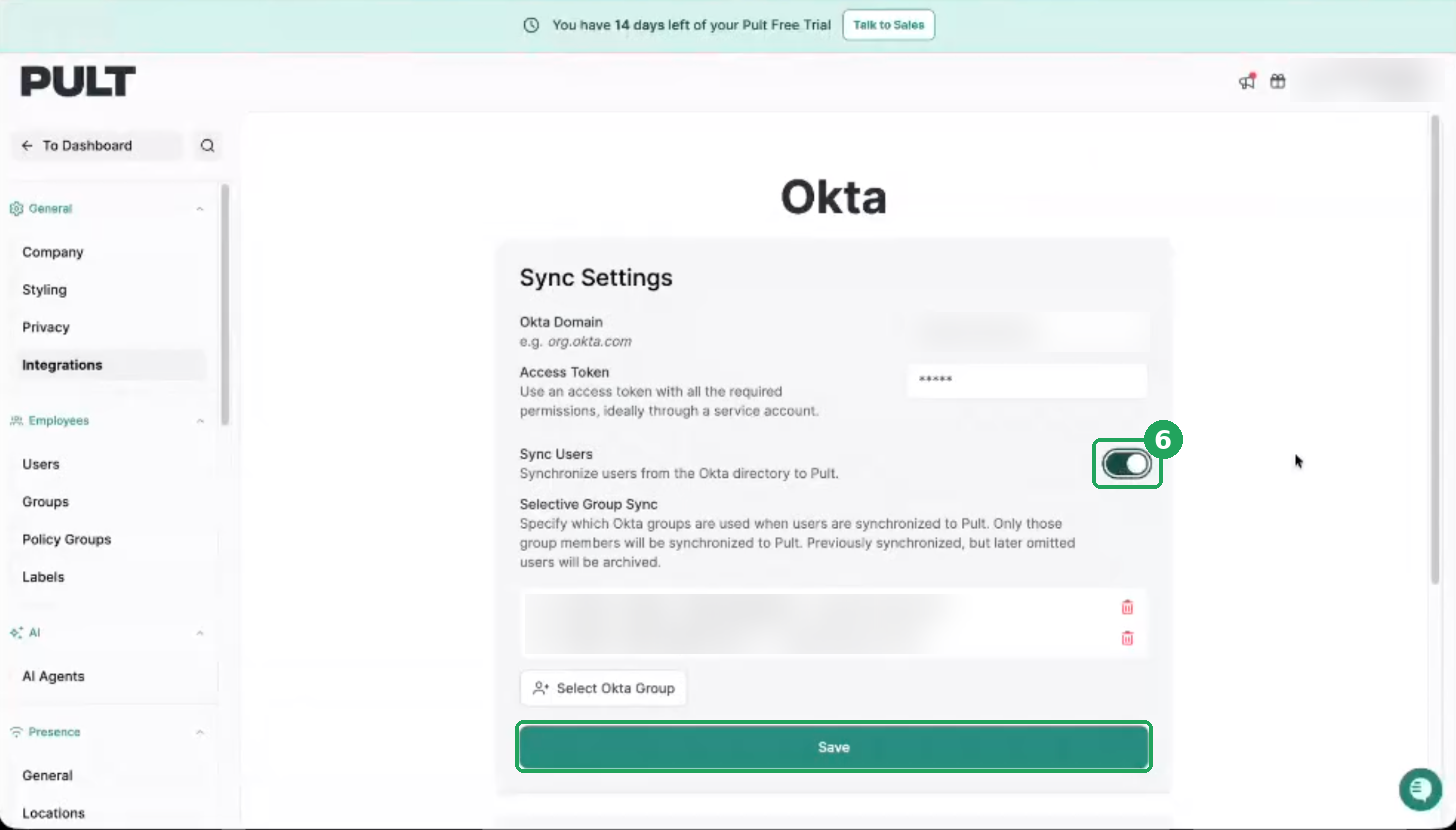
Turn on Sync Users and click Save. PULT now creates a user for everyone in the selected groups. The first sync can take a few minutes.
7. Check the users
Go to Settings → Users to see the synchronised users. Synchronised users don't receive an invitation email – they simply sign in with Okta once SSO is set up.
8. Assign admin rights
Okta Sync creates users with the standard role. If a synchronised user needs admin rights in PULT, assign the role manually in the user list.
Automatic sync
Okta Sync runs automatically about once an hour. If you don't want to wait for the next sync, contact our support team and we'll trigger a sync for you.
Frequently asked questions
What happens to users who are removed from the selected Okta groups?
Users that were synchronised before but are no longer included are archived in PULT.
Can we start with a few groups and roll out to everyone later?
Yes. Add more groups or remove the group selection at any time – the same domain and access token keep working. Nobody receives a notification when they are added by the sync.
Why is a user missing after the sync?
Check that the user is a member of one of the selected Okta groups. An email address can currently only exist once in PULT globally – if the person already has an account in another PULT organisation (e.g. a test account they created themselves), the sync can't create them. Contact our support team and we'll remove the old account.
Why are the SSO settings greyed out?
SSO can only be enabled once Sync Users is turned on and saved.
Related articles
If you have any questions, feel free to contact our support team at support@pult.com.