How do I create Employee Tags?
Last updated: October 19, 2026
This article shows admins how to create labels (employee tags) and assign them to employees, so you can quickly find e.g. first aiders or fire wardens.
💡 There are two kinds of labels in PULT: labels that admins assign to employees (e.g. Fire Warden, First Aider, Key Holder) and personal labels that employees pick for themselves (e.g. Vegetarian, Dog Owner).
Assign labels to employees
In the PULT dashboard, go to Settings → Employees → Users.
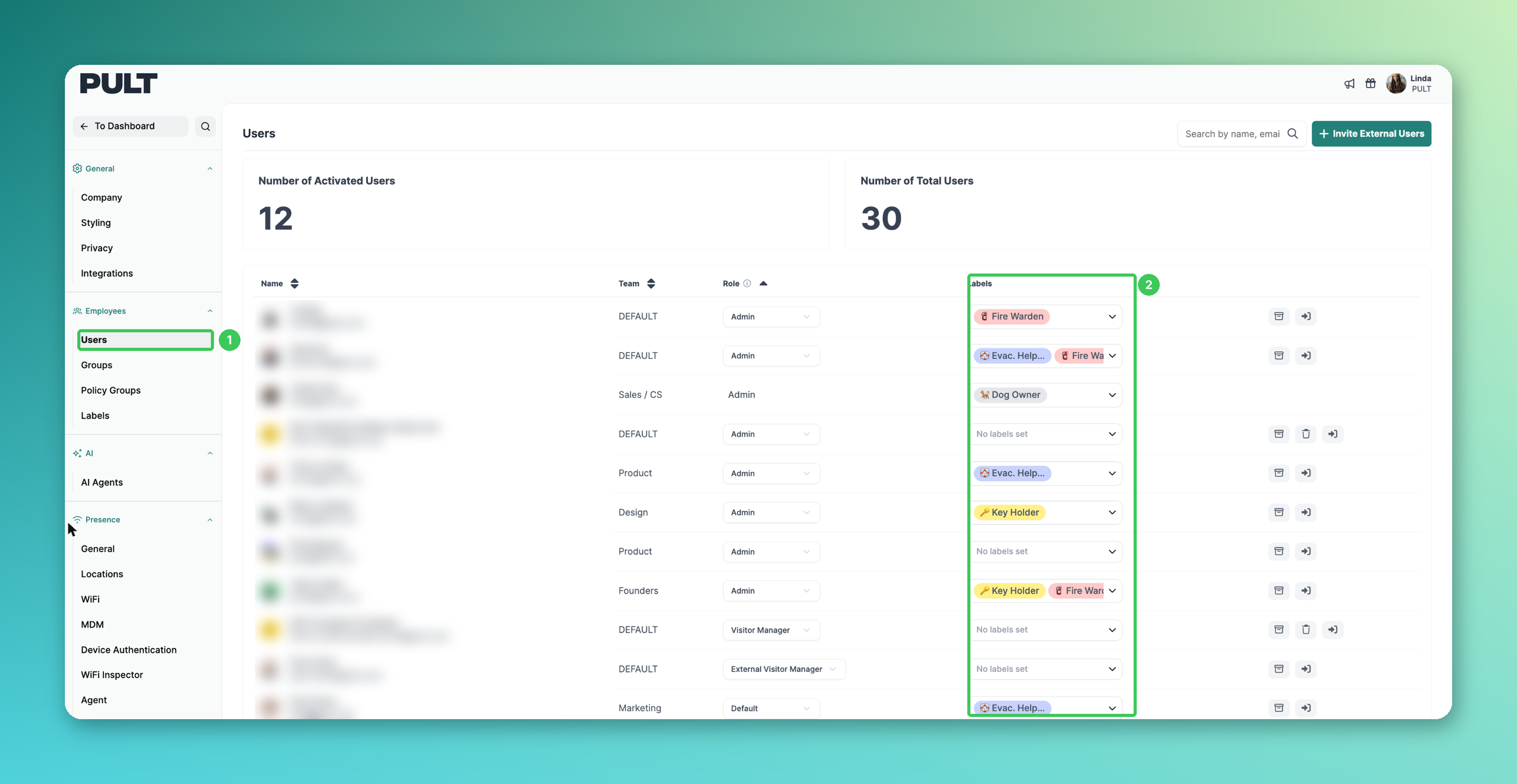
1. Users
The user list shows all employees of your organization. More about this page in Manage Employees.
2. Labels
The Labels column shows the labels of each employee. Click the dropdown in an employee's row to change them.
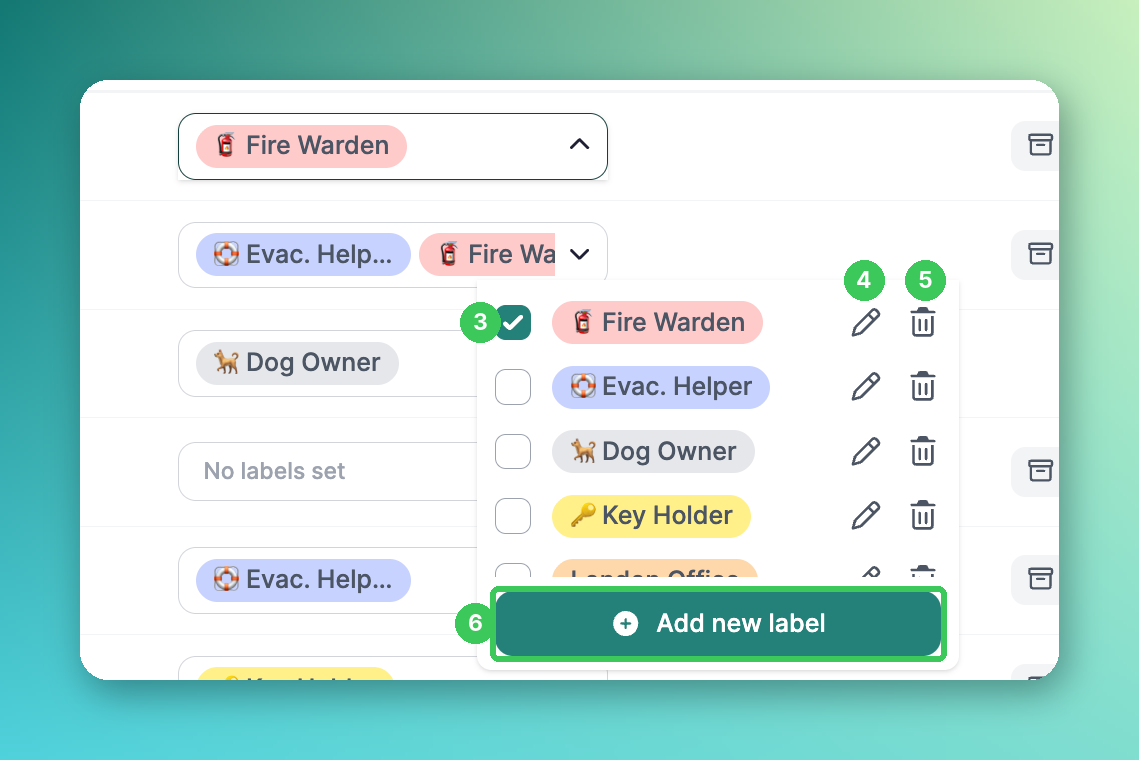
3. Assign a label
Tick the checkbox next to a label to assign it to the employee. Untick it to remove the label again.
4. Edit a label
Click the pencil icon to change the name or colour of a label.
5. Delete a label
Click the bin icon to delete a label for your whole organization.
6. Add new label
Click Add new label, enter a name, pick a colour and save. The new label is then available for all employees.
Personal labels
Go to Settings → Employees → Labels.
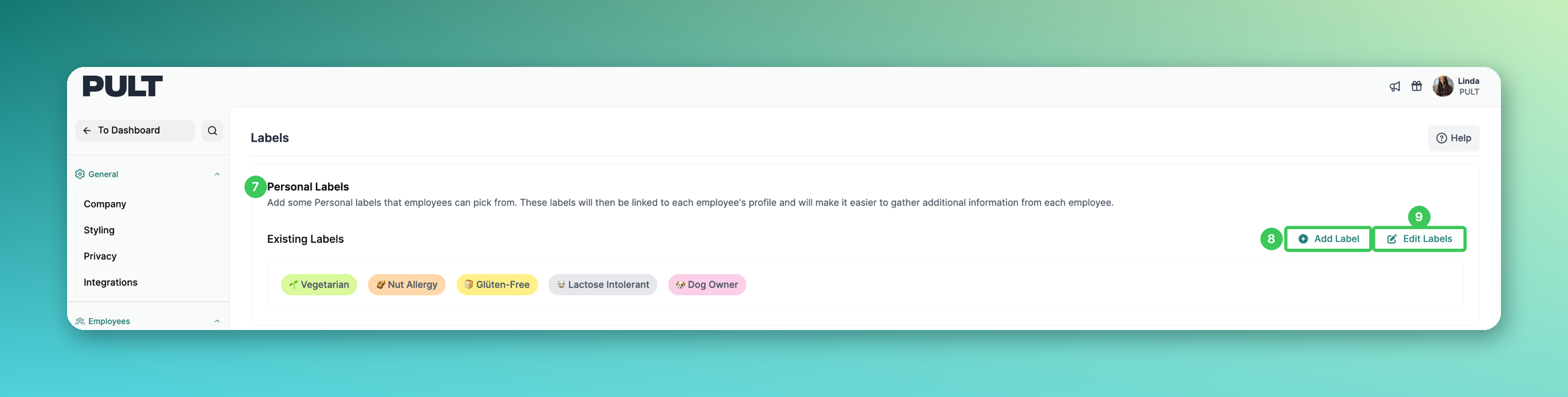
7. Personal Labels
Here you define the personal labels that employees can pick from in their own settings, e.g. dietary preferences. The labels are linked to each employee's profile and make it easier to collect additional information.
8. Add Label
Click Add Label to create a new personal label.
9. Edit Labels
Click Edit Labels to rename or remove existing personal labels.
Frequently asked questions
Are labels synced from our HR system?
No. Labels can't be pulled from HR platforms (e.g. Personio), so they need to be set in PULT.
Can I use labels for reporting?
Yes. Labels are included in the exports, e.g. under Settings → Workplace → Exports. You can for example label all remote employees to exclude them from reports. See Export your PULT bookings.
Why can't I set a label for some people?
Archived users need to be reactivated first, see How to archive / unarchive Users in the Dashboard. People who are not in PULT yet can't be labeled.
Related articles
If you have any questions, feel free to contact our support team at support@pult.com.