Integrating Personio with PULT via Kombo
Last updated: March 6, 2026
With the Kombo integration, you can connect Personio to PULT to automatically synchronize employees, absences, and other HR data. Follow this step-by-step guide to set it up.
1. Create API Access in Personio
Open Personio.
Navigate to Settings → Integration → API Access Data.
Click the "Create Custom Integration" button in the top-right corner.
Give the integration a name, e.g., PULT, and click Next.
2. Configure Access Rights
2.1 Set Permissions
In the new window, configure access rights as follow:
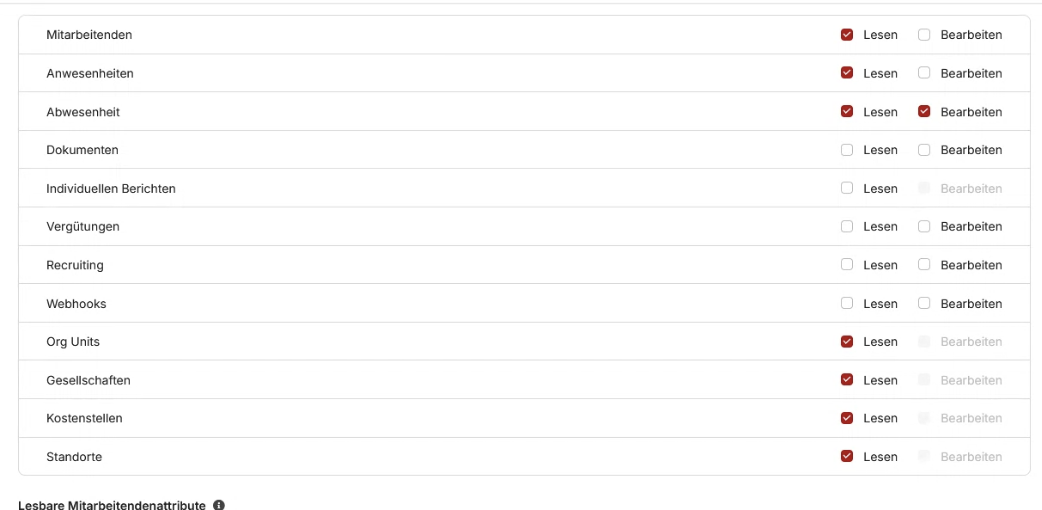
Employees | Read |
Attendances | Read |
Absences | Read & Write |
Organizational Units | Read |
Companies | Read |
Cost Centers | Read |
Locations | Read |
2.2 Select readable Employee Attributes
Choose the following attributes:
First name
Last Name
Name preferred
Email
Status
Position
Employment Type
Hire Date
Contract ends
Termination date
Last modified
Created at
Cost center
Public Holdiay
Profile Picture
Weekly Hours
Department
Absence entitlement
Work Schedule
Team
Mitarbeiter ID (Personalnummer)
Click Create Integration at the bottom-right corner.
Copy the Client ID and API Secret Token - these will be needed in PULT.
3. Set Up Integration in PULT
Click on the Kombo integration link:
Enter the Client ID and API secret Token
Start the synchronisation.
Note: The synchronization can take up to 10 minutes.
4. Map Absences
After successful synchronization, you can map how different absence types from Personio should appear in PULT. Adjust the mapping according to your needs.
The Personio integration via Kombo is now successfully set up and ready to use.