TV Mode: Live Floor Plan on an Office Screen
Last updated: October 22, 2026
With TV mode, you can show a live floor plan of an office on a screen in your office – including who has booked a desk today. This article shows admins how to open TV mode and what the board shows.
Open TV mode
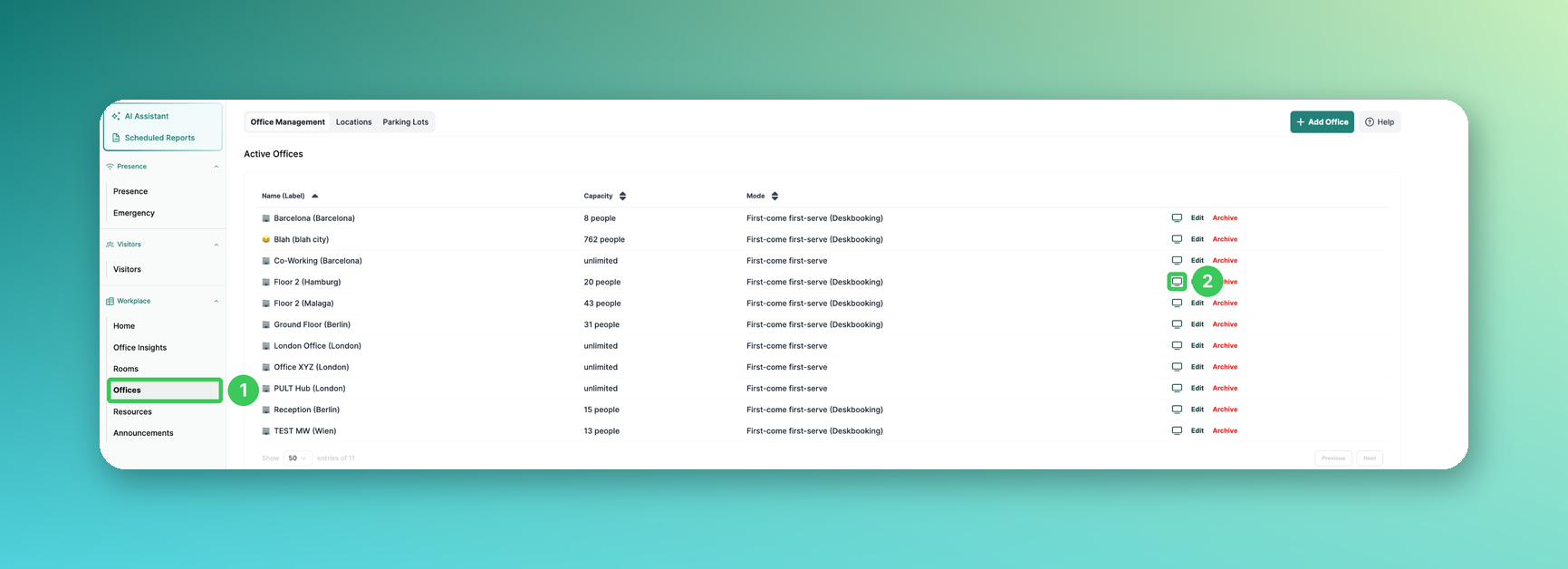
1. Offices
In the PULT dashboard, go to Workplace → Offices. You see all active offices in the Office Management tab.
2. Open TV mode
Click the screen icon Open TV mode in the row of the office you want to show. The board opens in the same browser tab – open it on the device connected to your screen.
The TV board
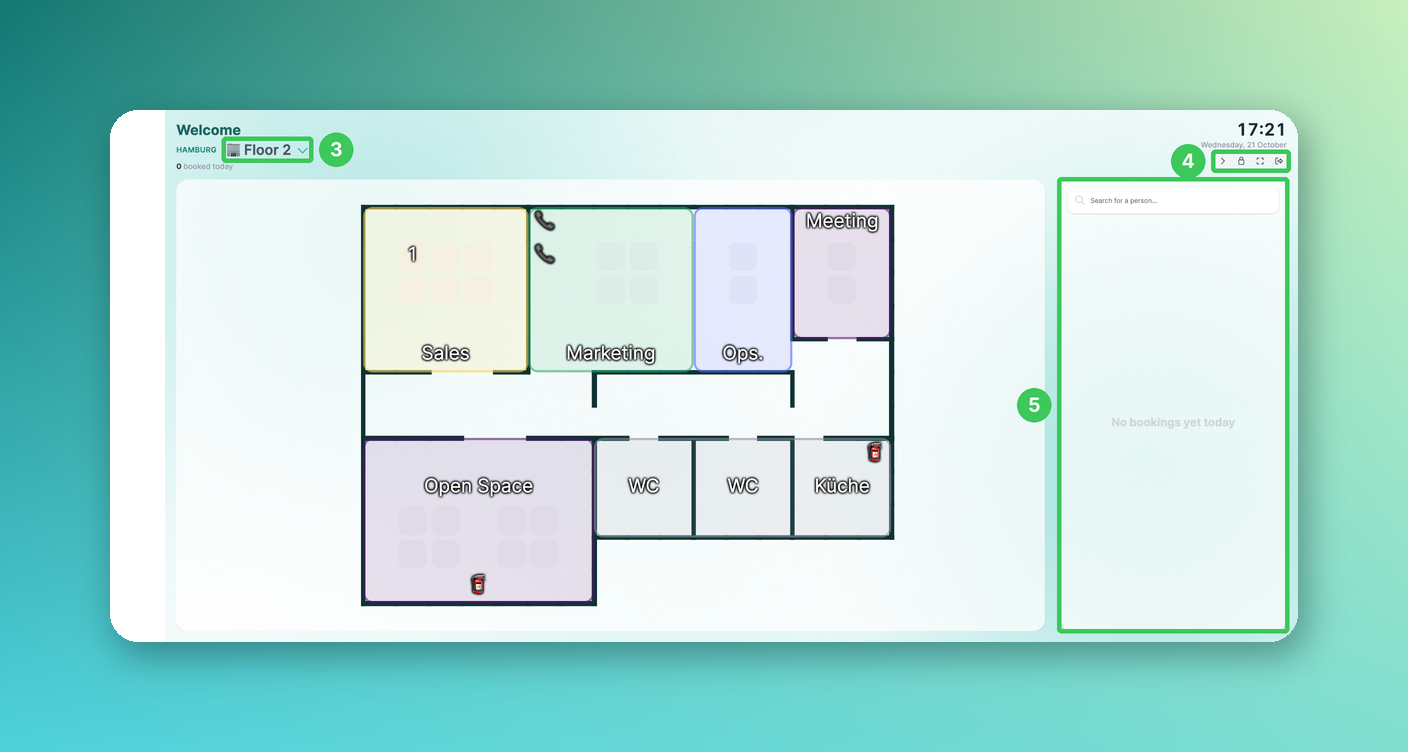
When the board opens, tap or click once to switch to full screen (Tap to enter fullscreen). At the top left you see how many people have booked today; at the top right the time and date.
3. Switch floor
Shows the current office and floor. Click it to switch to another floor.
4. Controls
These buttons appear when you move the mouse or tap the screen: Hide list / Show list, Lock display (locks the board and copies the kiosk link to your clipboard), Enter fullscreen and Exit TV mode.
5. List of people
Shows everyone who has booked in this office today. Use Search for a person… to quickly find a colleague on the floor plan.
Auto-refresh in the web app
You can also show the normal PULT web app on a screen and let it refresh automatically. Add the following parameter to your PULT URL: https://app.pult.com/?refreshInterval=10
Replace 10 with any number of seconds (minimum 10). The page then refreshes automatically at that interval, and the selected date switches automatically when the day changes (e.g. at midnight).
Frequently asked questions
Who can open TV mode?
TV mode is opened by admins in the PULT dashboard. Afterwards the board can stay open on the screen in your office.
Is my logo shown on the board?
If white-label is active, your organisation logo (Settings → General → Styling) is shown on the TV board.
Which data is shown?
The floor plan of the selected office and floor and the people who have booked there today.
Related articles
If you have any questions, feel free to contact our support team at support@pult.com.