Customize your Desks and Zones
Last updated: October 21, 2026
This article shows admins how to customize the desks and zones in a floor plan: define areas, tag, name, disable and restrict desks.
💡 If you haven't set up your basic floor plan yet, start with Create a floorplan. Open the editor via Workplace → Offices → Edit → Edit floor plan. Don't forget to click Save at the bottom after your changes.
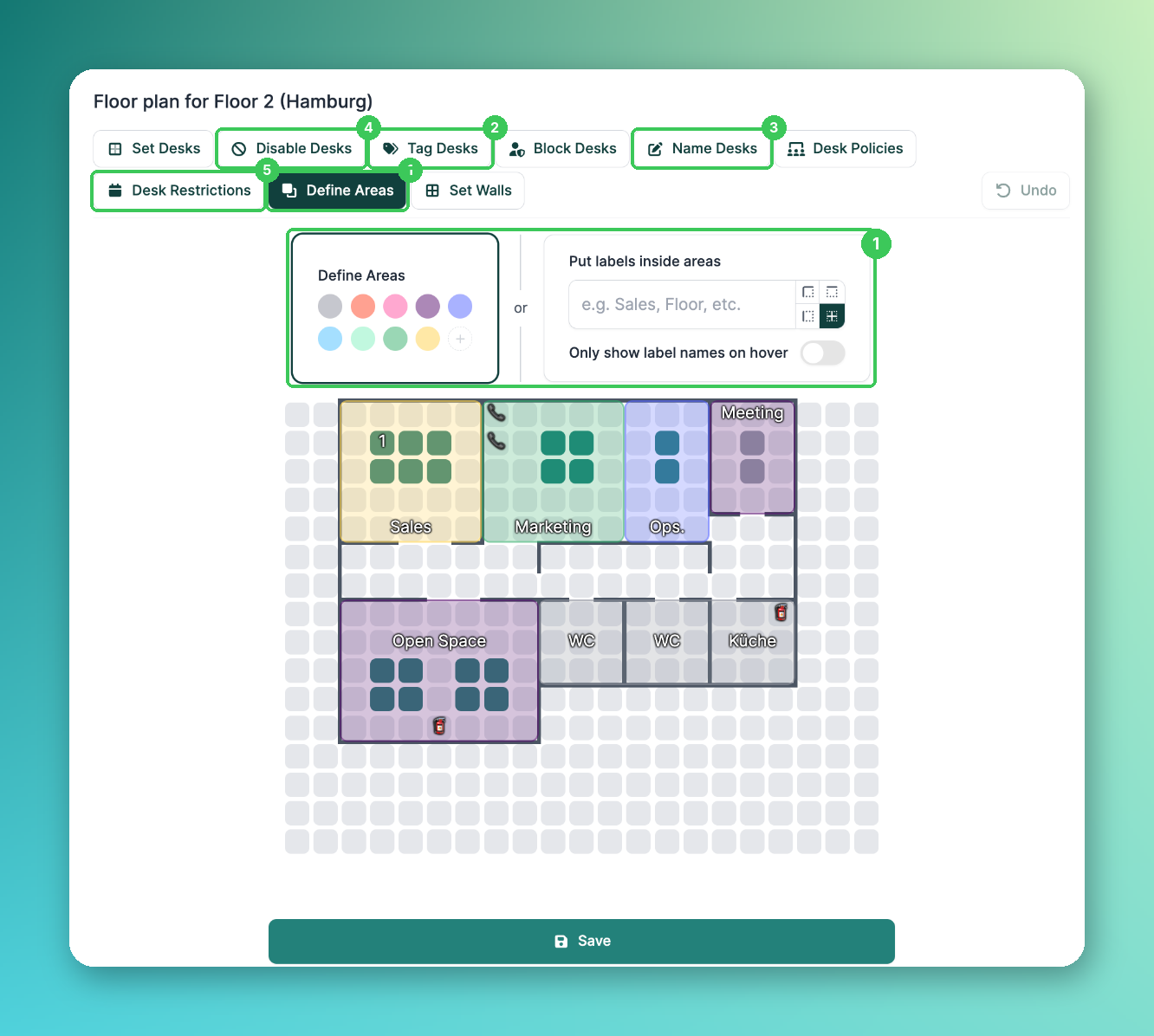
1. Define Areas
Create specific areas within your floor plan, e.g. for teams or functions such as Marketing Team, Quiet Zone or Collaboration Area. Pick a colour and paint the area on the floor plan, or use Put labels inside areas to add a name. You can also add text or emojis, for example to mark fire extinguishers or improve office navigation. With Only show label names on hover, labels only appear when you move the mouse over them.
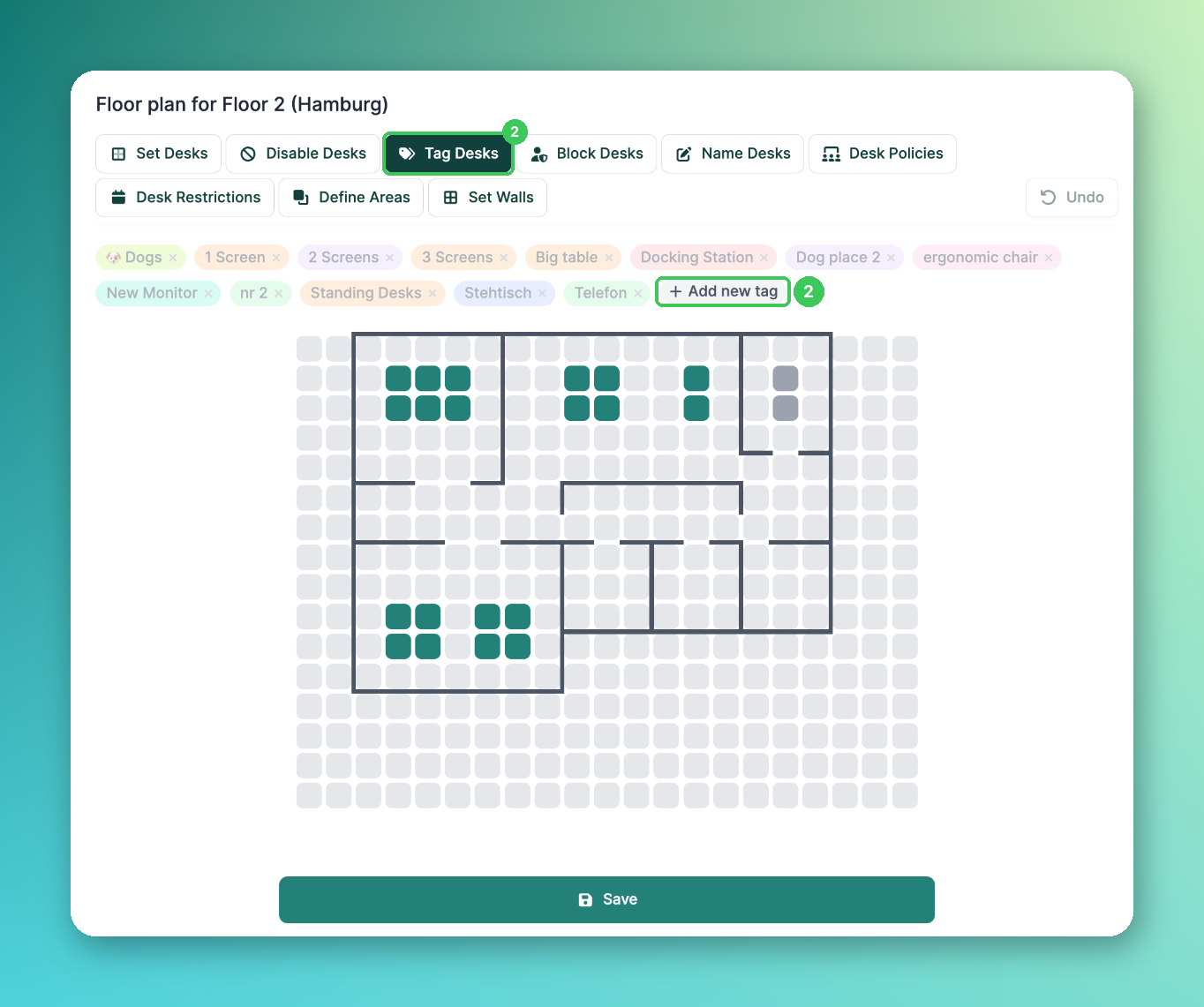
2. Tag Desks
Tags help you categorize desks, e.g. by equipment, size or location. Click Tag Desks, create a tag via Add new tag (or pick an existing one) and then click every desk that should get this tag.
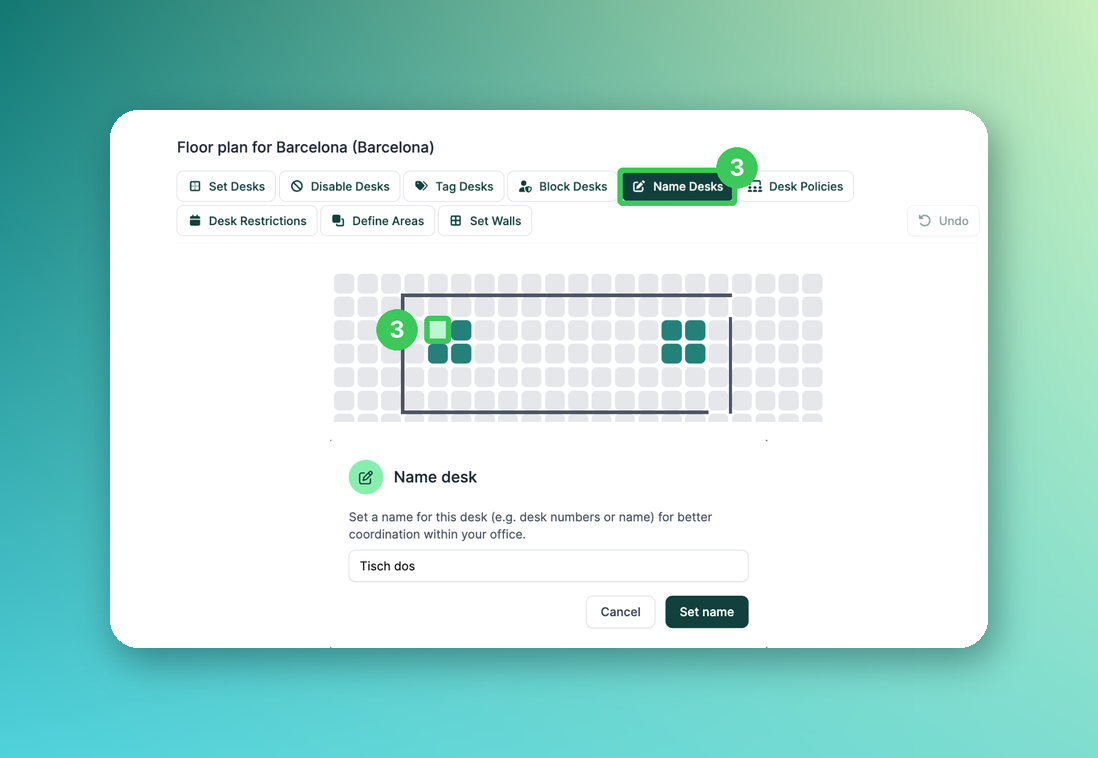
3. Name Desks
Give your desks names, e.g. by location, purpose, a number or something creative. Click Name Desks and then the desk you want to name.
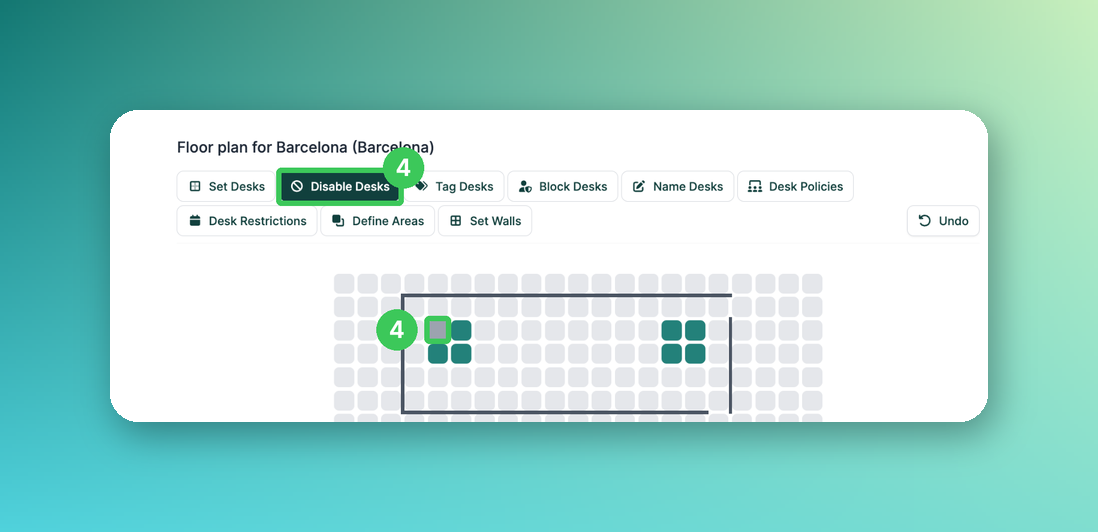
4. Disable Desks
If a desk is temporarily not in use or under maintenance, click Disable Desks and select the desk. A disabled desk can't be booked until you enable it again.
5. Desk Restrictions
Make desks temporarily unbookable for a certain period, e.g. for team visits or events. Click Desk Restrictions, create a restriction with +, select the desks and set the dates. You can also use restrictions to make certain desks bookable later than others.
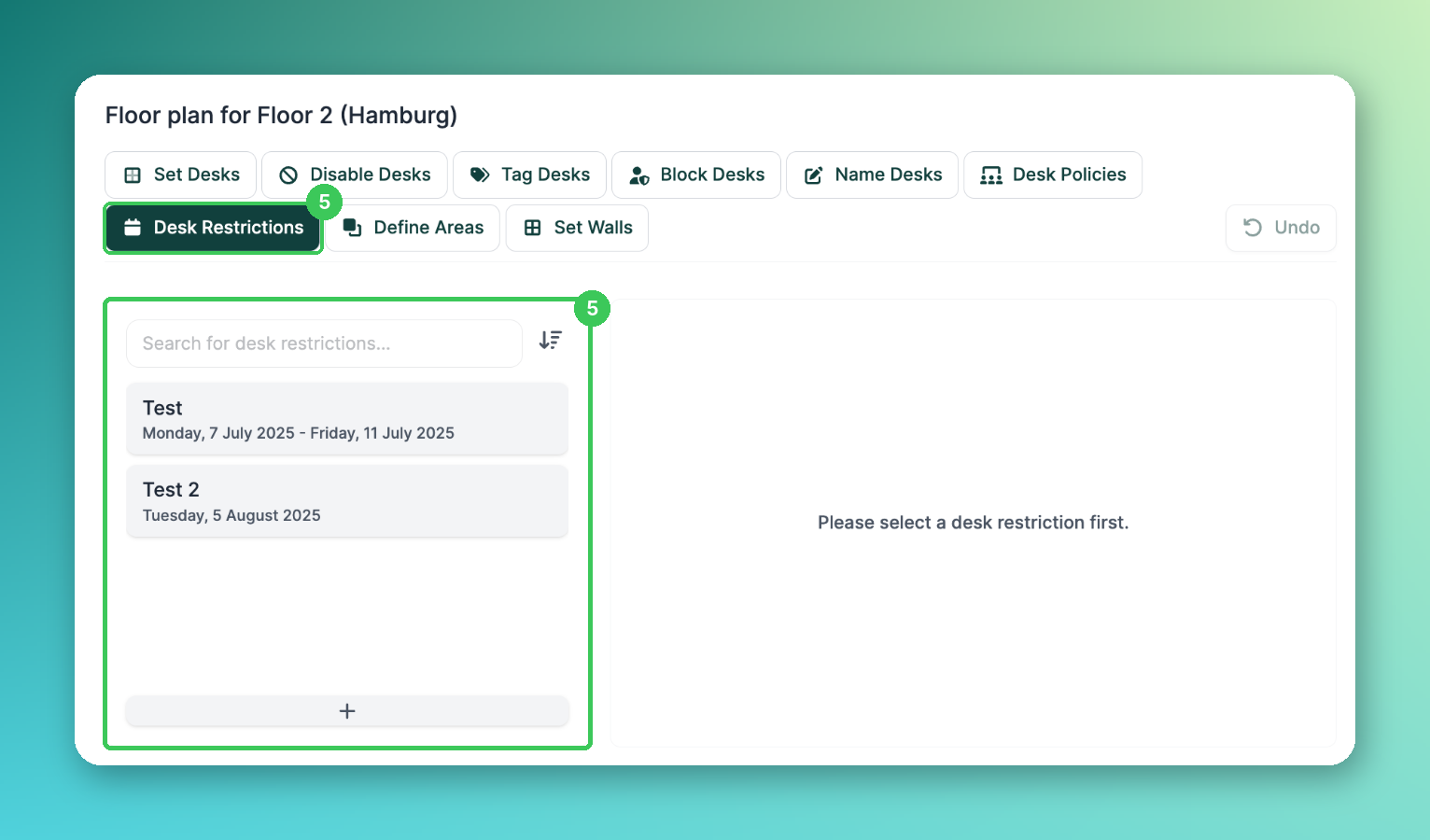
Note: Restricting a desk doesn't cancel bookings that existed before. Delete those bookings manually if needed.
Limitation: Restrictions only support continuous date ranges. For non-continuous days (e.g. only Mondays and Wednesdays), create a separate restriction for each period.
💡 To reserve desks for specific people or teams, continue with Assign Desks to Employees or Teams.
Frequently asked questions
Why can someone still book a restricted desk on that day?
Bookings made before the restriction was created stay in place. Delete them manually.
Where can employees see the desk tags?
Tags are shown to employees when they book in the PULT app, which helps them find a suitable desk.
My changes don't show up in the app.
Make sure you clicked Save at the bottom of the editor.
Related articles
If you have any questions, feel free to contact our support team at support@pult.com.