Create a floorplan
Last updated: January 14, 2026
How to create a floorplan in PULT?
This article will guide you through all the features available in our floor plan builder. From setting up the floor plan to defining policies and restrictions, we have a variety of tools to help you manage and organize your workspace more efficiently.
🪄 To create an office with a floor plan, please check out this article on how to create an office.
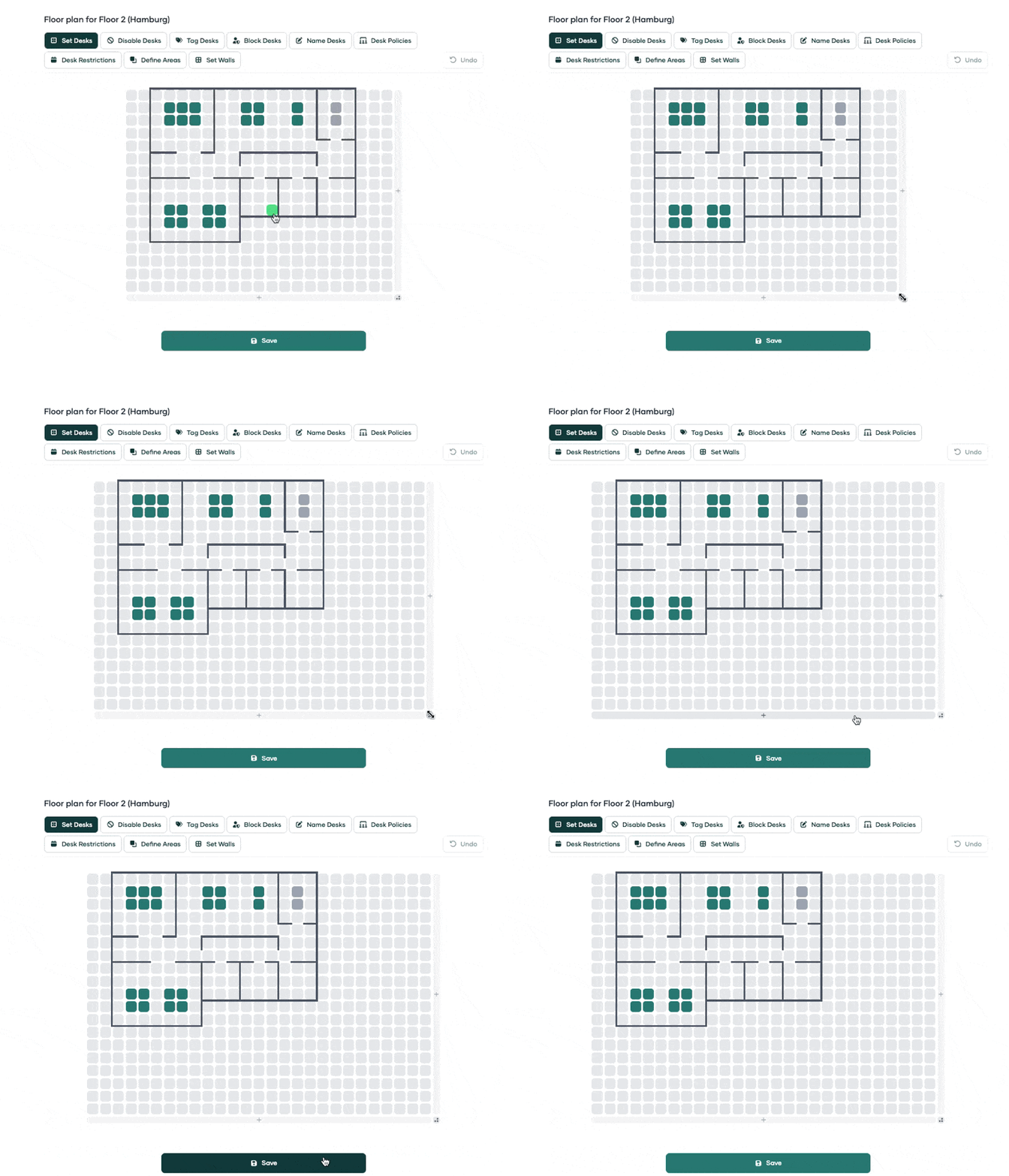
Adjust size
You can enlarge the floor plan in different ways:
Use the plus icons on the right and at the bottom to enlarge the floor plan horizontally or vertically.
In the bottom-right corner, you can click and drag to resize the entire floor plan (all sides at once).
Set Desks
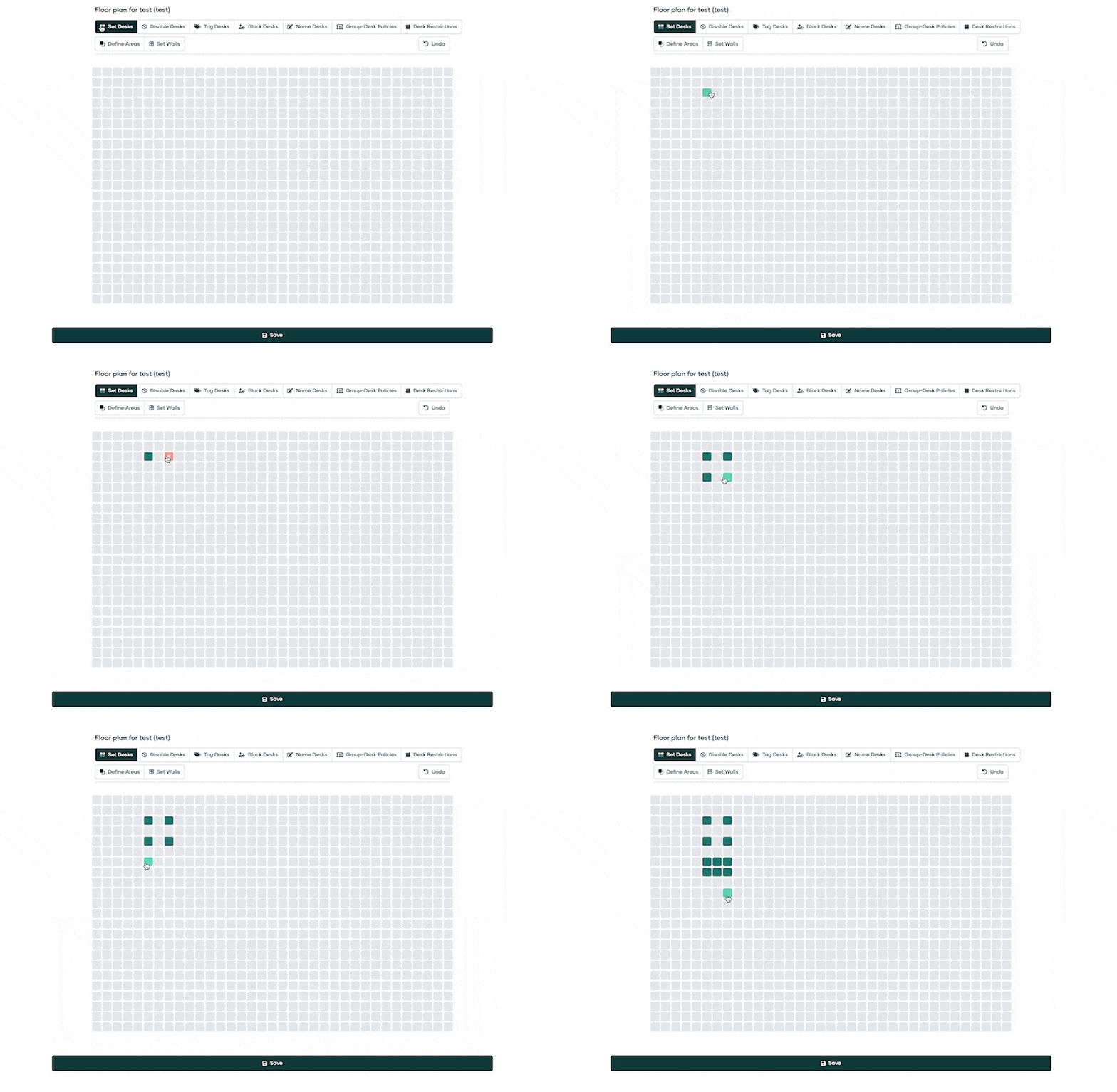
To create an office, first, you need to set the desks. This feature allows you to add desks to your floor plan manually.
Simply click on the 'Set Desks' button, and then click on the location in your floor plan where you want to place the desk. One box = one desk. Hold the left mouse to place multiple desks. To remove desks, simply click on the desk again.
Set or delete Walls
Here’s how it works:
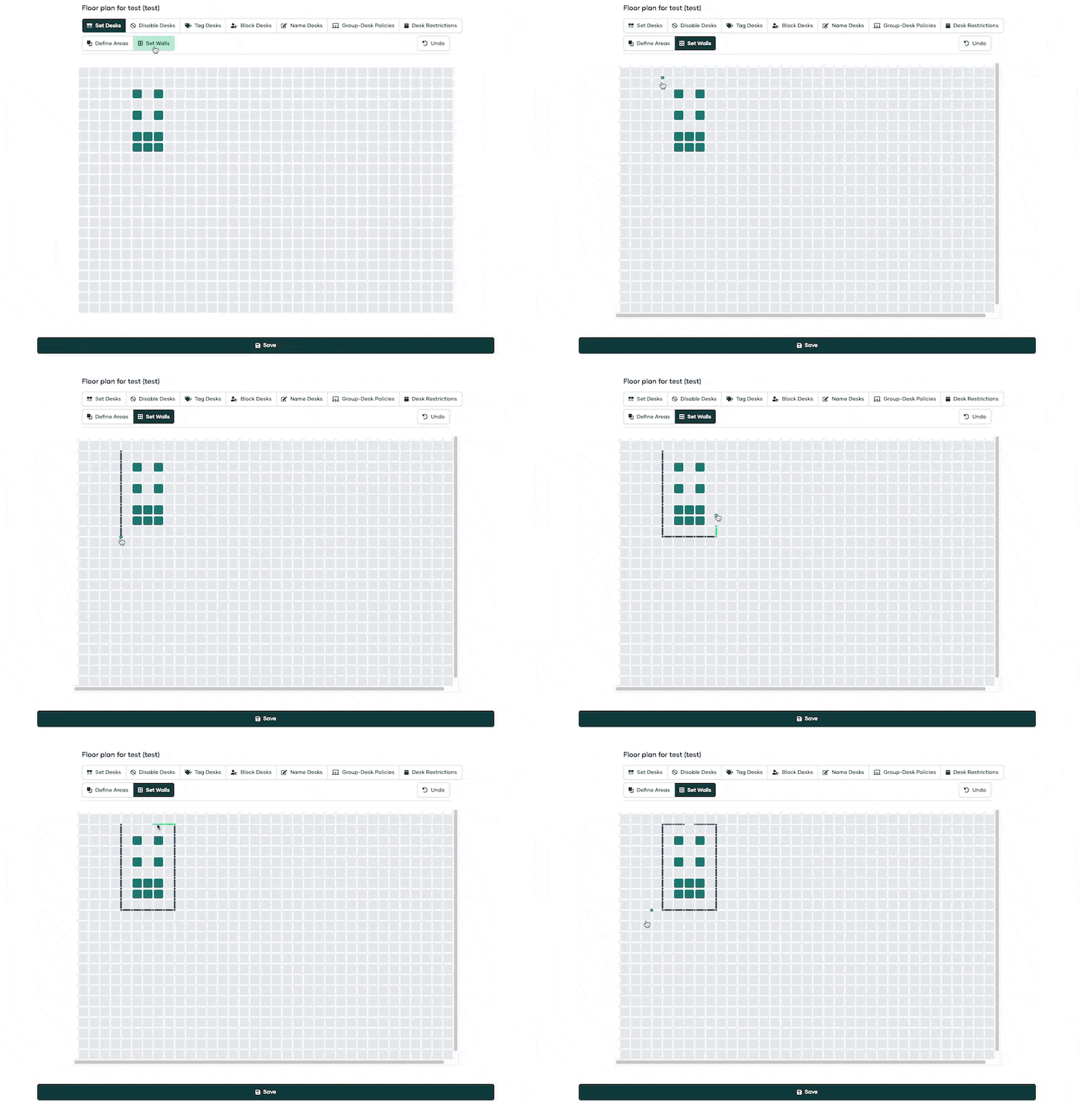
Click the “Set Walls” button.
Click on the spot in your floor plan where you want the wall to start and hold down the left mouse button.
Drag in one single direction — either up, down, left, or right.
Note: Walls can only be drawn straight in one direction.
If you want to continue in a different direction, release the mouse button and start a new wall segment.
Removing Walls
Removing walls works the same way:
Click on the wall you want to delete and hold down the left mouse button.
Drag in one direction as far as needed to remove the wall segment.
Define Areas
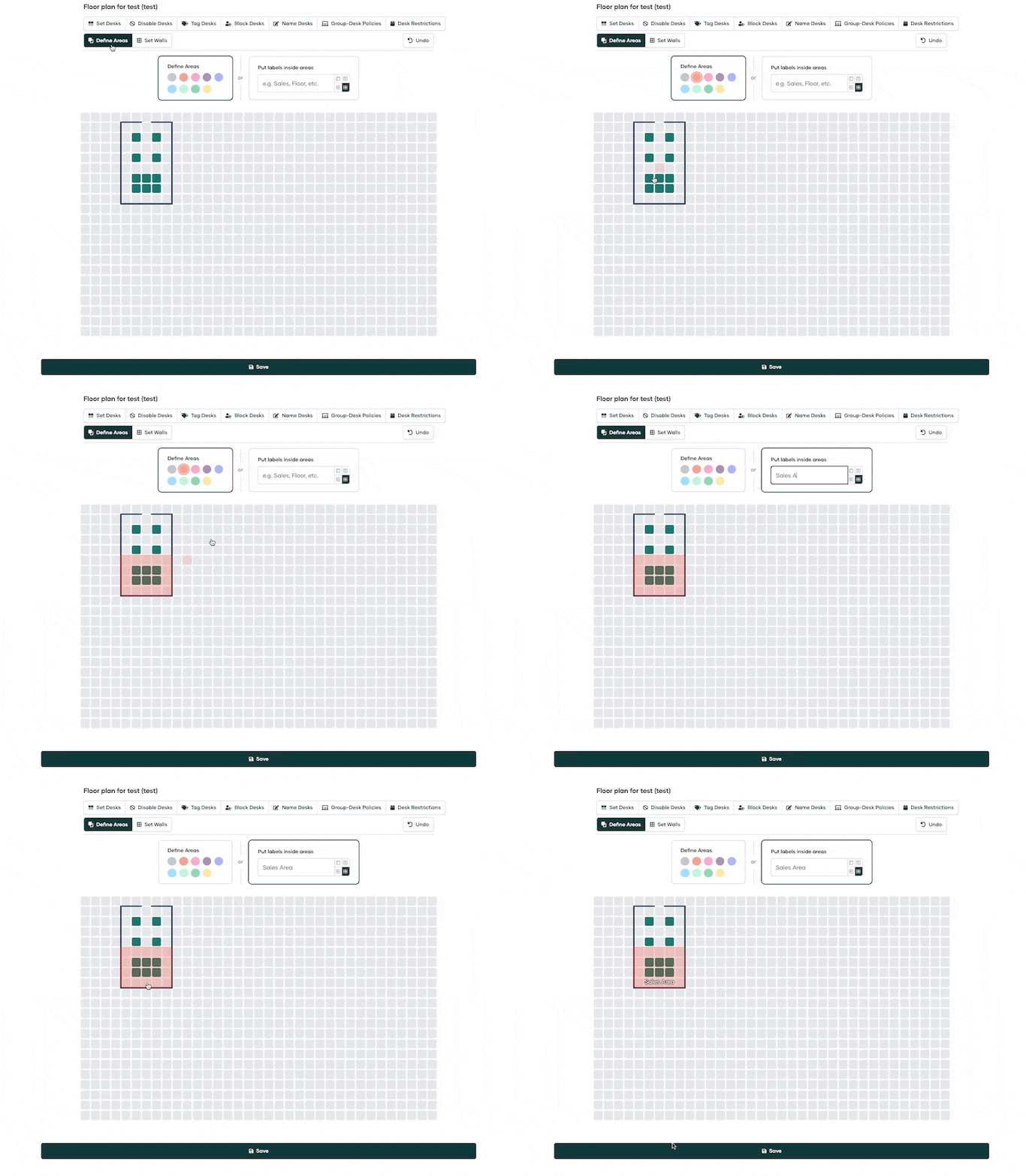
This feature allows you to create specific areas within your floor plan.
Areas can be defined for different teams, functions, or any other categorization that fits your organizational needs.
For example, you could define areas for the Marketing Team, Quiet Zone, Collaboration Area, and so on.