How to Create a New Office in PULT
Last updated: October 19, 2026
This article shows admins how to create a new office in PULT and explains all office settings, from capacity and booking mode to the presence location and visitor options.
💡 Prefer a guided tour? This interactive walkthrough takes you through creating and customizing an office step by step.
Open the offices
In the PULT dashboard, go to Workplace → Offices.
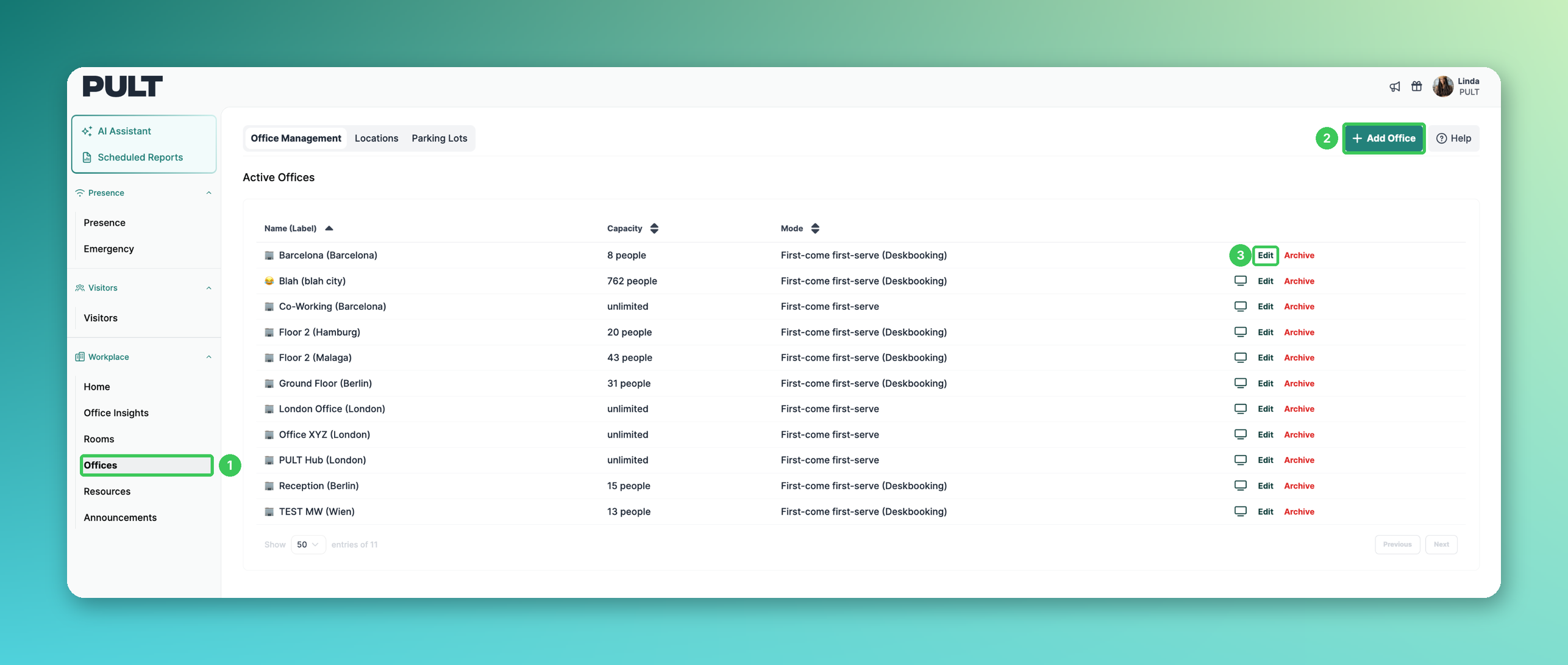
1. Offices
Under Office Management you see all active offices with capacity and booking mode. Next to it you find the Locations and Parking Lots tabs.
2. Add Office
Click Add Office in the top right corner to create a new office. The office settings open on the right.
3. Edit
To change an existing office later, click Edit in its row.
Office settings
The settings panel looks the same when you add a new office and when you edit an existing one.
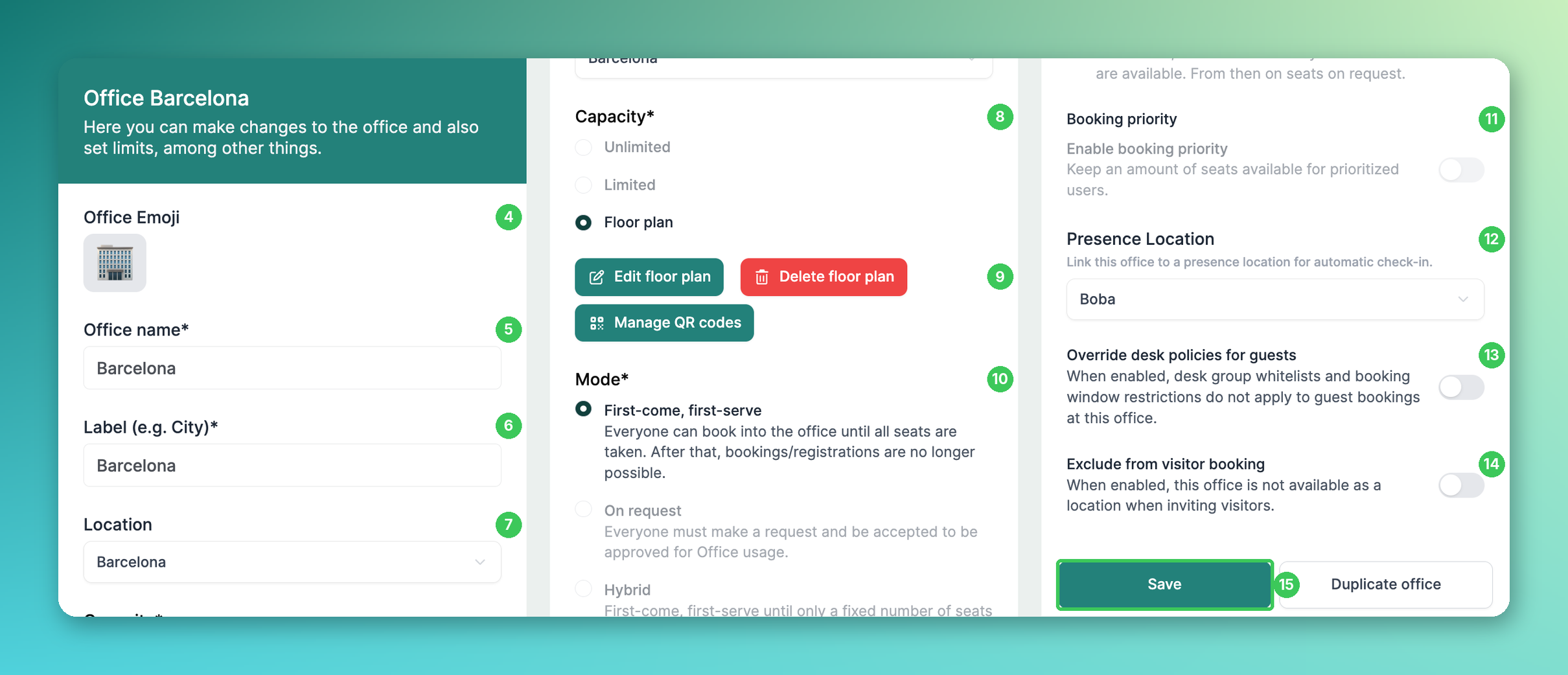
4. Office Emoji
Pick an emoji that represents your office. It is used as the office icon in the employee app.
5. Office name
Give your office a unique, easily recognizable name, e.g. "HQ" or "HQ Floor 1" if you have several floors.
6. Label (e.g. City)
Usually the city or location of the office, e.g. "Hamburg".
7. Location
Select the location the office belongs to. Locations are managed in the Locations tab.
8. Capacity
Unlimited: any number of people can book the office.
Limited: you set the maximum number of people.
Floor plan: employees book specific desks on a floor plan.
9. Floor plan and QR codes
With Floor plan selected, you can open the floor plan editor with Edit floor plan, delete it with Delete floor plan or print desk QR codes with Manage QR codes. See Create a floorplan and Edit Floorplan before publishing.
10. Mode
First-come, first-serve: everyone can book until all seats are taken.
On request: every booking has to be requested and approved.
Hybrid: first-come, first-serve until only a fixed number of seats is left, then seats on request.
With a floor plan, First-come, first-serve is selected automatically.
11. Booking priority
Keeps a number of seats available for prioritized users. Which groups get priority is set in the group settings (see How do I create teams / groups?). Booking priority is only available for offices without a floor plan.
12. Presence Location
Links the office to a PULT Presence location so employees are checked in automatically when they are detected there.
13. Override desk policies for guests
If enabled, desk group whitelists and booking window restrictions don't apply to guest bookings in this office.
14. Exclude from visitor booking
If enabled, this office is not offered as a location when inviting visitors. See Exclude Specific Offices from Visitor Management.
15. Save
Click Save to save the office. You can change all settings later. With Duplicate office you can create a copy of an existing office.
Frequently asked questions
Where do I set who can book in an office?
Open the office via Workplace → Offices → Edit and adjust the desk policies there. A policy can contain several groups as well as individual users. See Assign Desks to Employees or Teams.
Can PULT create the floor plan for us?
Yes, our Customer Success team can draw the floor plan based on your plan. Just send it to support.
Why is my office with limited capacity overbooked?
Default bookings are created at midnight and don't check the remaining capacity in offices with limited capacity and without a floor plan. If this is a problem, turn off default bookings for this office or restrict them to certain users.
Related articles
If you have any questions, feel free to contact our support team at support@pult.com.