Company Settings
Last updated: October 26, 2026
In the company settings, admins manage the basic details of their organisation: the name, contact information, time zone and public holiday calendars. This article explains each section.
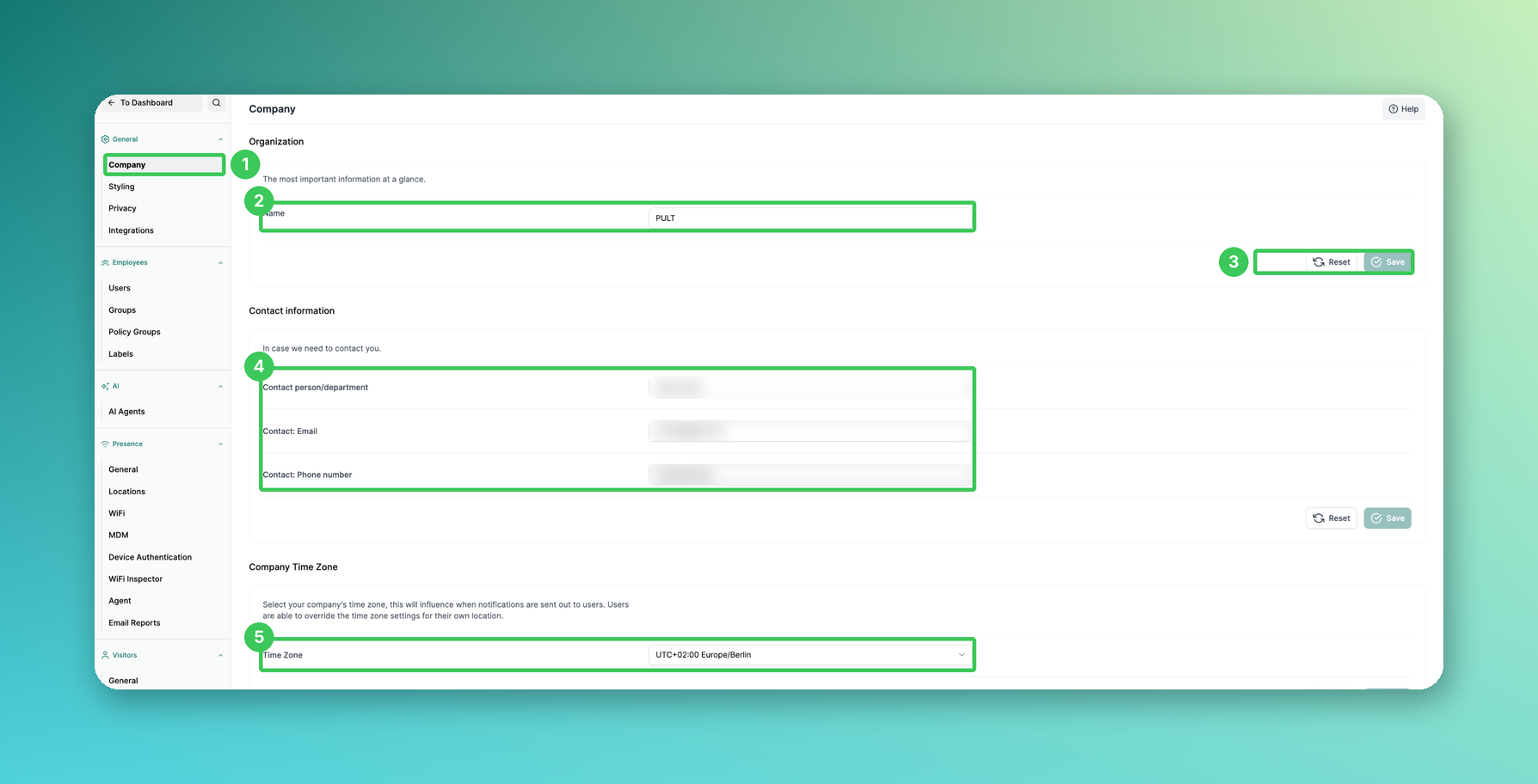
1. Company
In the PULT dashboard, go to Settings → General → Company.
2. Organization – Name
Your official company name.
3. Reset and Save
Each section has its own Save button. Click Reset to discard unsaved changes.
4. Contact information
Contact person/department, email and phone number our team can use to reach you. Please keep these details up to date.
5. Company Time Zone
Select your company's time zone. It determines when notifications are sent. Users can override it for their own location – see Adjust Time Zones in PULT.
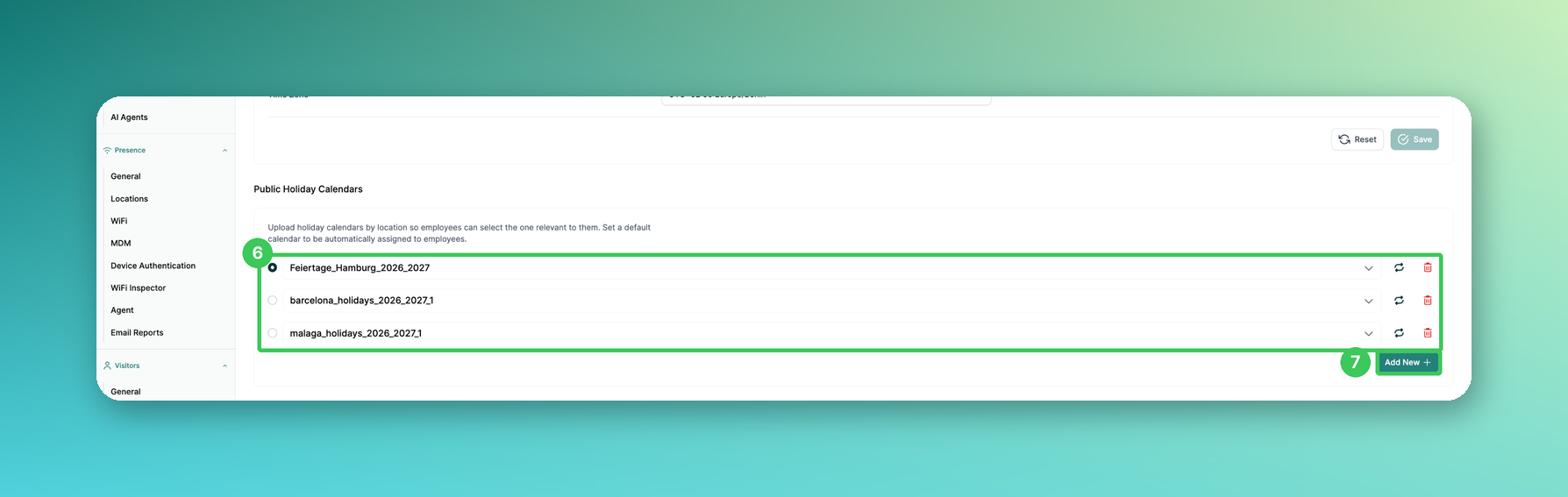
6. Public Holiday Calendars (new)
Upload holiday calendars by location so employees can select the one relevant to them. The selected calendar (radio button) is the default and is automatically assigned to employees.
Before you upload, please check two things: the file must not contain a header row, and it can hold a maximum of 300 entries. See the FAQ below for details.
7. Add New
Click Add New to upload another holiday calendar. Next to each calendar, you can replace it or delete it.
Frequently asked questions
Where can I change the logo and colours?
Logo and colours are no longer in the company settings. You find them under Settings → General → Styling.
Which file format do holiday calendars need?
Upload a CSV file with one holiday per line: the date in the first column and the name of the holiday in the second.
Two things cause most failed uploads:
No header row. Every single line in the file has to be an actual holiday entry. A header such as
Date;Holidayat the top of the file will make the upload fail.Maximum 300 entries. A holiday calendar can hold up to 300 entries. Anything longer is rejected. If your list runs far into the future, simply shorten it – around 15 years ahead is usually more than enough.
My holiday upload fails and I don't know why
The error message is not always clear about the cause. In most cases it is one of the two points above: a header row in the file, or more than 300 entries.
If you have checked both and the upload still fails, send us the file at support@pult.com and we will take a look and prepare it for you.
Related articles
If you have any questions, feel free to contact our support team at support@pult.com.