Visitor Badge Size Settings
Last updated: October 21, 2026
This article explains which badge sizes PULT supports and where you choose the size for a kiosk.
📌 Badge printing is only available in the PULT Visitors Kiosk app on an iPad with a connected Brother QL-820NWB printer (see How do I set up my devices for badge printing?).
1. Choose the badge size
Once your printer is connected, open the settings of the kiosk app (press and hold the PULT logo in the bottom right corner for 3 seconds) and choose the badge size:
Small badge (62 × 40 mm)
Large badge (84 × 54 mm)

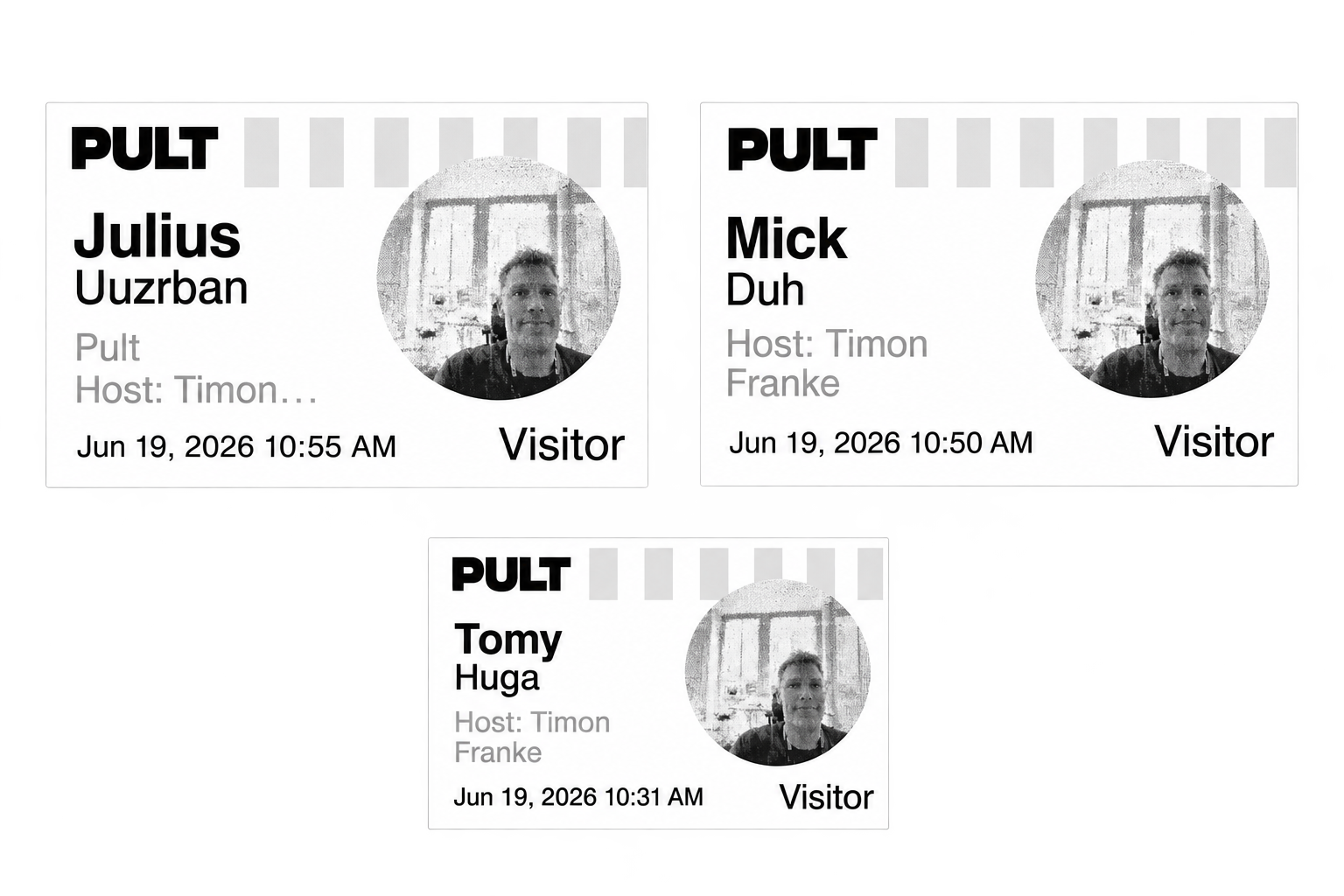
The size applies to this kiosk. You can start printing visitor badges right away.
2. Match your badge design
Badge designs have their own layouts for each size. If a design has no layouts for the size a kiosk prints, the kiosk scales the layouts of the other size to fit (see Visitor Badge Editor: Design your own visitor badges).
Frequently asked questions
Which printers are supported?
Only the Brother QL-820NWB (see How do I set up my devices for badge printing?).
Can I print badges with the browser kiosk?
No. Badge printing is only possible with the PULT Visitors Kiosk app on an iPad (see Use the PULT Kiosk in a Browser (Android and Other Tablets)).
Do visitors have to take a photo?
No. In the Badge Printing tab of each flow you choose Require a photo, Photo is optional or Don't capture a photo (see Visitor Badge Editor: Design your own visitor badges).
Related articles
If you have any questions, feel free to contact our support team at support@pult.com.