Use the PULT Kiosk in a Browser (Android and Other Tablets)
Last updated: October 21, 2026
Besides the PULT Visitors Kiosk app for iPad, you can also run the PULT kiosk in a web browser – for example on an Android tablet. This article shows how to set it up and what to keep in mind.
📌 Good to know: We recommend an iPad with the PULT Visitors Kiosk app. The browser kiosk is a fallback for other tablets. Badge printing is only possible with the iPad app – not in the browser kiosk.
Set up the browser kiosk
On the tablet, open kiosk.pult.com in Chrome. Nothing has to be installed.
Connect the kiosk in the PULT dashboard under Settings → Visitors → Device Management → Connect new device, just like an iPad kiosk (see Setting up kiosk devices).
Then choose the linked offices, flows and other options in the kiosk settings (see Kiosk Device Settings).
Start screen
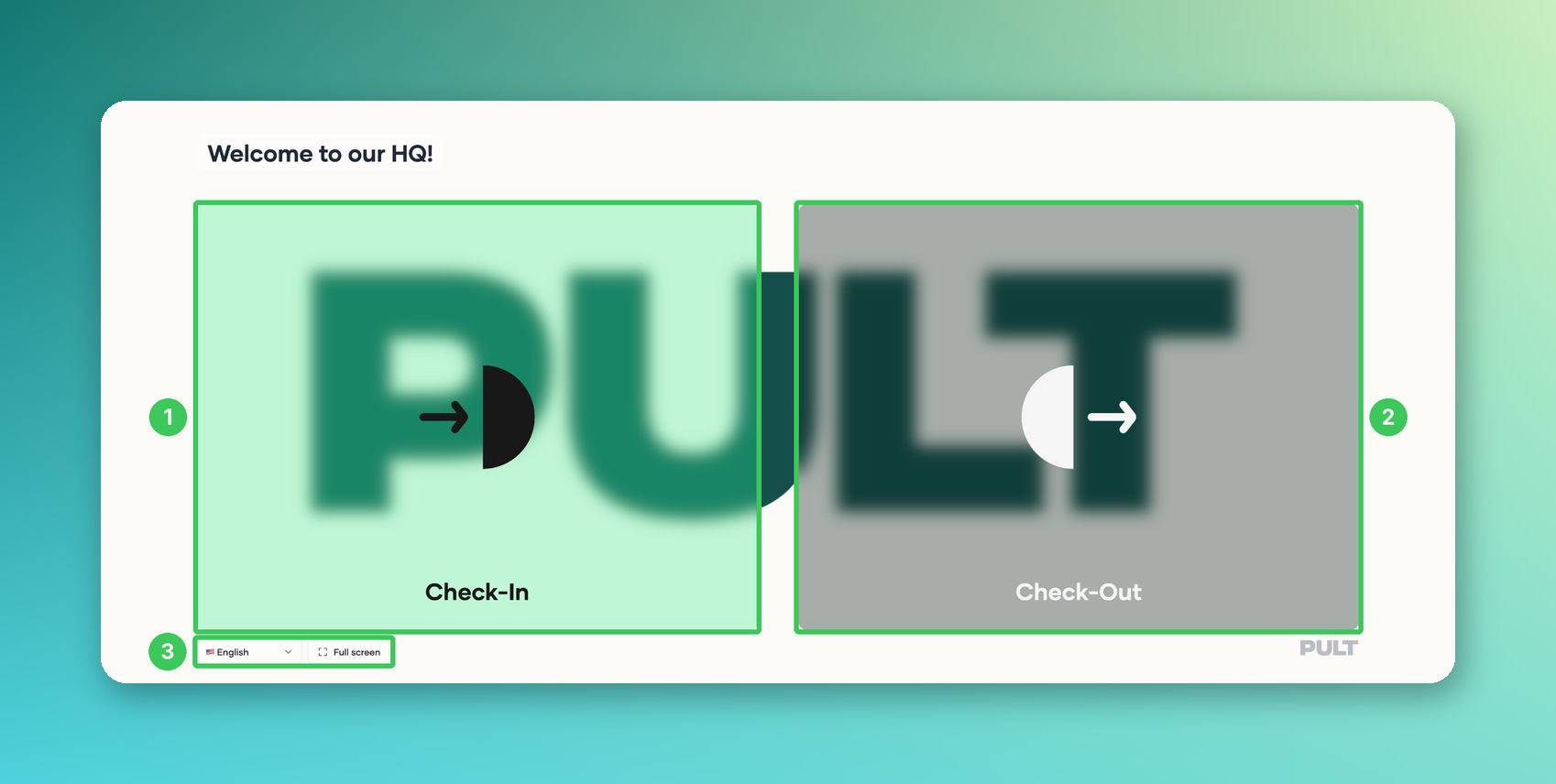
1. Check-In
Visitors start their check-in here.
2. Check-Out
Visitors check out here when they leave.
3. Language and full screen
Visitors choose their language here. On tablets, the full screen button is right next to the language selection. It hides the tab bar and address bar of Chrome, so the kiosk has much more space. Once activated, it stays on: if the tablet leaves full screen (e.g. after a reload), the kiosk switches back to full screen with the next tap.
Recommended tablet setup
Install as app: In Chrome, open the menu (⋮) → Install app or Add to home screen. From then on, start the kiosk via the new icon – it then runs in full screen without any browser bars. (Otherwise, use the full screen button.)
Pin the app: Activate Android screen pinning (Pin app), so visitors can't swipe out of the kiosk.
Screen orientation: Turn off auto-rotate and use landscape mode.
Screen timeout: Set the screen timeout to the maximum, so the tablet doesn't go into standby.
Optimized for tablets
Swiping down no longer reloads the page in the middle of a check-in.
If the page reloads anyway (or Chrome restores the tab), the visitor continues at the same step.
The form moves above the on-screen keyboard and the Next button stays reachable.
The signature page fits on the screen without scrolling.
Frequently asked questions
Can I print visitor badges with the browser kiosk?
No. Badge printing is only possible with the PULT Visitors Kiosk app on an iPad (see Visitor Badge Editor: Design your own visitor badges).
How do I get updates for the browser kiosk?
Updates are available automatically. If something looks outdated, reload the page once.
Which browser should I use?
We recommend Chrome. The setup steps above refer to Chrome on Android.
Related articles
If you have any questions, feel free to contact our support team at support@pult.com.