Kiosk device settings
Last updated: October 21, 2026
This article explains all settings of a connected kiosk device. In the PULT dashboard, go to Settings → Visitors → Device Management and click the kiosk you want to set up – its settings open directly below it.
📌 Kiosk app: Use the PULT Visitors Kiosk app on an iPad – only then are all kiosk features available. Always install the latest version (currently version 1.28, requires iPadOS 17.2 or later). The browser kiosk (e.g. on Android tablets) works too, but some features such as badge printing are not available there (see Use the PULT Kiosk in a Browser (Android and Other Tablets)).
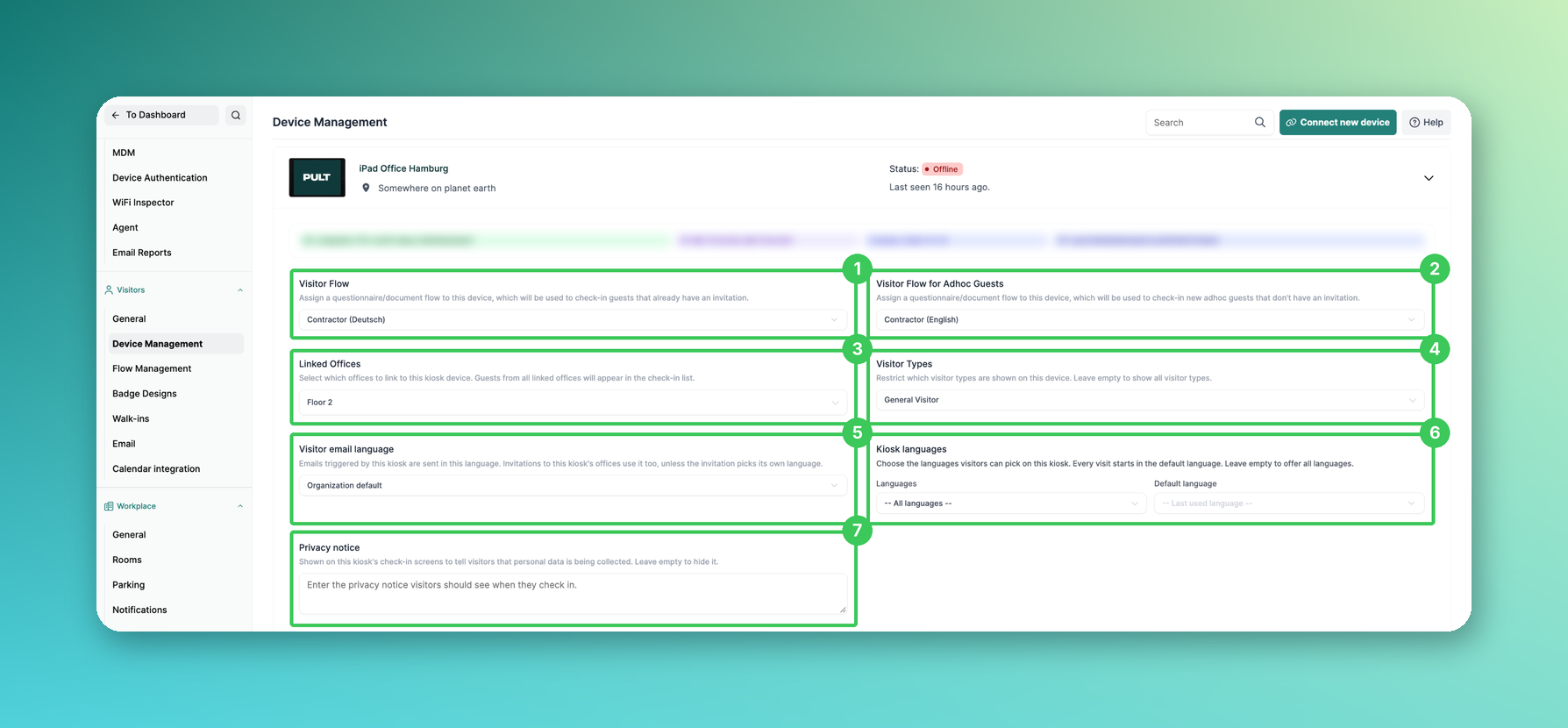
1. Visitor Flow
The flow (questions and documents) used to check in guests who already have an invitation, if no visitor type is assigned to them. Flows must be set up beforehand (see Add questions to flows for Visitors).
2. Visitor Flow for Adhoc Guests
The flow used for walk-in guests without an invitation (see Set a separate flow for Ad Hoc visitors).
3. Linked Offices
Choose which offices are linked to this kiosk. Guests from all linked offices appear in the check-in list. The kiosk needs at least one linked office to work correctly.
4. Visitor Types
Restrict which visitor types are shown on this device. Leave it empty to show all visitor types (see How to add/create different Visitor types).
5. Visitor email language
New: Emails triggered by this kiosk are sent in this language. Invitations to this kiosk's offices use it too, unless the invitation sets its own language.
6. Kiosk languages
New: Choose the languages visitors can pick on this kiosk and the default language every visit starts in. Leave it empty to offer all languages.
7. Privacy notice
New: A text shown on the check-in screens of this kiosk to tell visitors that personal data is being collected. Leave it empty to hide it.
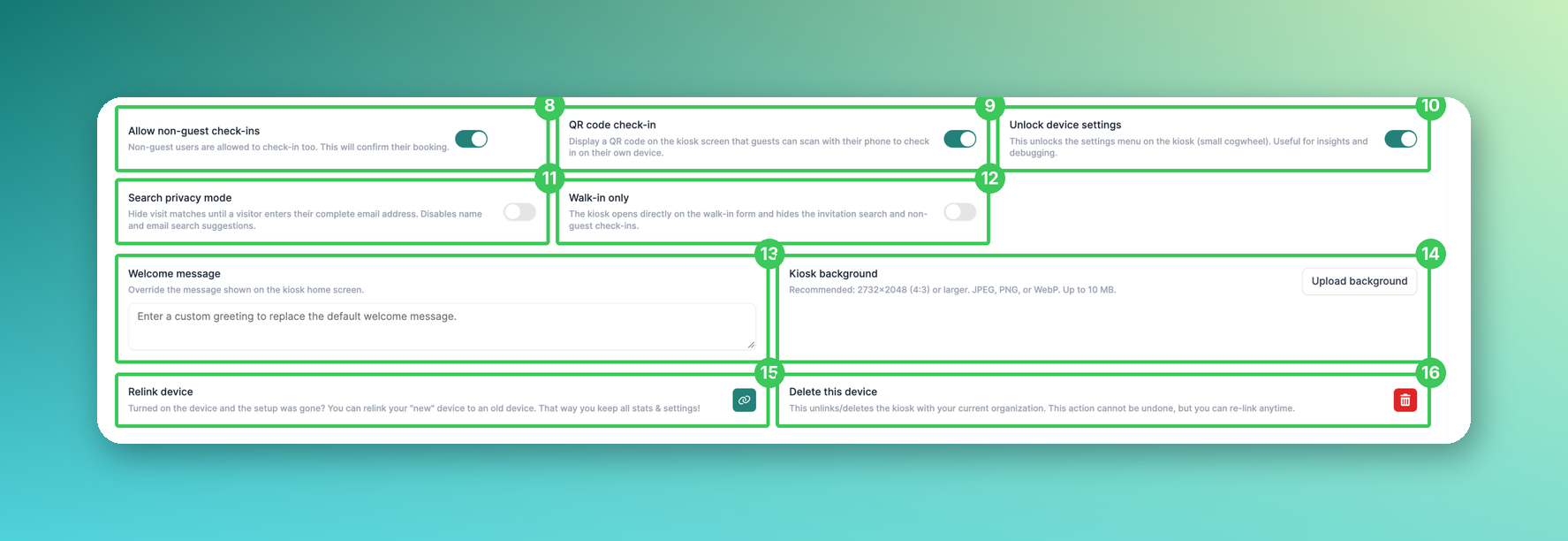
8. Allow non-guest check-ins
Regular PULT users can check in at the kiosk with their email address to confirm an existing booking. Booking directly at the kiosk isn't possible.
9. QR code check-in
Shows a QR code on the kiosk that guests can scan to check in on their own device (see Visitor Management: QR Code Check-in).
10. Unlock device settings
Unlocks the settings menu on the kiosk (small cogwheel), e.g. for the badge size or troubleshooting.
11. Search privacy mode
Hides matching visits until the visitor enters their complete email address. Name and email suggestions are turned off – useful e.g. for HR or C-level visits.
12. Walk-in only
New: The kiosk opens directly on the walk-in form and hides the invitation search and non-guest check-ins (see Kiosk Check-In Form for Ad-Hoc / Walk-In Guests).
13. Welcome message
Overrides the text shown on the kiosk home screen.
14. Kiosk background
Upload your own background image (recommended: 2732×2048 (4:3) or larger; JPEG, PNG or WebP, up to 10 MB).
15. Relink device
If the kiosk lost its setup, relink the "new" device to the old one. That way you keep all stats and settings.
16. Delete this device
Unlinks the kiosk from your organization. This can't be undone, but you can connect the device again at any time.
Frequently asked questions
What's the difference between the two visitor flows?
The Visitor Flow is used for guests with an invitation, the Visitor Flow for Adhoc Guests for walk-ins without an invitation – in both cases only if no visitor type determines the flow.
My kiosk doesn't show any guests. What should I check?
Make sure the kiosk is linked to at least one office (3) and that the guests were invited to one of these offices.
I don't see the kiosk languages or Walk-in only on our iPad. Why?
Kiosk languages (6), Walk-in only (12) and the new check-in texts reach iPads with the next update of the PULT Visitors Kiosk app. Until then, they already work in the QR code check-in on the visitor's phone. Please keep the kiosk app up to date.
Can I change the colors of the kiosk?
Yes – the kiosk colors are set for all kiosks in Settings → Visitors → General (see Guest Booking Settings).
Can I use the kiosk on an Android tablet or in a browser?
Yes. Open the PULT Kiosk in the browser of your tablet (see Use the PULT Kiosk in a Browser (Android and Other Tablets)). The kiosk settings in this article apply there too. Badge printing is only possible with the iPad app.
Related articles
If you have any questions, feel free to contact our support team at support@pult.com.