Add questions to flows for Visitors
Last updated: October 21, 2026
With flows you decide what visitors go through when they check in – e.g. questions, documents to sign and messages. This article shows admins how to create a flow and add questions to it.
📌 Subscription required: The features below are only available with the Visitors add-on.
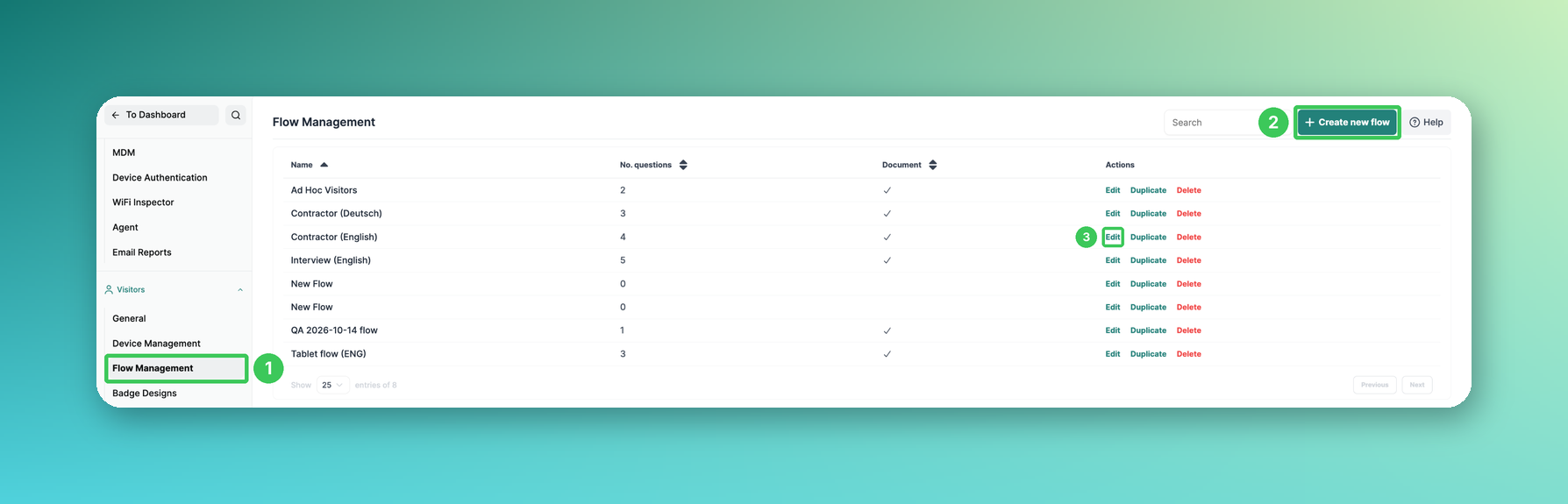
1. Flow Management
In the PULT dashboard, go to Settings → Visitors → Flow Management.
2. Create new flow
Click Create new flow to create a new flow.
3. Edit
To change an existing flow, click Edit next to it.
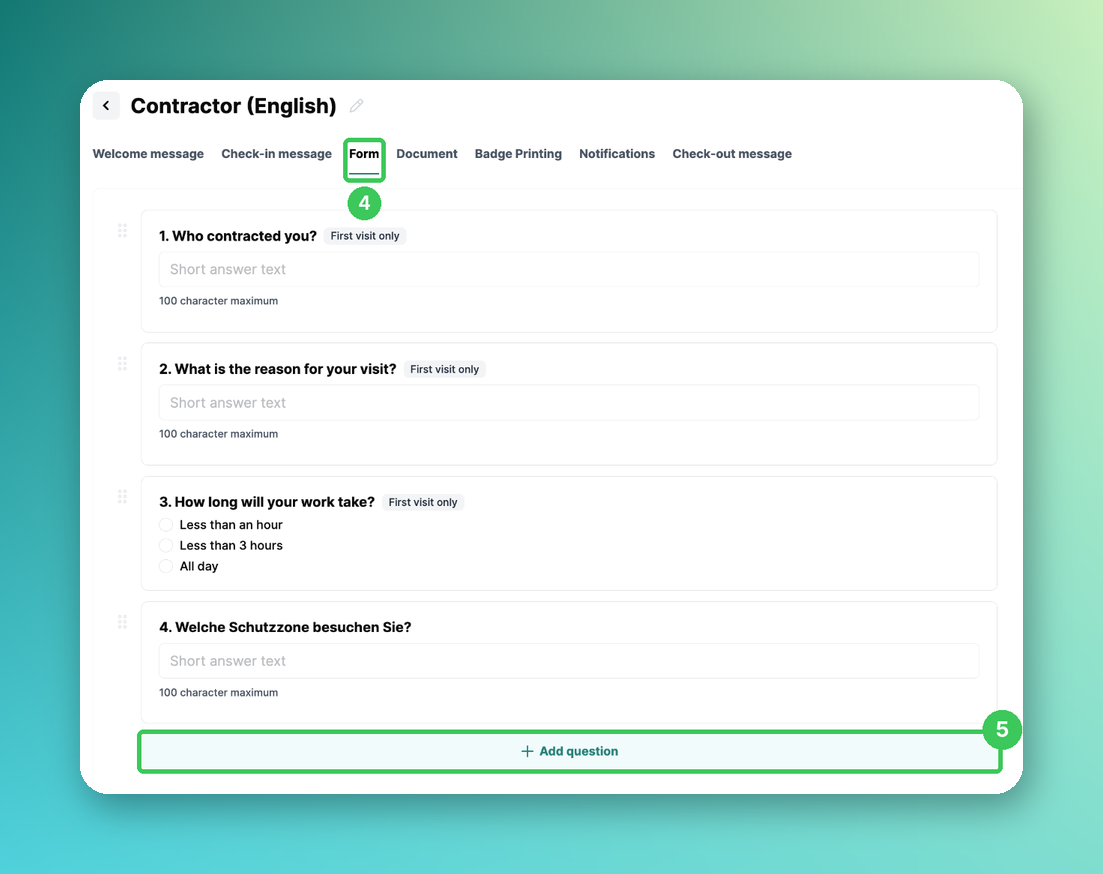
4. Form
Open the Form tab. Here you see all questions of the flow; drag them by the handle to change their order.
5. Add question
Click Add question. Click an existing question to edit it.
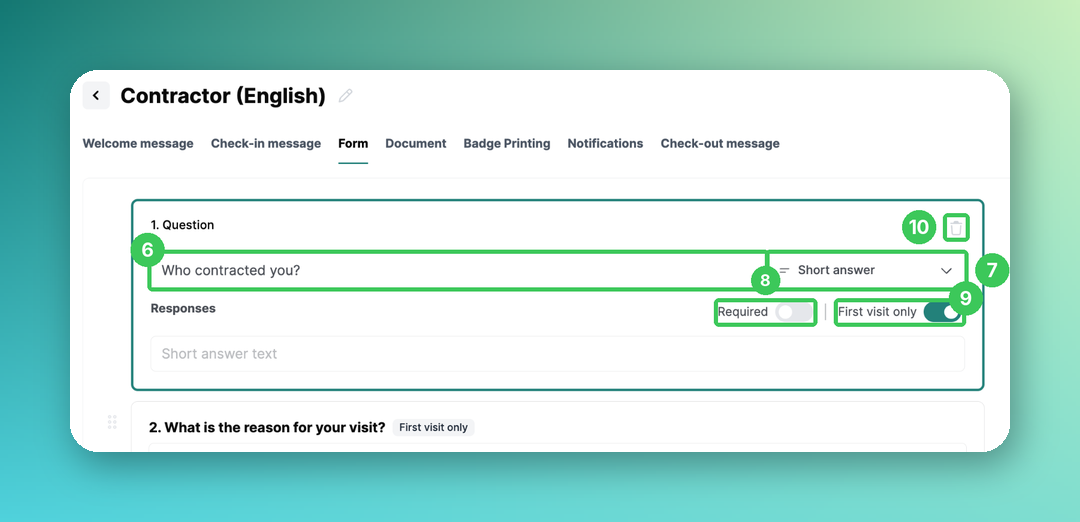
6. Question
Enter the question you want to ask.
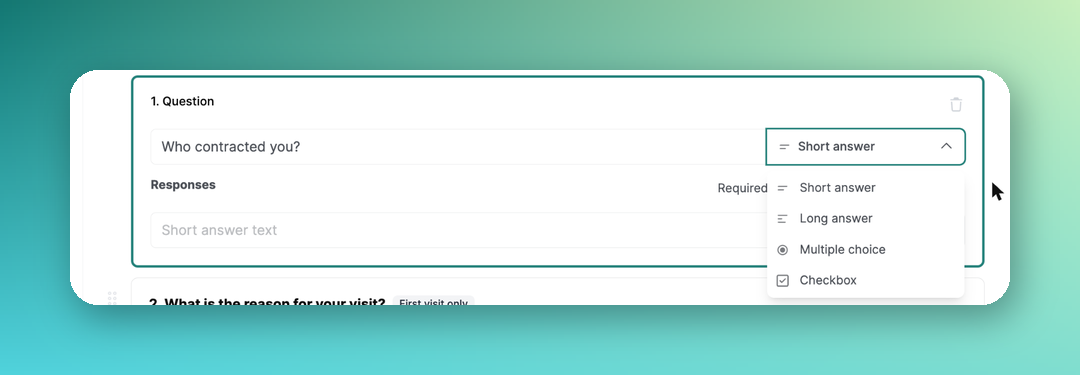
7. Answer type
Choose the answer type:
Short answer: free text, max. 100 characters
Long answer: free text, max. 500 characters
Multiple choice: visitors pick one of your answers
Checkbox: visitors can tick several answers
8. Required
Visitors must answer the question before they can continue.
9. First visit only
New: The question is only asked on a visitor's first visit (see Visitor Document & Form Settings for Repeat Visits).
10. Delete
Removes the question from the flow.
When you're done, click Save in the top right corner.
💡 Tips for good questions
Keep questions short and easy to understand.
Use the answer type that fits the information you need.
Only make questions required that you really need.
Frequently asked questions
Can I use different flows for different visitors?
Yes – link flows to visitor types (see How to add/create different Visitor types) or assign a separate flow for walk-ins (see Set a separate flow for Ad Hoc visitors).
Can visitors sign documents in the flow?
Yes, see Add documents to flows for Visitors.
What do visitors see if a flow has only one question?
The kiosk adapts its text to the number of questions – with one question, it asks for one answer instead of several.
Related articles
If you have any questions, feel free to contact our support team at support@pult.com.