Set a separate flow for Ad Hoc visitors
Last updated: October 21, 2026
Ad hoc (walk-in) visitors arrive without an invitation and register directly at the kiosk. Often you want to ask them different questions than invited guests. This article shows admins how to assign a separate flow for them.
📌 Subscription required: The features below are only available with the Visitors add-on.
💡 First create the flow for ad hoc visitors (see Add questions to flows for Visitors).
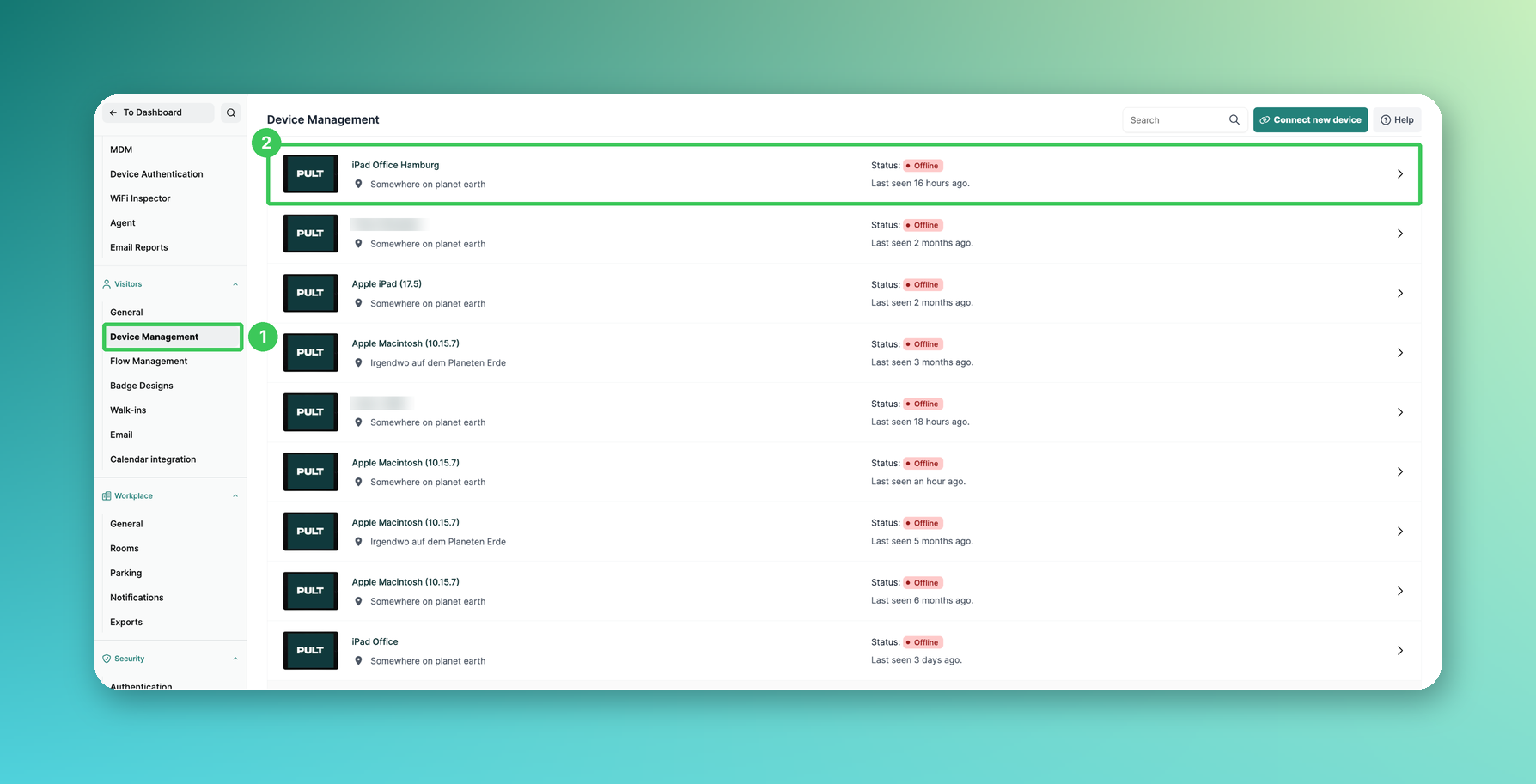
1. Device Management
In the PULT dashboard, go to Settings → Visitors → Device Management.
2. Kiosk
Click the kiosk device you want to set up. Its settings open below it.
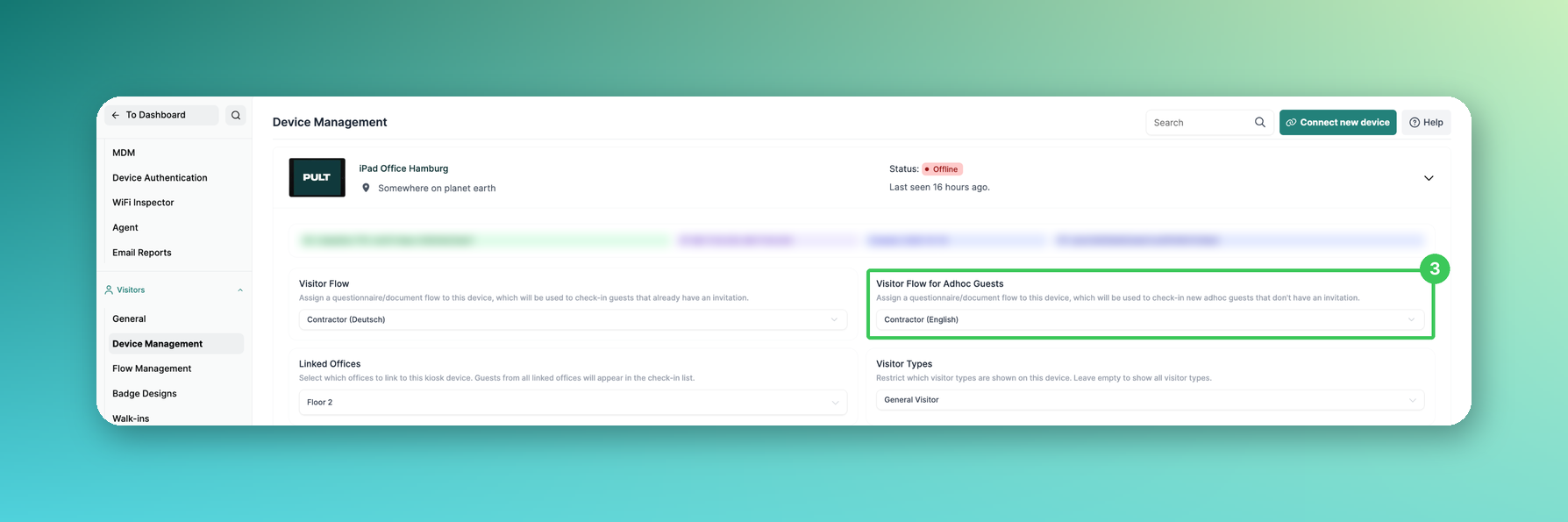
3. Visitor Flow for Adhoc Guests
Select the flow for ad hoc visitors from the dropdown. Repeat this for every kiosk.
Frequently asked questions
What if the visitor selects a visitor type at the kiosk?
Then the flows linked to that visitor type are used (see How to add/create different Visitor types).
Can I change which details walk-ins have to enter?
Yes – the fields of the walk-in form are set under Settings → Visitors → Walk-ins (see Kiosk Check-In Form for Ad-Hoc / Walk-In Guests).
Can the kiosk show only the walk-in form?
Yes. Switch on Walk-in only in the kiosk settings (see Kiosk Device Settings). The kiosk then opens directly on the walk-in form – without the invitation search and without employee check-in.
Related articles
If you have any questions, feel free to contact our support team at support@pult.com.