Visitor Pre-registration: Questions and Documents Before the Visit
Last updated: November 12, 2026
With pre-registration, visitors answer the questions of their visitor flow and sign its documents before they arrive – from a link in their invitation. At the kiosk they then only check in. This article shows admins how to switch it on and how hosts see who is ready.
📌 Availability: Pre-registration is available for Enterprise organizations and is switched on per organization. If you don’t see the switch, contact us at support@pult.com.
Switch on pre-registration
In the PULT dashboard, go to Settings → Visitors → Flows and click Edit next to the flow (see Add questions to flows for Visitors).
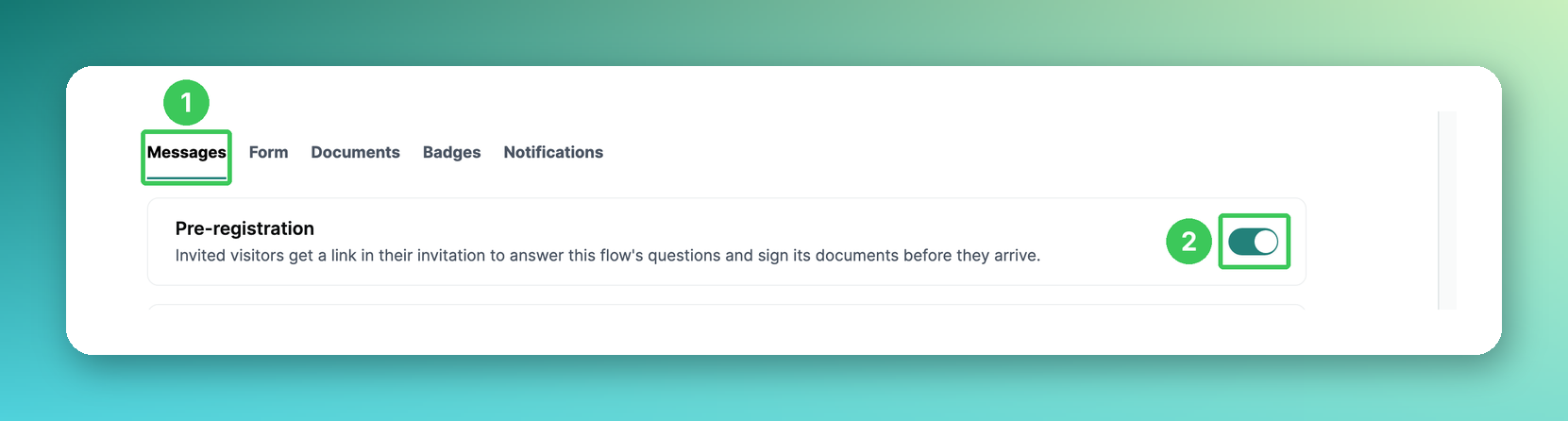
1. Messages
Open the Messages tab.
2. Pre-registration
Switch on Pre-registration and click Save. From now on, invitations for visits with this flow can contain the pre-registration link. Repeat this for every flow you want to use it for.
What visitors see
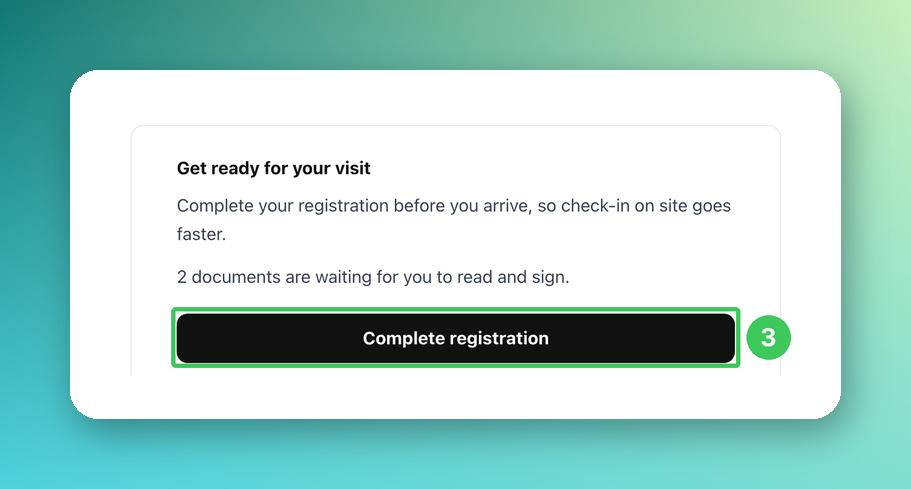
3. Complete registration
The invitation email contains a Get ready for your visit block with a Complete registration button. It appears if the flow has at least one question or document and the visitor still has something open for this visit. Visits that need approval get the invitation – and with it the link – once they are approved.
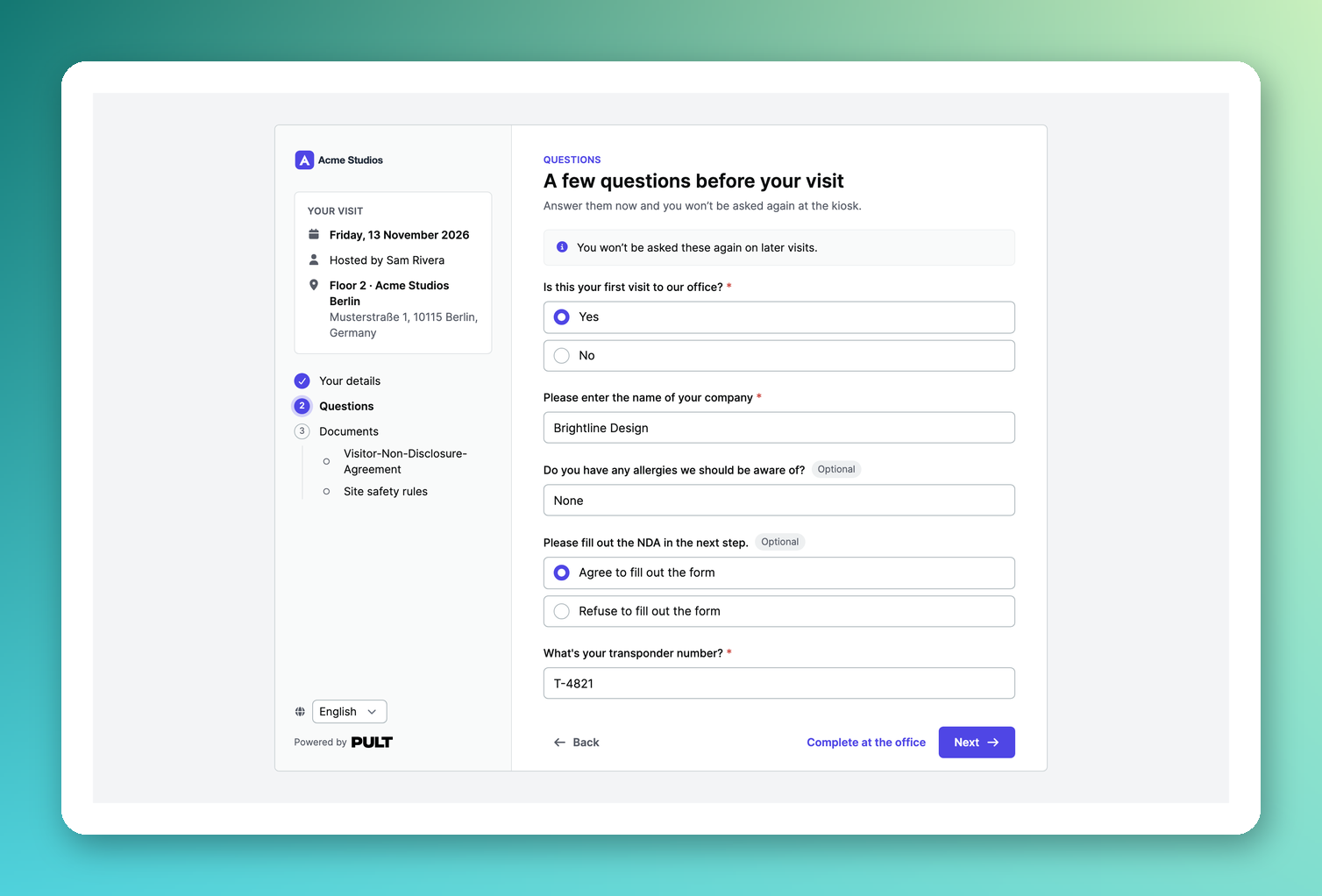
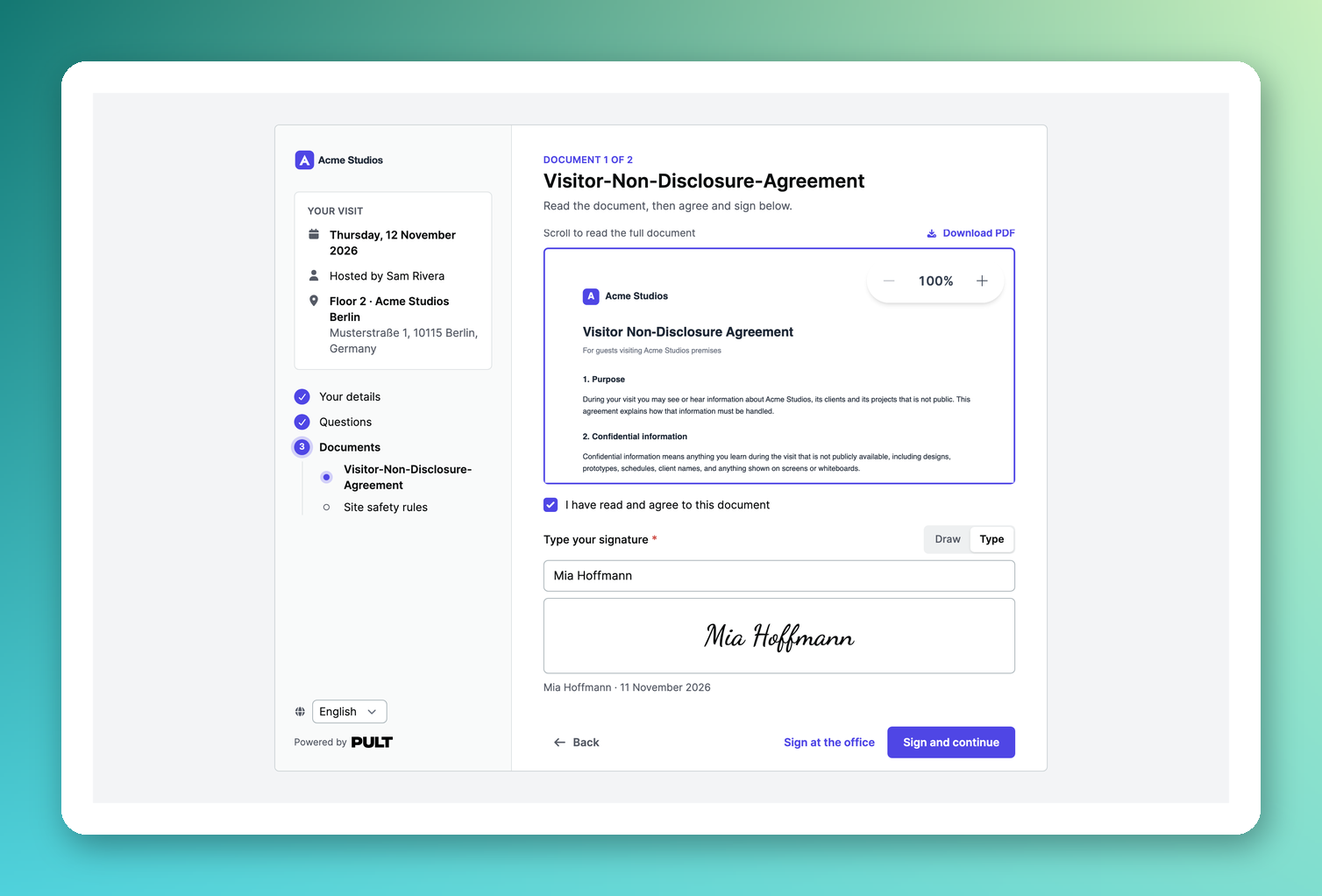
The link opens a page in your company’s logo and colour – on a computer or phone. Visitors check their visit details, answer the flow’s questions (including follow-up questions) and read and sign each document by drawing or typing their signature. They can stop at any time; the same link brings them back to where they left off. Anything they leave for later (e.g. Sign at the office) is asked at the kiosk.
See who is ready
In the PULT dashboard, click Visitors in the menu on the left.
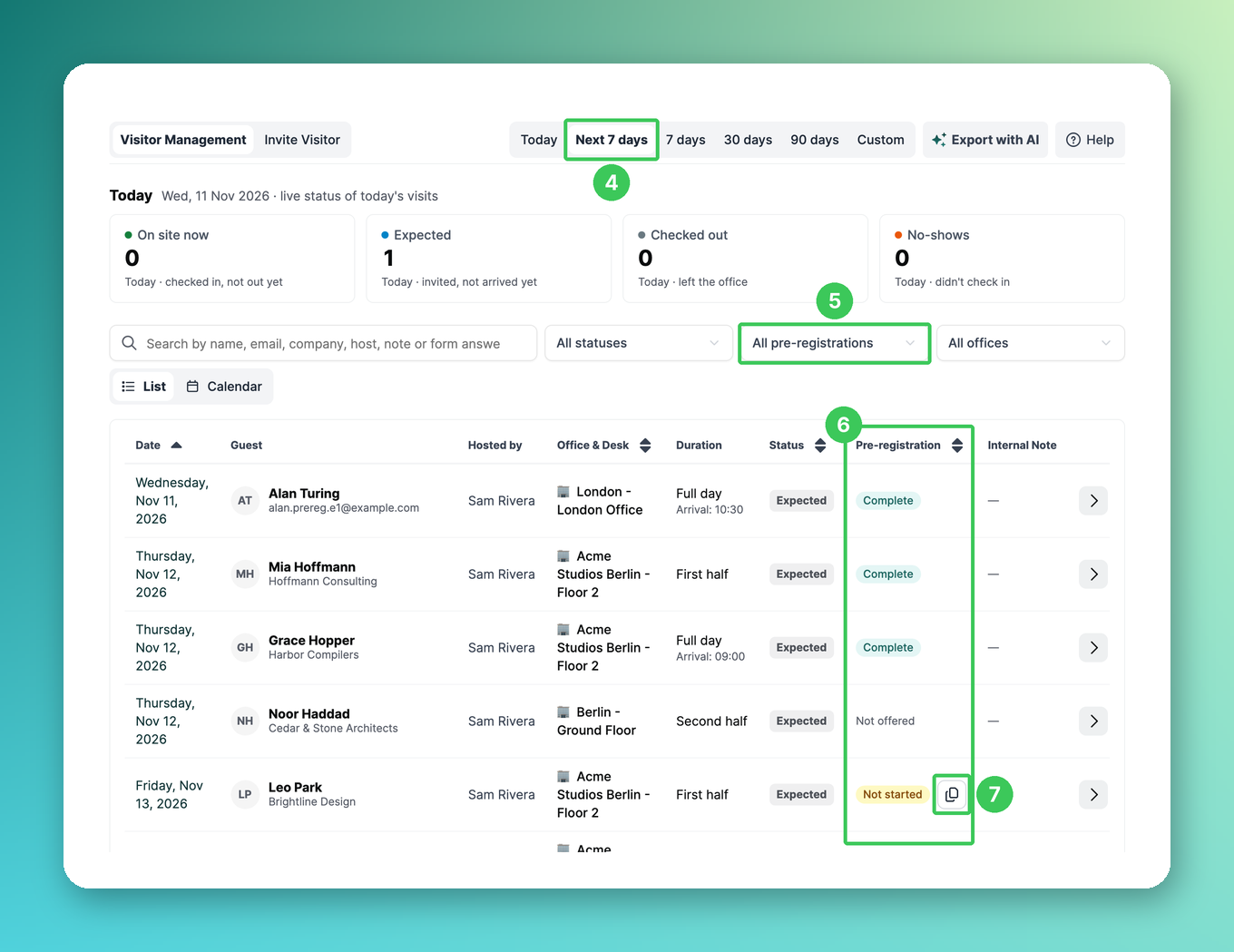
4. Next 7 days
Shows all visits of the coming week.
5. Pre-registration filter
Shows e.g. only visitors who still have open items.
6. Pre-registration column
Complete: nothing left to fill in
N open: that many questions or documents are still open
Not started: the visitor hasn’t opened the link yet
Not offered: the flow has no pre-registration or nothing to ask
7. Copy link
Copies the visitor’s personal pre-registration link, e.g. to send it via chat.
Click a visitor to open their profile.
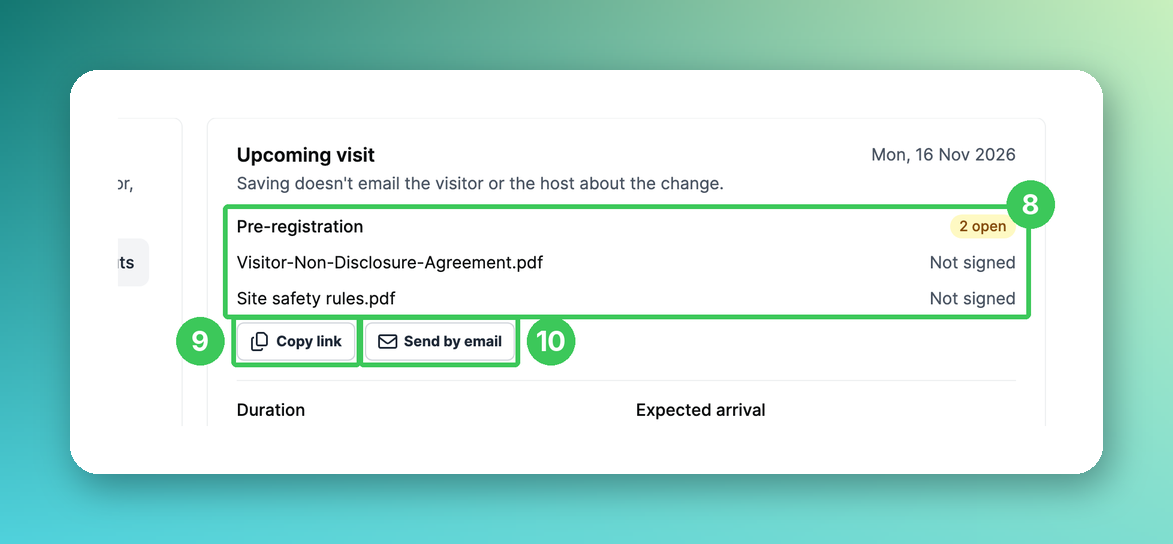
8. Pre-registration
Shows the status and which documents or questions are still open for the upcoming visit.
9. Copy link
Copies the visitor’s personal link.
10. Send by email
Sends the visitor a short “Complete your registration” email. A confirmation shows the visitor and the address before anything is sent. Useful e.g. if the invitation email got lost or pre-registration was switched on after the invitation.
In the PULT app
Hosts see the status of their visitors under Visitors in the PULT app. Expand a visit card:
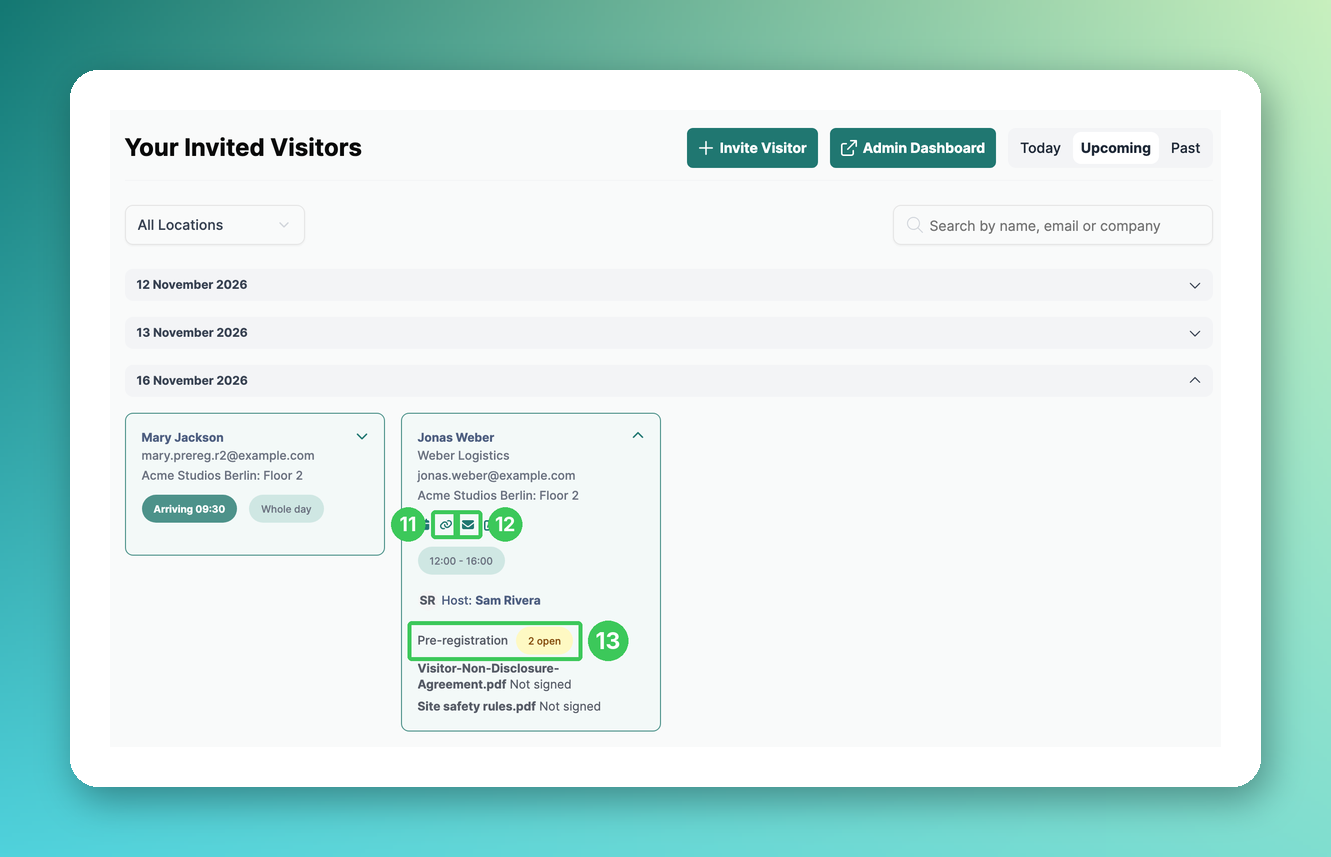
11. Copy link
Copies the pre-registration link.
12. Send by email
Sends the link by email, after a confirmation.
13. Pre-registration status
Shows what is still open, e.g. documents that are not signed yet.
At the kiosk
At the iPad kiosk, answers and still-valid signatures from the pre-registration count as done – visitors only complete what’s still missing. Questions or documents added to the flow after the visitor pre-registered are still asked at check-in. This requires the PULT Visitors Kiosk app version 1.34 or later.
Frequently asked questions
How long does the link work?
Until 30 days after the visit. For recurring visits from the calendar integration, 366 days from the start. If you correct the visitor’s email address, the old link stops working.
In which language does the page open?
In the invitation’s language – otherwise the language of the office’s kiosks, then the organization’s visitor email language, then English. Visitors can switch between English, German, French, Spanish, Portuguese and Dutch. Your questions and documents are shown exactly as you wrote them in the flow – they are not translated.
Do repeat visitors have to answer again?
Questions set to First visit only carry over to later visits; signatures follow each document’s signature validity (see Visitor Document & Form Settings for Repeat Visits).
How often can I send the link by email?
At most one email per 10 minutes and three per day for each visitor address. Replies to the email go to the host.
Are visitors reminded automatically?
Not yet. Use Send by email (10) to remind a visitor. Sending to all visitors with open items at once isn’t possible yet either.
Is the link secure?
Yes. Each link only works for one visit and its visitor, and it is never stored in logs or error reports.
Related articles
If you have any questions, feel free to contact our support team at support@pult.com.