Visitor Overview in the Dashboard
Last updated: October 21, 2026
In the PULT dashboard, admins and Frontdesk users see all visits, can search them, check visitors in or out manually and open all details of a visit – including form answers and signed documents. This article explains the visitor overview.
Visitor overview
In the PULT dashboard, click Visitors in the menu on the left.
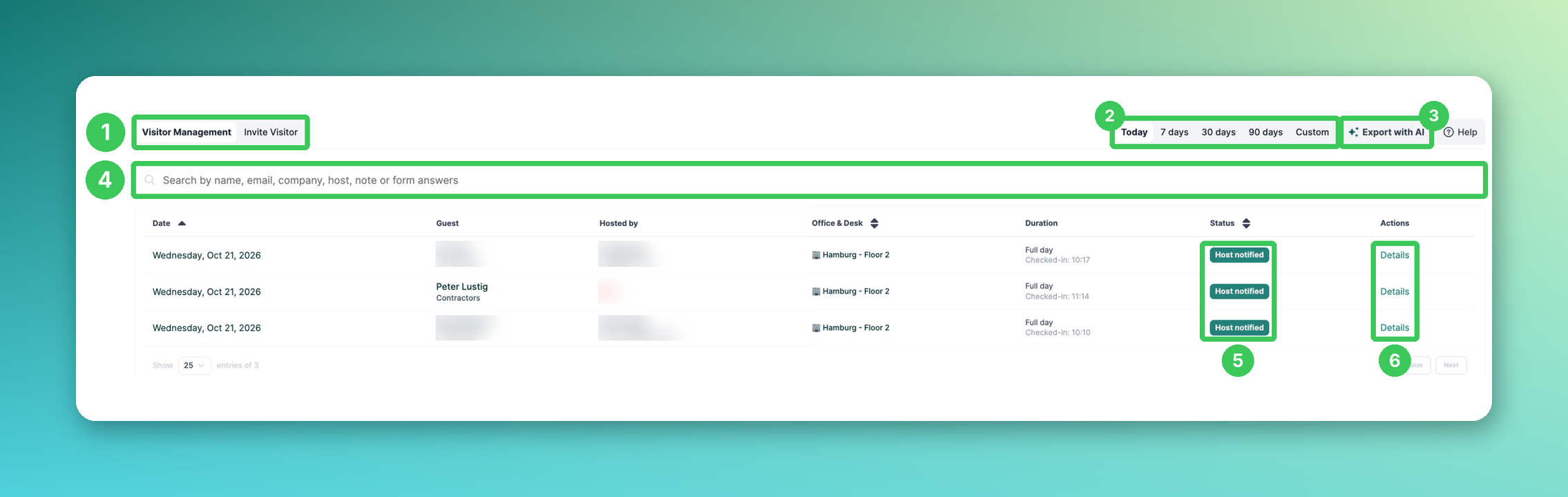
1. Visitor Management / Invite Visitor
Switch between the list of visits and the invitation form (see How to Invite Visitors in PULT).
2. Period
Show the visits of Today, the last 7, 30 or 90 days or a Custom period.
3. Export with AI
Opens the AI Assistant with a prepared request for the selected period. The AI Assistant creates a table with the visitor data (e.g. date, guest, host, status, check-in and check-out time) that you can copy to Excel or Google Sheets (see AI Assistant for Admins - Beta).
4. Search
Search by name, email, company, host, note or form answers – e.g. for the number of an access card a visitor entered in the check-in form.
5. Status
Shows the current status of the visit, e.g. Host notified. In the Duration column you also see the check-in time.
6. Details
Opens all details of the visit (see below).
Visit details
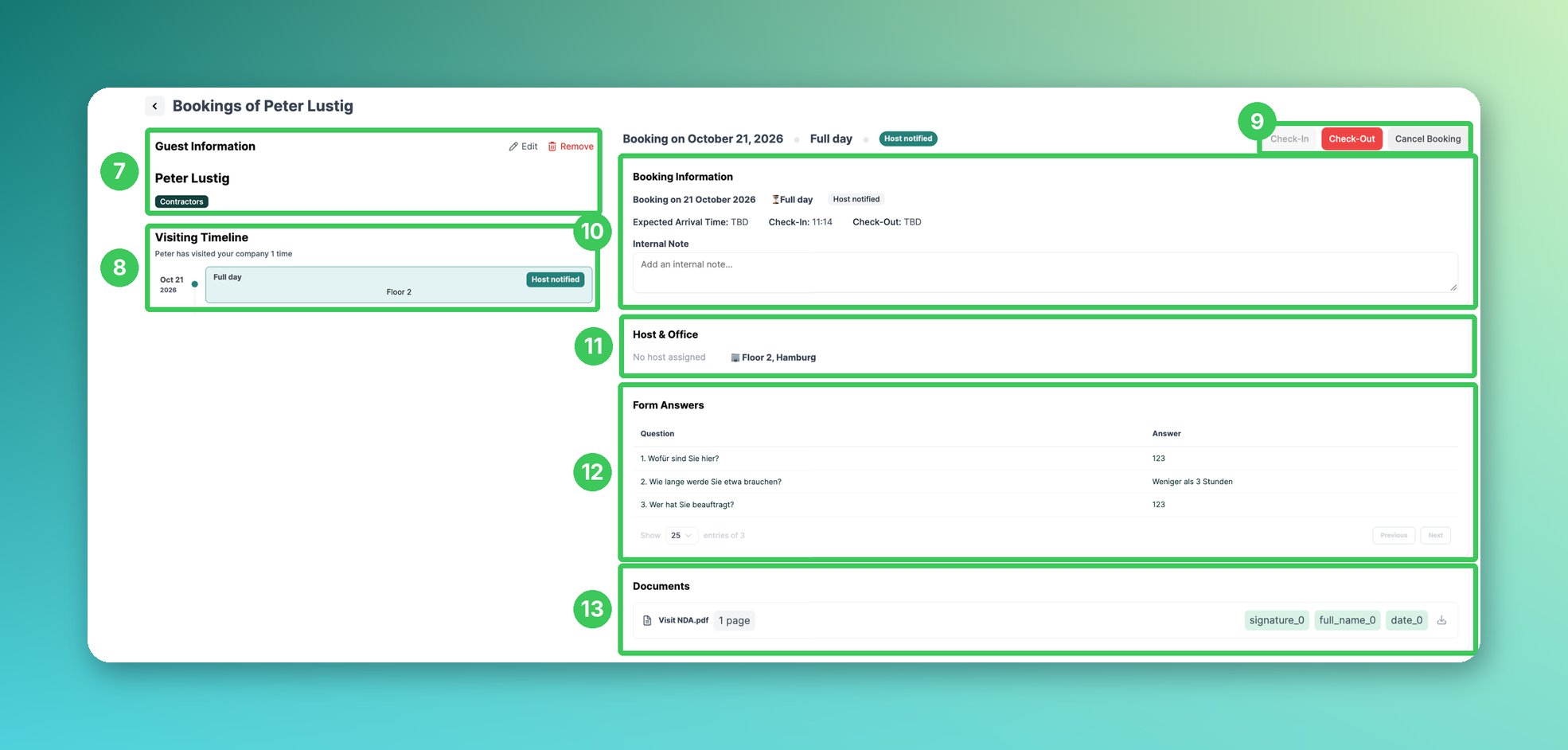
7. Guest information
Shows the visitor and their visitor type. With Edit you change the visitor's details, with Remove you delete the visitor.
8. Visiting timeline
Shows how often the visitor has visited your company and all their visits.
9. Check-In / Check-Out / Cancel Booking
Check the visitor in or out manually – e.g. if they forgot to check out at the kiosk – or cancel the visit.
10. Booking information
Date, duration, expected arrival time, check-in and check-out time. You can also add an internal note that only your team can see.
11. Host & Office
Shows the host and the office (and desk, if booked) of the visit.
12. Form answers
All answers the visitor gave in the check-in form.
13. Documents
All documents the visitor signed for this visit. Click the download icon to download the signed PDF.
Frequently asked questions
How can I see who is currently in the building?
Select Today (2). Visitors with a check-in time but no check-out time are still on site. Visitors who are still checked in at midnight can be checked out automatically (see Automatic End-of-Day Visitor Checkout).
Who can see the visitor overview?
Admins and users with the Frontdesk role (see Frontdesk Role: Visitor-only Web App Access).
How long is visitor data stored?
That depends on your retention settings (see Visit Data Retention Settings).
Related articles
If you have any questions, feel free to contact our support team at support@pult.com.