Visitor Notifications: Who Is Notified When?
Last updated: October 21, 2026
PULT can notify hosts, your reception and other colleagues about visitors. This article gives admins an overview of who is notified when – and where to set it up.
Overview
Event | Who is notified | Where to set it |
|---|---|---|
A visitor is invited or the visit is cancelled | The visitor (invitation email) and the reception of the office | Reception: section 2 |
A visitor checks in | The host, the recipients of the flow – optionally with the signed documents | Host: 1 · Flow: 3–6 |
A visitor checks out | The host and the recipients of the flow | Host: 1 · Flow: 4 |
Host notifications
In the PULT dashboard, go to Settings → Visitors → General.

1. Default notification channel
Choose how hosts are notified when their visitors check in or check out. With Slack or Teams, a host who is not connected to either gets an email instead. Hosts can override this in their personal settings.
Reception notifications
On the same page, scroll down to Reception Notifications.
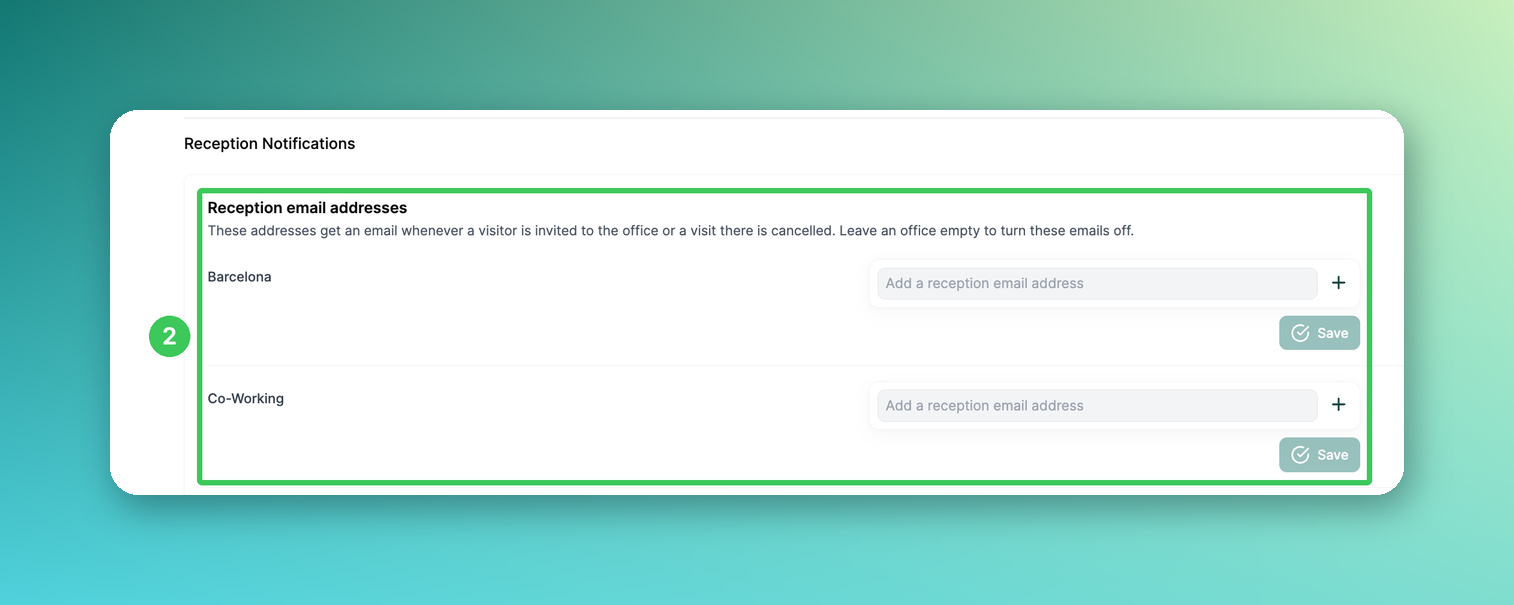
2. Reception email addresses
Add one or more email addresses for each office and click Save. These addresses get an email whenever a visitor is invited to that office or a visit there is cancelled – for single, group, recurring, AI bulk and calendar-synced invitations. Leave an office empty to turn these emails off.
Notifications per visitor flow
Go to Settings → Visitors → Flow Management and click Edit next to the flow.
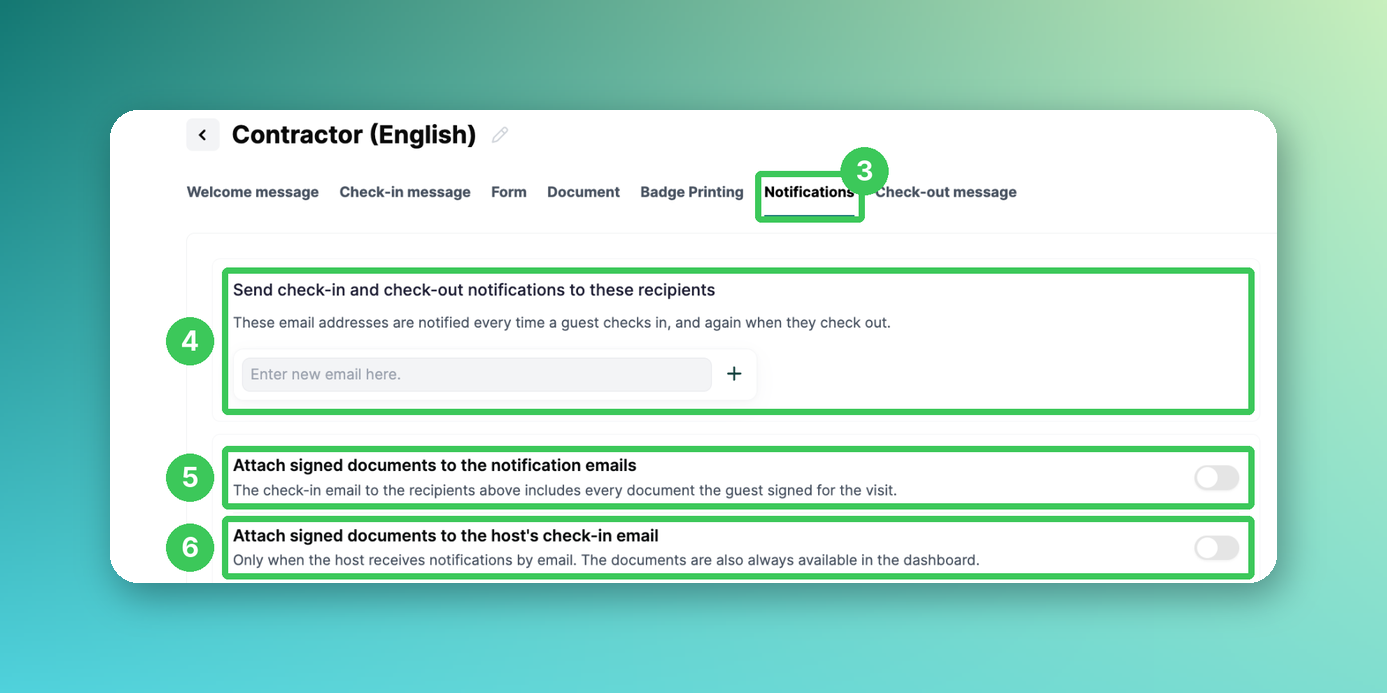
3. Notifications
Open the Notifications tab.
4. Recipients
Enter the email addresses that are notified every time a guest with this flow checks in – and again when they check out. Then click Save in the top right corner.
5. Attach signed documents to the notification emails
The check-in email to the recipients (4) includes every document the guest signed for the visit.
6. Attach signed documents to the host's check-in email
Only applies if the host receives notifications by email. If the documents are larger than 7 MB in total, the email contains a link to the dashboard instead.
Emails to visitors
Invitation: visitors receive an invitation email with a calendar file (.ics).
Signed documents: at check-in, visitors receive one email with all documents they signed during the visit.
You can customize and preview these emails (see Visitor Email Preview).
Frequently asked questions
Why wasn't the host notified?
Check that a host was selected in the invitation (or in the walk-in form) and which channel is set in (1). If the host is not connected to Slack or Teams, the notification is sent by email.
Can each office have its own reception?
Yes. The reception email addresses (2) are set per office.
Can different visitor types notify different people?
Yes. The recipients (4) are set per flow, and each visitor type is linked to a flow (see How to add/create different Visitor types).
Related articles
If you have any questions, feel free to contact our support team at support@pult.com.