How to add/create different Visitor types
Last updated: March 17, 2026
Visitor types determine which flow a guest goes through during check-in.
Where to find the settings for Visitor Types
Navigate to Settings - Kiosk - Flow Management. There, you will see + Visitor Types, where you can manage and add visitor types.
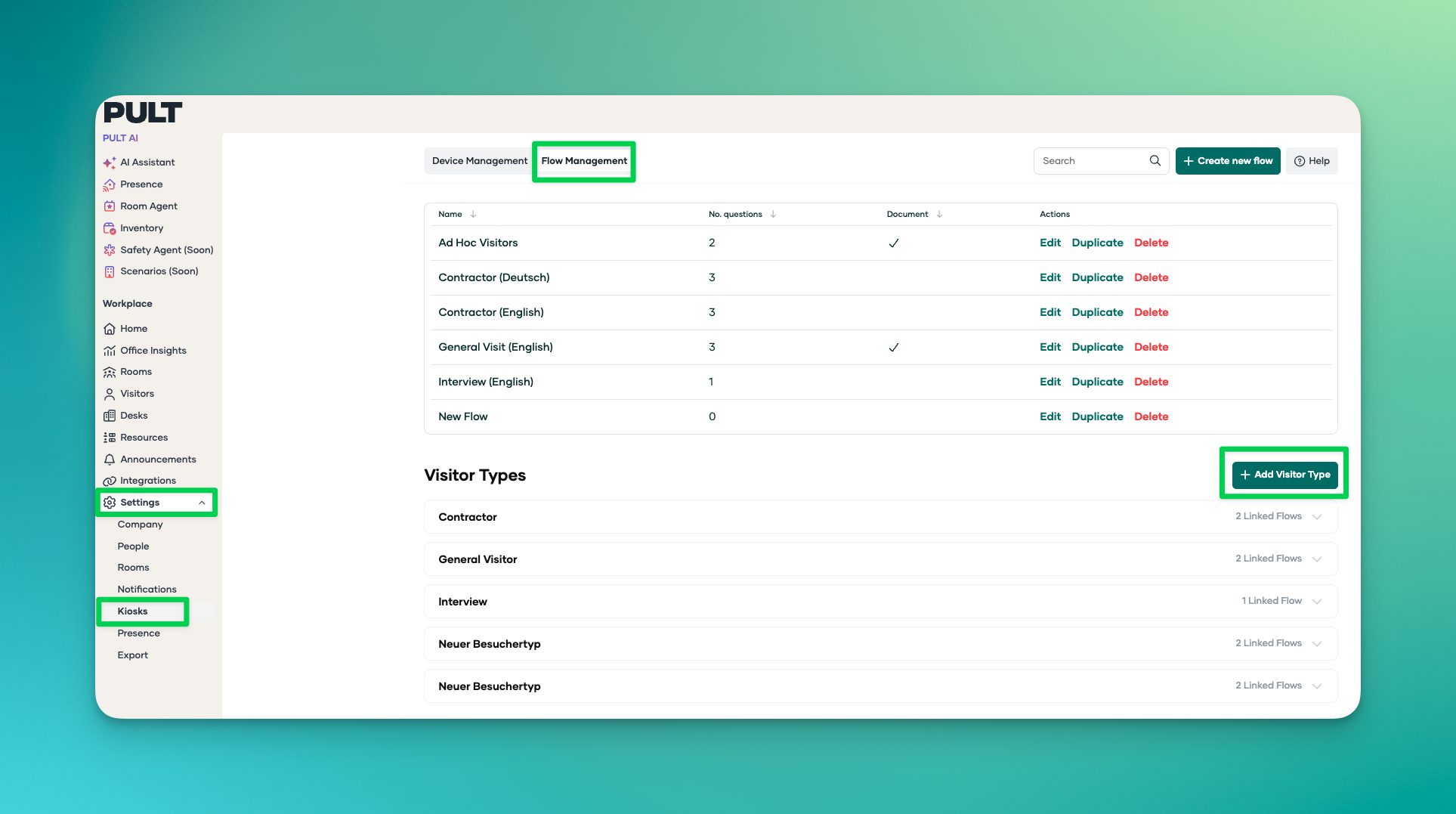
1. How Visitor Types Work
Each visitor type (e.g., “Contractor,” “General Visit,” “Supplier”) can be linked to one or more flows.
Typical use cases:
Multiple languages for the same visitor type (e.g., “Contractor - German,” “Contractor - English”).
A different flow is linked for each language.
Example:
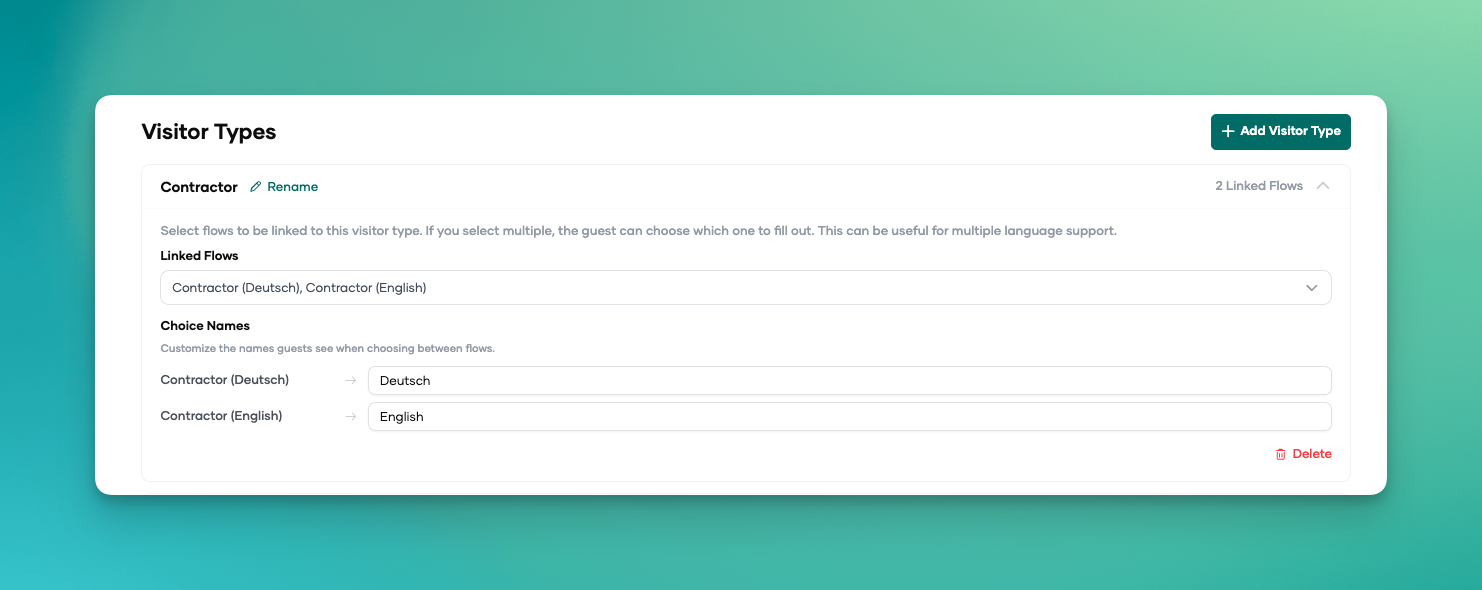
Visitor type: Contractor
Linked flows:
“Contractor – German”
“Contractor – English”
At the kiosk, the guest will see the linked flows with your assigned names as options (e.g., “Deutsch” and “English”) and can switch between them.
2.Invitations & Visitor Types
Invited Guests
When sending an invitation, a visitor type can (and should) be selected.
The guest will automatically receive the flows associated with the chosen visitor type during check-in.
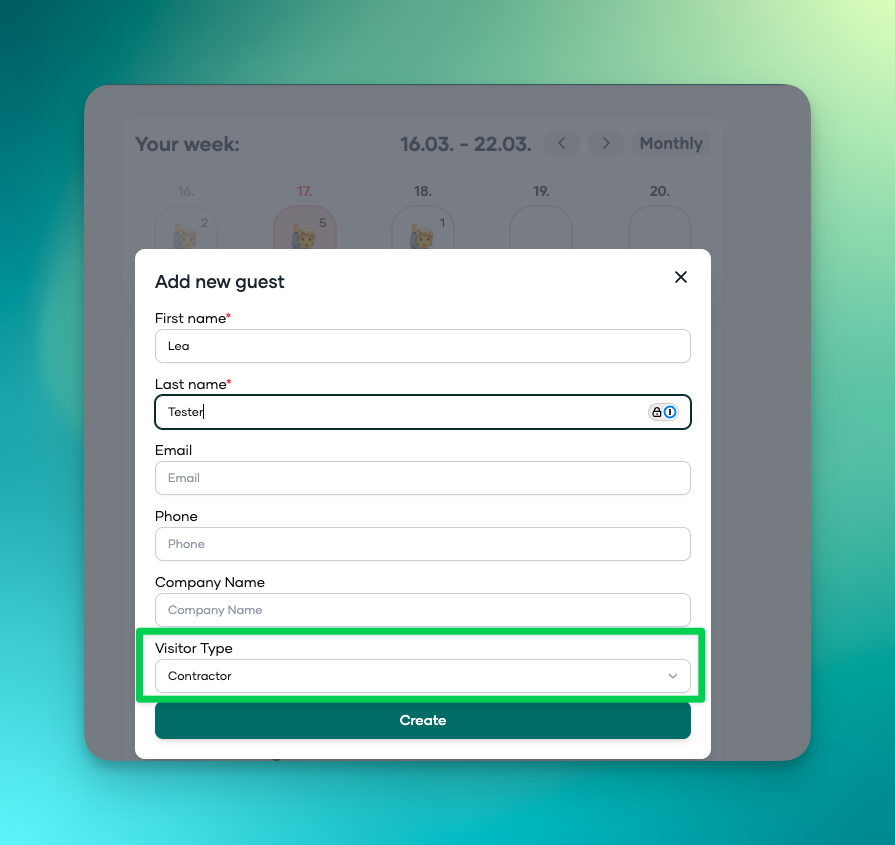
If no visitor type is set in the invitation:
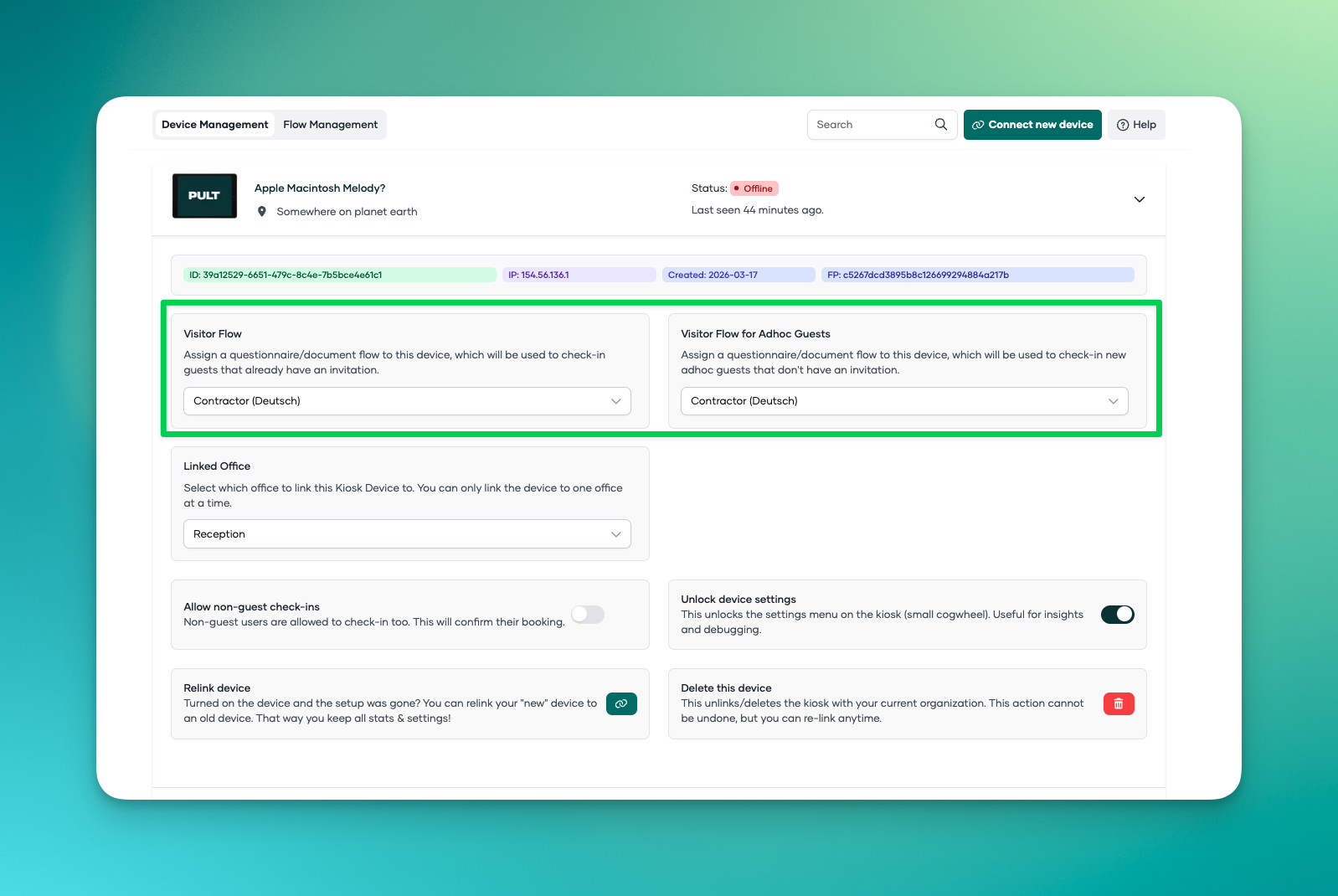
The guest will receive the flow that is configured as the default in the device settings.
Ad-hoc Guests (without an invitation)
Ad-hoc guests can select a visitor type at the kiosk.
Depending on the selected visitor type, they will receive the corresponding flows.
If no visitor type is selected, the fallback flow configured in Device Management will be applied.
Important: Ad-hoc guests cannot currently be fully disabled.
For further assistance or in case of questions, please reach out to our support team.