Automatic Visitor Invites via Calendar Integration
Last updated: October 21, 2026
PULT can turn meetings in your meeting-room calendars into visitor invitations automatically. External attendees are registered as visitors, receive the PULT invitation email and the visit is updated when the meeting changes. This article shows admins how to set it up.
📌 Before you start: Your meeting rooms must be connected via the Microsoft or Google calendar integration and linked to a PULT office (see How to connect PULT Rooms with Microsoft).
How it works
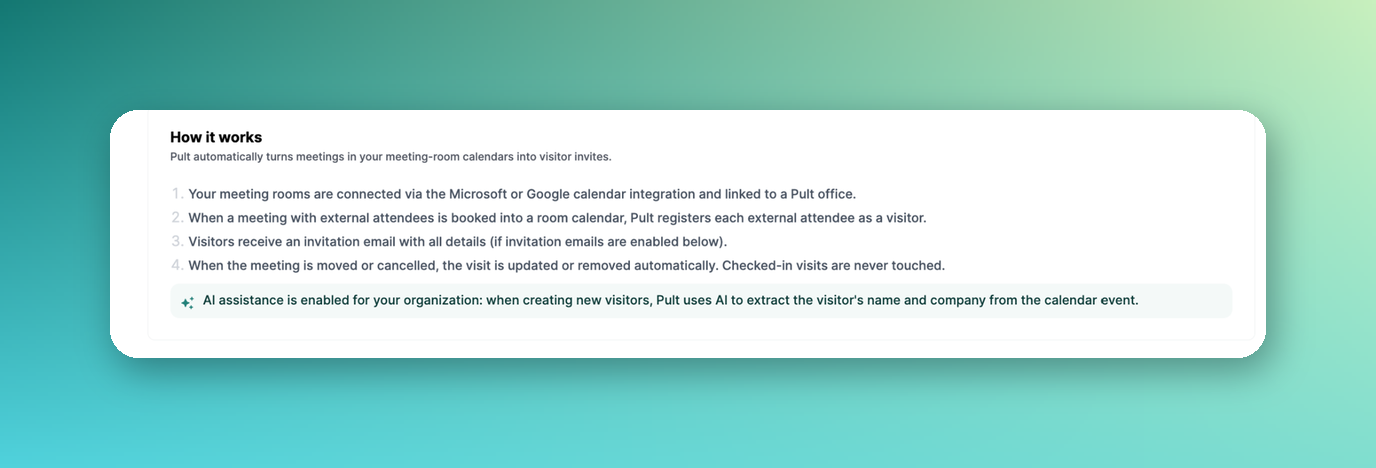
Someone books a meeting with external attendees into a connected meeting room.
PULT registers each external attendee as a visitor for the office of the room.
The visitors receive an invitation email with all details (if invitation emails are switched on).
If the meeting is moved or cancelled, the visit is updated or removed automatically. Visits that are already checked in are never changed.
If AI assistance is enabled for your organization, PULT uses AI to extract the visitor's name and company from the calendar event.
Settings
In the PULT dashboard, go to Settings → Visitors → Calendar integration.
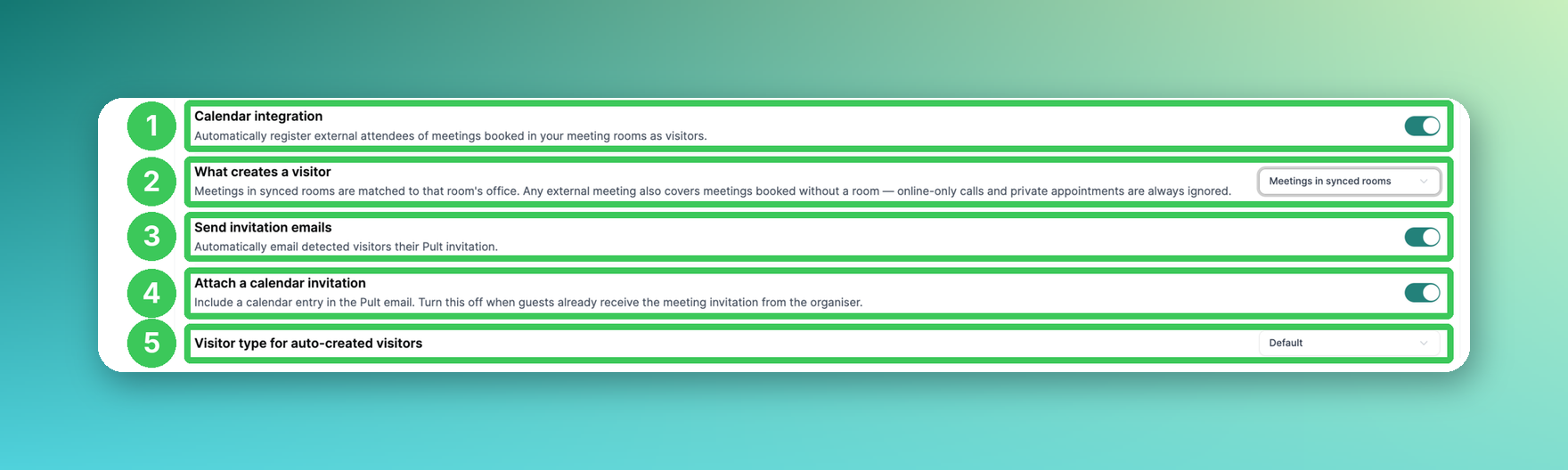
1. Calendar integration
Switches the automatic visitor registration on or off.
2. What creates a visitor
Choose which meetings create visitors:
Meetings in synced rooms – only meetings booked into a connected meeting room. The visit is assigned to the office of the room.
Any meeting with an external guest – also includes meetings booked without a room.
Online-only calls and private appointments are always ignored.
3. Send invitation emails
When switched on, detected visitors automatically receive the PULT invitation email. When switched off, the visits are still created, but no PULT email is sent. This only applies to visits from the calendar integration – visitors you invite manually still receive the invitation email.
4. Attach a calendar invitation
Adds a calendar entry (.ics) to the PULT email. Switch this off if your guests already receive the meeting invitation from the organiser, so they don't get two calendar entries.
5. Visitor type for auto-created visitors
Choose which visitor type is assigned to visitors created by the calendar integration. The visitor type determines the check-in flow at the kiosk (see How to add/create different Visitor types).
Rooms that are not synced
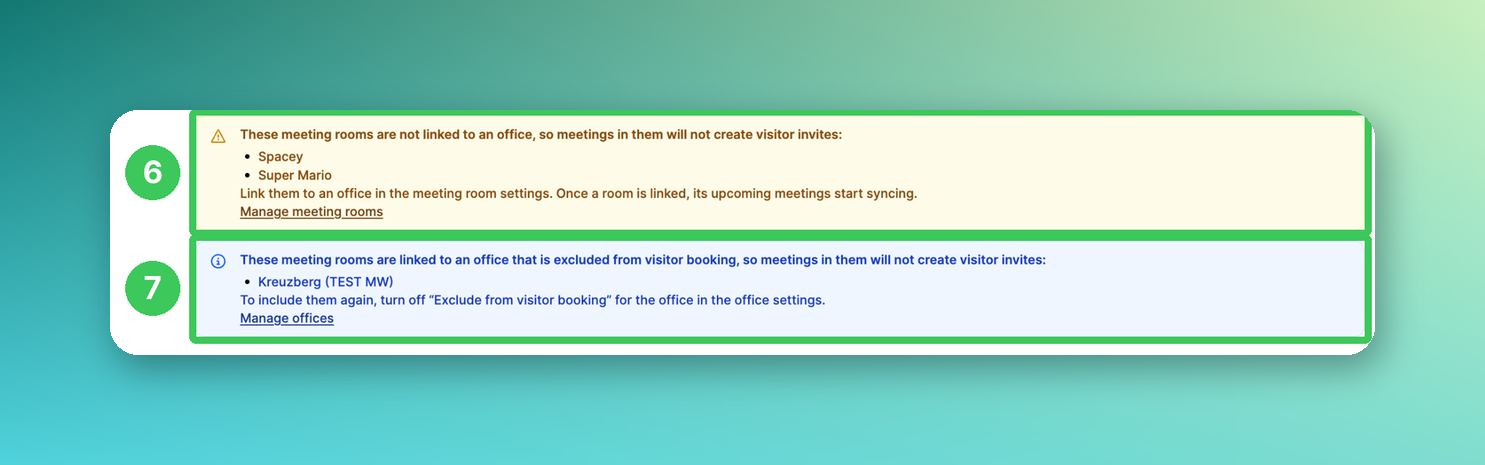
6. Rooms without an office
Meetings in these rooms do not create visitors. Click Manage meeting rooms and link the rooms to an office. Once a room is linked, its upcoming meetings start syncing.
7. Rooms in excluded offices
These rooms belong to an office that is excluded from visitor booking. To include them, switch off Exclude from visitor booking for the office (see Exclude Specific Offices from Visitor Management).
Sync activity
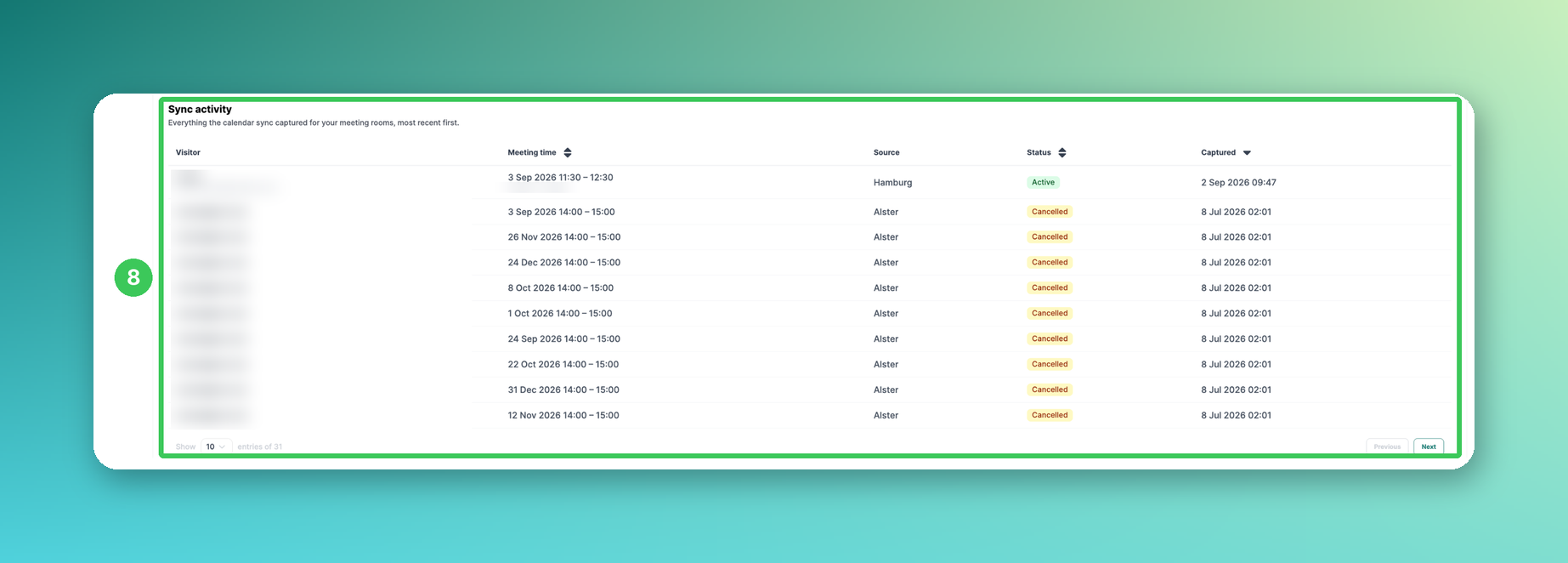
8. Sync activity
Shows everything the calendar sync has captured for your meeting rooms, most recent first: visitor, meeting time, source (room or office), status (e.g. Active or Cancelled) and when the entry was captured.
Frequently asked questions
Does the meeting organiser have to do anything?
No. It is enough to book the meeting room with the external attendees in Outlook or Google Calendar.
What happens if the meeting is cancelled?
The visit is removed automatically and shows as cancelled in the sync activity (8). Visits that are already checked in are never changed.
Is our reception informed about these visits?
Yes, if reception email addresses are set up for the office (see Guest Booking Settings).
I don't see the calendar integration in my settings.
Please contact our support team – we will check whether it can be activated for your organization.
Related articles
If you have any questions, feel free to contact our support team at support@pult.com.