Visitor Approvals: Approve Visits, Block and Allow Lists
Last updated: November 10, 2026
With visitor approvals, you decide which visitors need someone’s approval before their visit goes ahead, and who gives it. Block and allow lists sort known visitors automatically. This article shows admins how to set it up.
📌 Availability: If you don’t see Approvals under Settings → Visitors, visitor approvals are not active for your organization yet. Contact us at support@pult.com.
Approval settings
In the PULT dashboard, go to Settings → Visitors → Approvals.
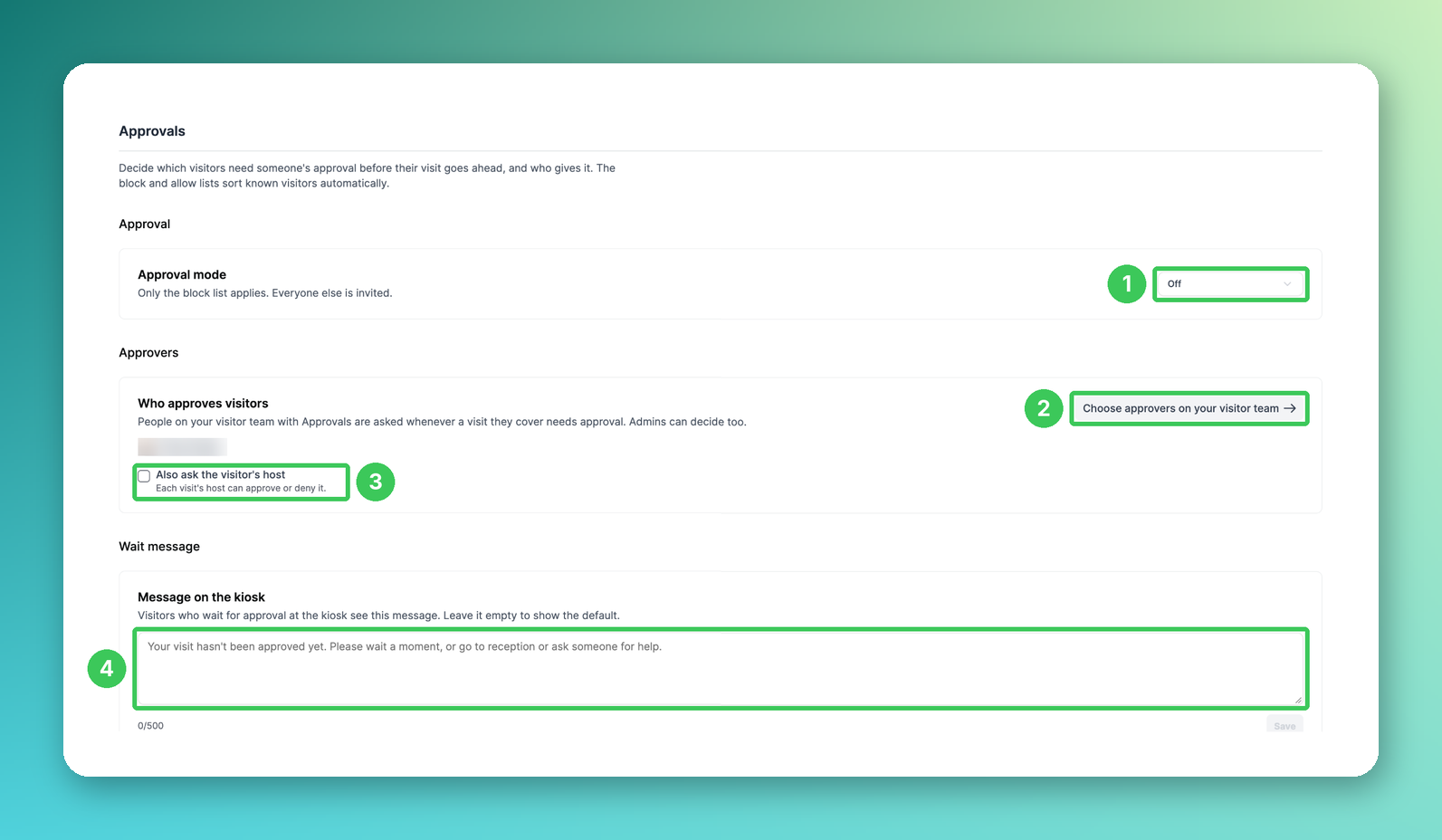
1. Approval mode
Choose when a visit needs approval: Off (only the block list applies, everyone else is invited), First visit or Every visit.
2. Approvers
People on your visitor team with Approvals are asked whenever a visit they cover needs approval. Admins can decide too. Click Choose approvers on your visitor team to change who approves (see Visitor Team: Reception Emails and Kiosk Alerts).
3. Also ask the visitor’s host
When ticked, the host of each visit can approve or deny it as well.
4. Message on the kiosk
Visitors who wait for approval at the kiosk see this message (max. 500 characters). Leave it empty to show the default message, then click Save.
Block list and allow list
Scroll down on the same page.
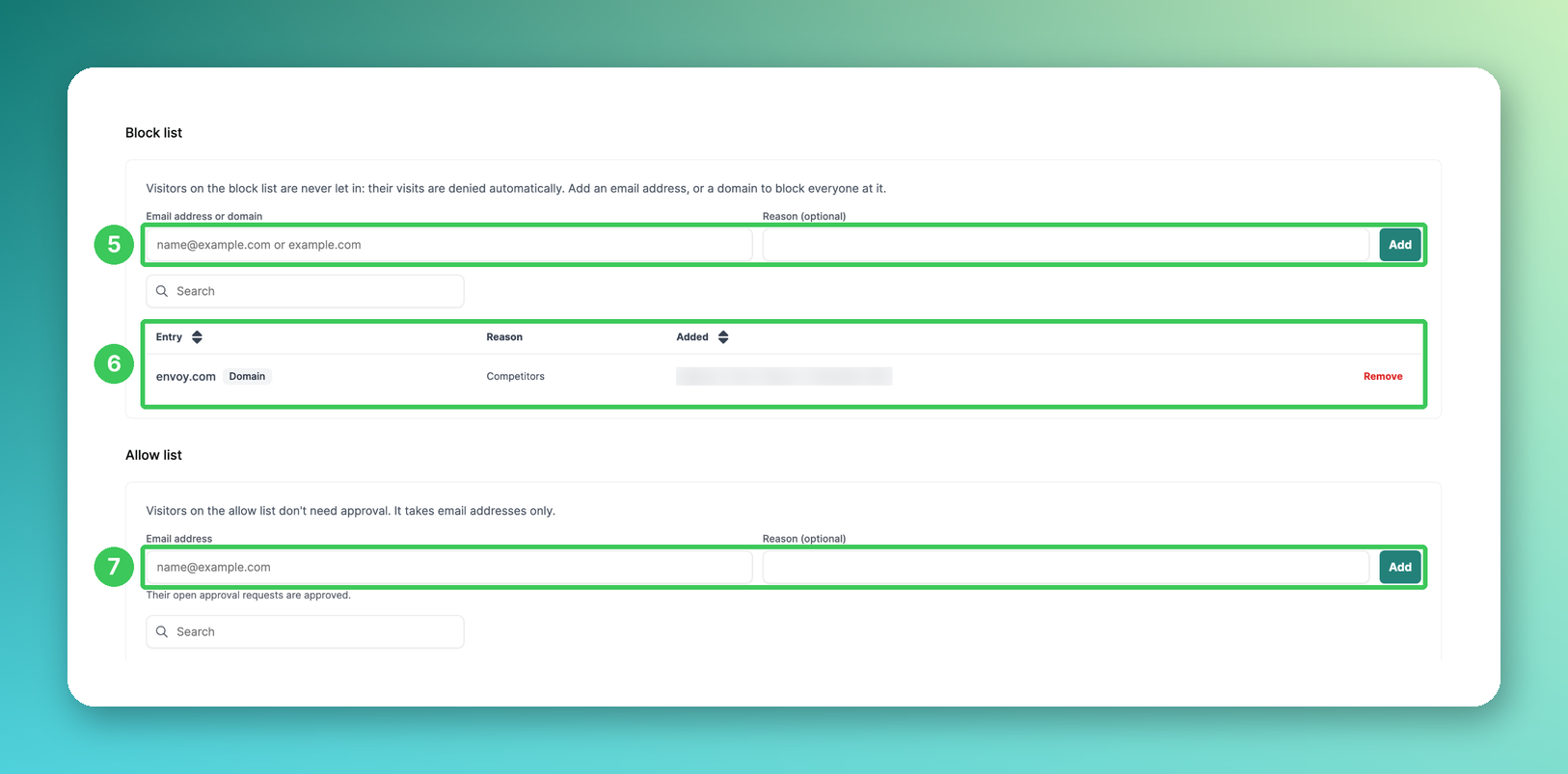
5. Add to the block list
Visitors on the block list are never let in: their visits are denied automatically. Enter an email address – or a domain such as example.com to block everyone at it – and an optional reason, then click Add.
6. Block list entries
All blocked addresses and domains with reason, who added them and when. Use the search to find an entry and Remove to delete it.
7. Add to the allow list
Visitors on the allow list don’t need approval. The allow list takes email addresses only. When you add someone, their open approval requests are approved.
You can also add a visitor to the block list or allow list directly from their profile in the visitor overview (see Visitor Overview in the Dashboard).
Frequently asked questions
Does the block list work when approvals are off?
Yes. With approval mode Off (1), only the block list applies – everyone else is invited as usual.
Who can approve visitors?
People on the visitor team with Approvals (2), admins and – if ticked – the visitor’s host (3). Only people with an active PULT account can approve.
Where do I see visits that wait for approval?
In the visitor overview, the card Awaiting approval shows today’s visits waiting for a decision (see Visitor Overview in the Dashboard).
Can I block a whole company?
Yes. Add the company’s domain (e.g. example.com) to the block list (5).
Related articles
If you have any questions, feel free to contact our support team at support@pult.com.