Reusable QR Visitor Badges: Scan to Check In and Out
Last updated: November 24, 2026
With reusable QR badges, returning visitors keep their printed badge and scan it at the kiosk to check in or out – no typing, no searching for their name. This article shows admins how to set it up.
📌 Requirements: an iPad kiosk with PULT kiosk app 1.35 or later and badge printing set up (see How do I set up my devices for badge printing?). The browser kiosk can't print badges, so it can't issue QR badges either.
Set how long badges stay valid
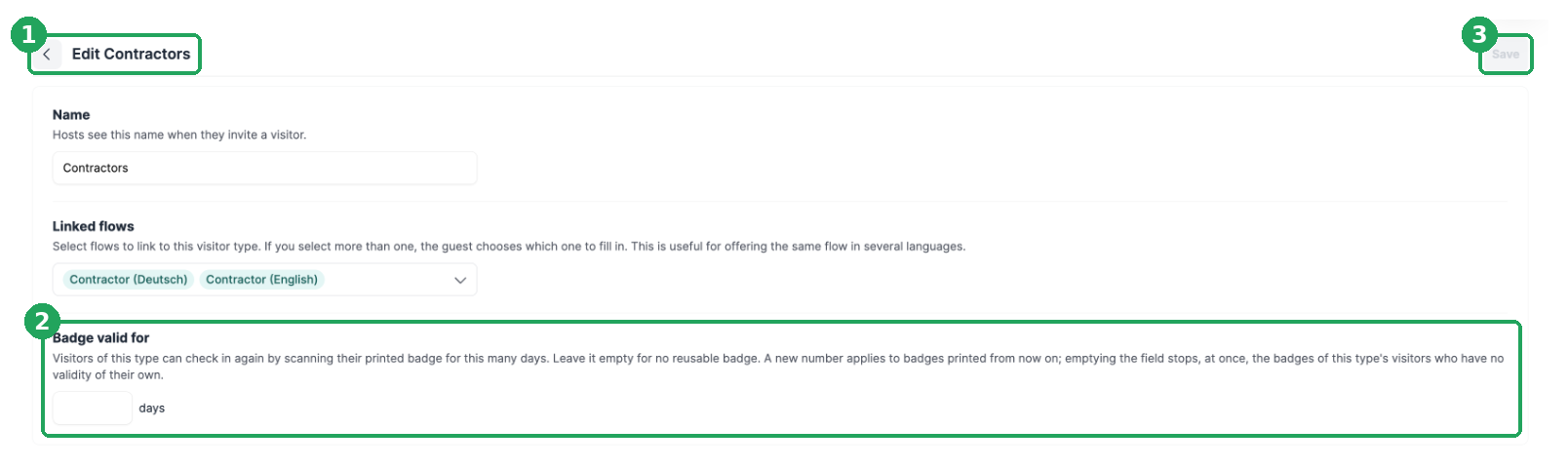
1. Visitor type
In the PULT dashboard, go to Settings → Visitors → Visitor Types and click Edit next to the visitor type, e.g. contractors who come back regularly.
2. Badge valid for
Enter for how many days visitors of this type can check in again by scanning their printed badge. Leave the field empty if this visitor type shouldn't get a reusable badge.
A new number applies to badges printed from now on. Emptying the field blocks the badges of this type's visitors right away – unless a visitor has their own validity (see step 10).
3. Save
Click Save.
Add the QR code to your badge design
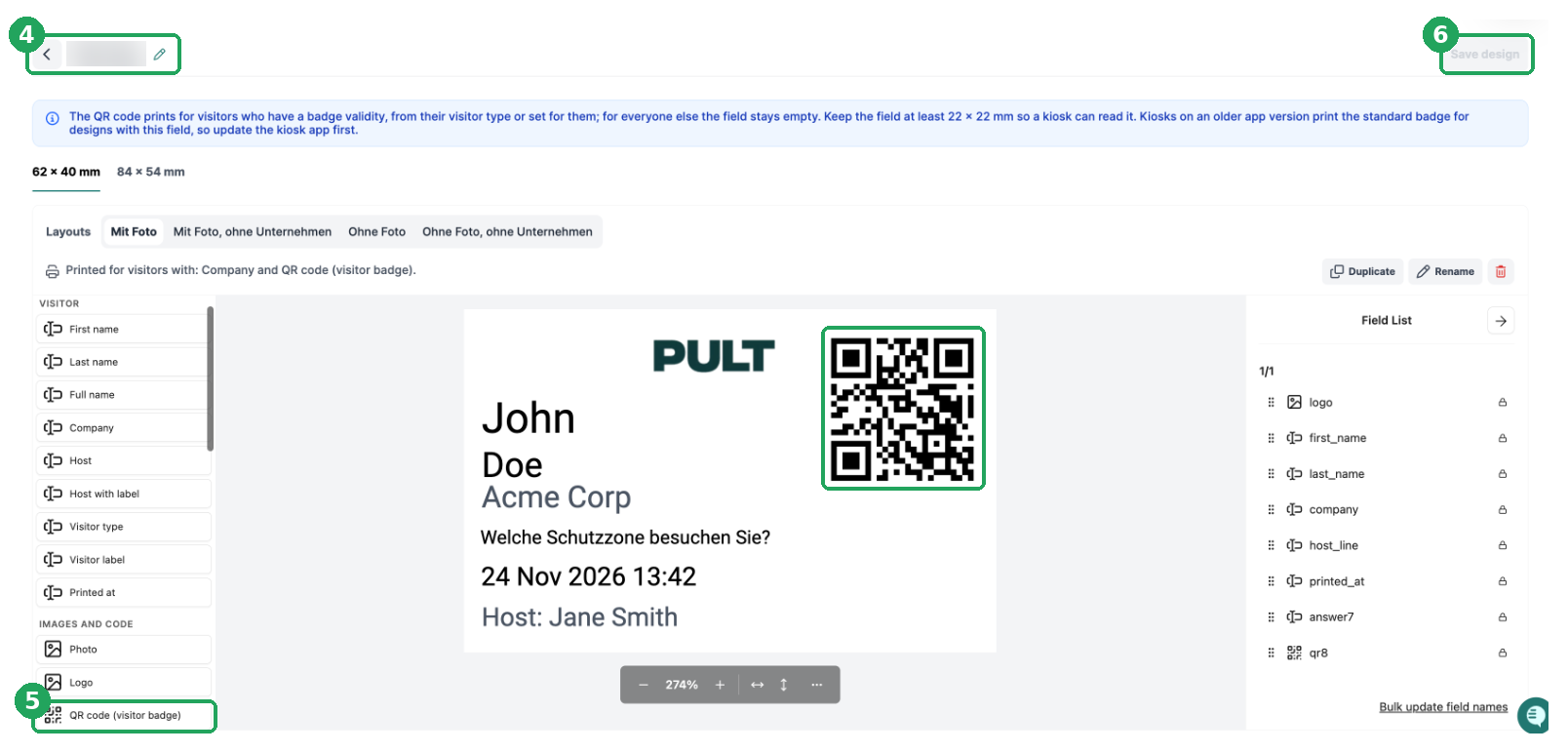
💡 The standard badge prints the QR code automatically. You only need these steps if you use your own badge design (see Visitor Badge Editor: Design your own visitor badges).
4. Badge design
Go to Settings → Visitors → Badges and click Edit next to your design.
5. QR code (visitor badge)
Drag the QR code (visitor badge) field onto the badge. Keep it at least 22 × 22 mm so the kiosk camera can read it. The QR code is only printed for visitors with a badge validity – for everyone else the field stays empty.
⚠ Update your kiosk app first: kiosks with an older app version print the standard badge for designs with this field.
6. Save design
Click Save design.
Turn on QR code scanning on the kiosk
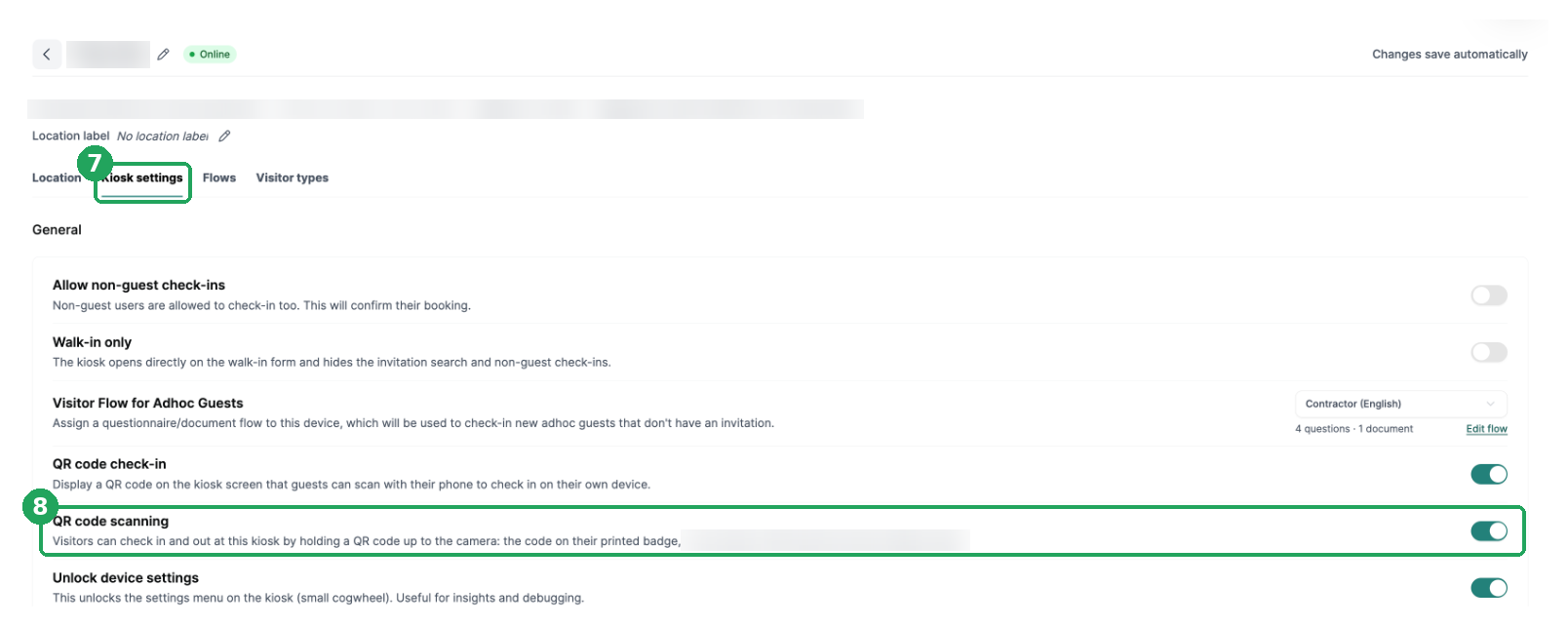
7. Kiosk settings
Go to Settings → Visitors → Kiosks, click the kiosk and open the Kiosk settings tab.
8. QR code scanning
Switch on QR code scanning. Visitors can then check in and out at this kiosk by holding the QR code on their printed badge up to the camera. Changes are saved automatically. Repeat this for every kiosk that should accept badges.
Change the validity for a single visitor
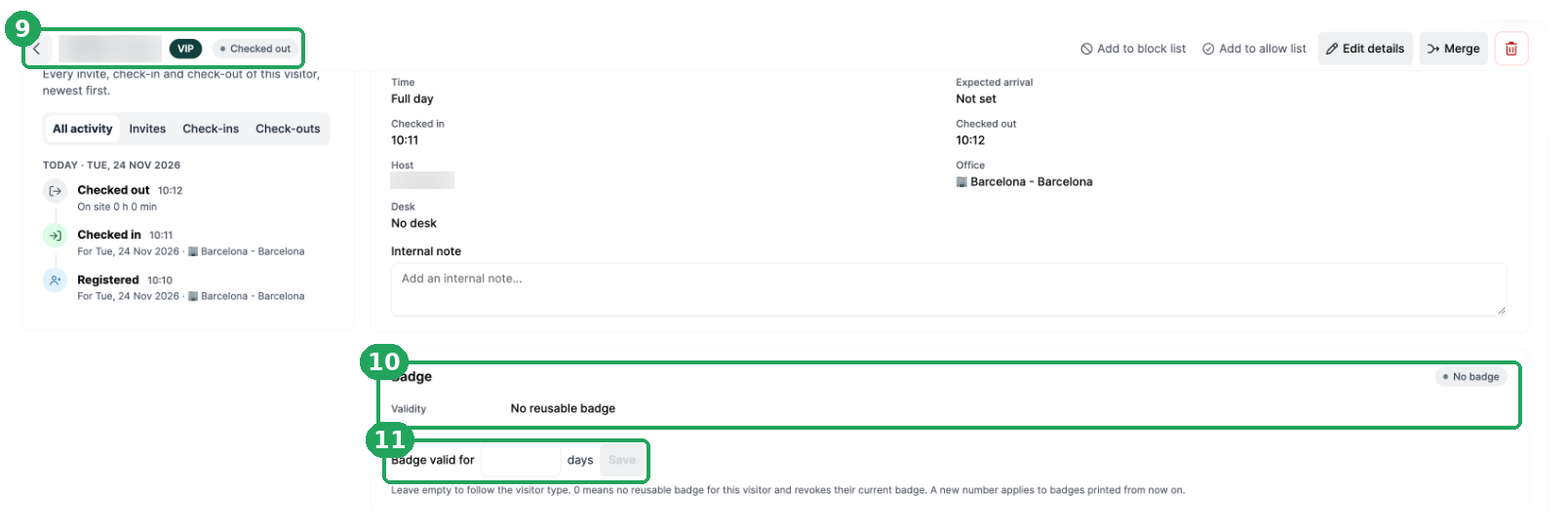
9. Visitor profile
Go to Visitors and open the visitor's profile.
10. Badge
The Badge section shows whether the visitor has a reusable badge and how long it is valid.
11. Badge valid for
Enter a number of days for this visitor and click Save:
Empty: the visitor follows the validity of their visitor type.
0: no reusable badge for this visitor – their current badge is revoked immediately.
Any other number: applies to badges printed from now on.
How it works for visitors
First visit: the visitor checks in as usual and the kiosk prints a badge with a QR code.
Next visits: the visitor scans the badge at the kiosk. PULT recognises them and only asks for questions and documents that aren't done yet.
Check-out: the visitor scans the badge again when leaving.
Expired or revoked badge: the kiosk shows a neutral message and the visitor checks in with the normal search.
Frequently asked questions
A visitor lost their badge. What should I do?
Open the visitor's profile, enter 0 under Badge valid for and save – the lost badge stops working immediately. Then clear the field (or enter the number of days again) so the visitor gets a new badge at their next check-in.
Why wasn't a QR code printed on the badge?
Check that the visitor's type (or the visitor) has a badge validity, that the kiosk runs app 1.35 or later and – for your own designs – that the QR code (visitor badge) field is on the badge.
Can someone use a copied badge?
A badge only works while it's valid, and you can revoke it at any time. If you need extra security, have your reception check the visitor's ID as well.
Does the QR code check-in on the kiosk screen still work?
Yes. QR code check-in shows a code on the kiosk that visitors scan with their phone (see Visitor Management: QR Code Check-in). Reusable badges work the other way round: the kiosk scans the badge.
Related articles
If you have any questions, feel free to contact our support team at support@pult.com.