Visitor Management: QR Code Check-in
Last updated: May 6, 2026
The QR Code Check-in allows visitors to check in at your office by scanning a QR code on the kiosk with their own smartphone - no queuing at the tablet required.
📌 Note: This feature is designed for visitors only (external guests, contractors, interviewees, etc.) - not for employee desk check-ins.
How it works
The kiosk displays a QR code on screen
Visitors scan it with their phone
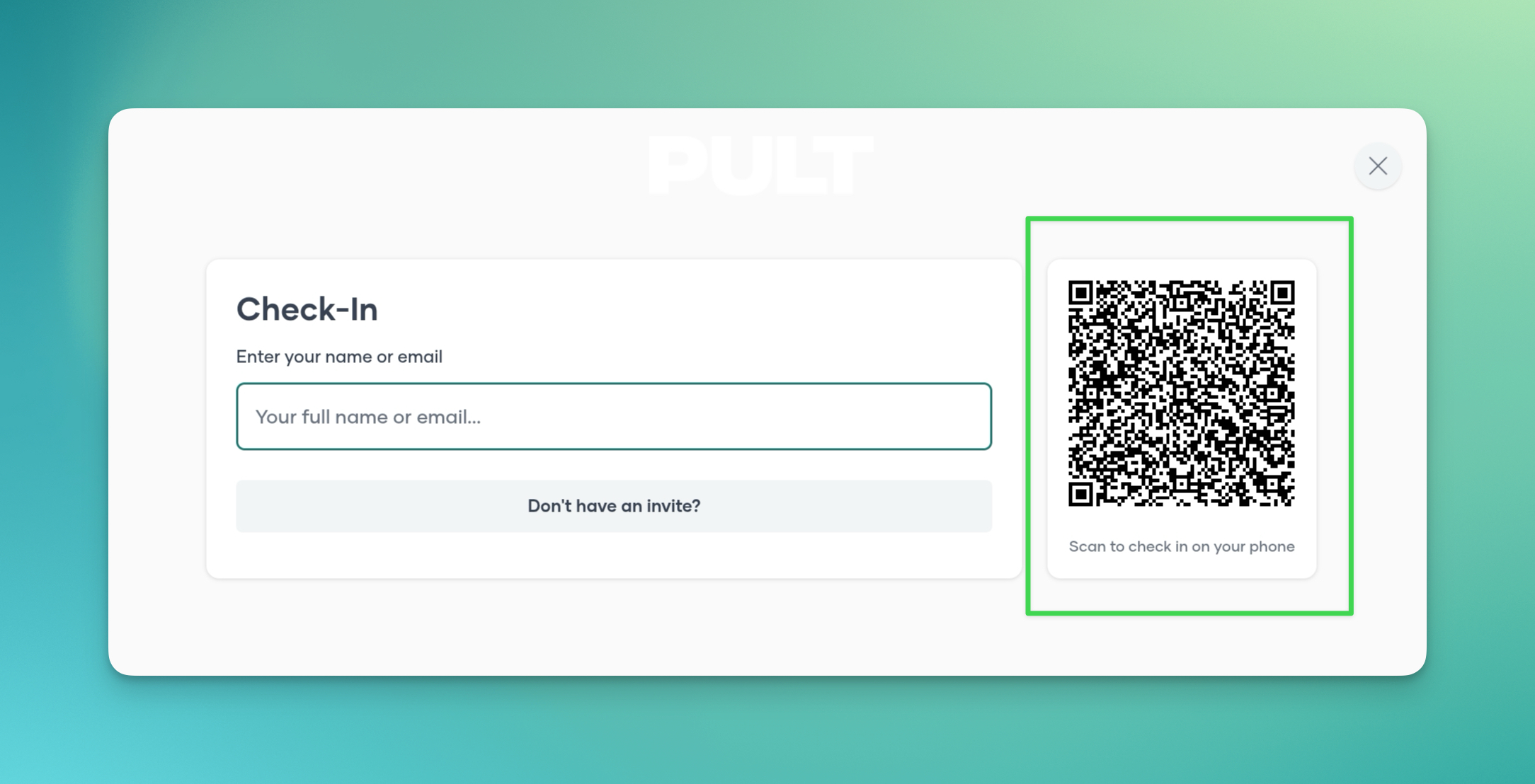
They complete the full check-in flow on their own device (visitor type, details, documents, signatures, etc.)
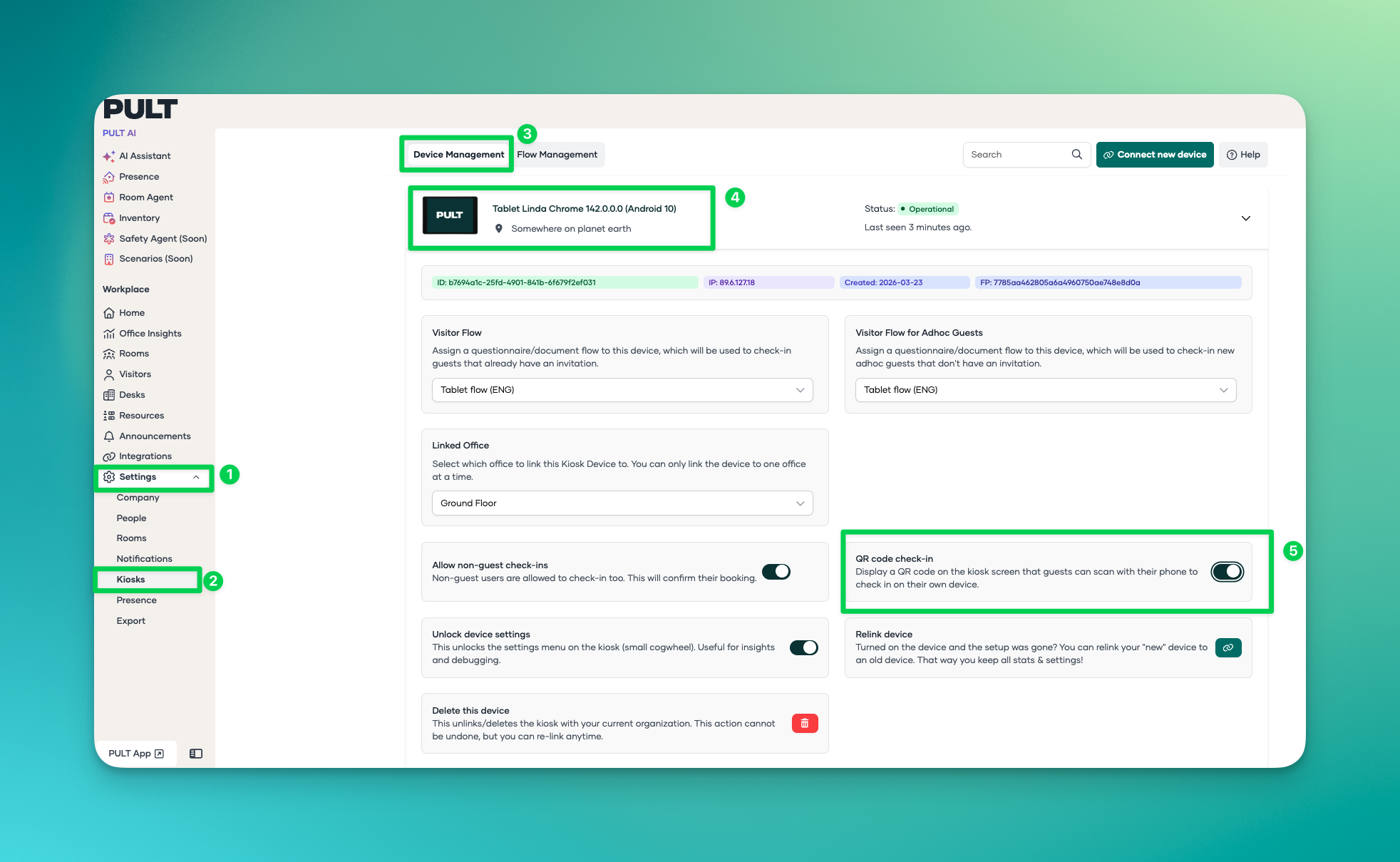
1. Where to enable the QR Code Check in, in Dashboard
Open the PULT Dashboard
Navigate to the Kiosk
Choose the Kiosk you want to enable to QR Code for
Enable the toggle on QR Code Check-in
2.Security & timing
QR code validity
Each QR code is valid for 5 minutes, after which it automatically refreshes
Screenshots or photos of old codes cannot be reused
Time to complete check-in
Once scanned, visitors have 20–25 minutes to complete their check-in
This session remains valid even after the QR code on the kiosk has refreshed
Why these limits exist The time limits prevent misuse such as checking in remotely, sharing codes with people not on site, or reusing codes for fraudulent check-ins. This ensures only visitors physically present at the kiosk can check in.
3.Why we built it
Faster group check-ins When many visitors arrive at the same time (e.g. workshops, trainings, events), they can all scan the same QR code one after another and each complete their check-in on their own phone - no more queuing at one device.
Less waiting at reception Visitors can quickly hand over the check-in to their phone and step aside, keeping the kiosk free for others.
💬 Need help? Reach out to your PULT Customer Success Manager or our support team.