Visitor Badge Editor: Design your own visitor badges
Last updated: October 19, 2026
This guide explains how admins and visitor managers can design custom visitor badges in PULT with the Visitor Badge Editor and assign them to a check-in flow.
1. Open the badge designs
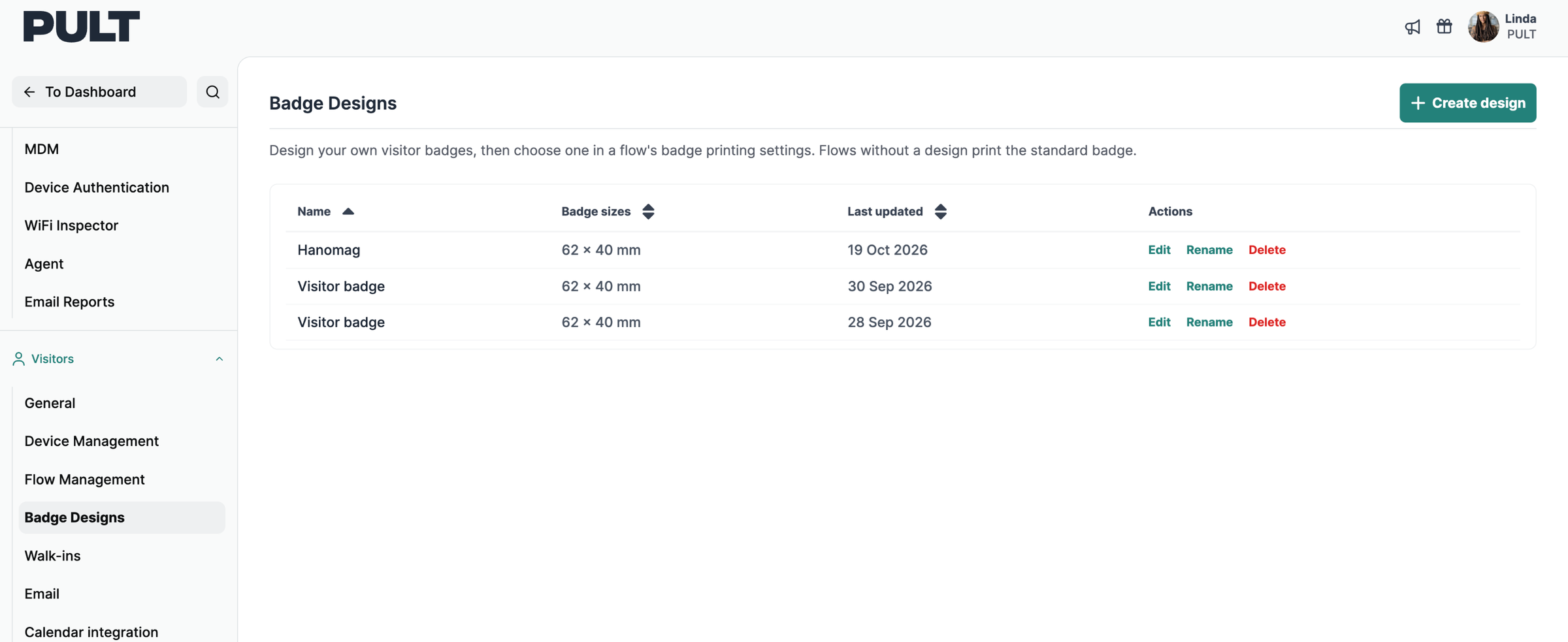
In the PULT dashboard, go to Settings → Visitors → Badge Designs.
Here you'll see all existing badge designs with their badge size and the date they were last updated. For each design you can choose Edit, Rename or Delete.
2. Create a new design
Click Create design in the top right corner.
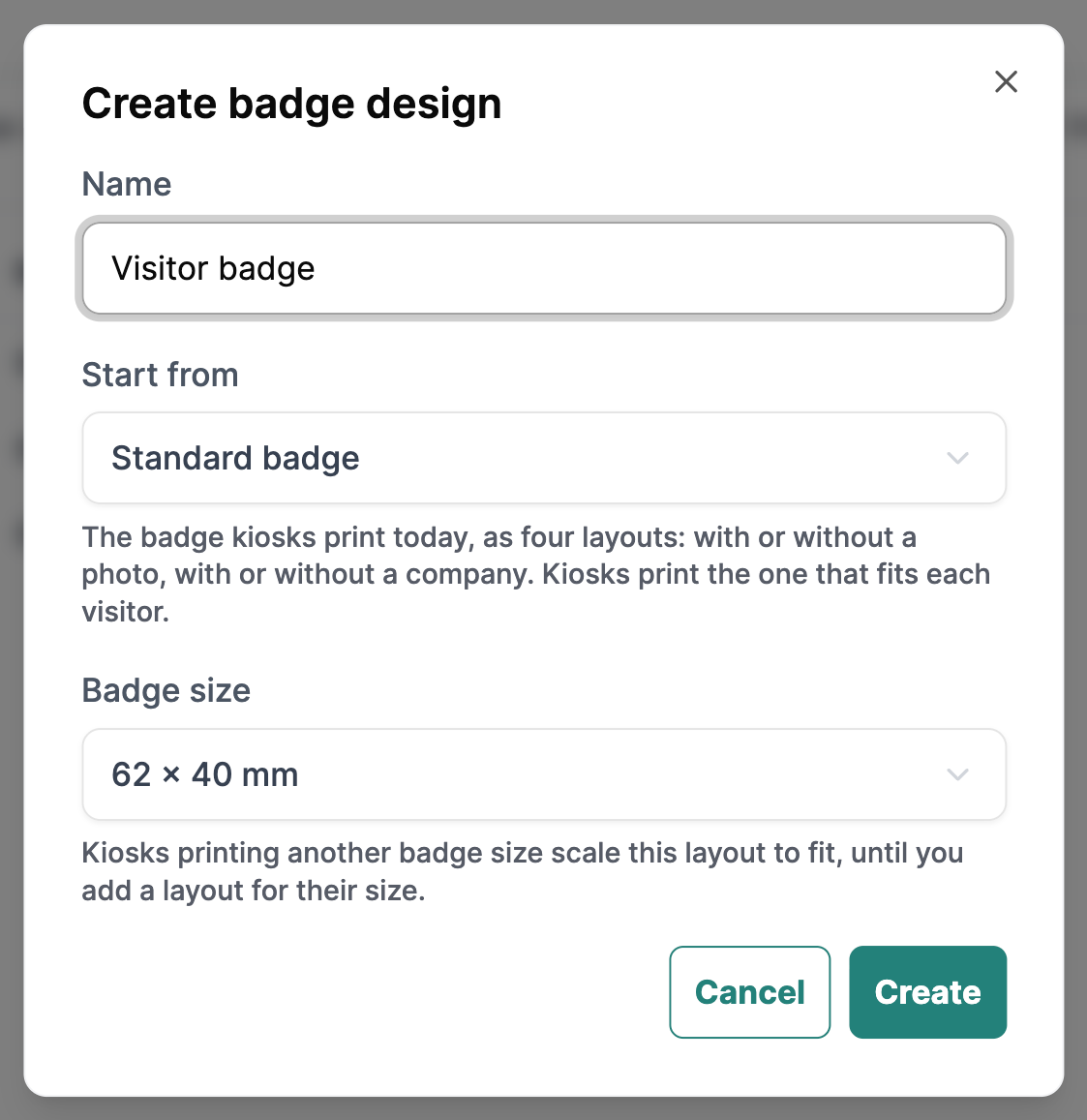
Enter a Name for your design.
Under Start from, choose:
Standard badge: the badge kiosks print today, already prepared as four layouts (with or without photo, with or without company). A good starting point if you only want to make small changes.
Blank badge: an empty badge you design from scratch.
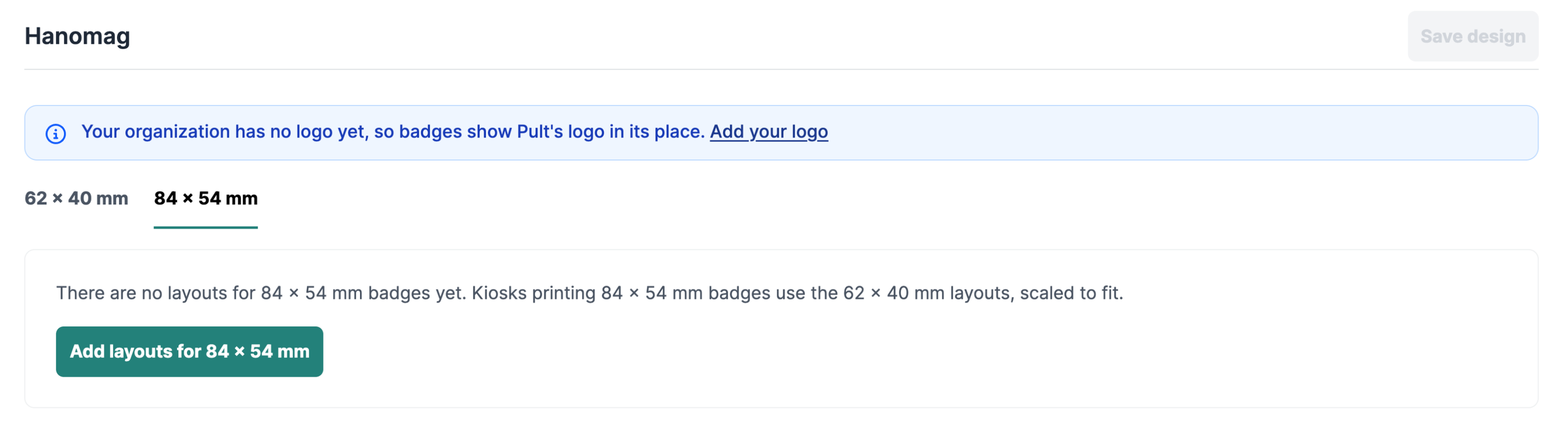
Choose the Badge size: 62 × 40 mm or 84 × 54 mm. Kiosks that print another badge size scale this layout to fit until you add a layout for their size.
Click Create. The editor opens.
3. Understand the layouts
Each badge size has four layouts:
With photo
With photo, without company
Without photo
Without photo, without company
For each visitor, the kiosk automatically prints the layout that fits best, depending on whether a photo was taken and whether a company was entered. Above the editor you can see which visitor data a layout is printed with (e.g. "Printed for visitors with: Company").
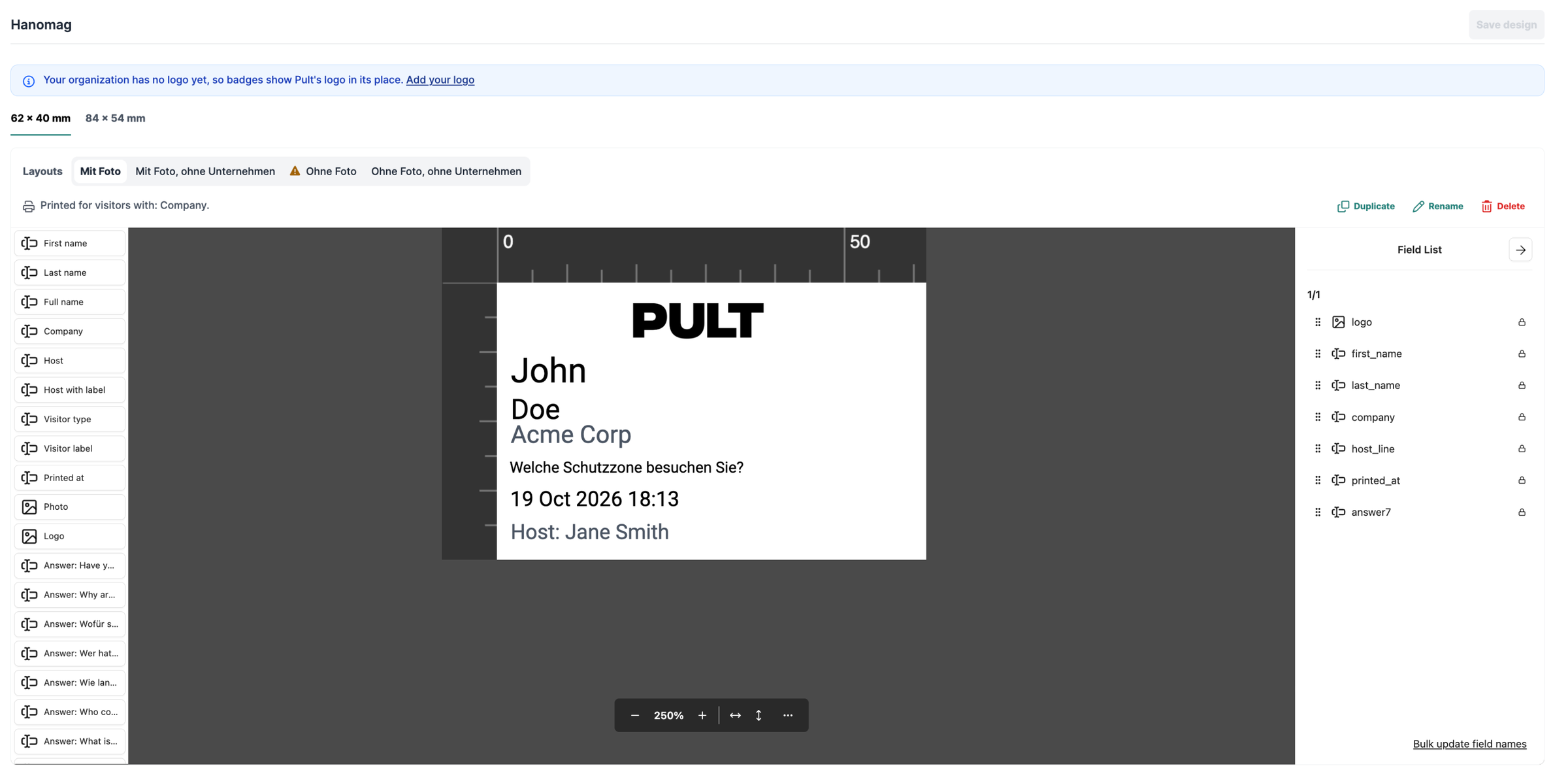
If a layout shows a warning triangle, kiosks never print it because another layout always fits visitors better. In that case, change what the layout shows or delete it.

With Duplicate, Rename and Delete above the editor you manage the currently selected layout.
4. Add fields and elements
On the left side of the editor you'll find all elements you can place on the badge:
Visitor and visit data: First name, Last name, Full name, Company, Host, Host with label, Visitor type, Visitor label, Printed at
Images: Photo, Logo
Answers to your check-in questions: every question from your flows is available as "Answer: …", so you can print e.g. the area being visited or WiFi access directly on the badge
Design elements: Text, Line, Rectangle, Ellipse
Add the elements you need to the badge and position them on the preview.
The Field List on the right shows all elements of the current layout. You can use the handle next to each entry to change the order.
Use the zoom bar below the preview to zoom in or out, or to fit the badge to the width or height of the editor.
5. Edit an element
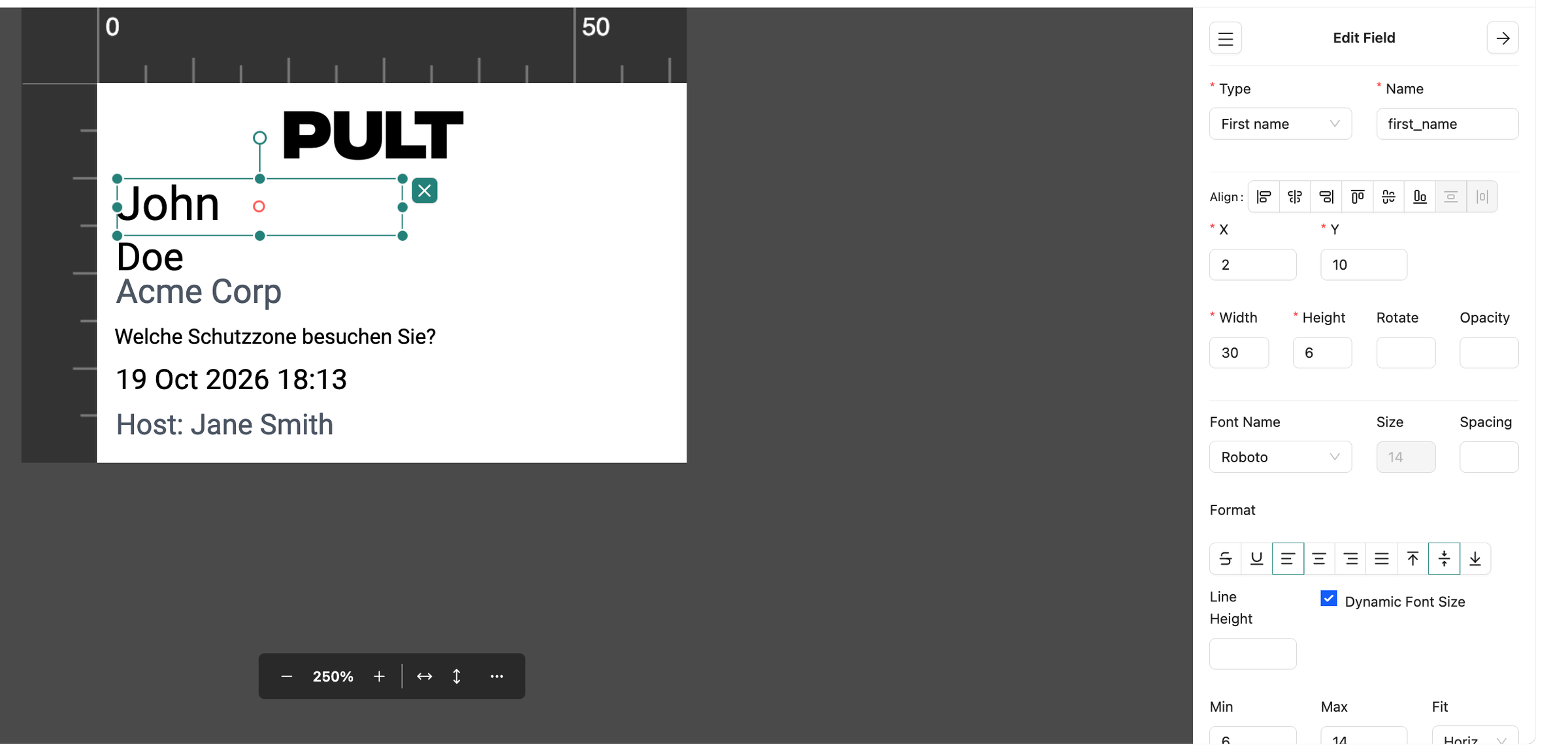
Click an element on the badge to open the Edit Field panel. Depending on the element, you can adjust:
Type and Name of the field
Align, position (X, Y), Width, Height, Rotate and Opacity
Font Name, Size, Spacing, Format and Line Height
Dynamic Font Size with a minimum and maximum, so long names still fit on the badge
Text Color, Background Color, Border Color, Border Width and Padding
6. Add layouts for the second badge size
Switch to the other badge size using the tabs above the layouts (62 × 40 mm / 84 × 54 mm).
If there are no layouts for that size yet, kiosks printing that size use the layouts of the other size, scaled to fit. If you'd like a dedicated design, click Add layouts for 84 × 54 mm (or the other size accordingly).
7. Save your design
Click Save design in the top right corner once you're happy with your badge.
Tip: If your organization has no logo yet, badges show the PULT logo in its place. You can add your own logo directly via the Add your logo link in the editor.
8. Assign the design to a flow
A badge design is only printed once it's assigned to a flow. Flows without a design print the standard badge.
Go to Settings → Visitors → Flow Management.
Click Edit next to the flow you want.
Open the Badge Printing tab.
Under Badge design, select your new design.
Click Save.
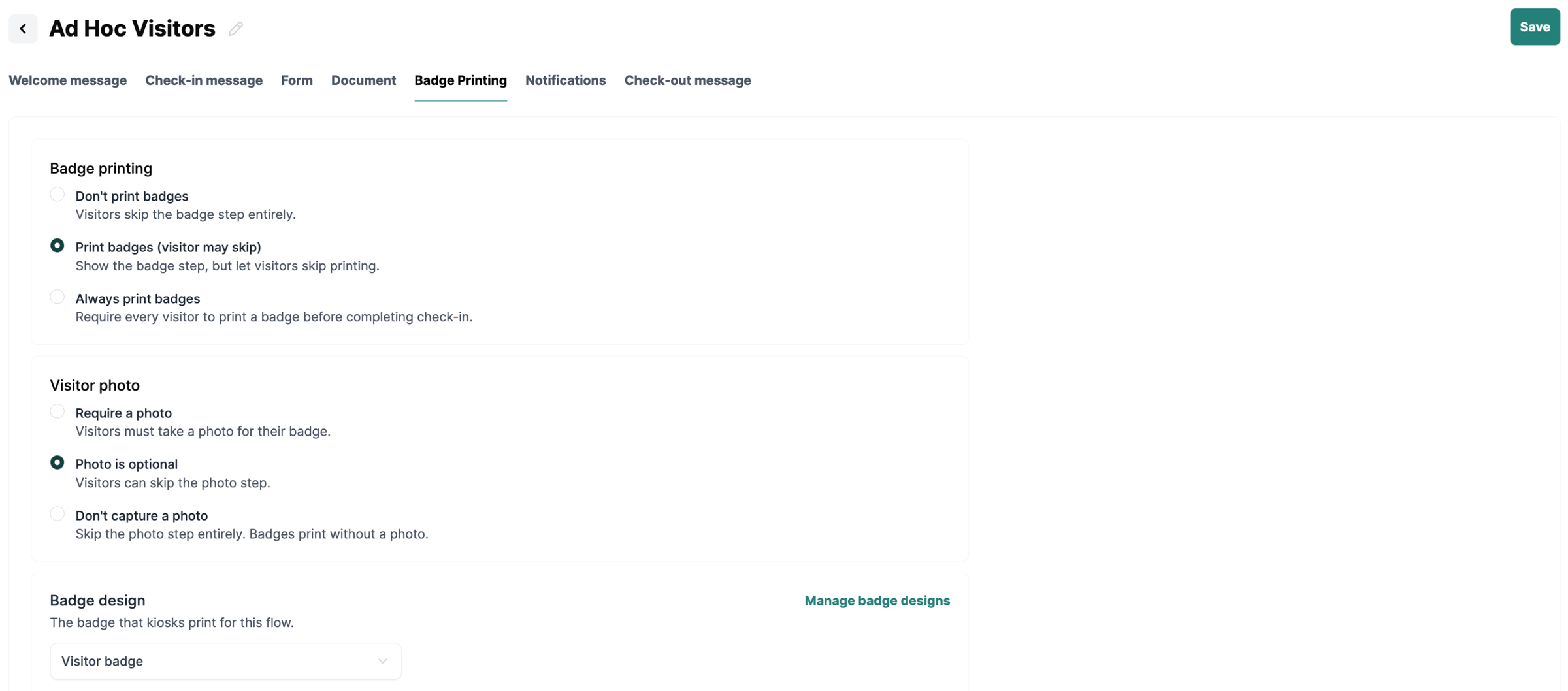
In the same tab you can also define whether badges are printed (Don't print badges, Print badges (visitor may skip) or Always print badges) and whether visitors take a photo (Require a photo, Photo is optional or Don't capture a photo). These settings decide which of your layouts the kiosk prints.
Related: Visitor Badge Size Settings and How do I set up my devices for badge printing?
If you have any questions, don't hesitate to reach out to our support team.